
Blog Date: March 2025
A customer of mine had an issue in their vSphere 8/VMware Cloud Foundation 5.x environment where on some of the 40 Windows OS based VMs, Snapshots created with ‘Quiesce guest file system’ would complete, but Quiesce guest file system would be labeled as ‘No’, or the vSphere snapshot operations task would just outright fail. This issue has been witnessed on Microsoft Server 2012 through Microsoft Server 2022.
There are several things that could affect the successful snapshots of virtual machines:
– VM tools installation or a lack there of.
– VM disk(s) are locked.
– Microsoft VSS errors on the Guest OS during the VM quiescing process.
– Guest File System lacks space.
– Guest File System lacks the Microsoft Reserved (msr) partition.
– Existing snapshots exceeded maximum number, or consolidation needed.
Symptom:
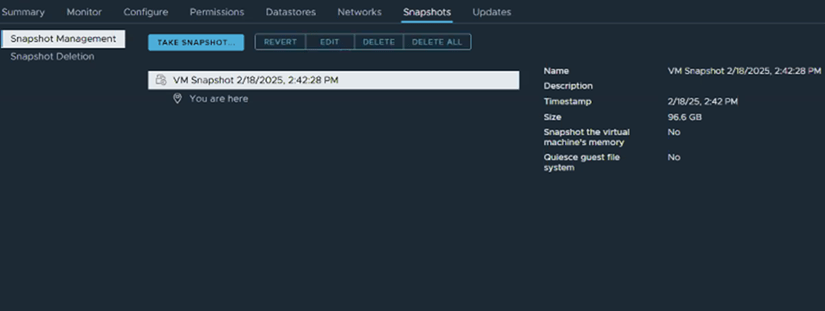
1. vSphere snapshot task with ‘Quiesce guest file system’ selected task completes, however when looking at the details of the snapshot, Quiesce guest file system is marked with ‘No’.
2. You verify that VM Tools is installed, running, and current.
3. Log into the VM to validate that the guest file system has enough free space~20% or so.
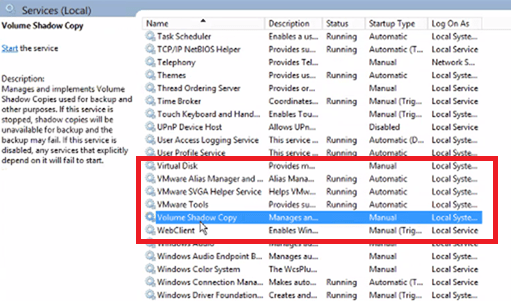
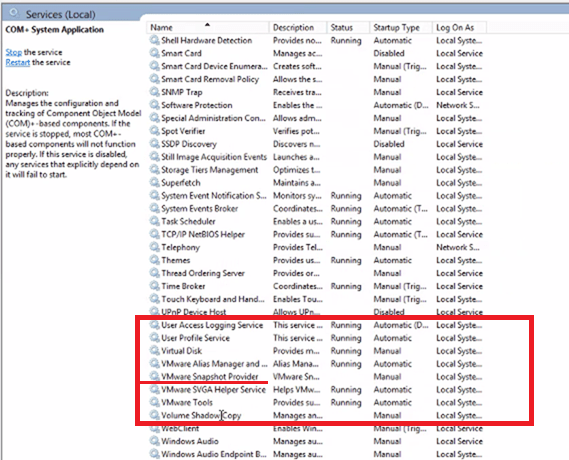
4. Check the Windows Services for “VMware Snapshot Provider”. It should be there, but in this case it would be missing.
Resolution:
In this example, the “Volume Shadow Copy Services Support” feature that gets installed with VMware Tools is malfunctioning, because we do not see the ‘VMware Snapshot Provider’ in Windows services. The following procedure should allow us to remove and re-install the service without the need for a reboot.
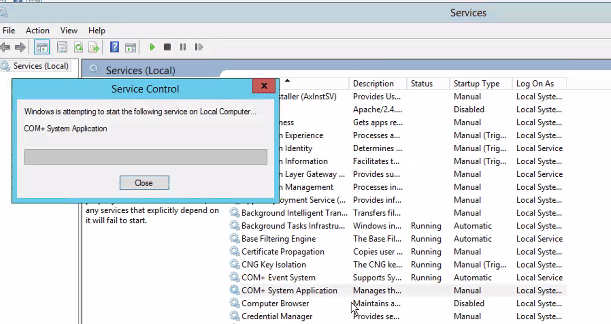
1. Start the COM+ System Application service (Leave startup type ‘manual’).
2. In Windows Control Panel, locate select VMware Tools and click “change”.
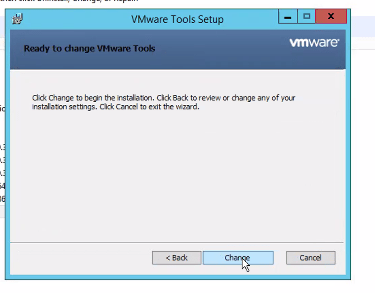
3. We will modify the VMware Tools installation, specifically we are looking for the “Volume Shadow Copy Services Support” at the bottom of the list. This offers VSS support for the guest operating system and facilitates snapshot operations. The service should be installed by default, but in this case is malfunctioning, and we are going to re-install it. Select it, and choose “Entire feature will be unavailable”.
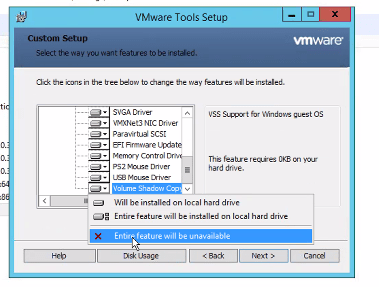
Click ‘Next’ and then click ‘Change’.
4. We will modify the VMware Tools installation again in Windows Control Panel, change the installation once more, select the “Volume Shadow Copy Services Support” at the bottom of the list, and this time select “Entire feature will be installed on local hard drive”.
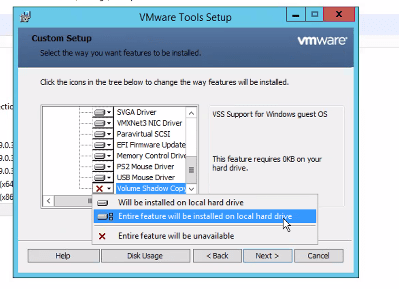
Click ‘Next’ and then click ‘Change’. Wait for the installation to complete.
5. Go back to the Windows Services screen, refresh it, and the ‘VMware Snapshot Provider’ service should now be listed.
6. Go back to vSphere, and take a new snapshot of the VM with ‘Quiesce guest file system’ selected.
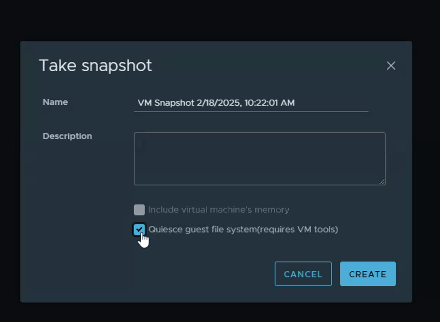
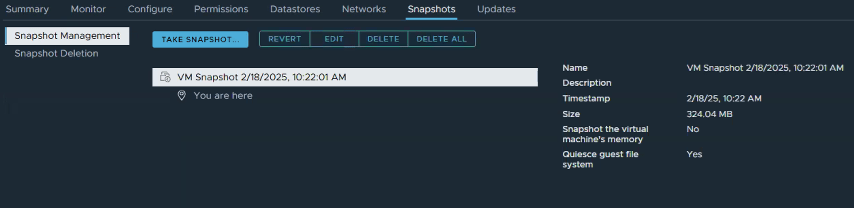
In this example, the snapshot successfully completes, and quiesces the guest file system successfully.
 CaptainvOPS
You must be logged in to post a comment.