
Blog Date: June 2026
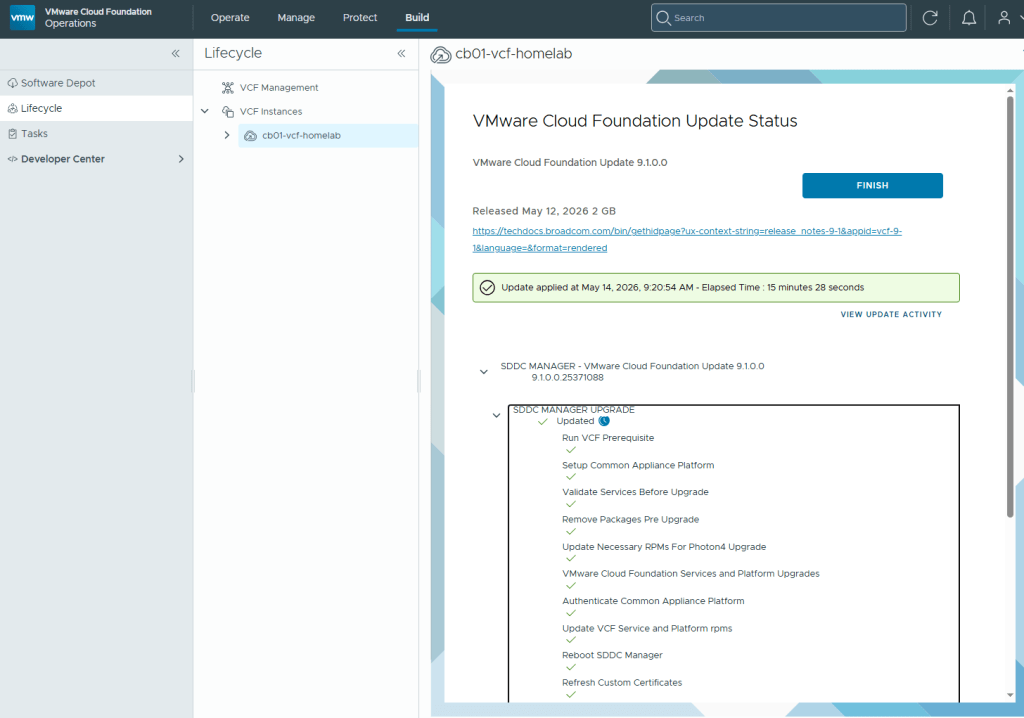
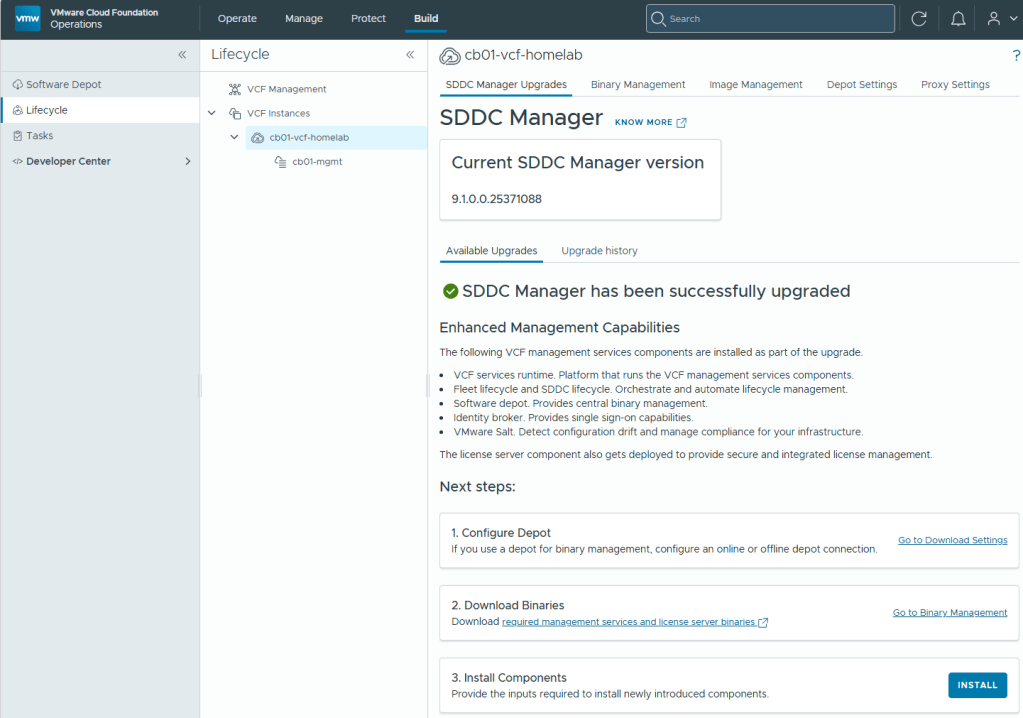
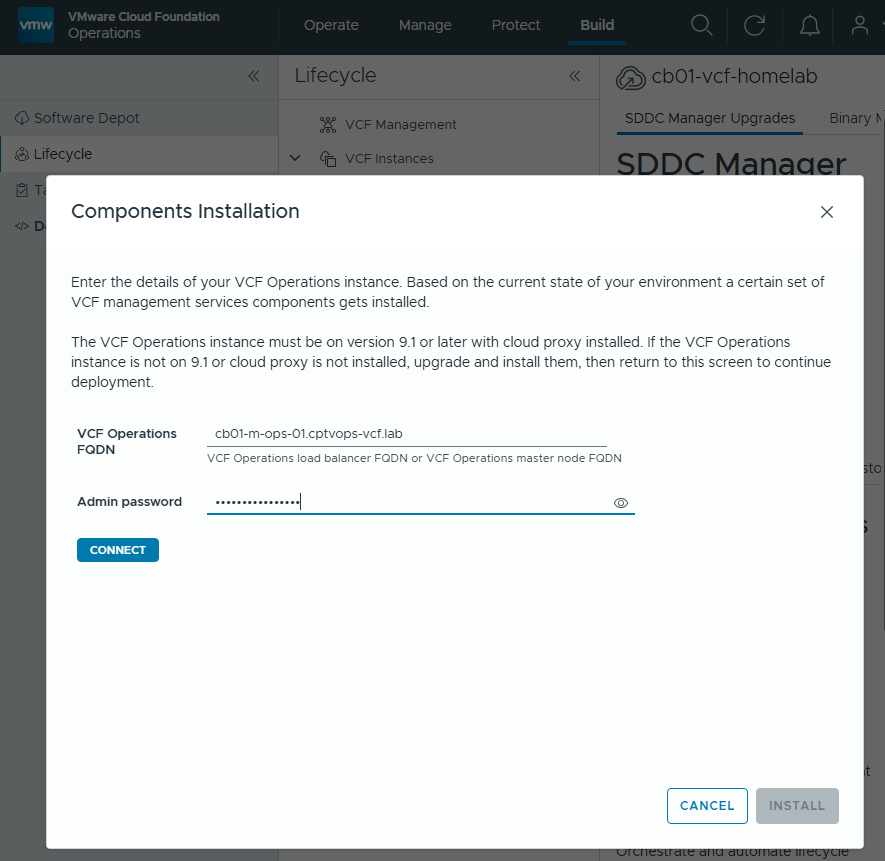
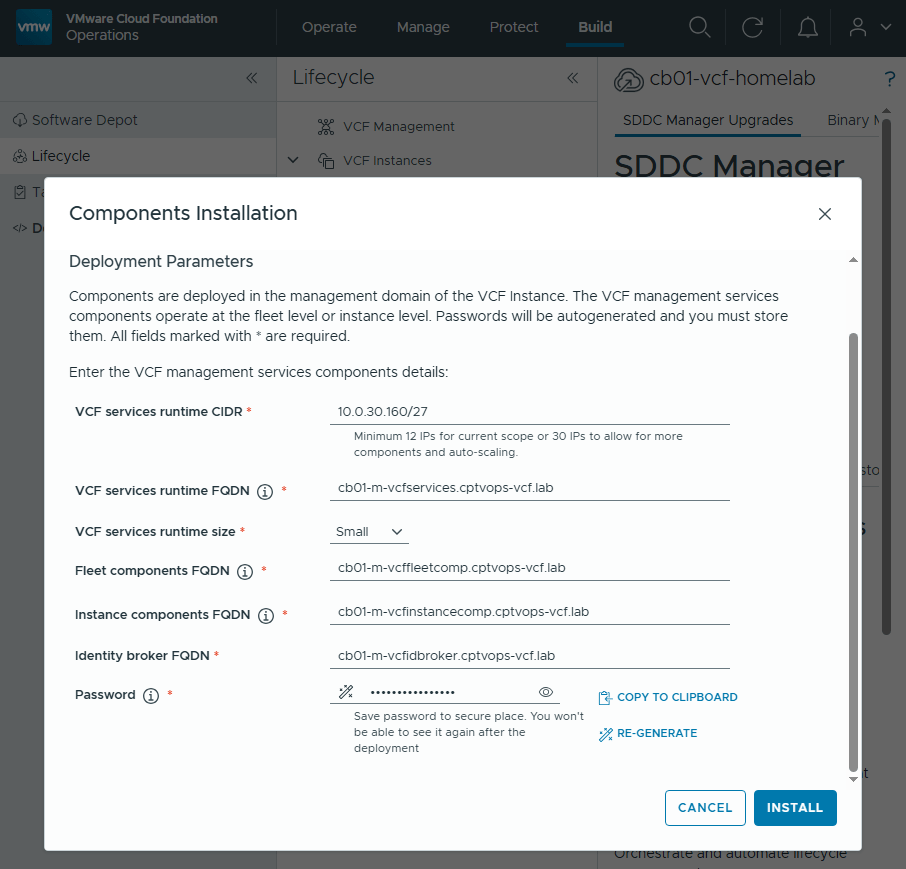
In my previous blog posts, I upgraded the VCF Operations 9.0.2 appliance in my lab to 9.1, deployed and configured the license server, and deployed the new VCF components. Broadcom has released a Upgrade Sequence and Related Issues for VMware Cloud Foundation and vSphere Foundation 9.1.
So far in this blog series I have covered:
I won’t get into the details in this blog post about all of the upgrade challenges/stupidity I ran into in my home lab. Maybe one day it will be worth sharing after cleaning up my notes . It does make me miss the days when I was part of VMware’s Professional Services staff, and I was well informed on internal calls about upgrade sequences, upgrade issues, gotchas, and actually had training prior to the release. However, since Broadcom decided to give the majority of that business to partners, I no longer have access to such important information. I digress… I need to perform a couple of these upgrades in the field on customer production environments to determine what of those challenges were actually real, and not caused by the constraints of running VCF in a home lab.
Now onto Part 3 of this series: Upgrading vCenter, NSX, and ESX.
Now that the new VCF 9.1 components are deployed, I can continue with the core VCF 9 upgrades. First on deck is the NSX Manager Nodes.
Remember to run a pre-check first prior to hitting that ‘UPGRADE NOW’ button. Unlike previous VCF upgrades, the NSX upgrade to 9.1 is completed in two different parts, rather than one bulk order. This stage of the upgrade usually takes a while in production environments, and certainly didn’t disappoint in my home lab.
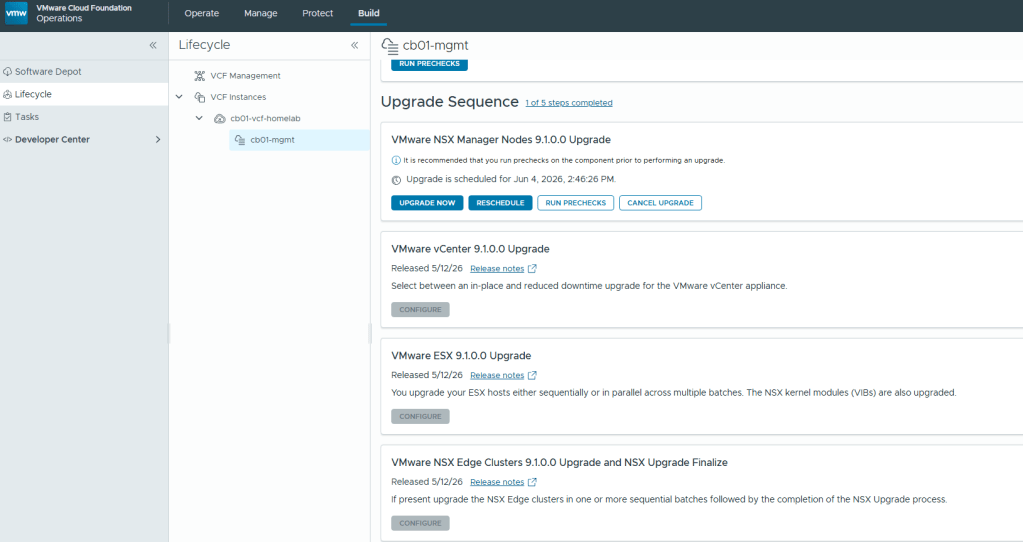
I unfortunately lost the screenshots I had taken during the NSX Manager Node upgrade, however this was pretty straight forward without any issues. After the first NSX upgrade stage was complete, I was then able to upgrade the vCenter.
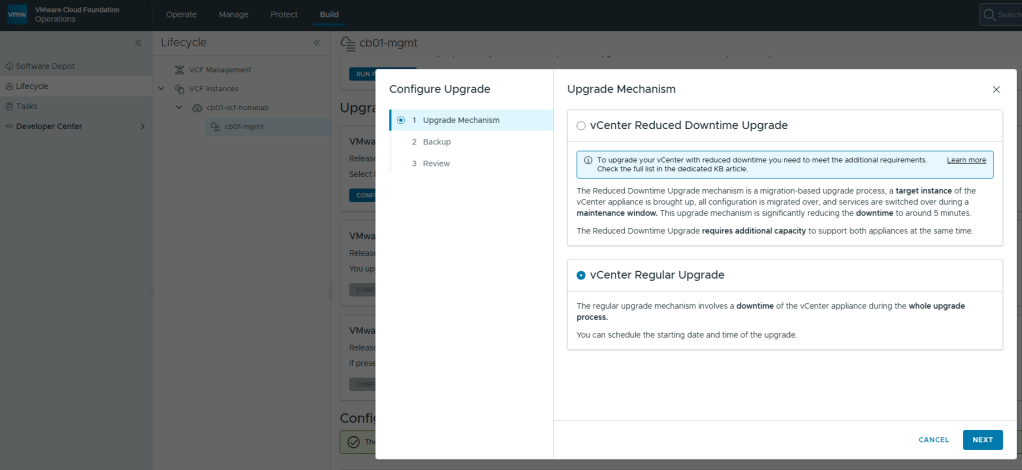
With the vCenter upgrade, you have the option for a reduced downtime upgrade that basically hot swaps the old vCenter appliance for a brand new one, versus doing the regular in place upgrade. In my testing in production environments and in my home lab, you are saving yourself roughly 5-10 minutes using the reduced downtime upgrade option. I opted for the regular upgrade in my lab.
After the vCenter 9.1 upgrade completed, I noticed a configuration upgrade at the bottom of the screen below the NSX Edge Clusters upgrade tile. All that’s needed there is to just click the blue APPLY ALL.
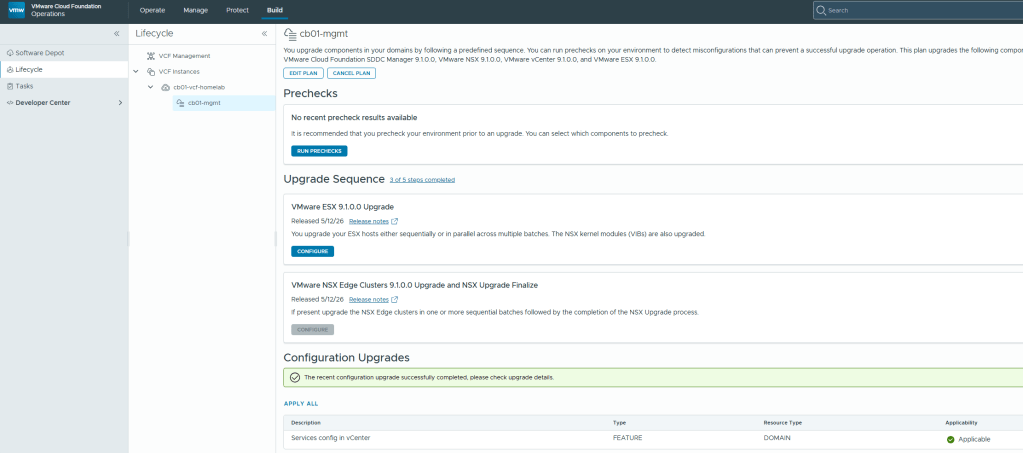
Now that the configuration Upgrades has completed, we can continue with the ESX 9.1 upgrade. Click the “Configure” button to choose how you want to upgrade the cluster, run the pre-check, and start the ESX upgrade process.
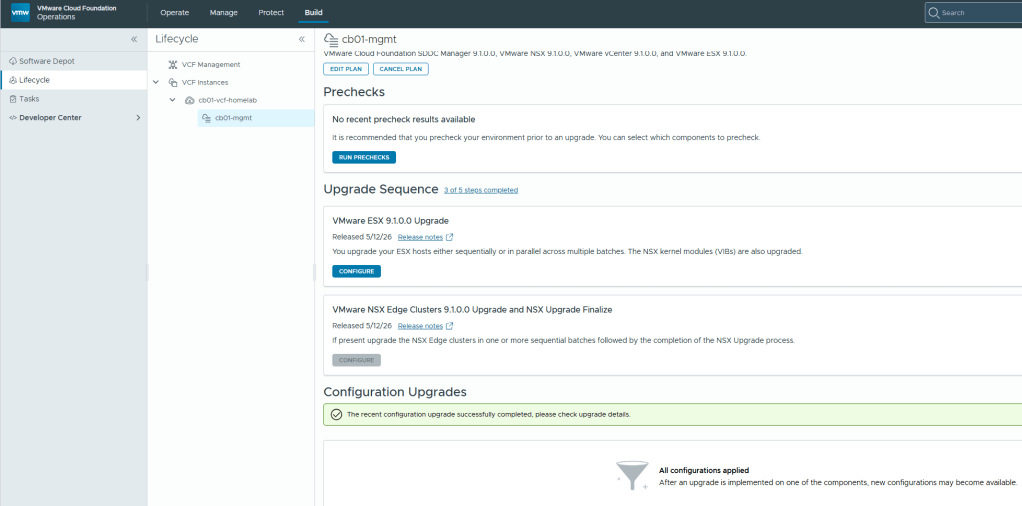
Lastly, we arrive at the “VMware NSX Edge Clusters 9.1.0.0 Upgrade and NSX Upgrade Finalize” tile. Seriously, whomever came up with the long name for that heading should get an award. I digress..
Once you click the CONFIGURE button on the VMware NSX Edge Clusters….. tile, you’ll be able to run the pre-check and then can click the UPGRADE NOW button to start the process.
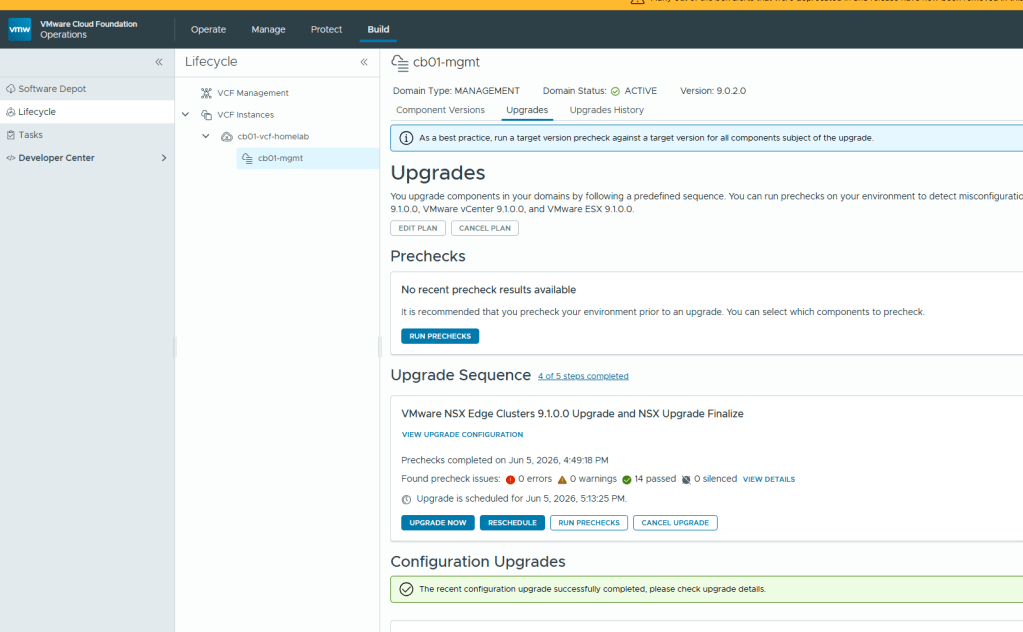
Once this stage of the upgrade completes, the VCF environment should be upgraded to 9.1.
My first thoughts on this VCF 9.1 upgrade is that it felt rushed. There were far too many manual steps that go outside of the traditional automated upgrade process that VCF was known for. I realize that the platform is in a transition phase, but this could have stayed in the oven longer to bake, and more automation processes could have been built in to avoid upgrade sequence issues. I also feel like tailing logs during upgrades to troubleshoot is getting more challenging just because of all the noise in the logs now.
After the VCF 9.1 upgrade, I decided to format my VCF home lab so that I can go through the deployment process of 9.1. Until next time. Stay safe out there in VCF land…

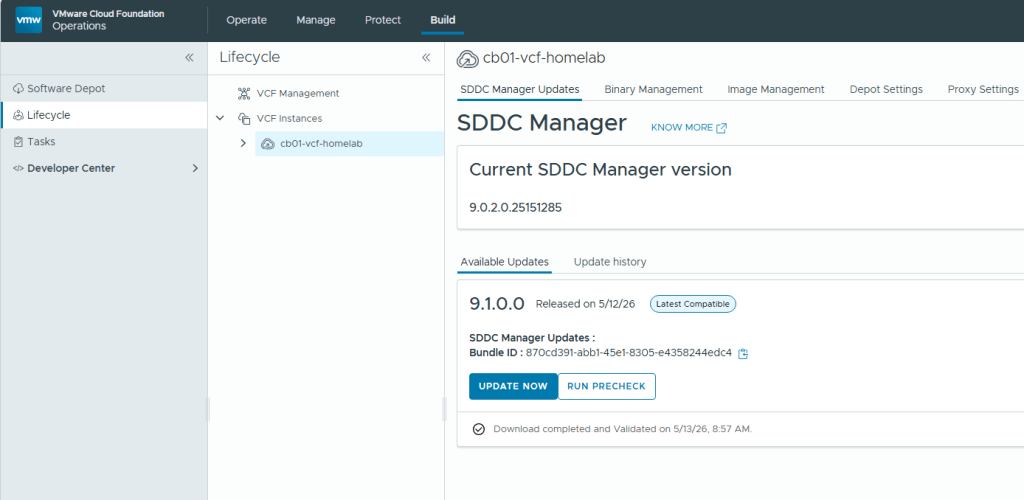
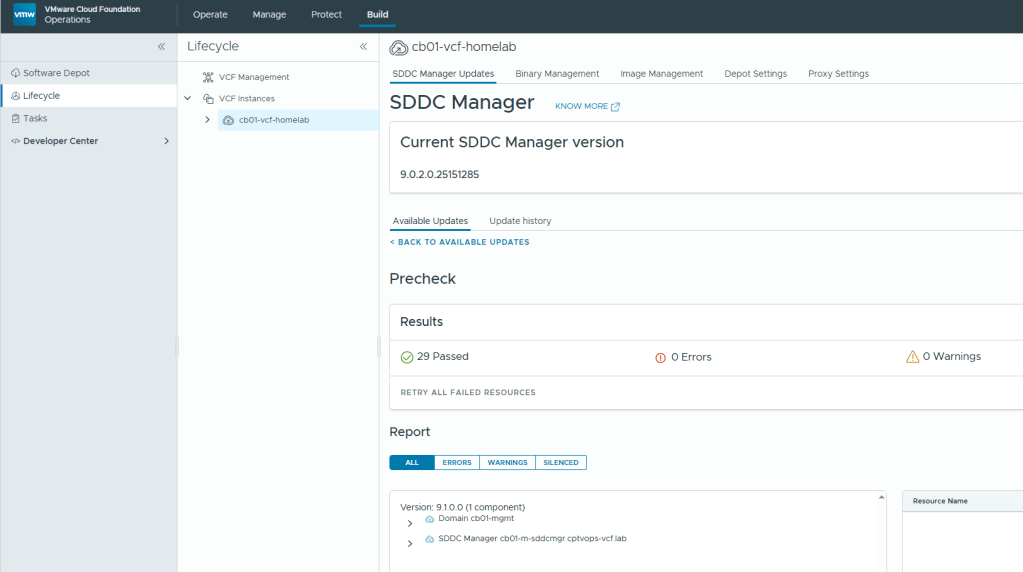
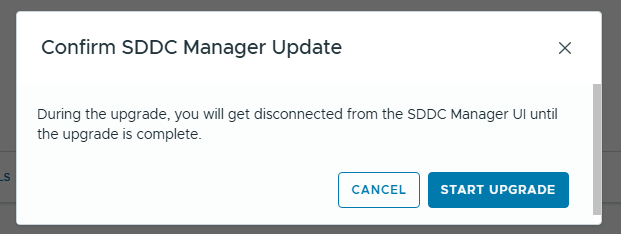


 CaptainvOPS
You must be logged in to post a comment.