VMware Cloud Foundation Home Lab – Part 4 (VCF Installer with VMUG Advantage Download Token)

Blog Date: December 2025

One of the things that I had been waiting for were the VMware Cloud Foundation 9 subscription licenses for VMUG Advantage members and the vExpert community of bloggers and SMEs. VMUG Advantage Home Lab License Guide During the week of November 17th, it was announced that the download tokens are now available for the VMUG Advantage Members who passed their VCF 9 certifications.

This post assumes that you have already deployed the VCF Installer, and are ready to get those VCF 9 bits downloaded to your home lab like a typical production environment would.

  1. Your VMUG Advantage account email has to be the same as the one that you use with your VMware by Broadcom certifications.
  2. To access your VMUG Advantage VCF or VVF entitlements go here and log in: https://support.broadcom.com/group/ecx/alpine-certificate
  3. After you authenticate, there’s a good chance that your session has been redirected to the Broadcom Support Portal. Past the above URL back into your browser and hit enter…
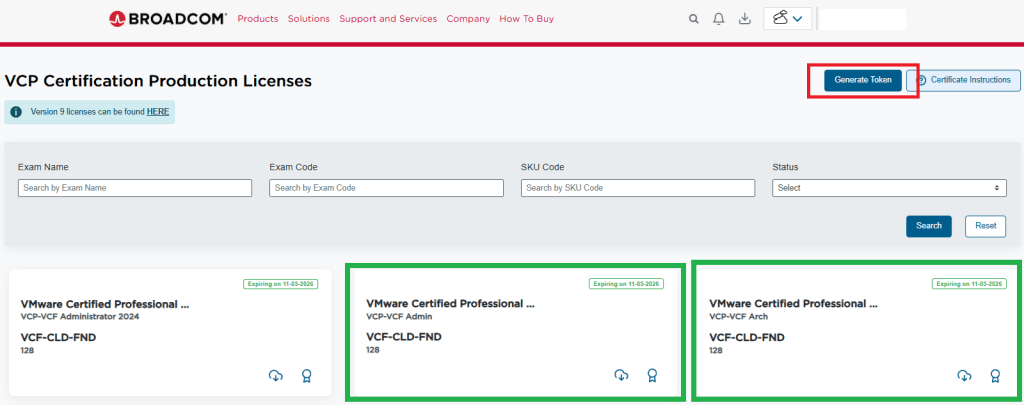
  4. You should have now arrived at the special VMUG Advantage portal and see the VCF Certification Production Licenses in the upper left of the screen like so:

I have already requested my licences for VCF, and thus have a badge and a cloud download button on the green highlighted boxes. If you do not see those, then you would see a blue request license button. This post assumes you already have done this.

5. In the top right of the window, you see a blue “Generate Token” button. Click it.
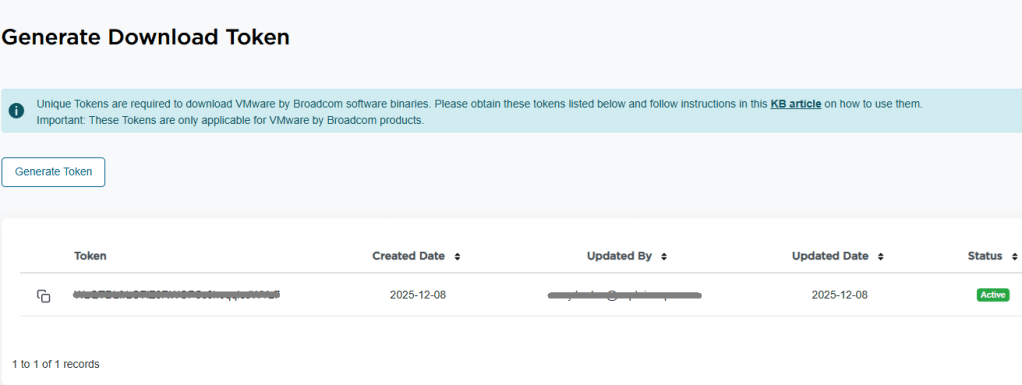
6. On the next screen, you should see the download token needed for the VCF Installer. Copy it.

7. Log into the VCF installer appliance.
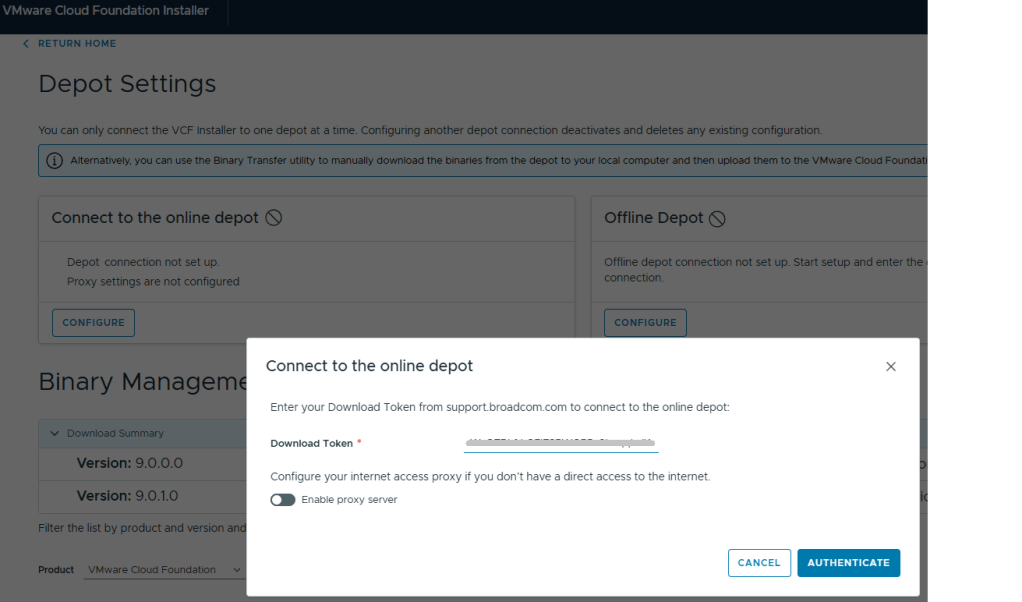
8. Go into Depot Settings, and click ‘Configure’ on the Connect to the online depot.
9. Paste the download token and click the blue ‘Authenticate’ button.

10. Assuming your VCF Installer can reach the internet and depot, a connection will be established.
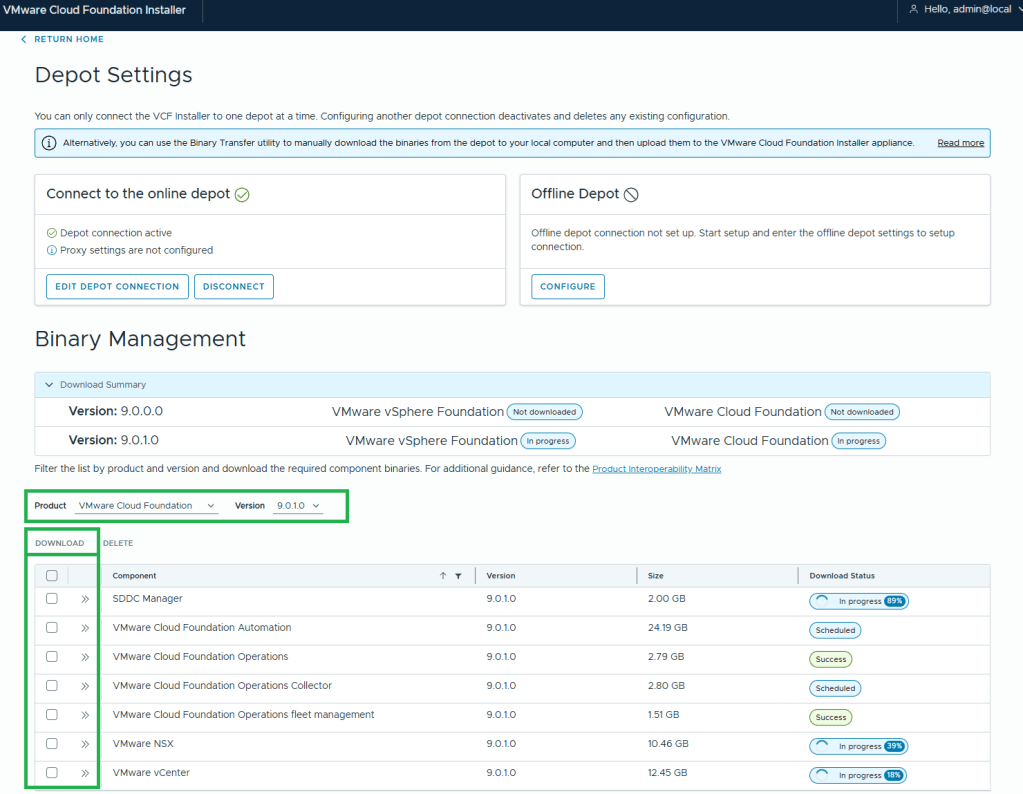
11. In this example, I want to download the Product “VMware Cloud Foundation” and Version “9.0.1.0”.
12. Select all the bits desired for download, and then click the ‘DOWNLOAD’ link.

VMware by Broadcom has made this process more difficult. All of the required bits for installation used to be included with the Cloud Builder appliance that was available for VCF 5 and older versions. Now there’s an extra step to download the bits, but I’m sure that was a feature of the required download token. More complexity.

My Experience Passing The VMware Certified Professional – VMware Cloud Foundation 5.2 Certification Exam.

Blog Date: December 2024

Those of us who have taken the VMware Certified Professional Data Center Virtualization exams, can attest to those exams testing your knowledge and experience with vSphere, ESXi, and vSAN. We now have a new certification that tests our administration skills with VMware Cloud Foundation. Well, sort of…

What this exam got right: I do believe it was a good move to pull out questions regarding advanced deployment considerations around networking and VSAN stretch clusters, because those questions belong in a VCAP level exam that test our abilities around design and deployment. The exam also stayed away from questions that quiz us on deployment sizing, ports, and other factoids that in the real world, we would just consult the documentation for. I was also happy to see that there was significantly less “gotcha questions” than previous versions.

What I believe the exam got wrong: I do not believe this exam should have questions regarding the benefits and usage of add-ons like HCX, the Aria Suite, and Tanzu. To me, those questions should have been moved out to individual specialist exams that target those specific skillsets when used in conjunction with VCF. The exam did not go deep enough into the daily administration tasks like managing certificates and passwords, resolving trust issues between the SDDC manager and the VCF components like ESXi, vSAN, vCenter, and NSX. There should have been more questions on basic troubleshooting and questions regarding how to perform upgrades. These are basic administration skills that engineers should have, and are the area’s where I see engineers get themselves into trouble by coloring outside the VCF lines, especially coming from traditional vSphere environments with SAN storage.

Final thoughts: I do believe that this certification is a lot better than the VMware Cloud Foundation Specialist exams that have been retired, but this exam lacks focus on core skillsets necessary to administer VMware Cloud Foundation. This feels too much like an associate/specialist level exam. I would like to see a larger focus on testing an engineers skills administering VCF like what configurations should be done by the SDDC manager versus doing the configuration manually in the individual components. I would like to see questions that test an engineers basic VCF troubleshooting skills like what log files to look at for failed tasks and upgrades. The SOS command line tool in the SDDC manager is very powerful and VCF engineers should be aware of it’s basic functions. I would also like to see questions around the requirements and sequence of deploying hosts to a workload domain, decommissioning hosts, performing host maintenance, and some of the VSAN considerations engineers need to take into account for each. VMware Cloud Foundation is the modern private cloud, and although it is not feasible to have deep knowledge in each of the individual components that make up VCF like ESXi, vSAN, vCenter, vSphere, and NSX, I do believe we need to level-set on a basic set of skills to be successful.

I would highly recommend taking the VMware Cloud Foundation Administrator: Install, Configure, Manage 5.2 course. Many of the topics in the certification exam are covered in this training course. In its current form, you should also have a basic understanding HCX capabilities, and Aria Ops, Logs, and Automation. The exam also touches on the basic knowledge of the async patch tool and its function.

How to Update VMware Cloud Foundation SDDC Manager When NSX-T Certificate Has Been Replaced.

Blog Date: July 11, 2024

In VMware Cloud Foundation 4.5.1, managing certificates of the Aria Suite LCM, NSX, VXRAIL, and vCenter Certificates should be done via the SDDC manager, so that it trusts the components certificate. The official documentation on how to do it can be found here -> Manage Certificates in a VMware Cloud Foundation.

In some cases however, certificates can be replaced/updated outside of the SDDC manager either due to a lack of understanding, or in emergency situations where certificates expired. In either of those situations, the certificate must be imported into the trusted root store on the SDDC manager appliance to re-establish trust to those components. Otherwise, SDDC manager will not function as intended.

Official knowledge base article can be found here -> How to add/delete Custom CA Certificates to SDDC Manager and Common Services trust stores.

The following steps can be used to update the SDDC Manager trust store with the new NSX certificate.

  1. IMPORTANT: Take a snapshot of the SDDC Manager virtual machine. **Don’t Skip This Step**
  2. Use a file transfer utility to copy the new NSX certificate file to the /tmp directory on the SDDC Manager.
  3. Establish an SSH connection to the SDDC Manager as the VCF user, and then issue the su – command to switch to the root user.
  4. Obtain the trusted certificates key by issuing the following command:

    cat /etc/vmware/vcf/commonsvcs/trusted_certificates.key

    Note: You will see output similar to the following:

    p_03ZjNI7S^B7V@8a+
  5. Next, Issue a command similar to the following to import the new NSX-T certificate into the SDDC Manager trust store:

    keytool -importcert -alias <aliasname> -file <certificate file> -keystore /etc/vmware/vcf/commonsvcs/trusted_certificates.store --storepass <trust store key>

    Notes:
    • Type yes when prompted to trust the certificate.
    • Enter something meaningful, like sddc-mgmt-nsx for the <aliasname> value.
    • Replace <certificate file> with the full path to the certificate file that was uploaded in Step 2.
    • Replace <trust store key> with the trusted certificates key value returned in Step 4.

  6. Issue a command similar to the following to import the new NSX-T certificate into the java trust store. Here the storepass is changeit:

    keytool -importcert -alias <aliasname> -file <certificate file> -keystore /etc/alternatives/jre/lib/security/cacerts --storepass changeit

    Notes:
    • Type yes when prompted to trust the certificate.
    • Replace <aliasname> with the meaningful name chosen in Step 5.
    • Replace <certificate file> with the full path to the certificate file that was uploaded in Step 2.
  7. Issue a command similar to the following to verify that the new NSX-T certificate has been added to the SDDC Manager trust store:

    keytool -list -v -keystore /etc/vmware/vcf/commonsvcs/trusted_certificates.store -storepass <trust store key>

    Note: 
    • Replace <trust store key> with the trusted certificates key value returned in Step 4.
  8. Issue the following command to restart the SDDC Manager services:

    /opt/vmware/vcf/operationsmanager/scripts/cli/sddcmanager_restart_services.sh
  9. (Optional): You can utilize the SDDC manager SOS utility to check the health of the newly imported NSX-T certificate with the following command:

    /opt/vmware/sddc-support/sos --certificate-health --domain-name ALL

    Tip:
    For more information on the sos utility, check out the documentation here: -> SoS Utility Options (vmware.com)
  10. If everything checks out, remove the snapshot that was taken prior to starting this procedure.

Migrate VMware Cloud Foundation 4.x/5.x from Legacy VUM Images to vSphere Lifecycle Managed (vLCM) Images. (Can’t do it… yet)

Blog Date: July 10, 2024

To get straight to the punch, this is not supported yet. If you already have an existing VCF deployment, there currently is no supported way to migrate your workload domains to vLCM, per the support article here -> Transition from vSphere Lifecycle Manager Baselines to vSphere Lifecycle Manager Images is not supported with VMware Cloud Foundation. While you can technically use the vCenter UI / APIs to make the switch, it will cause workflows in SDDC manager to break, VMware support/engineering will have to get involved, and most likely the changes will have to be reverted.

If you are in the beginnings of deploying a new workload domain, by default it will use vSphere Lifecycle Manager baselines as the update method, unless you specifically checked “Manage clusters in this workload domain using baselines (deprecated)” during the workload domain deployment. However, this option would require you to have an existing vLCM image prior to the workload domain being deployed. If you don’t have a vLCM image yet, the VMware documentation suggests that you deploy the workload domain using legacy images (VUM), and that documentation can be found here -> Deploy a VI Workload Domain Using the SDDC Manager UI.

Doing a little research on the available options if no vLCM baseline image is available, and if you already have identical ESXi hosts deployed to the VCF environment, in vSphere, you can create a new empty compute cluster, select the option to manage the cluster with vLCM baselines, select a identical host already deployed to the environment to import and create the vLCM baseline from including the NSX driver. Now you have a vLCM baseline you can use for new workload domains and clusters using identical hosts. The new vLCM baseline can be imported into the SDDC manager. One might ask if it is safe to create a new compute cluster using the vSphere UI in a VCF deployment? For this purpose because it is temporary, the answer is yes. Technically, if you add additional compute clusters in vSphere without going through the SDDC manager, the SDDC will have no knowledge of it and won’t interact with it, so for our purposes, it is safe to create the empty compute cluster to create the new baseline, and then just delete the empty cluster when finished. Always remember to clean your room.

Although it will take a little work on the font end if you currently do not have vLCM baseline images to deploy a new workload domain, the above process can be used to create it. Eric Gray put together an excellent blog and YouTube video on this here -> Updating VCF Workload Domains deployed using vLCM Images. This walks us through the process of creating a new vLCM baseline image for a vLCM enabled workload domain to upgrade it, but the same process can be used to create a new vLCM image for a new workload domain with identical hardware.

If you have just deployed a workload domain and selected Manage clusters in this workload domain using baselines (deprecated) (legacy VUM), there is no way to convert it to vLCM baselines (at the time of writing this blog). You have to REDEPLOY the workload domain. You could however, take the opportunity using the above method to create a vLCM baseline image for the workload domain, so that when you redeploy it, you’ll have a vLCM image to use. Silver lining?

Unconfirmed reports indicate that the functionality to migrate existing workload domains from legacy VUM to vSphere Lifecycle Manager baselines is *targeted* for VMware Cloud Foundation 9.

Aria Operations Dashboard: VM Guest File System Usage

December 2023
Aria Operations 8.12.1

For the past couple of months, I have been working with a customer developing Aria Operations (formally vROps) dashboards for various interests. The dashboard I’ll cover here was one I created to help them track and identify the guest file system usage of the virtual machine. This works for both Microsoft and Linux based systems.

Box 1a is a heatmap widget configured as a self provider configured to refresh every 300 seconds. Additional configuration as follows:

The heatmap is a nice visual that will turn red as the guest file system consumes disks on the VM to spot problems. You then select a box in the heatmap to populate the 2a. Box 2a then feeds data into 2b, 2c, 2d, and 2e.

Box 2a is a custom list view widget i created that lists several metrics of the virtual machine with custom metric labels. It is configured to auto select the first row.

Those metrics are:
Badge|Health%“,
Configuration|Hardware|Disk Space“,
Guest File System|Utilization (%)“, (Coloring above: Yellow 75, Orange 80, Red 90);
Virtual Disk:Aggregate of all instances|Read IOPS“, (Coloring above: Yellow 100, Orange 200, Red 300);
Virtual Disk:Aggregate of all instances|Write IOPS“, (Coloring above: Yellow 100, Orange 200, Red 300);
Virtual Disk:Aggregate of all instances|Read Latency (ms)“, (Coloring above: Yellow 10, Orange 20, Red 30);
Virtual Disk:Aggregate of all instances|Write Latency (ms)“, (Coloring above: Yellow 10, Orange 20, Red 30);
Datastore:Aggregate of all instances|Total Latency (ms)“,
Datastore:Aggregate of all instances|Total Throughput“,
Disk Space|Snapshot|Age (Days)“, (Coloring above: Yellow 7, Orange 14, Red 21);
Disk Space|Snapshot Space“.

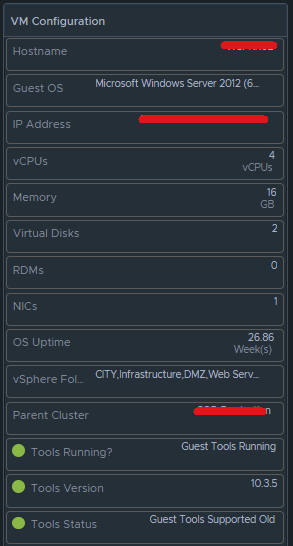
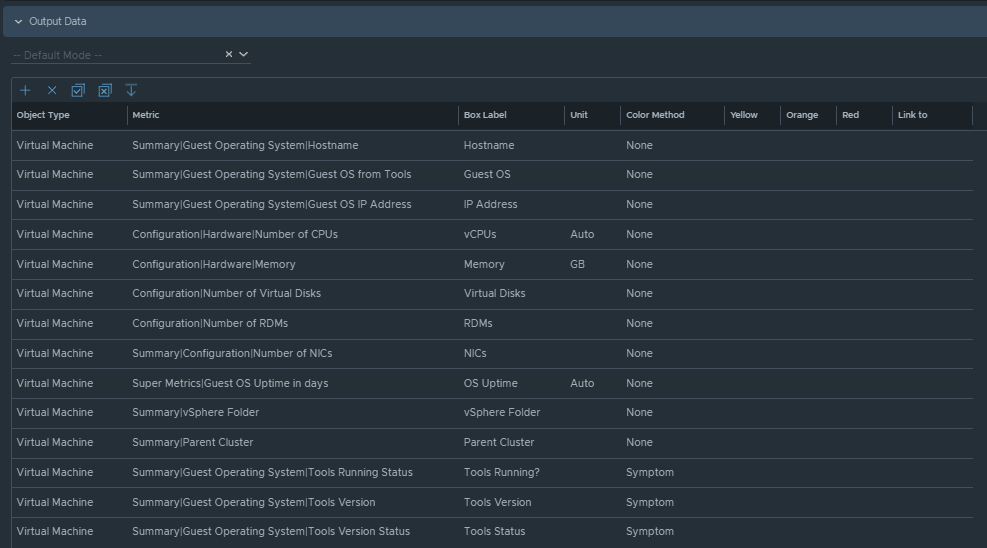
Box 2b is a Scoreboard widget configured to list the selected VM details regarding information on how the VM is configured.

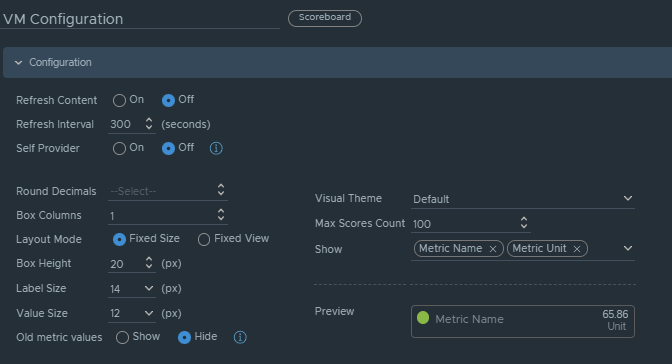
Configuration is set like so:

Under Input Transformation, set to self.

Output Data will be configured as follows:

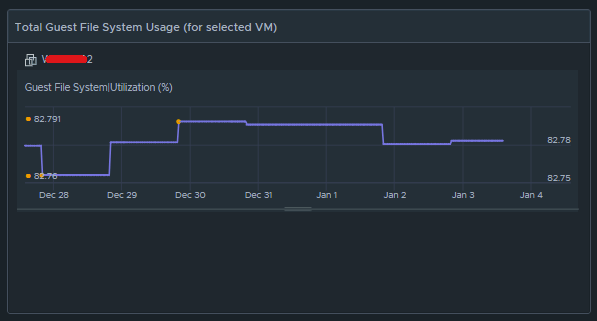
Box 2c is a metric chart widget with the Input Transformation configured as self, and the Output data configured to use the virtual machine metric “Guest File System|Utilization”.

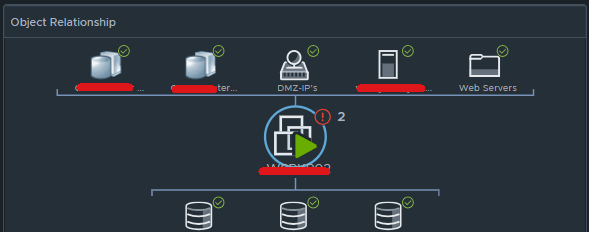
Box 2d is simply the Object Relationship widget.

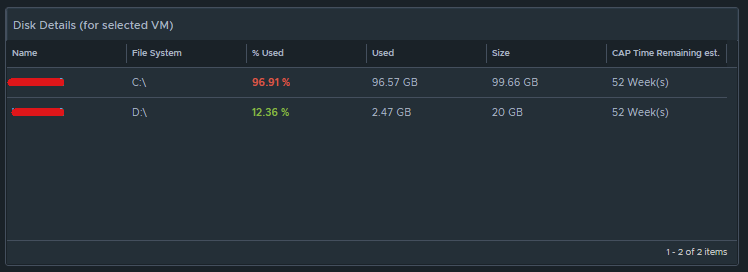
Box 2e is another custom list view and is configured to refresh every 300 seconds. 

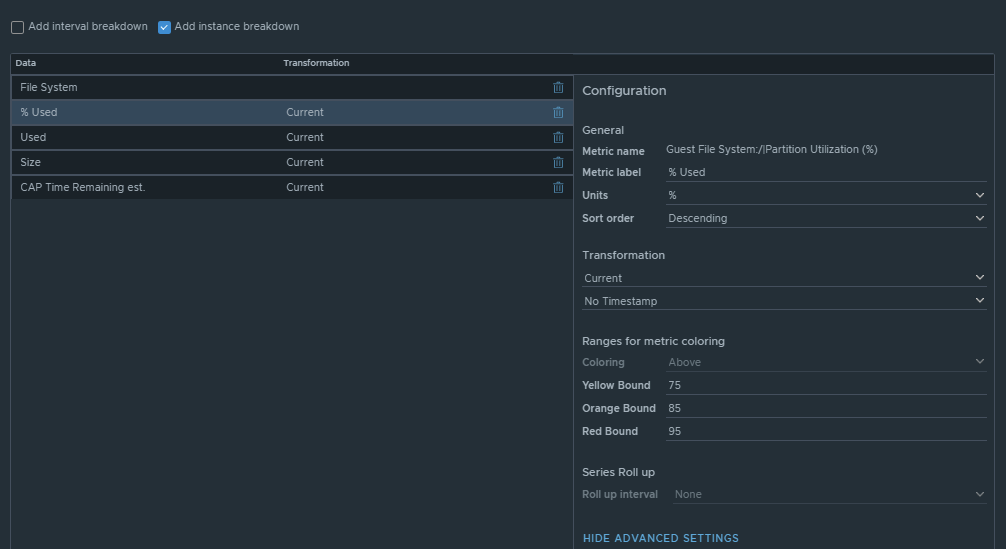
This list view is configured to do an instance breakdown of the following metrics:

Guest File System:/|Partition Utilization (%)“, (Coloring above: Yellow 75, Orange 85, Red 95);
Guest File System:/|Partition Utilization“;
Guest File System:/|Partition Capacity (GB)“;
Capacity Analytics Generated|Time Remaining“.

Box 3a is fed data from 2e so that we can see how the virtual machine disks are behaving on the datastore(s).

This is another custom list view configured as follows:

Configuration is set to refresh content at 300 seconds. Output data is configured with a custom list view with the following metrics:
Devices:Aggregate of all instances|Read Latency (ms)“, (Coloring above: Yellow 10, Orange 20, Red 30);
Devices:Aggregate of all instances|Write Latency (ms)“, (Coloring above: Yellow 10, Orange 20, Red 30);
Devices:Aggregate of all instances|Read IOPS“, (Coloring above: Yellow 100, Orange 200, Red 300);
Devices:Aggregate of all instances|Write IOPS“, (Coloring above: Yellow 100, Orange 200, Red 300);
Devices:Aggregate of all instances|Read Throughput“;
Devices:Aggregate of all instances|Write Throughput“.

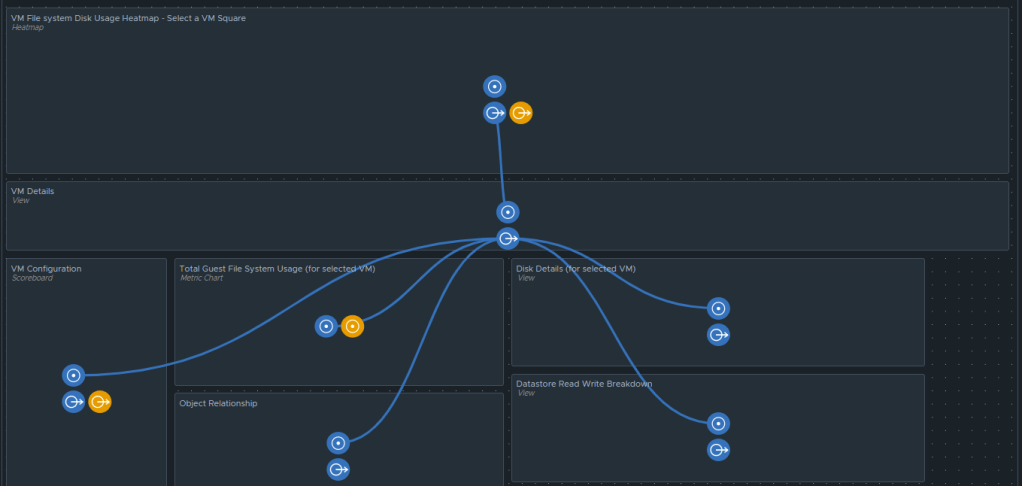
Those are all of the configured widgets on this dashboard. The integration schema will look like this:

I do hope to share this dashboard with the VMware Code sample exchange, and I will update this blog once that has been completed. I hope my breadcrumbs above will enable you to create a similar dashboard in the meantime.

VMworld 2018 is right around the corner! Where will you be?

It’s almost that time a year again….some might even call it that special time of year where VMware geeks from across the globe converge on VMworld.  One might even consider this summer camp, and like any who have experienced this before, you meet new people in the vCommunity, make friends, and part ways after the week of technical sessions, social gatherings, and just the straight up shop talking, war story sharing, and the sharing of ideas.  Personally, this will be my third year attending, and I am super excited to be going.  This conference means enough to me that, due to other circumstances that happened early this year, I purchased my own pass so to ensure that I wouldn’t miss out.

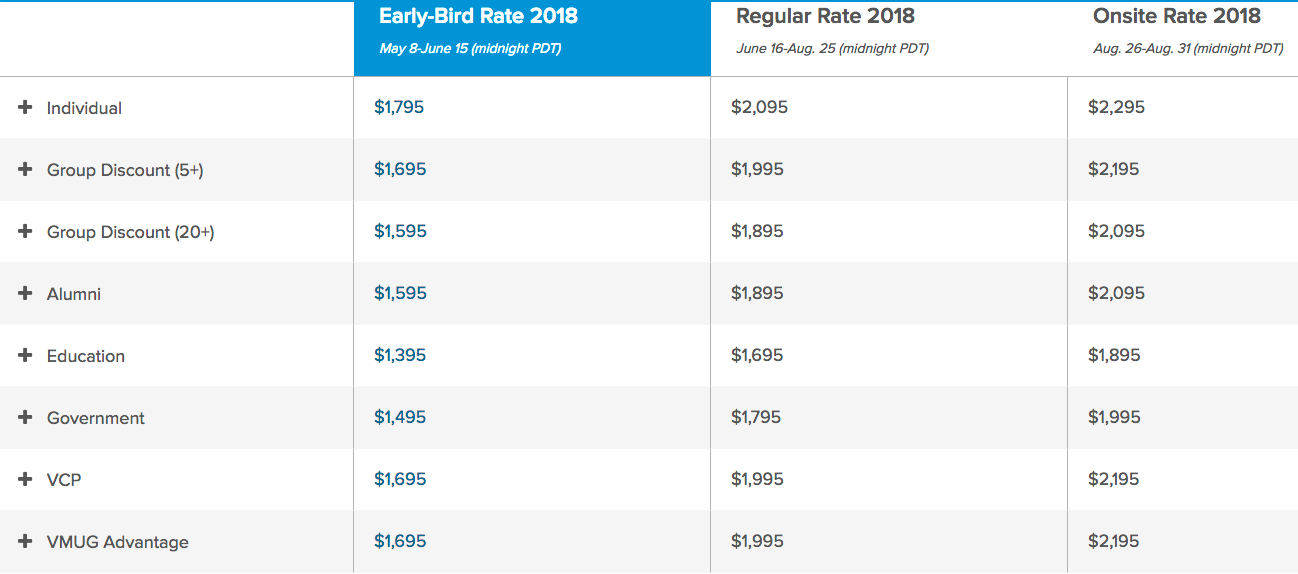
Now is the perfect time to cash in on those early bird discounts on conference passes, good until June 15.  Why wouldn’t you want to save a couple hundred dollars on one of the best IT conferences of the year?  For an individual, it’s $1,795 vs $2,095.  That’s before other discounts that may be applied like vmug memberships, or the discount for VMware Certified Professionals who hold an active VCP.

So, why go to VMworld?

I think for many first timers, there’s a certain electricity, and excitement about going.  Let me be the first to tell you, that feeling…. never really goes away.  Like the past couple of years, VMworld in the US will be held once again in Las Vegas.

Image result for VMworld 2018

I personally love coming to VMworld and have looked forward to it every year.  There’s always good energy here; the minute you get off the plane, it is happy.  Every experience I’ve had here is fun, and people genuinely are in a good mood.  This conference gives attendees the chance to attend VMware lead, and partner lead sessions on platforms you may have thought about using or are currently using.  These sessions are meant to share best practices with the community, transfer knowledge in ways to use VMware platforms, and also give you a chance to ask the experts, many of whom work for VMware, and in some cases, are very involved with the development of the platforms you use.

VMworld is not just about attending sessions however.  This conference gives you the unique opportunity to network with other IT professionals from across the globe and establish relationships that you would otherwise never be able to do.  Like it did for me, this conference may also inspire you to join the vCommunity, a thriving community of professionals who not only share their knowledge with others, but who also need help themselves.  I think we can all agree that no two environments/businesses are alike, and we have all used VMware’s platforms in ways that were intended, and in ways that even VMware might not have ever considered.  Members of the vCommunity take it upon themselves to share their experiences with others, through blogs, social media, and support forums to help others.  This conference gives us a chance to get together, share war stories from our time in the trenches, and many times, you will find attendees getting together to engineer and develop something cool.

VMware {code} group has even put together a hackathon, where members from the vCommunity can get together while at VMworld, to develop some amazing things, and sometimes there are even prizes to be had for the coolest of the cool ideas.  But don’t let those words “code” or “hackathon” scare you.  These sessions are not just for developers!  Sure it will certainly help, but the power of the community, enables you to participate in these teams anyways.  You may not be able to contribute code, but you can still contribute ideas to the team, and you might even pick up a few coding skills in the fun.  Let’s face it; some pretty cool ideas are cooked up during hackathons.  VMware’s internal hackathon cooked up the idea to bring VR into the datacenter, and allow you to virtually move your workloads from On-Premises Data Centers, into the cloud.  It’s freakin VR man!  How cool is that?

Screenshot2

The VMworld conference also affords you the opportunity to attend instructor lead labs, along with VMware’s hands on labs that you can also experience from home.  While at the conference, there will be many vendors out on the floor where you can experience new products, ask questions about products that you already use, and lets not forget the vendor haul crawl where there will be free adult beverages, snacks, and cool swag vendors are giving out.  All can be found in the solutions exchange area.

Image result for VMworld 2017

I’m not going to lie, the parties at VMworld are pretty wild too.  Not saying that should be the only reason you go, but it is a good way to mingle with other conference attendees, jam out to some good music, and of course escape the Las Vegas heat.  VMworld of course wraps up with it’s own party, before the last day of the conference.

Screen Shot 2018-06-02 at 12.16.46 PM

So what are you waiting for?  I can’t think of any reason not to attend the US 2018 VMworld in Las Vegas, August 26th – 30th, or the UK 2018 VMworld in Barcelona, November 5th – 8th.  Follow this link here, and I will see you at the conference in Las Vegas!  Remember to take advantage of those early bird rates, good until June 15th!  REGISTER HERE FOR VMWORLD 2018

Screen Shot 2018-06-03 at 9.29.50 AM


Enable TLS v1 In vCloud Director 8.20 and vCloud Availability 1.0

VMware’s vCloud Director (vCD) and vCloud Availability (vCAV) only come with TLS v1.1 and 1.2 enabled out of the box.  This process will show you how to enable TLS v1.  If more information is needed, please visit VMware’s Documentation on vCloud Director 8.20, or the following KB2145796.  This work should be completed after hours as you would inevitably be moving VCD proxy service from one cell to another, and this could cause a brief outage for customers.  This process will require taking the cell offline, so do each cell one at a time starting with a cell not running the inventory service

  • Open an SSH session to a VCD cell, or vCAv cloud proxy cell, and su to root
  • Change to the ‘ /opt/vmware/vcloud-director/bin/ ‘ directory
  • Use the Cell Management Tool to quiesce the cell.  This will move active jobs over to another cell, and cleanly shutdown the cell.  You should make note which VCD cell has the proxy service enabled, and avoid that cell until last.
# ./cell-management-tool -u administrator cell --quiesce true
  • Get the status of any running jobs on each cell.   ** Verify Job count = 0   |  Is Active = false  | In Maintenance Mode  = false
# ./cell-management-tool -u administrator cell --status

Example Output:

Job count = 0
Is Active = false In Maintenance Mode = false
  • Shut the cell down to prevent any other jobs from becoming active on the cell.
# ./cell-management-tool -u administrator cell --shutdown

Example Output:

Cell successfully deactivated and all tasks cleared in preparation for shutdown Stopping vmware-vcd-watchdog:                              [  OK  ] Stopping vmware-vcd-cell:                                  [  OK  ]
  • Run the following command on the vCD cell in /opt/vmware/vcloud/bin/ to enable TLS1
# ./cell-management-tool ssl-protocols -d SSLv3,SSLv2Hello
  • Start the cell service, and validate that a vCD cell has the listener service running from the UI, and that vCenter is connected to one of the cells.
# service vmware-vcd start
  • To validate that TLS v1 has been enabled on the vCD cell, or vCAV cloud proxy cell, run the following command
# ./cell-management-tool ssl-protocols -l

Example output

Allowed SSL protocols:
* TLSv1.2
* TLSv1.1
* TLSv1
  • If you have additional VCD cells, or vCAV cloud proxy cells, repeat this process one at a time.


Upgrade Existing vRealize Operations Manager Add-on/Solution Paks

The following was recorded using a vRealize Operations Manager (VROps) 6.6 cluster, however older versions of VROps can be upgraded the same way.

  • Log into the vROps environment, go to the Administration tab, and select solutions in the left column.
  • Here you can see all of the add-on/solutions paks that I have installed in this environment.  To upgrade an existing solution, simply click the green plus button.
Image.png
  • Browse for the new pak.  In this example I have selected “Reset Default Content” option.  As the statement suggests, this can override policies, customized alerts, symptoms etc. that may have been customized by your organization, forcing that work to be re-created.  However, I like using this option because I get those new changes, and can adjust my monitoring accordingly.  Use at your own discretion

Image.png

  • Click ‘upload’
Image.png
  • Click ‘Next’
  • Read and accept the EULA if you so desire
  • Click ‘Next’

Now the installation process will begin.  This shouldn’t take longer than 5 minutes.

vrops54

  • Click Finish

vrops55

Now the latest version of the Add-on/solutions pak is installed and ready for use.  In most cases it will just pick up the config from older versions.
Image.png

Collecting Java Heap dump from vCloud Director Cells

You just need to generate the java heap dump from one of the cells.  What you’ll need to succeed:

  • JCONSOLE
  • IP tables disabled on the cell you are connecting to.
  • Disk space available on the cell to accommodate the dump – I believe these can be between 8 and 10 GB in size
  • Unless an emergency, do this operation outside of normal business hours as it will be CPU intensive for up to 3 minutes, can impact API call performance, and can potentially cause the VCD cell inventory service to hang.

Step #1: Disable iptables on the cell

  • ssh to the desired cell and run the following command:

# service iptables stop

Step #2: Connect with jconsole (java console)

  • domain credentials should work here depending on your environment
  • connect to port: 8999
  • connect to desired cell

vcd9

  • If you get this message “Secure connection failed. Retry Insecurely?” just click the ‘insecure’ button to continue


vcd10

Step #3: Generate the heap dump

  1. On the MBeans tab, in the com.sun.management/HotSpotDiagnostics object, select the Operation section.
  2. In dumpHeap parameters, enter the following information:

    p0: [heap-output-path]

    p1: true – do a garbage collection before dump heap

    For example:

    p0: /opt/vmware/vcloud-director/vcd_cell_name_heap-dump-file.hprof

    p1: true

  3. Click the dumpHeap button.

vcd11


  • There will be no indication that the heapdump completes.  I just watch the size of the file until the growth stops on the cell.  This process typically takes less than two minutes.

Step #4: Cleanup and send-off

  • Locate the heap dump in /opt/vmware/vcloud-director/ and move off to a location where you can compress and upload to VMware FTP site as you would for logs.
  • Start the iptables on the cell: # service iptables start