
Blog Date: 10/6/2023
After VCF has been deployed, you can log into the SDDC manager and configure a certificate authority. This is useful if there’s a desire to use custom signed certificates. SDDC manager has the ability to run OpenSSL and create certificates for the associated VMware products in the SDDC. Alternatively, you can also configure the Certificate Authority to use a Microsoft CA. In this blog I will cover the steps to setup the OpenSSL. One thing to note is that by default, the certificates authored using the method will be valid for a year.
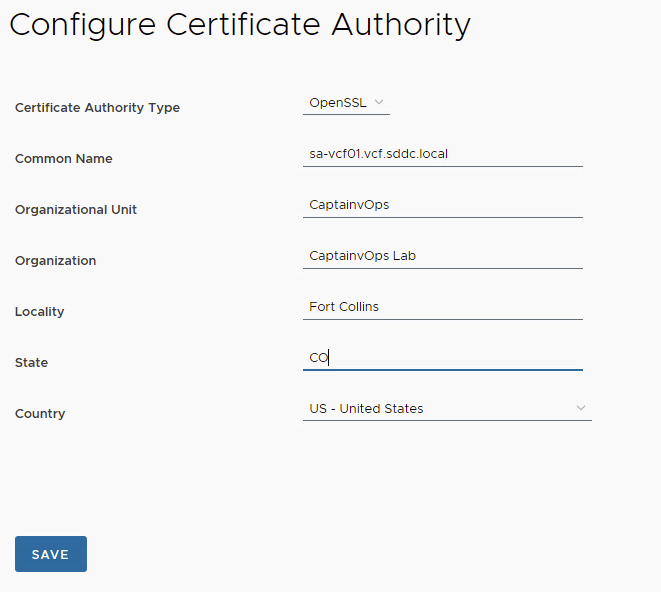
In the left pane, scroll down and click Certificate Authority under Security. In the right pane, click the EDIT button. In the Certificate Authority Type, select OpenSSL. Fill in your environment specific details, and then click SAVE.
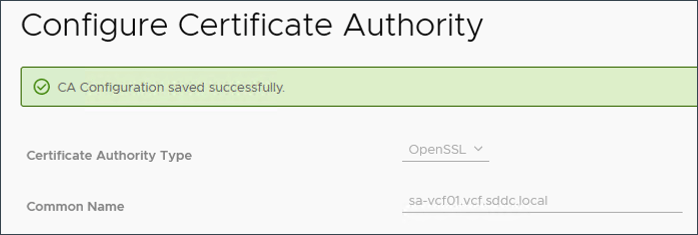
The CA Configuration Saved Successfully message appears on the page.
For more information, checkout VMware’s documentation on Managing Certificates in VMware Cloud Foundation.
To update the certificates in SDDC manager, I would first take a snapshot of whatever you are updating the certificate of, then in SDDC manager locate Workload Domains in the left pane under Inventory. Select the management domain (or desired domain), and then click on the Certificates tab.

In this example, place a check mark in the box for sddcmanager, and click the GENERATE CSRS button to configure the CSR details with your organization’s specific details.
Click NEXT.
On the Subject Alternative window, you may wish to add additional info, otherwise click NEXT.
Click the GENERATE CSRS button. Wait for the CSR Generation is successful message before continuing. You might need to refresh the browser periodically.
Now we can generate the signed certificate from the certificate authority, which in this case will be the SDDC manager considering we enabled OpenSSL. Leave sddcmanager selected, and click GENERATE SIGNED CERTIFICATES button. In the Generate Certificates pop-up window, click the Select Certificate Authority drop-down menu and select OpenSSL. Click GENERATE CERTIFICATES. You will need to wait until you see the certificate generation is successful message. View the Certificate Operation Status column to see that the certificate generation was successful.
With the sddcmanager still selected, click the INSTALL CERTIFICATES button. Refresh the browser a few times until you see security warnings about the new certificate as a result of the change. In the end, you should see a Certificate Installation is successful message display.

At this point you can restart the SDDC manager appliance to ensure the new certificate is in use going forward. Now simply rinse, wash, and repeat on the remaining appliances you wish to update the certificate.
In my next blog, I’ll go over the process of deploying an NSX edge cluster in the management domain. this will be used in the future when we create the network segment for vRealize/Aria.
 CaptainvOPS
You must be logged in to post a comment.