
Blog Date: September 25, 2024
One of my customers had a strange issue where the vCenter MOB wasn’t working on some of their vCenters in their VMware Cloud Foundation 4.X deployment.
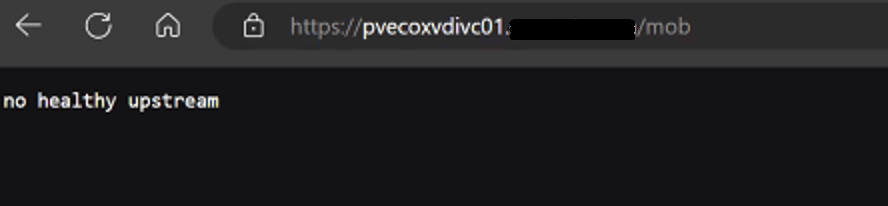
The 10 vCenters are running in enhanced linked mode, and out of the 10, we only had one management vCenter where the MOB was working. All other services on the vCenter appear to be working fine.
On the vCenter, we can check and see if the vpxd-mob-pipe is listed in the following directory /var/run/vmware with the following command:
ls -la /var/run/vmware/
If we do not see vpxd-mob-pipe, then we need to look at the vpxd.cfg file. Specifically we are looking for the following parameter: <enableDebugBrowse>. If this is set to false, the MOB will not work.
vi /etc/vmware-vpx/vpxd.cfgOnce the vpxd.cfg opens, we can search the file by pressing the ‘ / ‘ key, and then enter:
/<enableDebugBrowse>and then press enter.
This should take us to where we need to be. In my case, it was set to false as shown below:
<enableDebugBrowse>false</enableDebugBrowse>
Hit the ‘INSERT’ key, and change >false< to >true<.
<enableDebugBrowse>true</enableDebugBrowse>
Hit the ‘ESC’ key, and then hit the ‘ : ‘ key followed by entering ‘ wq! ‘ to save and exit the vpxd.cfg file.
:wq!Now we need to stop and start the vmware-vpxd service with the following command:
service-control --stop vmware-vpxd && service-control --start vmware-vpxdOnce the service restarts, you should now be able to access the vCenter MOB.
 CaptainvOPS
You must be logged in to post a comment.