VMware Cloud Foundation Home Lab – Part 5 (Cloud Foundation Installer Password Requirements)

Blog Date: December 2025

In my previous blog VMware Cloud Foundation Home Lab – Part 4 (VCF Installer with VMUG Advantage Download Token), I walked through the process of getting the Cloud Installer connected to the Online Depot using the Download Token for VMUG Advantage Members.

In this blog, I’ll go over the basic deployment of the VMware Cloud Foundation Installer appliance (formally VCF Cloud Builder) OVA, because there’s a new ‘feature’ that will trip you up if you’re not careful.

We’ve all installed OVAs before, but for the Cloud Foundation Installer OVA, there was something that I wanted to call out.
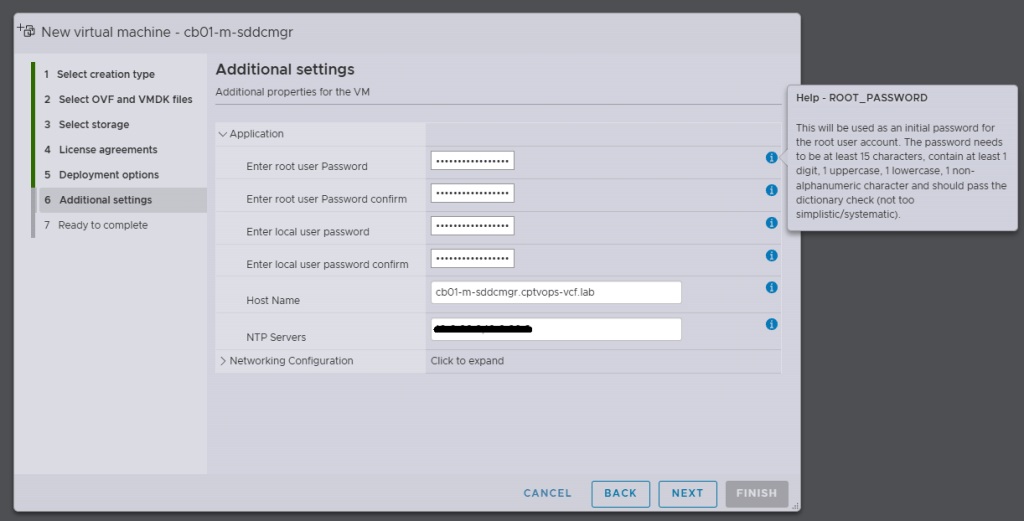
Specifically, when you’re deploying the OVA, be mindful of the new password requirements as they have changed. Previous versions of VCF through VCF 5.x, did not require a 15 character password. Apparently the quality control folks over in the VCF Division at Broadcom also forgot about this, because you can enter an 8 character passwords here, and the OVA deployment will continue as normal.

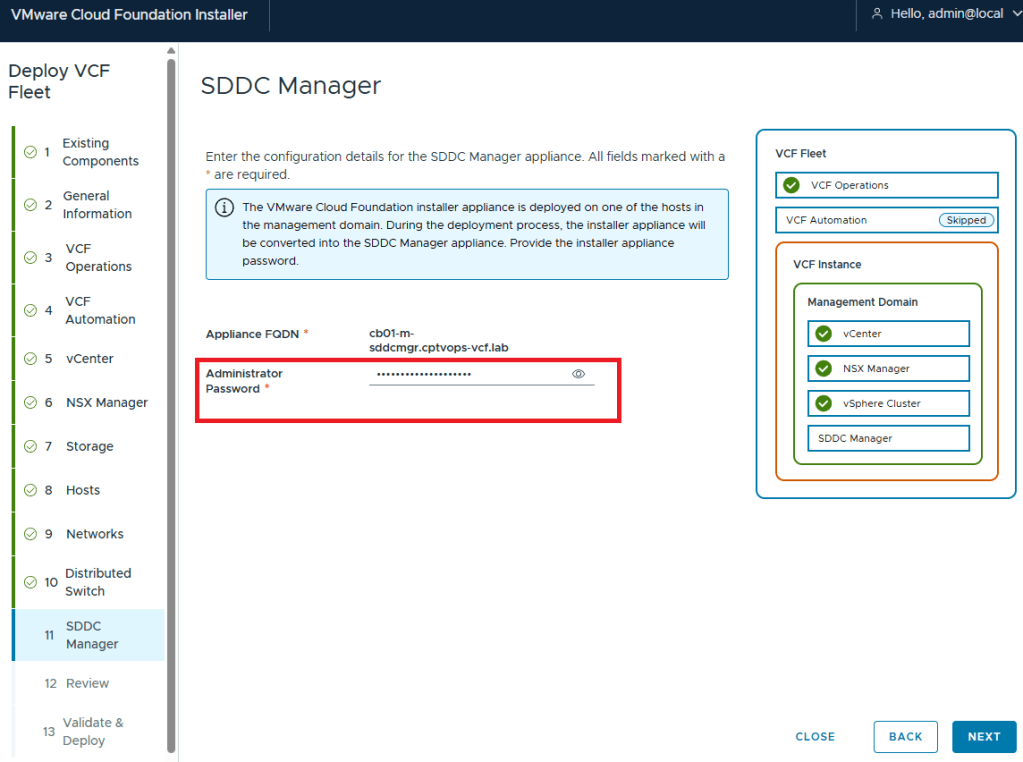
Why does this matter, well if we fast forward here a little bit, and get to where we are in the VMware Cloud Foundation deployment wizard on Step 11, you are again asked for the Administrator Password (local user). If you did not use at least a 15 character password during the OVA deployment, the wizard when you click [NEXT] will state that the Administrator password is incorrect . It doesn’t warn you that it is too short. So after a couple of tries, you will get kicked out of the wizard and back to the Cloud Foundation Installer login page, unable to log in because the local user (admin account) is now locked… I first observed this behavior during a customer deployment of 9.0, and found that the ‘feature’ is still there in the 9.0.1 I deployed for my home lab.
If you do find yourself in this situation, the admin@local account unlock procedure is straight forward, and Broadcom has a KB (Article ID: 403316) on how-to:
How to unlock the admin@local account on VMware Cloud Foundation Installer 9.0

If you need to reset the password for the admin@local account, Broadcom has a KB (Article ID: 403099) for that too:
How to Reset the Admin@local password in SDDC Manager

(#-__-)
VMware Cloud Foundation Home Lab – Part 2 (Network Topology)

Blog Date: December 2025

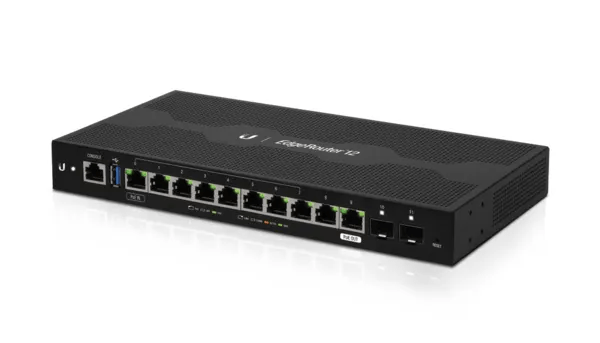
Below is the basic network Topology and vlan config for my new VMware Cloud Foundation home lab. For my home network, I had replaced my off the shelf consumer wifi router a few years ago, and purchased a Ubiquity EdgeRouter 12 so that I could have vlans for my VMware Home lab, that lasted me from vSphere 6 to vSphere 8.

On this router, I have defined and hung the vlans off from the built in virtual switch (192.168.X.1).

vlan (10.0.X.1)Description
20iscsi storage straffic
30Management
40vmotion
50vsan
60ESX TEP
70NSX Edge T0 Uplink01
71NSX Edge T0 Uplink02
80Replication

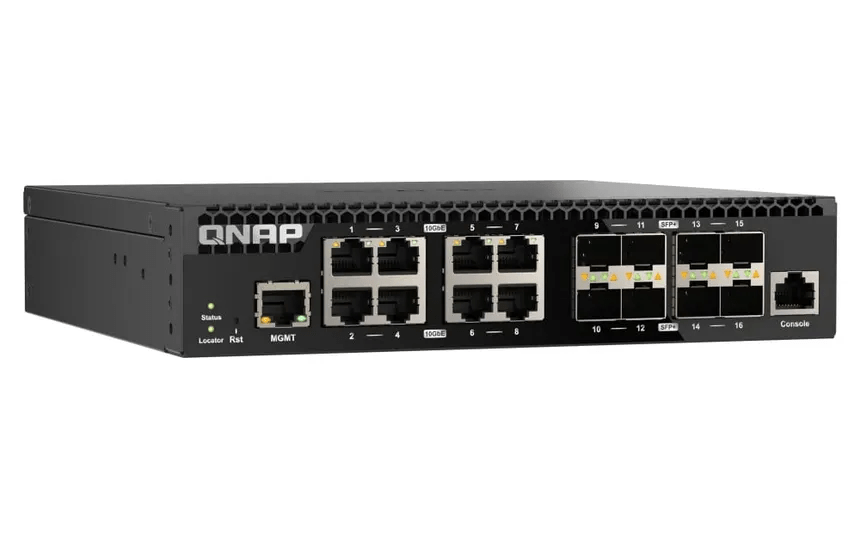
As detailed in my VCF 9 Home lab BOM, I chose to go with the QNAP (QSW-M3216R-8S8T-US) Layer 2 for my TOR switch. This Layer 2 managed switch supports 10G on the standard ethernet ports and on the SFP+ ports, giving me lots of options for connectivity.

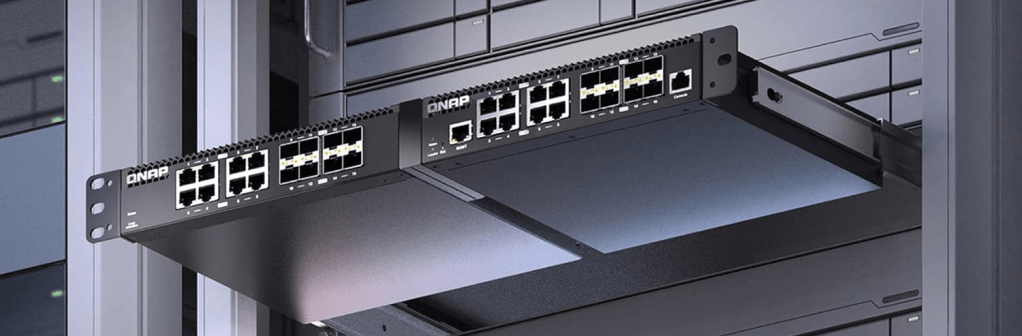
I can also mount two of them side by side in a standard 19 inch width rack offering more space save opportunities for future home lab expansion.

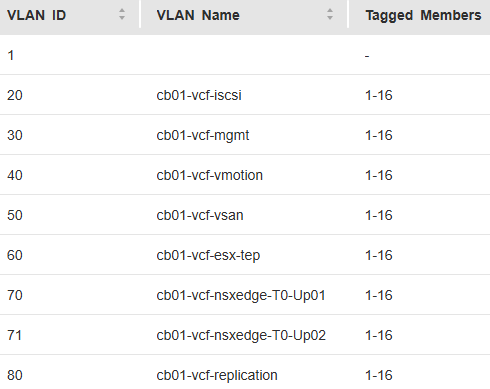
I have the same vlans tagged to the TOR switch

VMware Cloud Foundation Home Lab – Part 1 (MS-A2 BIOS)

Blog Date: December 2025

Continuing this blog series about my new home lab, I thought I would go over the BIOS setting I have selected for these MINISFORUM MS-A2’s.

Security
Secure Boot – Disabled

Trusted Computing
— See Device Support – Disabled

Advanced
Onboard Device Settings
PCI SR-IOV – Enabled

AMD PBS (**THIS IS OPTIONAL BASED ON YOUR CONFIG**)
PCIe/GFX Lane Configuration – x8
GFX Lane Speed – Gen 4
SSD0 – Gen 4
SSD1 – Gen 4
SSD2 – Gen 4

AMD CBS
NBIO Common Options
IOMMU – Enabled
PSPP – Performance
FCH Common Options
AC Power Loss – Previous
SMU Common Options
TjMax – 78

In my next Blog, I will cover my basic network set.

VMware Cloud Foundation Home Lab Bom – Part 2

Blog Date: October 2025

Continuing from my original blog post entitled: VMware Cloud Foundation Home Lab Bom,

I went over the mini pc components and x4 MINISFORUM MS-A2 9955HX systems. In this blog I’ll cover the rack, rack mounts for the MS-A2s, UPS, and the 10G switch.

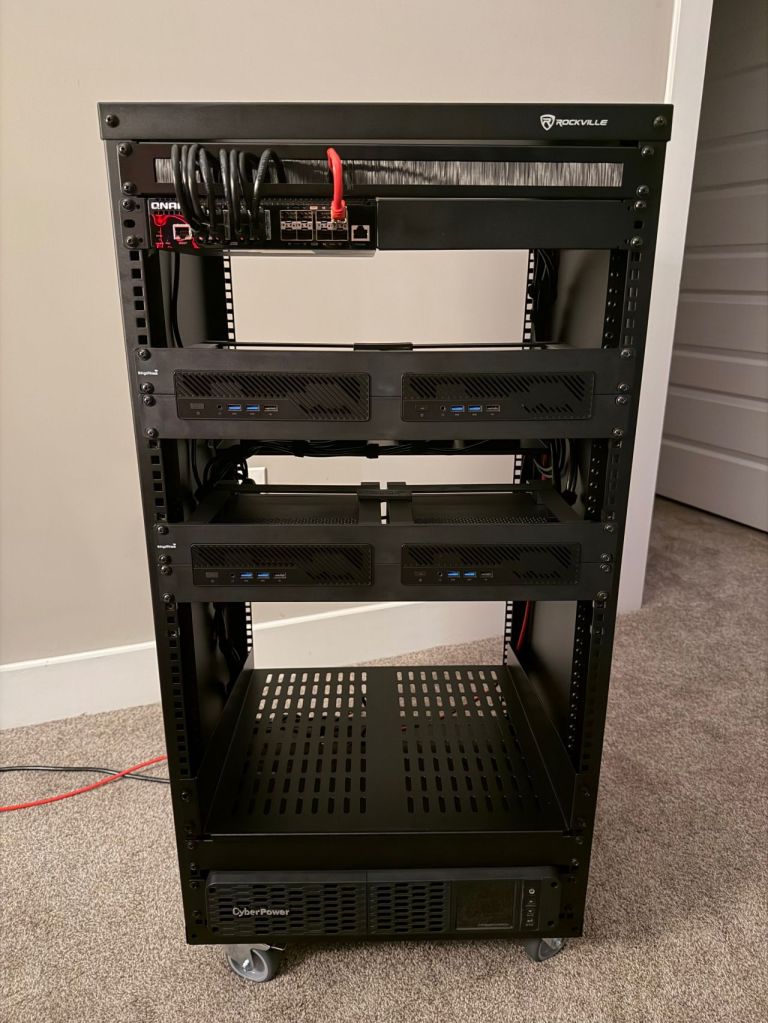
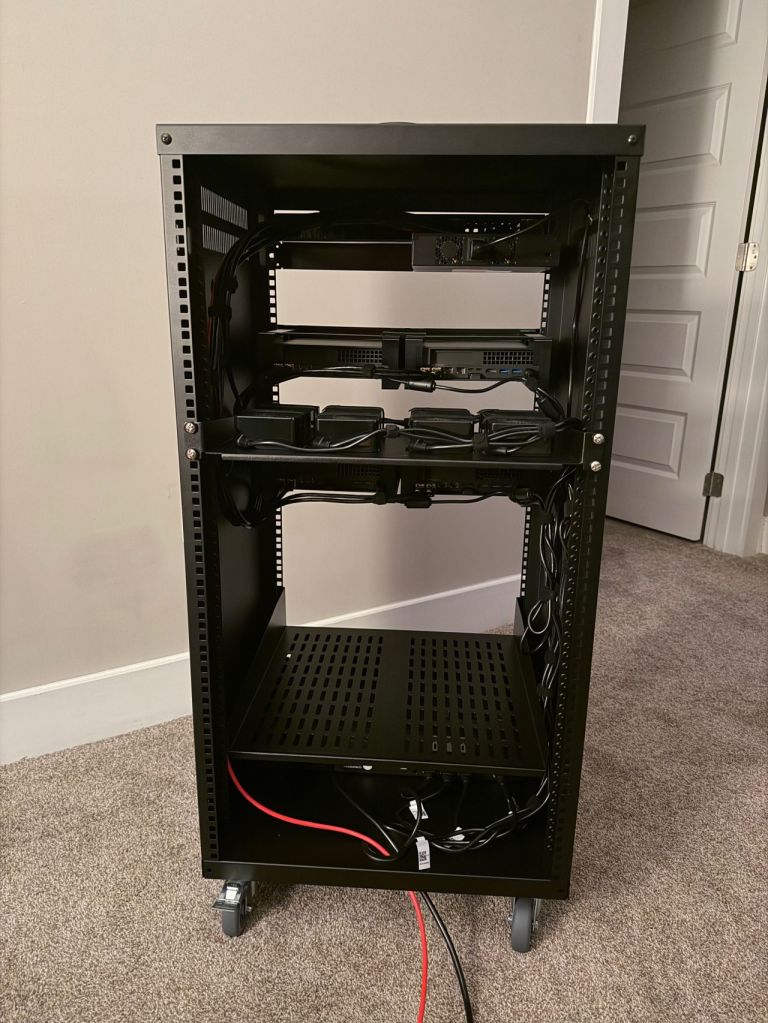
I am quite pleased with the wiring now that I have everything tidied up, although I forgot what a PITA cage nuts are. I’ve installed a shelf at the bottom for a future migration of my old lab 2x SuperMicro boxes that will either be used to host VCF Holodeck, or perhaps I’ll use them for a dedicated workload domain backed by NFS storage. The CPUs were depreciated in ESXi 8, but they still have some life left in them. Reaching into the way back time machine, that kit was Current CaptainvOPS Homelab 2020.

For the additional rack, rack mounts for the MS-A2s, UPS, and 10G managed switch:

QTYItem DescriptionLinkTotal Price
1A Rockville RR20U 20U Rack with wheels.Amazon.com$189.95
2Rack Mount for 2 MINISFORUM MS-01 19inch 2U Dual-MountAmazon.com$166
1QNAP 16-Port Half-Width Rackmount 10GbE Managed Network Switch (QSW-M3216R-8S8T-US)Amazon.com$599
1CyberPower CP1500PFCRM2U PFC Sinewave UPS Battery Backup and Surge Protector, 1500VA/1000W, 8 Outlets, AVR, Short Depth 2U RackmountAmazon.com$358.95
110Gtek 𝟭.𝟮𝟱/𝟮.𝟱/𝟱/𝟭𝟬𝗚-𝗧 𝗦𝗙𝗣+ 𝘁𝗼 𝗥𝗝𝟰𝟱, CAT.6a Copper Transceiver, Auto-Negotiation SFP+ Ethernet ModuleAmazon.com$44.99
11U Rack Mount Cable Management Panel with Tidy Brush Slot for Cable EntryAmazon.com$31.59
11U Server Rack Shelf – Vented Rack Mount Cantilever Tray for 19″ Network RackAmazon.com$32.99
1(Optional) 2U Server Rack Shelf – Universal Vented Rack Mount Cantilever Tray for 19″ Network Equipment RackAmazon.com$43.86

Total = $1,467.33

That brings the Grand Total for this new VCF 9 Home lab to $8,409.73

Thankfully I spread these purchases out over a couple of months. I assumed this would come in around 8k, but I over shot a little. RIP to my wallet.

I have a UniFi router that’ll handle the BGP so I did not need a new one. In my next blog, I’ll go over my basic network setup for this new lab.

VMware Cloud Foundation Home Lab Bom – Part 1

Blog Date: October 2025

It’s that time to give the home lab a big refresh, and purchase new hardware for VMware Cloud Foundation sandbox. As a VMware employee, I had access to internal labs that I could quickly spin up if I needed to test something with VCF. With every software company purchase, Broadcom has spun off the majority if not all of their newly acquired Professional Services division, and VMware was no different. Now back in Partner life, I needed to reinvest in my home lab. VMware Cloud Foundation is and expensive investment for customers, and as it turns out, it is not cheap for the home lab either lol.

Taking inspiration from William Lam’s VCF 9.0 Hardware BOM for Silicon Valley VMUG, I have modeled my VCF home lab BOM in a similar way.

QTYItem DescriptionLinkTotal Price
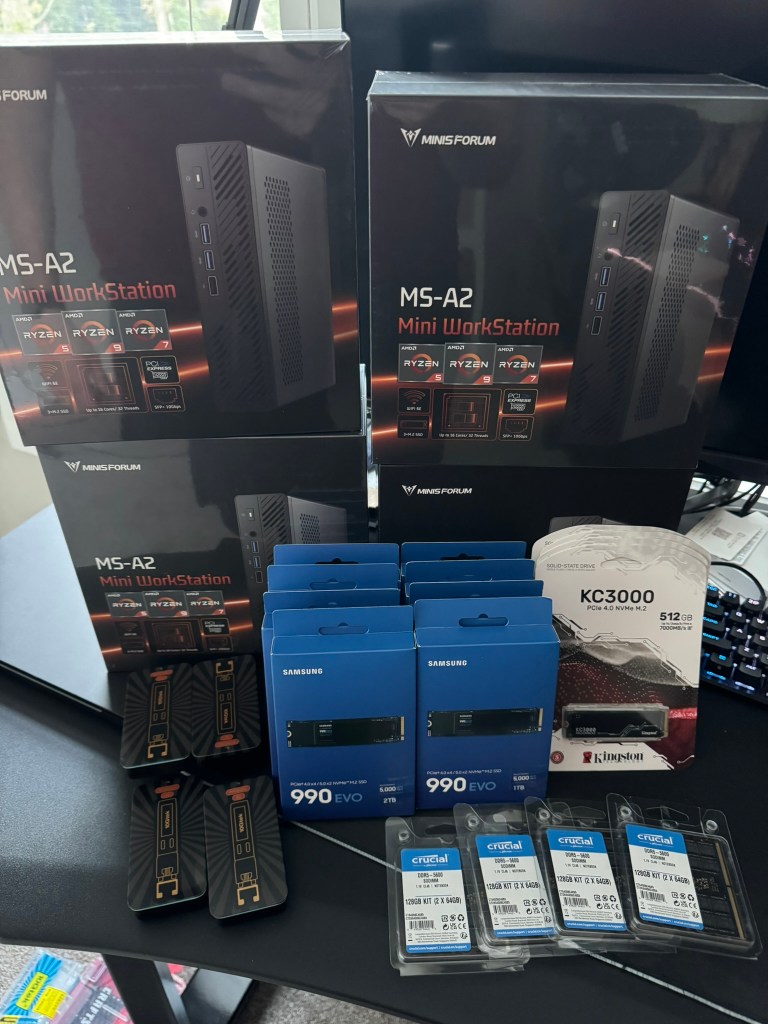
4MINISFORUM MS-A2 AMD Ryzen™ 9 9955HX / BareboneMINISFORUM.com$3,516.00 + warranty $359.96
= $3,875.96
410Gtek 𝟭.𝟮𝟱/𝟮.𝟱/𝟱/𝟭𝟬𝗚-𝗧 𝗦𝗙𝗣+ 𝘁𝗼 𝗥𝗝𝟰𝟱, CAT.6a Copper Transceiver, Auto-Negotiation SFP+ Ethernet Module dual kitAmazon.com$152
4Boot Drive:
Kingston KC3000 M.2 2280 512GB PCIe 4.0 x4 NVMe 3D TLC Internal Solid State Drive (SSD) SKC3000S/512G
Newegg.com$283.36
4NVMe Tiering: SAMSUNG 990 EVO SSD 1TB, PCIe Gen 4×4, Gen 5×2 M.2 2280 NVMeAmazon.com$319.96
4vSAN ESA:
SAMSUNG 990 EVO SSD 2TB, PCIe Gen 4×4, Gen 5×2 M.2 2280 NVMe
Amazon.com$479.96
4Memory:
128GB Kit (2x64GB) DDR5 5600MHz C46 SODIMM kit
BestBuy.com$1,831.16


Total = $6,942.4

Your tax and shipping costs may vary. I am still looking for 10G switch, rack, and rack mount hit for these to keep things tidy. I expect my total costs to come in under 8K USD. I’ll update this blog with the additional hardware when it comes in.