
Blog Date: December 2025
If you’ve been following along in this home lab series, in my previous blog, I finished my VCF 9.0.1 deployment to my 4 MINIS FORUM MS-A2s HERE.
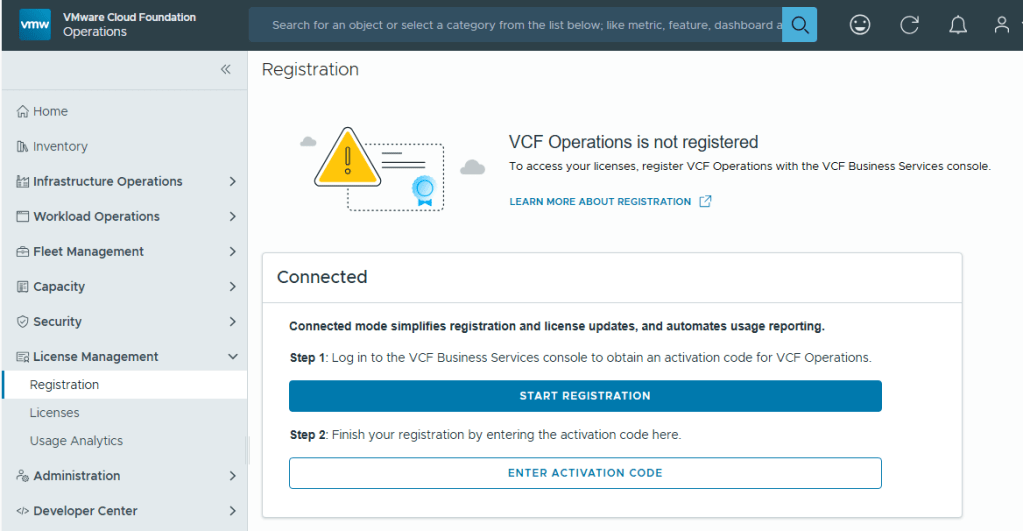
With Broadcom’s VCF 9, we are now required to configure usage reporting. This process is pretty straight forward. Click on the [START REGISTRATION] button, and you’ll be redirected to the Broadcom portal for authentication.
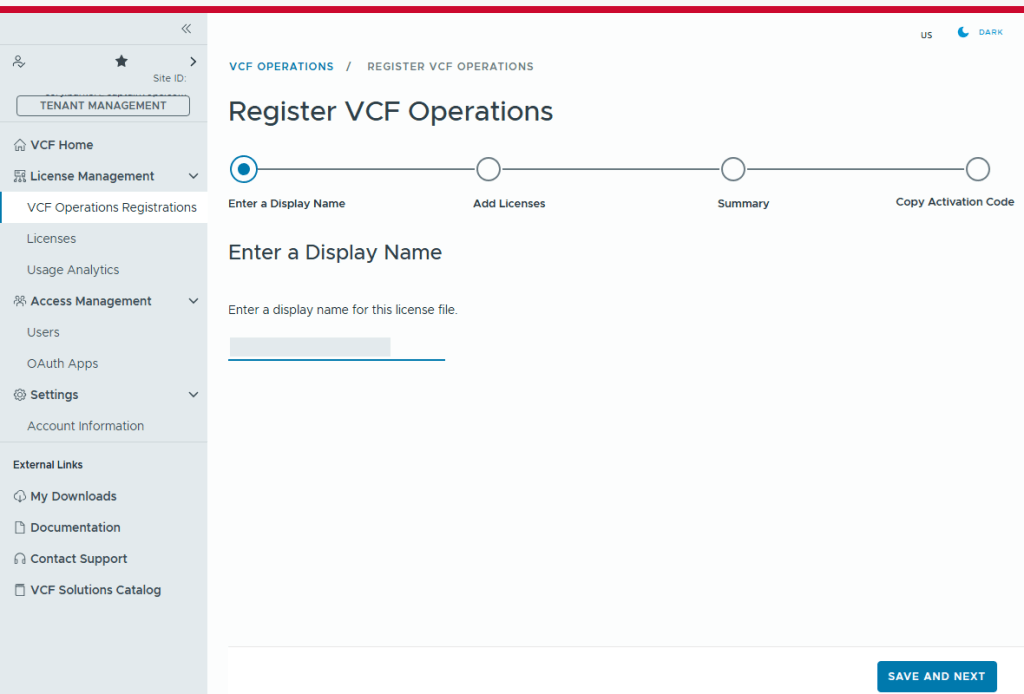
You’ll need to enter a display name for this license file. It could be representative of the environment where used.
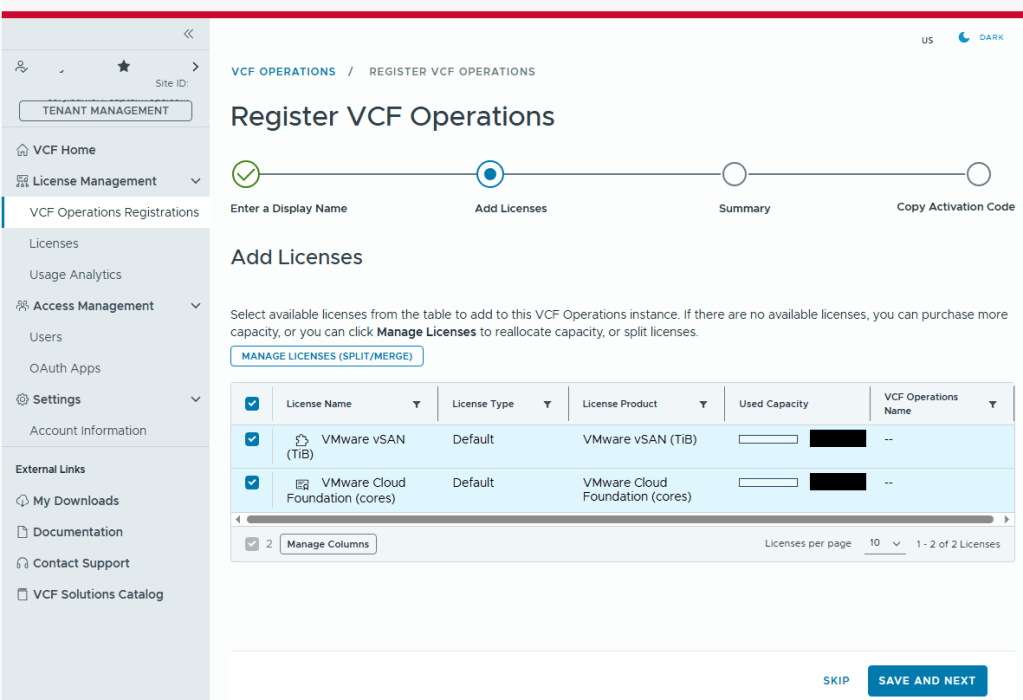
Select the licenses needed for the environment..
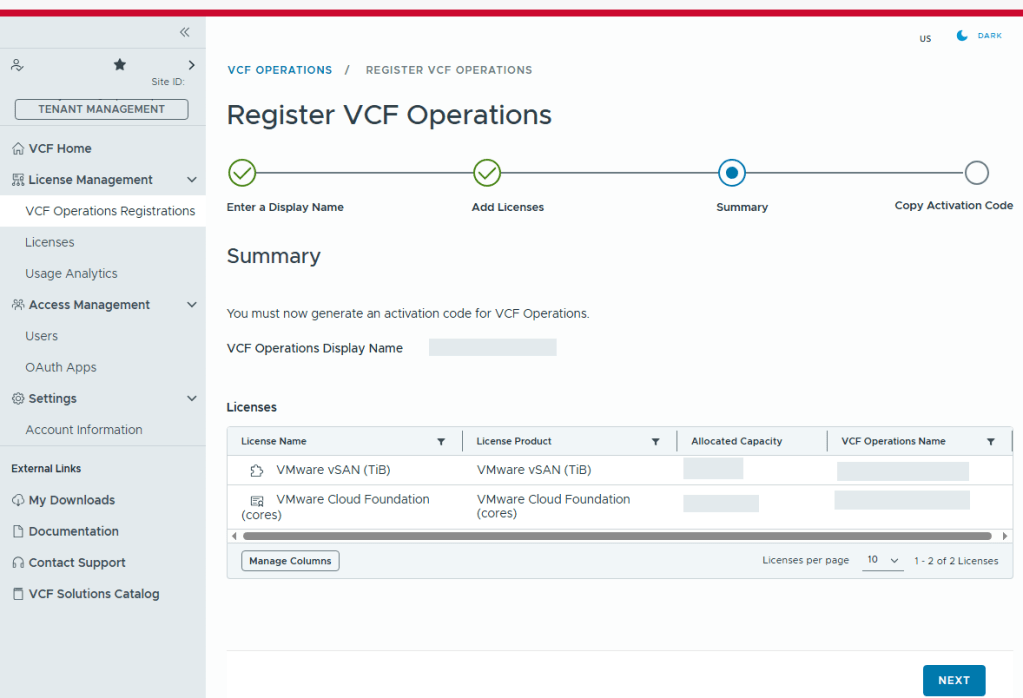
Validate the selection.
Now we just need to copy the activation code.

Back in VCF Operations, we now click the [ENTER ACTIVATION CODE] button to paste in the code.
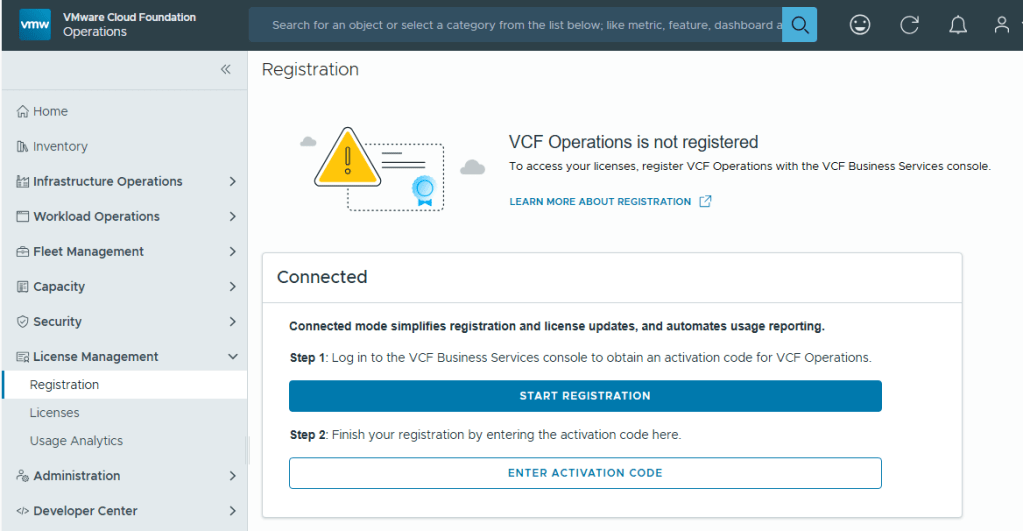
With your Activation Code ready, now you can activate.
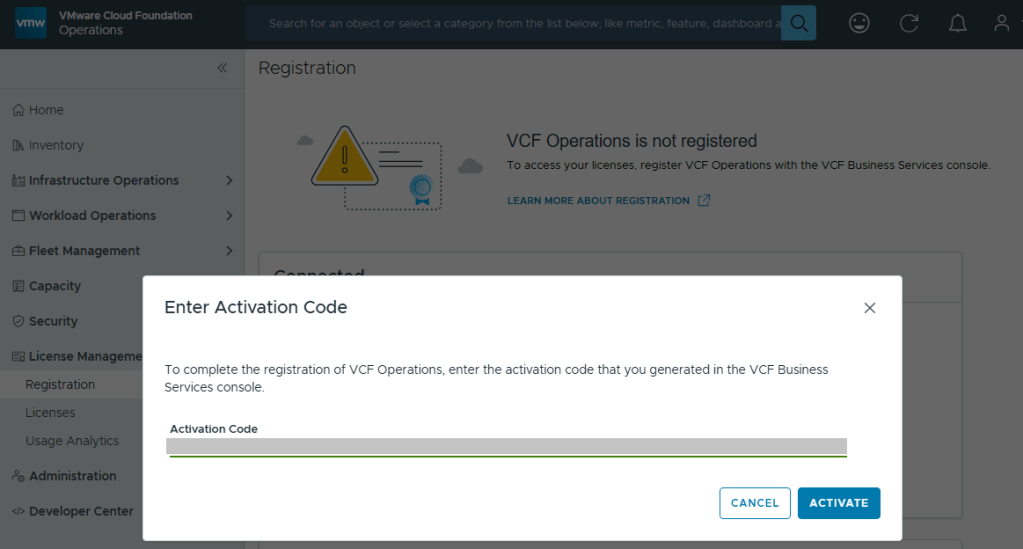
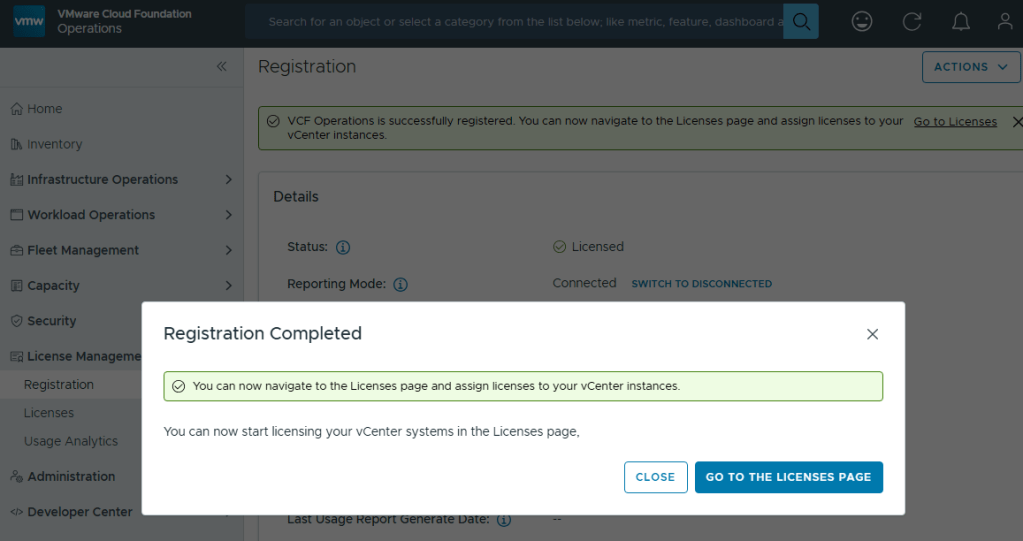
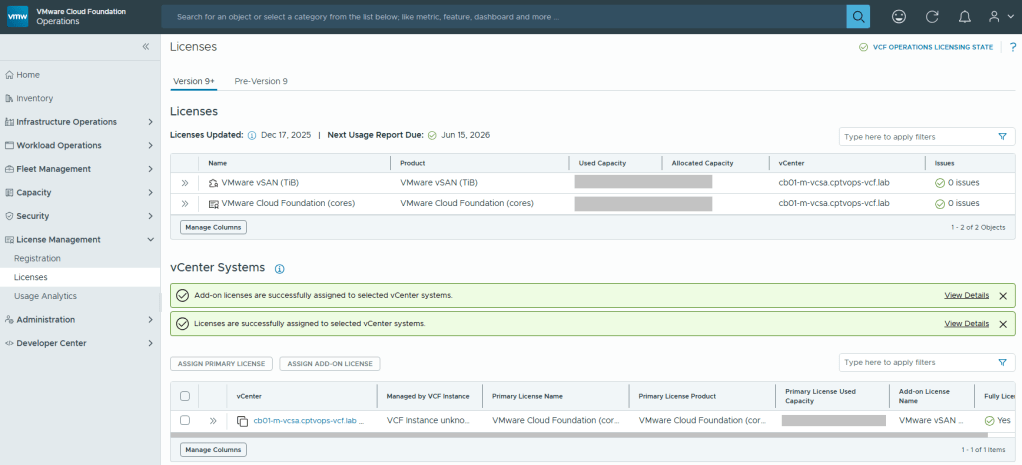
Now your licenses will be available to apply to vCenter (PRIMARY LICENSE) and vSAN (ADD-ON LICENSE).
But wait… There’s More!
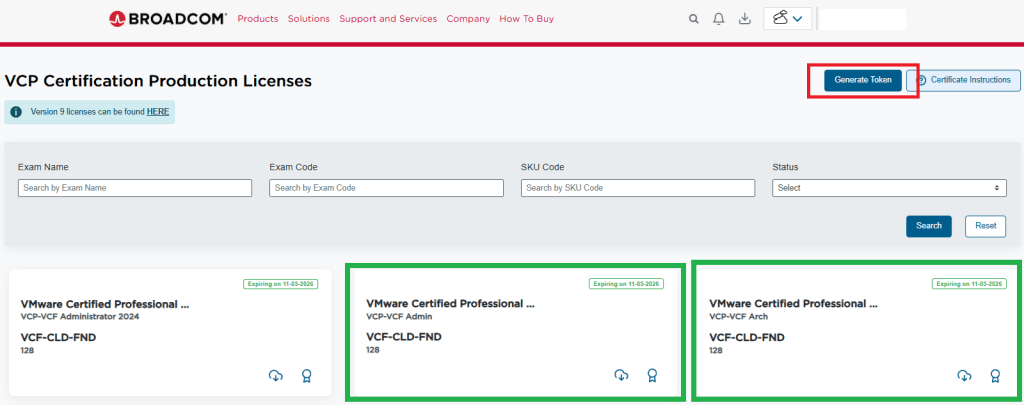
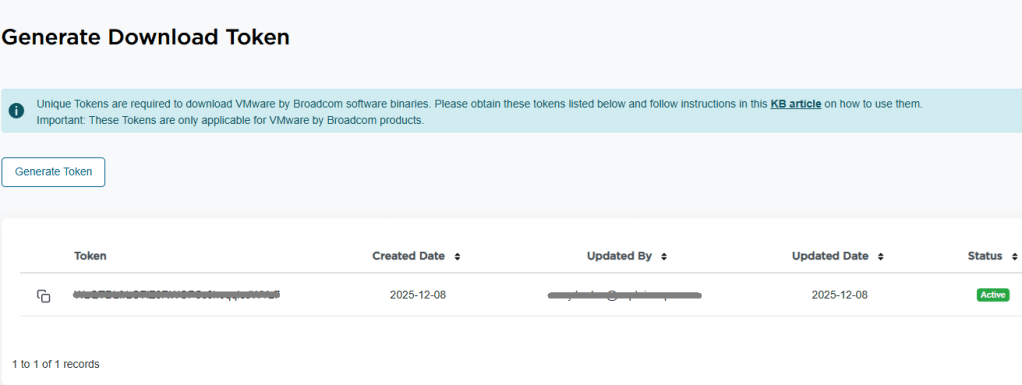
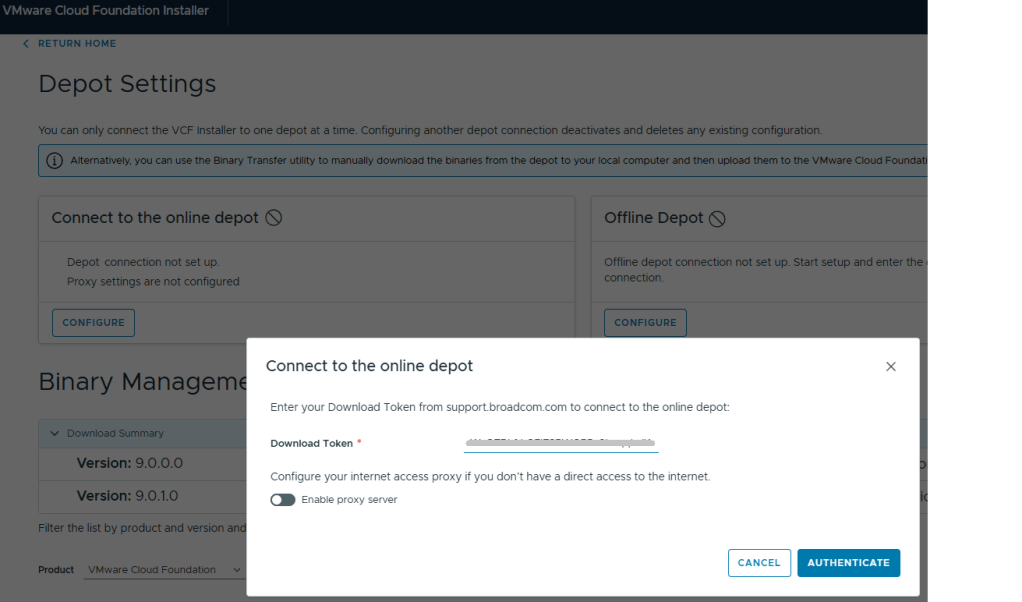
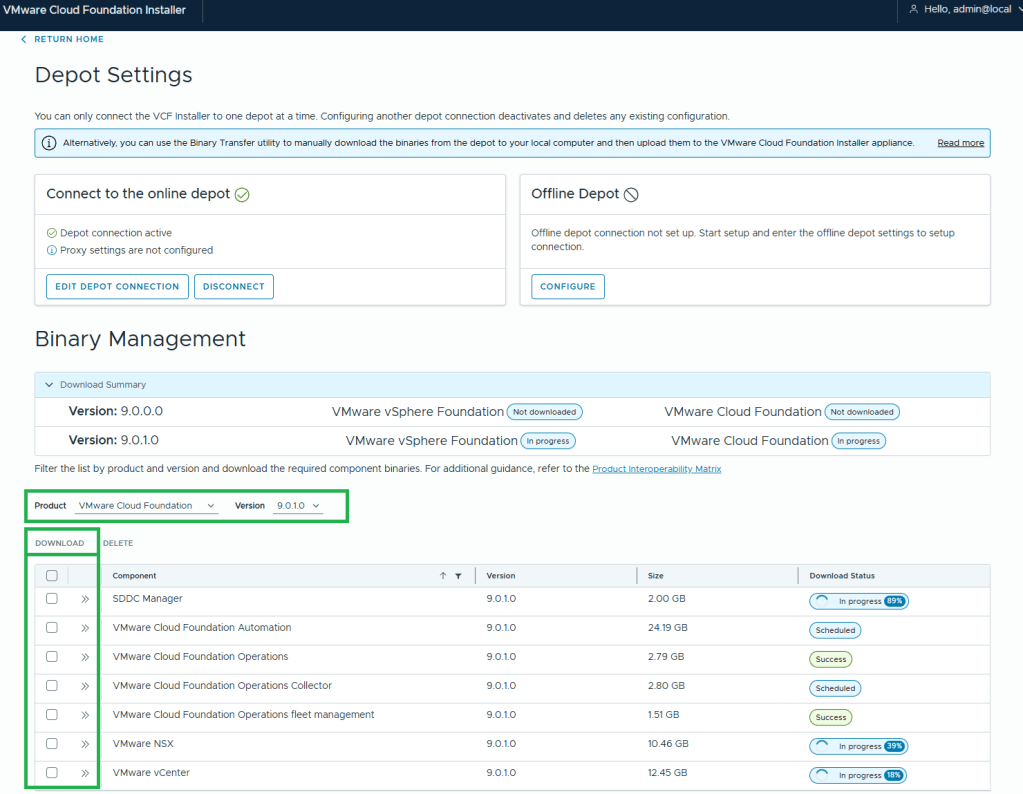
I am rather surprised that we have to apply the download token twice considering it’s a requirement to download the bits for the installation, especially in a world where we are constantly striving to automate all the things. Maybe Broadcom’s VCF Engineering division just overlooked this simple quality of life automation task to copy said download Token from the Cloud Installer, and import it to VCF Operations?
You’ll want to add your download token again to VCF Operations:
Fleet Management ->Lifecycle ->Depot Configuration
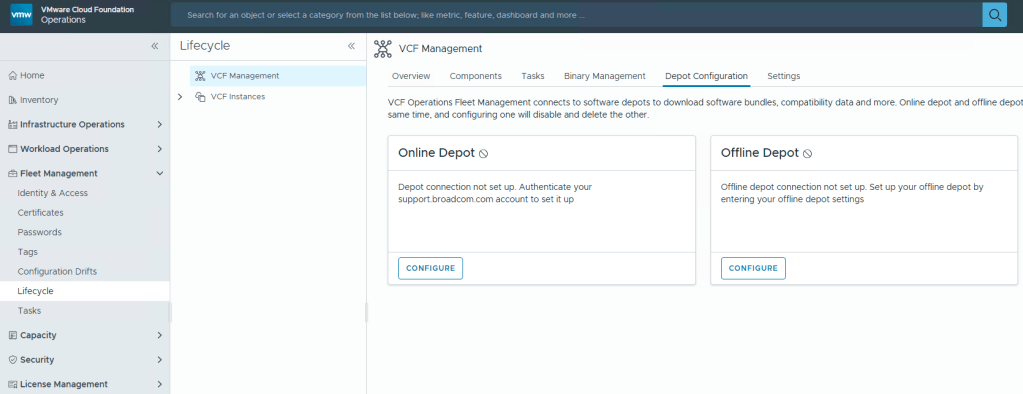
This looks oddly familiar for creating a credential file for VCF (Aria) Operations Integration. Click the plus icon.
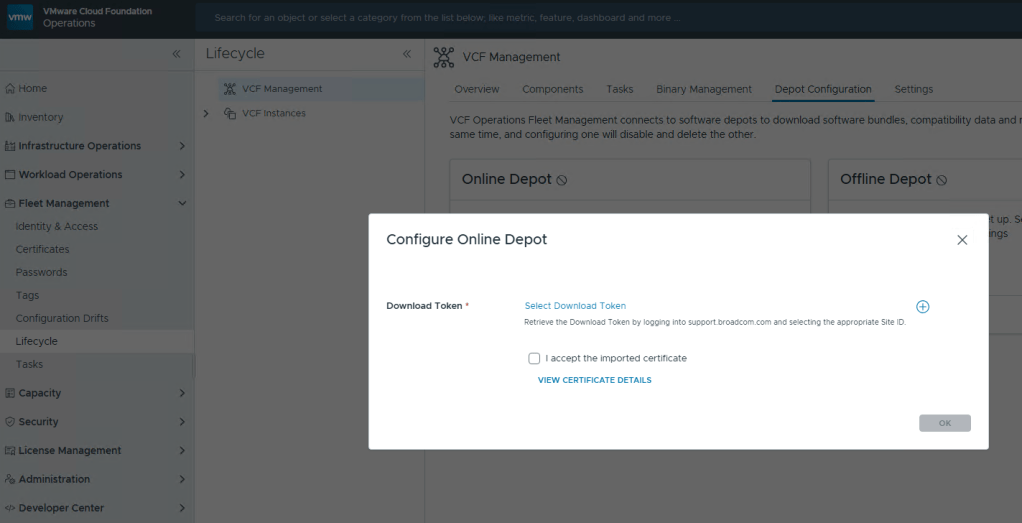
Well that’s… disappointing.
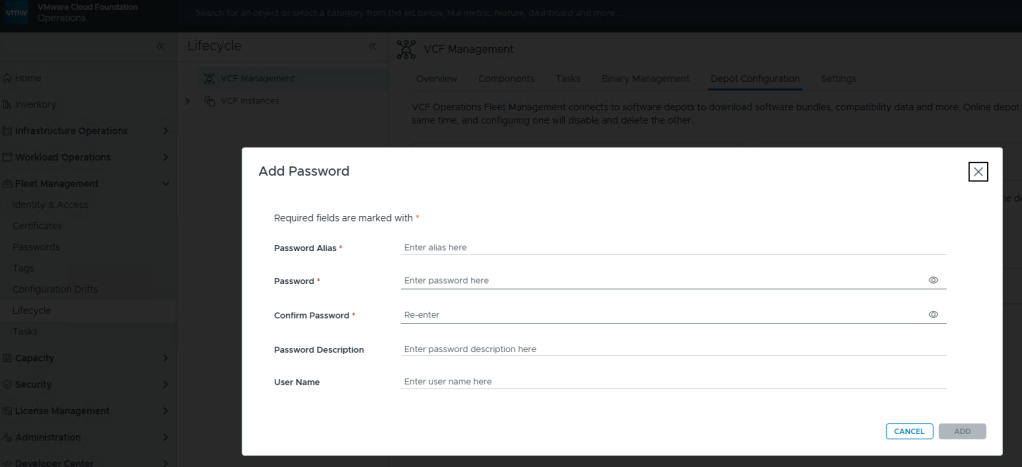
I fixed it for you, Broadcom.
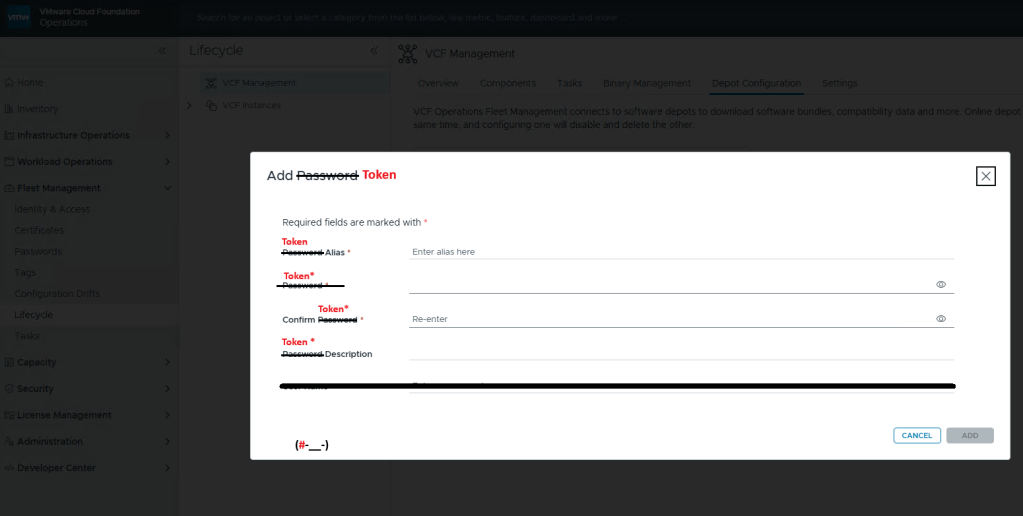
Just like you would create a credential file, here you add your download token where you’d add your password, and click [ADD].
Now just select your Download Token and click [OK].
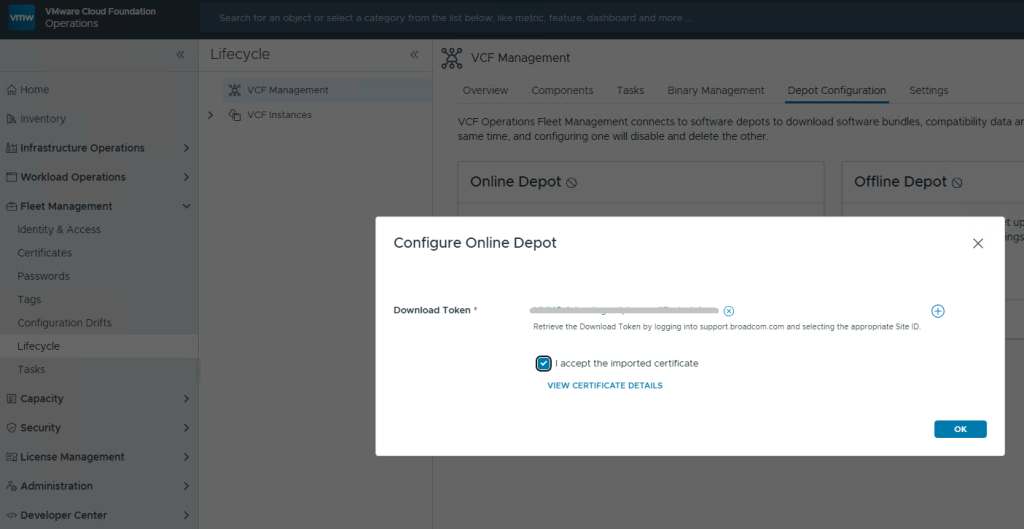
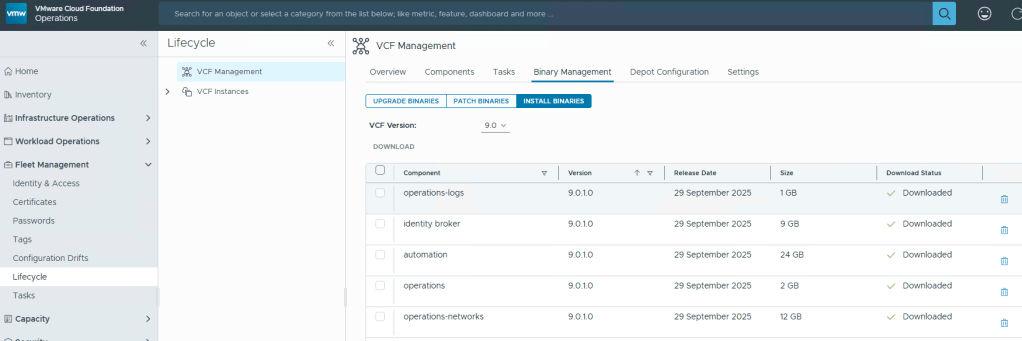
Now you can download your VCF Fleet (Aria) bits.
 CaptainvOPS
You must be logged in to post a comment.