Migrate VMware Cloud Foundation 4.x/5.x from Legacy VUM Images to vSphere Lifecycle Managed (vLCM) Images. (Can’t do it… yet)

Blog Date: July 10, 2024

To get straight to the punch, this is not supported yet. If you already have an existing VCF deployment, there currently is no supported way to migrate your workload domains to vLCM, per the support article here -> Transition from vSphere Lifecycle Manager Baselines to vSphere Lifecycle Manager Images is not supported with VMware Cloud Foundation. While you can technically use the vCenter UI / APIs to make the switch, it will cause workflows in SDDC manager to break, VMware support/engineering will have to get involved, and most likely the changes will have to be reverted.
If you are in the beginnings of deploying a new workload domain, by default it will use vSphere Lifecycle Manager baselines as the update method, unless you specifically checked “Manage clusters in this workload domain using baselines (deprecated)” during the workload domain deployment. However, this option would require you to have an existing vLCM image prior to the workload domain being deployed. If you don’t have a vLCM image yet, the VMware documentation suggests that you deploy the workload domain using legacy images (VUM), and that documentation can be found here -> Deploy a VI Workload Domain Using the SDDC Manager UI.
Doing a little research on the available options if no vLCM baseline image is available, and if you already have identical ESXi hosts deployed to the VCF environment, in vSphere, you can create a new empty compute cluster, select the option to manage the cluster with vLCM baselines, select a identical host already deployed to the environment to import and create the vLCM baseline from including the NSX driver. Now you have a vLCM baseline you can use for new workload domains and clusters using identical hosts. The new vLCM baseline can be imported into the SDDC manager. One might ask if it is safe to create a new compute cluster using the vSphere UI in a VCF deployment? For this purpose because it is temporary, the answer is yes. Technically, if you add additional compute clusters in vSphere without going through the SDDC manager, the SDDC will have no knowledge of it and won’t interact with it, so for our purposes, it is safe to create the empty compute cluster to create the new baseline, and then just delete the empty cluster when finished. Always remember to clean your room.
Although it will take a little work on the font end if you currently do not have vLCM baseline images to deploy a new workload domain, the above process can be used to create it. Eric Gray put together an excellent blog and YouTube video on this here -> Updating VCF Workload Domains deployed using vLCM Images. This walks us through the process of creating a new vLCM baseline image for a vLCM enabled workload domain to upgrade it, but the same process can be used to create a new vLCM image for a new workload domain with identical hardware.

If you have just deployed a workload domain and selected Manage clusters in this workload domain using baselines (deprecated) (legacy VUM), there is no way to convert it to vLCM baselines (at the time of writing this blog). You have to REDEPLOY the workload domain. You could however, take the opportunity using the above method to create a vLCM baseline image for the workload domain, so that when you redeploy it, you’ll have a vLCM image to use. Silver lining?

Unconfirmed reports indicate that the functionality to migrate existing workload domains from legacy VUM to vSphere Lifecycle Manager baselines is *targeted* for VMware Cloud Foundation 9.

VMware Cloud Foundation: SDDC Manager Day 2 Configurations: Deploying an Application Virtual Network In The Management Domain.

Blog Date: 10/20/2023

In the previous blog, I went through the process of deploying an NSX edge cluster via VCF in the management domain. In this blog, I will walk through the process of deploying an application virtual network (AVN) for the management domain for the vRealize/Aria suite of products. This deployment assumes that we will be deploying the latter in a VCF aware configuration which would be typical for most deployments. AVNs allow the SDDC Administrator to configure vRealize/Aria management applications for software defined networking through NSX-T Data Center.  AVNs configure a local region and a cross-region SDN segment providing security, mobility and flexibility of vRealize/aria management applications. vRealize/aria components can be moved between regions to maintain operations during planned migration, maintenance or in the case of a DR event.

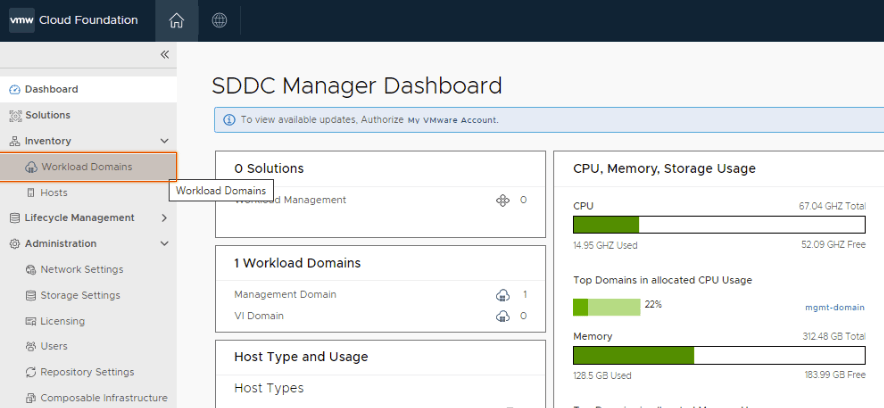
For this, click workload domains.

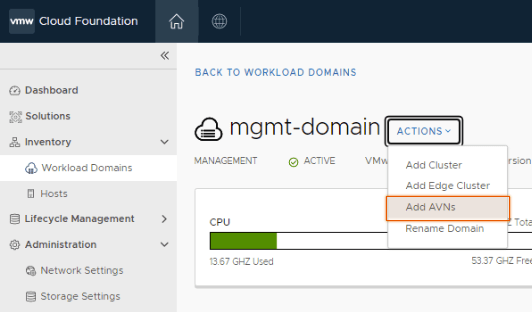
Click on the management domain.

Prior to deploying AVNs, an NSX Edge cluster of two (2) or more nodes is required. In my previous blog, I walked through the SDDC Manager automation that is used to deploy the edge cluster. This post assumes the edge nodes and cluster are in a healthy state, but you can always look via the SDDC manager by clicking on the Edge Clusters tab.

Assuming the edge cluster and nodes are healthy, click Actions and then Add AVNs.

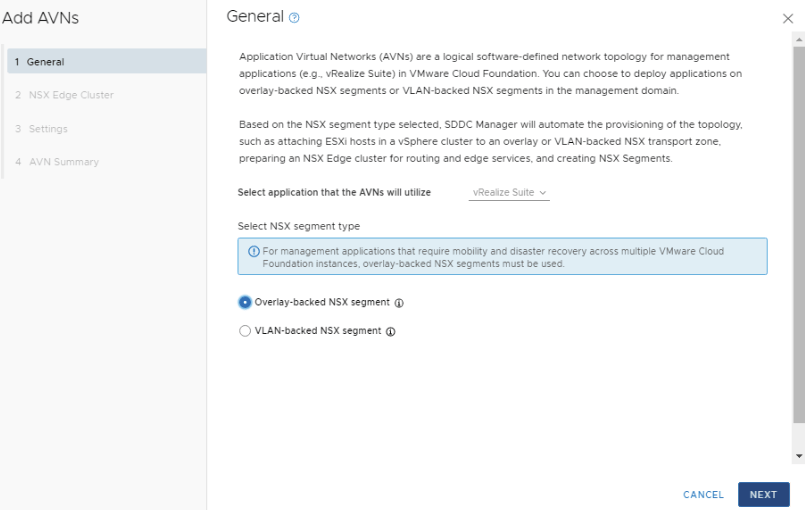
Select Overlay-backed NSX segment and click NEXT.

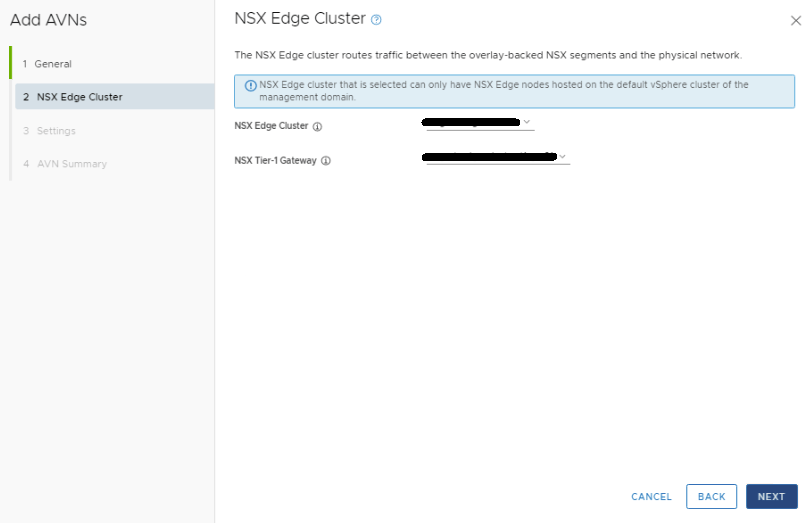
In the NSX Edge Cluster drop menu, select the management edge cluster. In the NSX Tier-1 Gateway drop menu, select the gateway. Click NEXT.

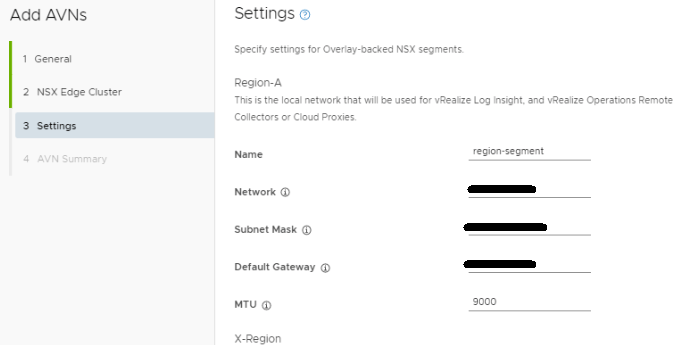
Fill out the network specs for Region-A. An MTU of 9000 was used here to keep the MTU consistent in the environment.

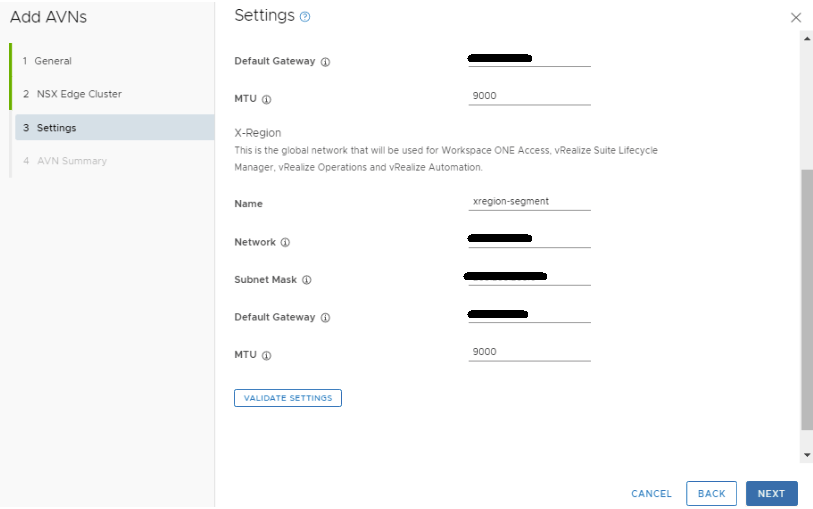
Fill out the network specs for the X-Region section. An MTU of 9000 was used here to keep the MTU consistent in the environment. Click VALIDATE SETTINGS, and then click NEXT after the validation succeeds. Otherwise, remedy the errors and validate the config again.

Review the configurations for accuracy, and click FINISH.

Watch the tasks window in the SDDC manager for deployment task to succeed.

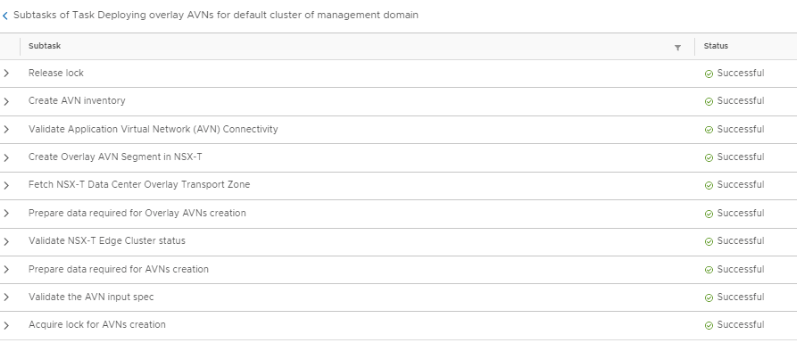
You can also click the main task to see all of the sub tasks and watch for them to successfully complete.

Going back to the summary tab of the management domain, below the NSX-T configuration, you will now see the details of the AVN network just deployed.

Now we have the AVN ready for the vRealize/Aria suite deployment through the SDDC manager.

For more information, see VMware’s documentation Deploying Application Virtual Networks in VMware Cloud Foundation.

VMware Cloud Foundation: SDDC Manager Day 2 Configurations: Deploying an NSX Edge Cluster In The Management Domain.

Blog Date: 10/13/2023

After VCF has been deployed, and the tier 0 and tier 1 gateways have been configured in NSX, you can log into the SDDC manager and configure the NSX Edge Cluster for the management domain/consolidated domain deployment. A similar process is also used for the NSX Edge Cluster in a workload domain. During the design preparations for the VCF deployment, the NSX cluster would have been defined, along with the network information. Those design considerations and work wont be covered here, and it is assumed you are ready to deploy the edge cluster.

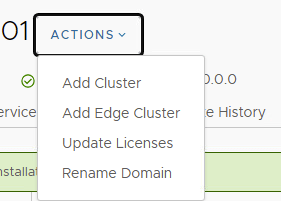
In the left pane of the SDDC Manager, select Workload Domains, and then click the management domain link. In the right pane, click the ACTIONS drop-down menu and click Add Edge Cluster.

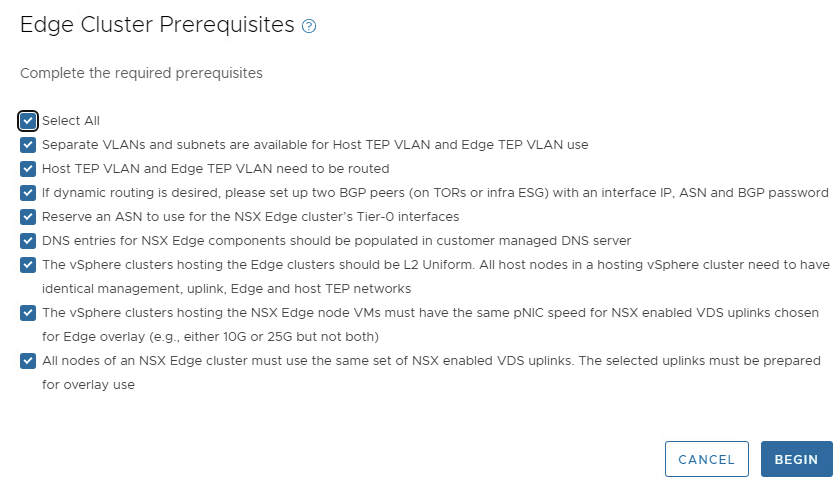
Review the prerequisites, select the Select All check box, and click BEGIN.

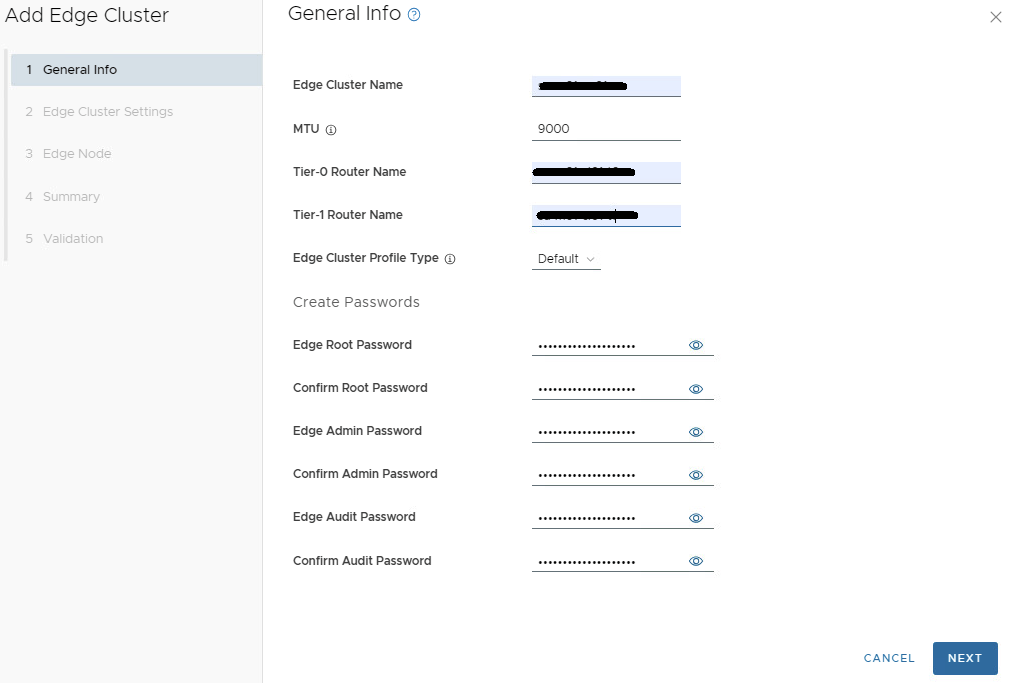
Provide the following information for the new edge cluster. In this example, we are using an MTU of 9000 for simplicity.
Edge Cluster Name:
MTU: 9000
Tier 0 Name:
Tier 1 Name:
Edge Cluster Profile Type: Default

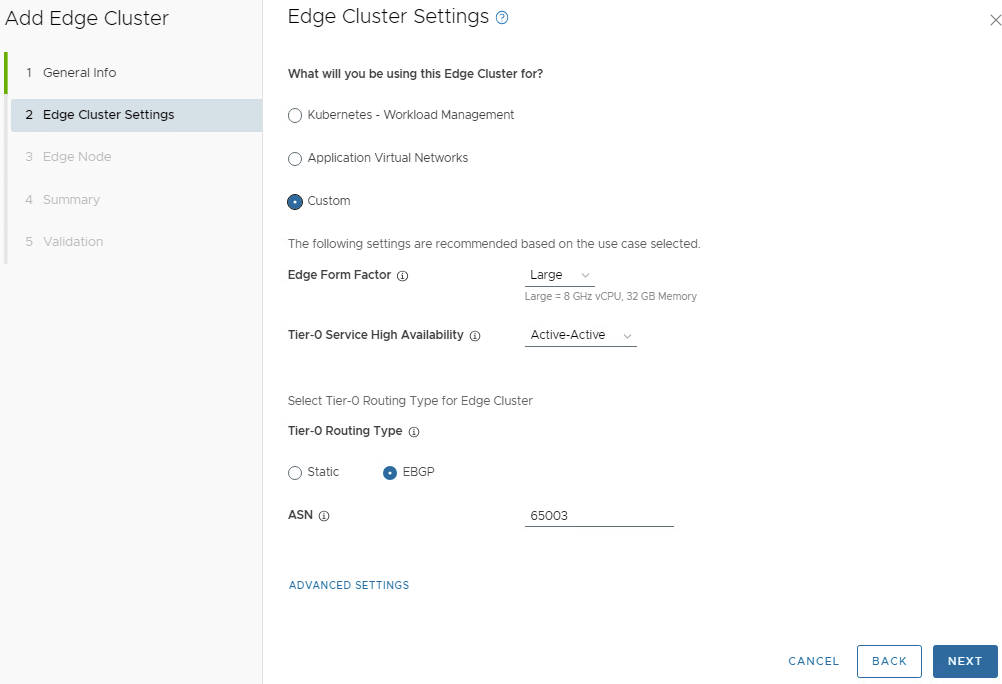
Enter the desired password for the password boxes. Click NEXT. Enter the details for what the edge cluster will be used for. On the Edge Cluster Settings, in this example we will select Custom.

The edge cluster size will be determined during the design phase of the NSX edge cluster. In this example, we have Large selected. Your mileage may vary.

Validate that the Tier0 Service High Availability is Active-Active. Validate that EBGP is selected as the Tier0 Routing Type. Enter the correct ASN number for your environment. Click NEXT.

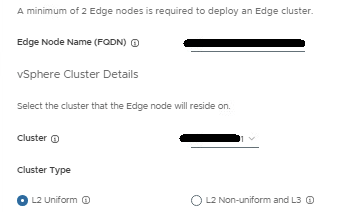
Provide the cluster details for the first edge node. Cluster type setting will vary depending on your environment configuration:

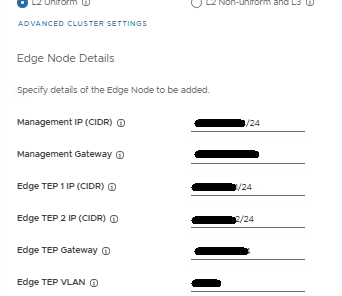
Fill in the Edge Node details for the TEPs.

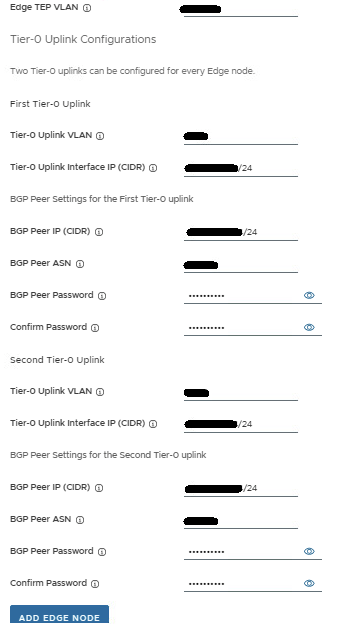
Now add the first Tier-0 uplink and BGP info, and second Tier-0 uplink and BGP info.

Review the values entered to insure accuracy, and then click the ADD EDGE NODE button. The config for the first edge node has been saved.

Now you need to add the config details for the second edge node. Click ADD MORE EDGE NODES which takes you to the top of the Edge Node Details page. You’ll notice the previous values entered are still present. Starting from the top, work your way to the bottom, and carefully update all entries with the second edge node config.

Review the values entered to insure accuracy for the second edge node, and then click the ADD EDGE NODE button. The config has been saved.

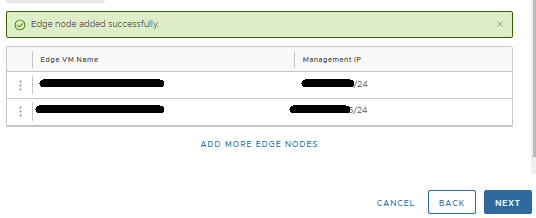
At this point, two edge nodes should be shown. More can be added if needed, but two nodes offer sufficient redundancy. Click NEXT.

Review the summary and ensure that you entered the values correctly.

IMPORTANT:

Ensure that you entered the IP addresses, FQDNs, and VLANs correctly by comparing all values with the network diagram. Any data entry error will cause errors in deployment.

Click NEXT

Wait for validation to complete.

If any checks fail, record the cause, and verify that no values are incorrectly entered in the wizard. CAUTION: Do not click FINISH unless the validation succeeds for all checks. If the validation checks succeed, click FINISH.

You can monitor the deployment in the SDDC manager tasks pane in the bottom of the screen. If you click on the task name for adding the edge cluster, the sub-deployment tasks will be shown.

Wait for the edge cluster deployment task to complete before deploying application virtual networks.

For more information, see VMware’s documentation on Managing NSX Edge Clusters in VMware Cloud Foundation.

VMware Cloud Foundation: SDDC Manager Day 1 Configurations: Configure Certificate Authority

Blog Date: 10/6/2023

After VCF has been deployed, you can log into the SDDC manager and configure a certificate authority. This is useful if there’s a desire to use custom signed certificates. SDDC manager has the ability to run OpenSSL and create certificates for the associated VMware products in the SDDC. Alternatively, you can also configure the Certificate Authority to use a Microsoft CA. In this blog I will cover the steps to setup the OpenSSL. One thing to note is that by default, the certificates authored using the method will be valid for a year.

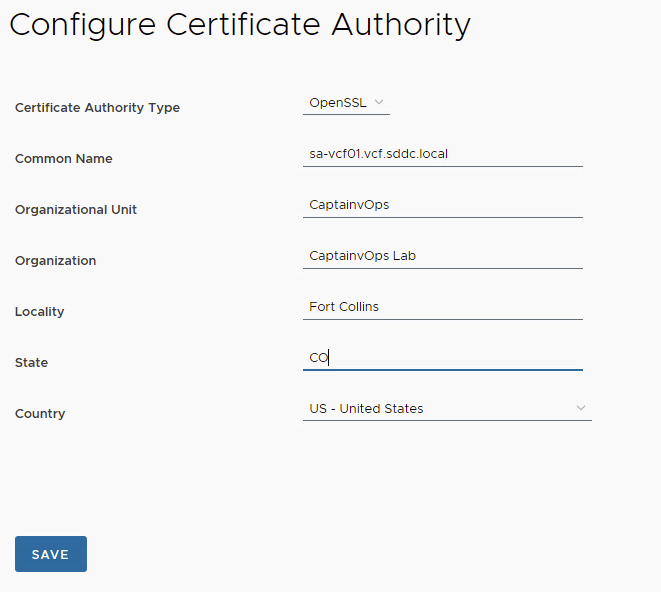
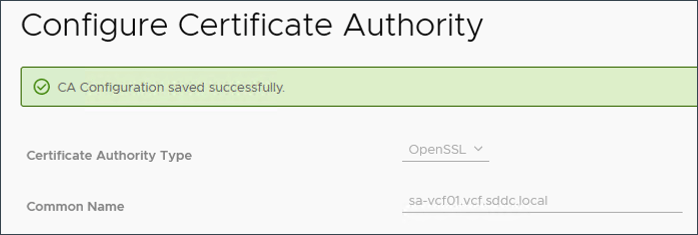
In the left pane, scroll down and click Certificate Authority under Security. In the right pane, click the EDIT button. In the Certificate Authority Type, select OpenSSL. Fill in your environment specific details, and then click SAVE.

The CA Configuration Saved Successfully message appears on the page.

For more information, checkout VMware’s documentation on Managing Certificates in VMware Cloud Foundation.

To update the certificates in SDDC manager, I would first take a snapshot of whatever you are updating the certificate of, then in SDDC manager locate Workload Domains in the left pane under Inventory. Select the management domain (or desired domain), and then click on the Certificates tab.

In this example, place a check mark in the box for sddcmanager, and click the GENERATE CSRS button to configure the CSR details with your organization’s specific details.

Click NEXT.

On the Subject Alternative window, you may wish to add additional info, otherwise click NEXT.

Click the GENERATE CSRS button. Wait for the CSR Generation is successful message before continuing. You might need to refresh the browser periodically.

Now we can generate the signed certificate from the certificate authority, which in this case will be the SDDC manager considering we enabled OpenSSL. Leave sddcmanager selected, and click GENERATE SIGNED CERTIFICATES button. In the Generate Certificates pop-up window, click the Select Certificate Authority drop-down menu and select OpenSSL. Click GENERATE CERTIFICATES. You will need to wait until you see the certificate generation is successful message. View the Certificate Operation Status column to see that the certificate generation was successful.

With the sddcmanager still selected, click the INSTALL CERTIFICATES button. Refresh the browser a few times until you see security warnings about the new certificate as a result of the change. In the end, you should see a Certificate Installation is successful message display.

At this point you can restart the SDDC manager appliance to ensure the new certificate is in use going forward. Now simply rinse, wash, and repeat on the remaining appliances you wish to update the certificate.

In my next blog, I’ll go over the process of deploying an NSX edge cluster in the management domain. this will be used in the future when we create the network segment for vRealize/Aria.

VMware Cloud Foundation: SDDC Manager Day 1 Configurations: Connect to an Online Depot

Blog Date: 9/29/2023

Another day 1 operation in a newly deployed VCF environment, would be to configure a service account to connect the SDDC manager to your organization’s VMware Customer Connect account.

This service account would need the following permissions: Access to view licenses, products, and be able to download products. This service account would need to be configured in the VMware Customer Connect portal. For the user email address, I typically have customers use a group distribution email. Configuring SDDC manager to use a service account, will allow it to access the VMware Depot without relying on a employee account, which will be more secure. Just be sure to set a strong 18-20 character password, and record the account details in a secure location. *PRO TIP: Log into the customer connect portal using the service account you created, and verify that you can view licenses, products, and download products. This will insure the account meets all access requirements that the SDDC manager will need when we configure the depot settings below.

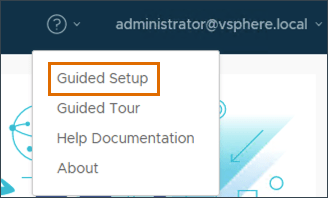
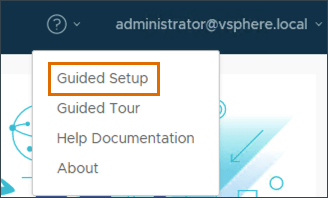
Just like we did in the previous blog, we’ll click the question mark in the upper right, and select Guided Setup.

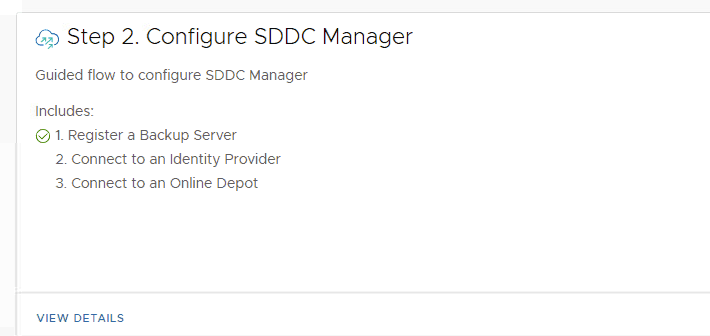
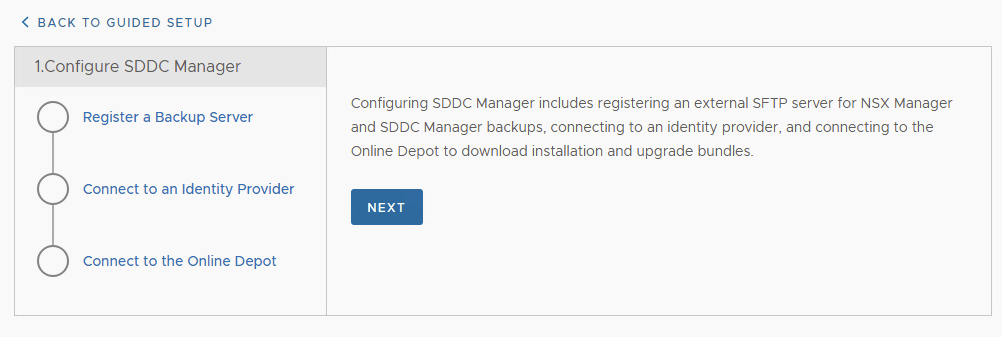
On the next screen, we’ll want to continue with Step 2 Configure SDDC Manager. Click VIEW DETAILS.

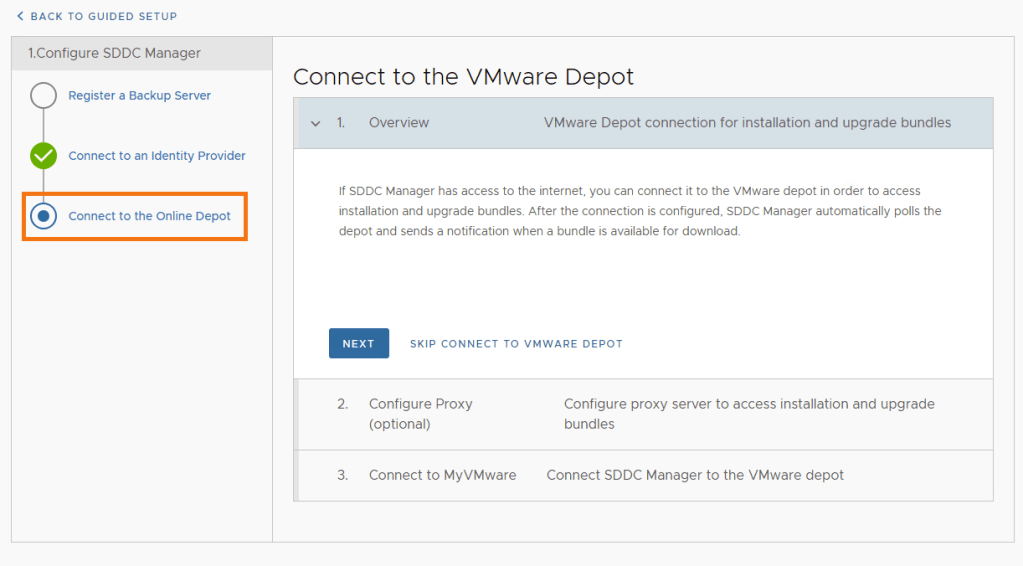
Select Connect to the Online Depot and click NEXT.

If there’s no proxy to configure for the SDDC manager to reach the internet, click SKIP CONFIGURE PROXY.

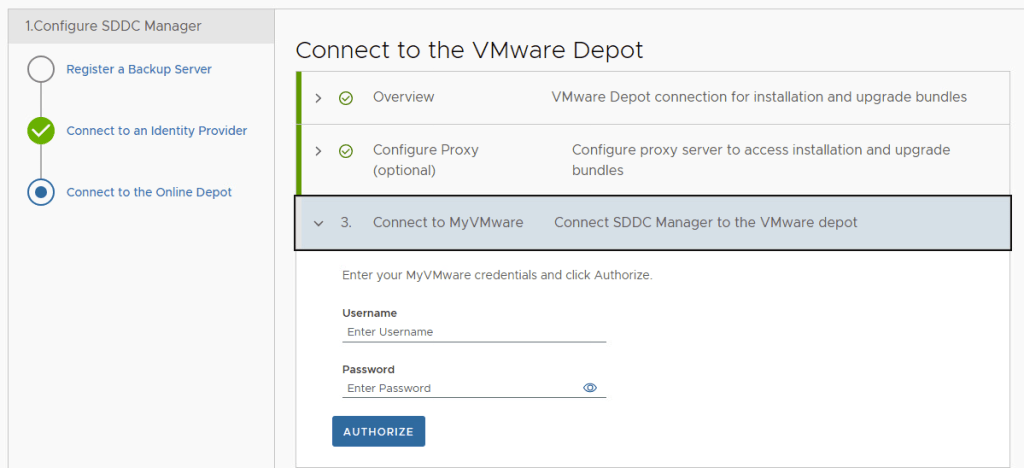
Add the details for the VMware depot service account mentioned above and click AUTHORIZE.

Assuming the service account has the correct permissions, you shouldn’t get any errors. A connectivity error may indicate a firewall access issue.

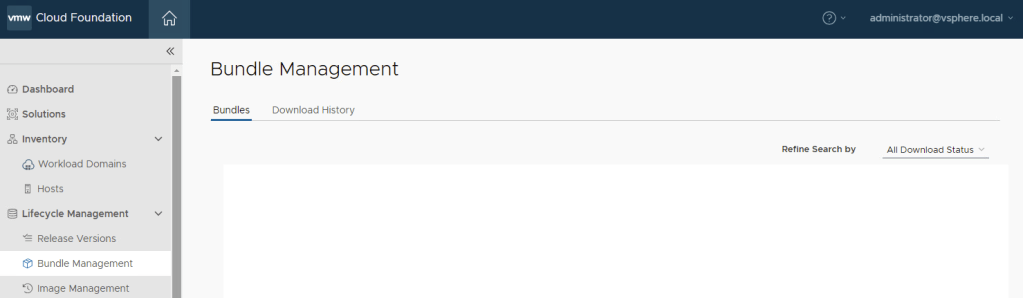
To validate that you can see and download bundles, under Lifecycle Management in the left hand menu, select Bundle Management. (No available bundles when screenshot was taken).

For more information on how to connect to the VMware Depot, see VMware’s Documentation Download and Install Bundle from SDDC Manager.

In the next blog, I will cover how to configure a certificate authority in the SDDC manager using Open SSL.

VMware Cloud Foundation: SDDC Manager Day 1 Configurations: Identity Provider

Blog Date: 9/22/2023

Another day 1 operation in a newly deployed VCF environment, would be to configure an identity provider. Just like we did in the previous blog, we’ll click the question mark in the upper right, and select Guided Setup.

On the next screen, we’ll want to continue with Step 2 Configure SDDC Manager. Click VIEW DETAILS.

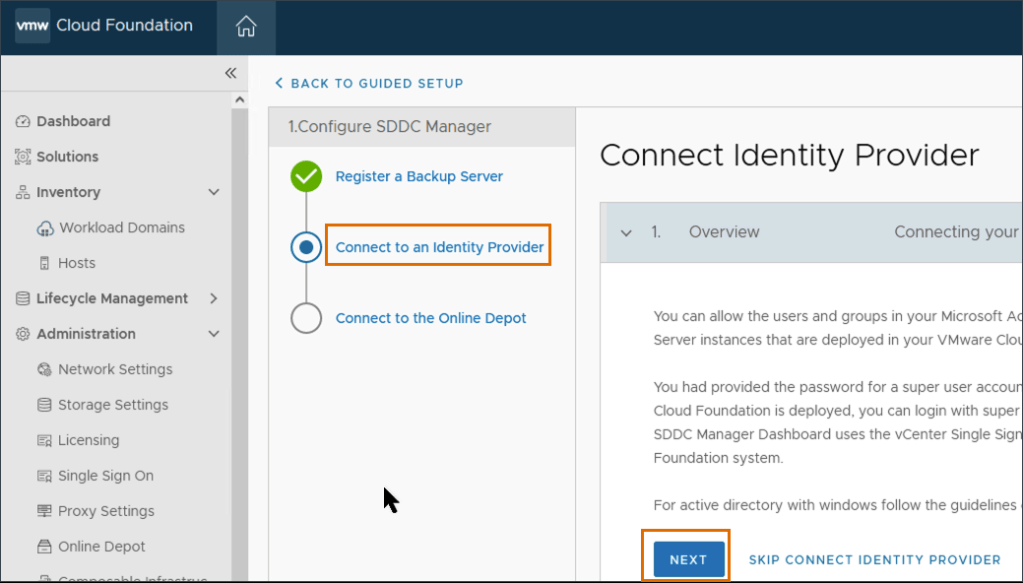
In the Configure SDDC Manager wizard, click Connect Identity Provider, then click Next.

Here, we will be configuring the identity provider that will be used in the vCenter. Click the Select Identity Provider from the drop-down menu, select Embedded. Click the Select Identity Source drop-down menu, select AD over LDAP. Click Next.

Fill in the LDAP Settings.

In this example, I don’t use a certificate for LDAP connectivity. Your mileage may vary. Click NEXT. Validate the information on the Review page matches the table above, then click SUBMIT. Wait for the save to complete, then validate that Connect an Identity provider has a green check mark.

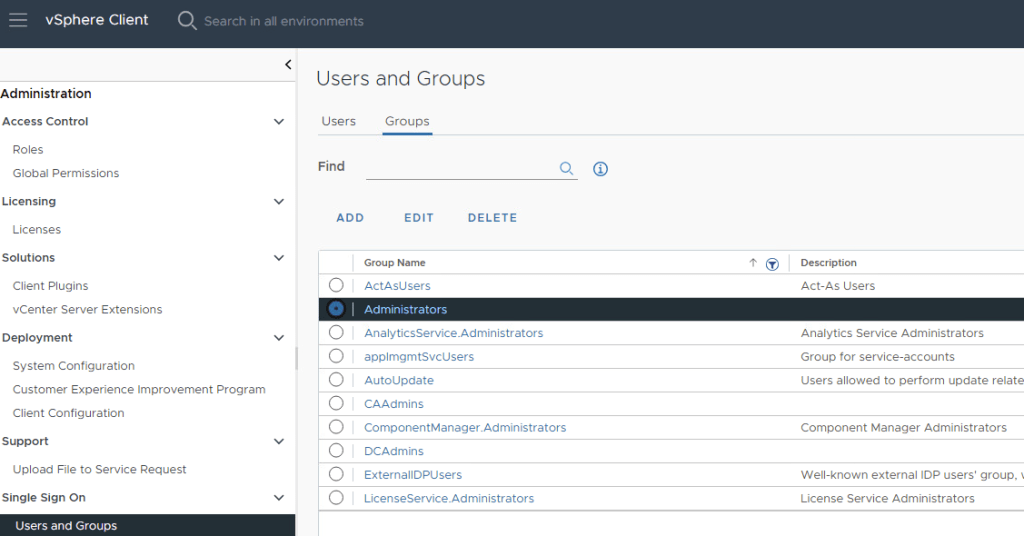
Now that a identity provider has been established, you can now configure access to those who you trust to perform administrative tasks. The SDDC manager already comes preconfigured with a vsphere.local group called sddcadmins defined in the vSphere. Depending on your security needs, you can also add users and groups directly in the SDDC manager. In this example. I will configure access through the sddcadmins group in vSphere.

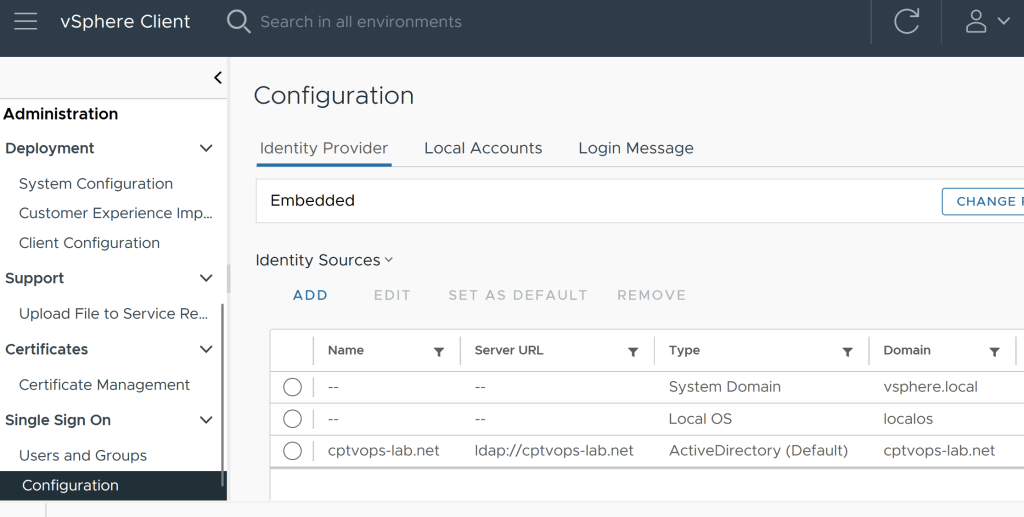
If we drop down into the vSphere, first we will want to set the identity provider as the default authentication source.

Next, you’ll want to locate the SDDCAdmins group and add the organization’s trusted admins who will be administering the SDDC. Typically, I have customers define an AD group with the SDDC admins, so that you only need to define the group in the vSphere. As the AD account membership to the group organically changes with users, you won’t have to worry about updating the vCenter group.

Likewise, you can also add the vSphere admins group defined in AD to the Administrators group in vSphere.

For more information on configuring access in the SDDC, see VMware’s documentation on Managing Users and Groups in VMware Cloud Foundation.

VMware Cloud Foundation: SDDC Manager Day 1 Configurations: Backups

Blog Date: 9/15/2023

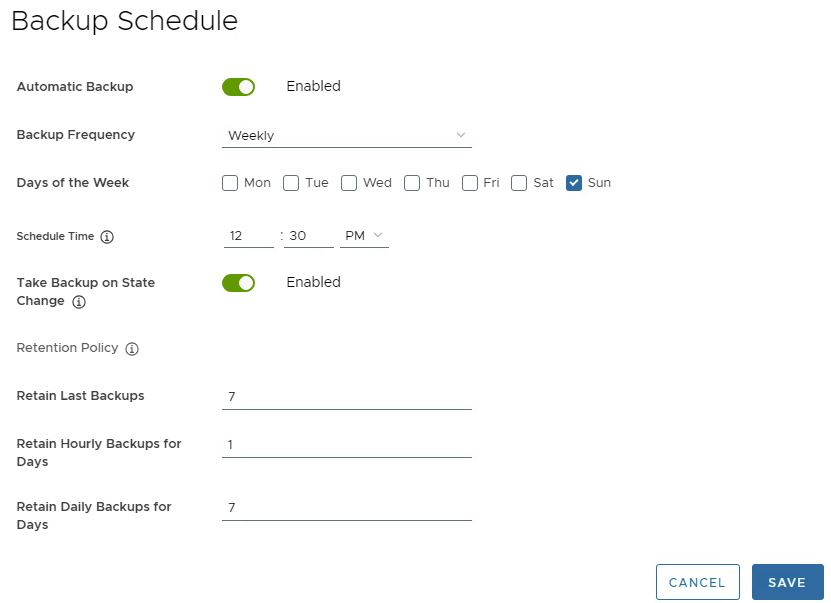
After VCF has been deployed, you can log into the SDDC manager and configure the backups for the SDDC manager and NSX. (This does not configure vCenter backups, so you will still need to log into the vcenter:5480 to configure that manually). You can opt to use the guided setup by clicking the question mark in the upper left.

When the wizard loads, On the left side, click Register a Backup Server and click NEXT.

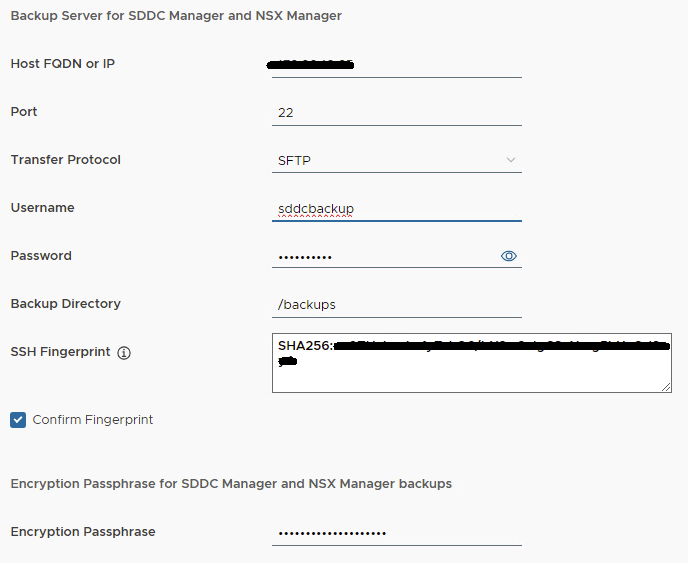
Select the four prerequisite check boxes and click NEXT. Register the external SFTP server to enable automatic backups for SDDC Manager. Note: The SSH fingerprint text box is automatically filled once a successful connection to the backup server has been made.

Click Register. Wait for the registration to complete and the Setup Automatic Backup page displays. Setup Automatic Backups configure the wizard with the values that best suite your backup strategy.

Click Save.

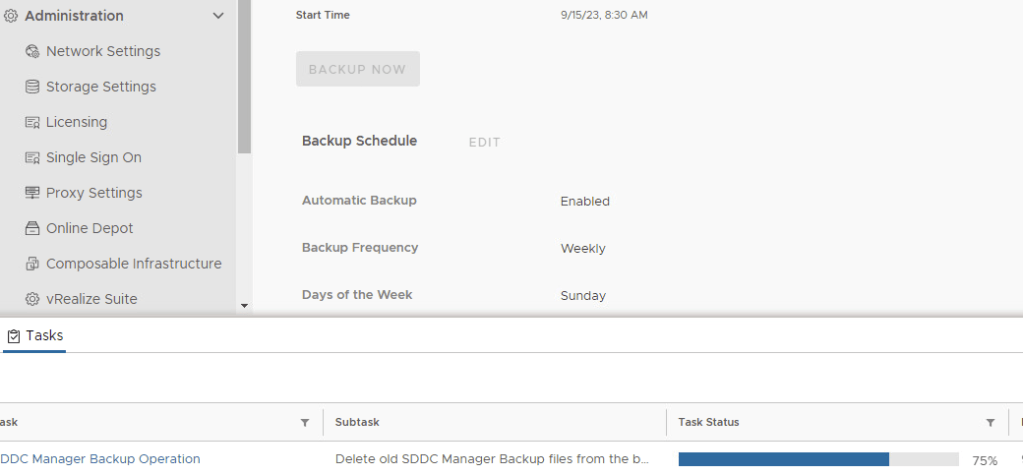
After the backup settings have been saved, it is wise to manually kick-off the backup job by clicking Backup Now. You can monitor the backup task job status in the bottom tasks pane.

For more information, see the official VMware documentation -> Backup and Restore of VMware Cloud Foundation.

In the next blog, I’ll walk through connecting VCF to an identity provider.