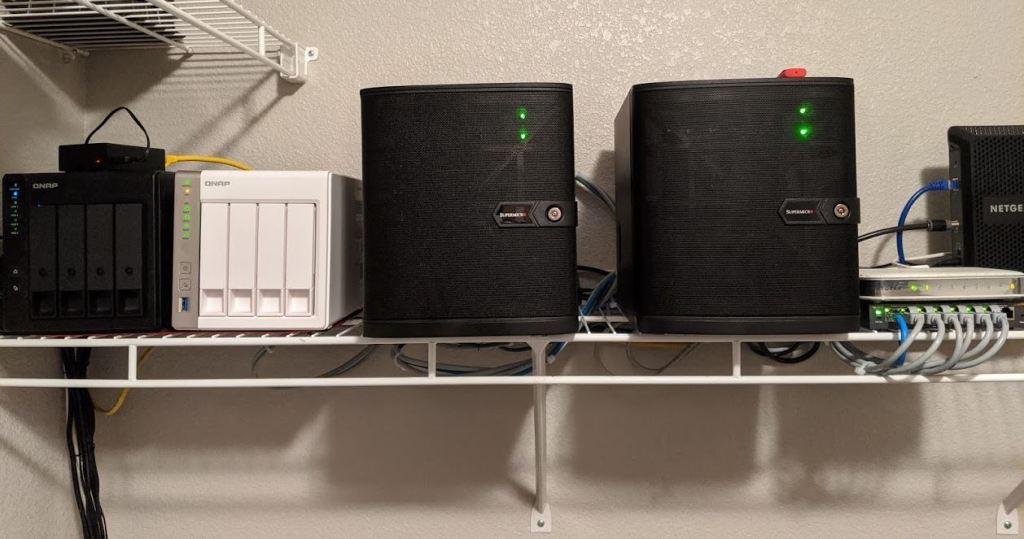
It has been a while since I posted updates about my VMware home lab. If you have followed my recent posts (here) and (here), I have made some minor upgrades to my original home lab. In the later part of 2019, I expanded my home lab an added an additional sister host luckily with the same hardware.
In short, this is a two host setup currently with 128GB DDR4 each for memory, and 1 socket 8 cores for compute, attached to my NAS that is providing ISCSI VMFS 6 storage.
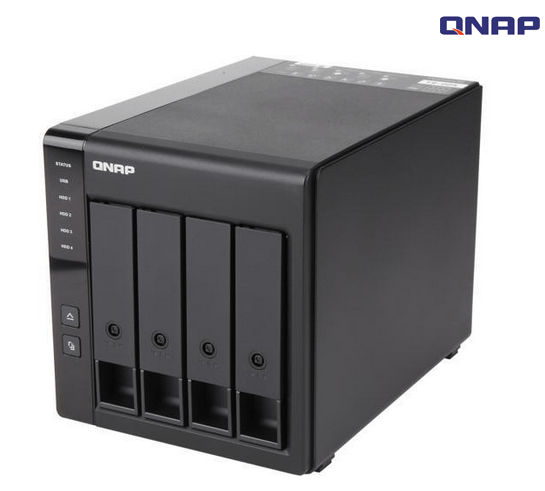
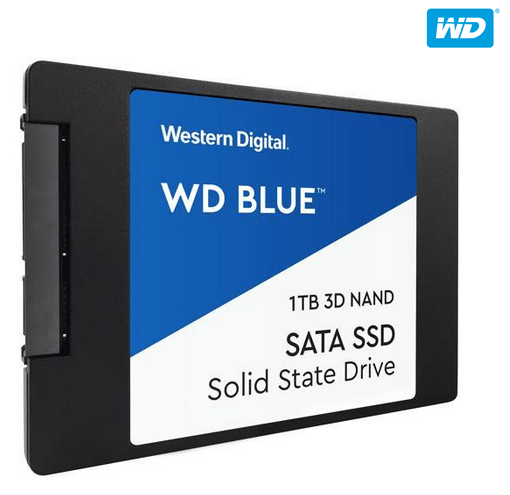
Storage The white QNAP here, is not providing storage for my lab, and only acts as the conduit to the black QNAP expansion bay attached which is solely used for lab storage. It is equipped with 4 WD Blue 3D NAND 1TB SSDs running as pooled storage LUN in VJBOD mode. In this mode I am just shy of 4tb usable capacity.
I do have some local storage for the hosts, that may or may not be used for vSAN in the future, but right now it is unnecessary.
Overall Capacity Each host single socket Xeon processor with 8 cores, so combined that gives me 33.59 GHz total. Each host has 128GB so around 255.8 GB total memory. 3.17 TB usable shared storage. Each host has roughly 1.5tb local storage that I use for nested labs mostly. Each host has dual 10GB NICs. There’s also an additional NIC specifically for console connection which is super handy. If I need additional storage I can always carve it out of my white NAS, but as that runs plex, there’s a noticeable performance hit while streaming, which is the main reason I am using the black expansion bay to take all of the I/O from the lab.
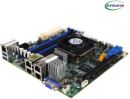
Motherboard(x2)
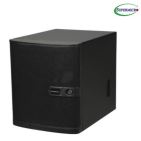
SUPERMICRO MBD-X10SDV-TLN4F-O Mini ITX Server Motherboard Xeon processor D-1541 FCBGA 1667
SUPERMICRO CSE-721TQ-250B Black Mini-Tower Server Case 250W Flex ATX Multi-output Bronze Power Supply Newegg Cost: First host 11/14/2017 = $159.99 Cost: Second host 10/22/2019 = $184.85
NAS Expansion
QNAP TR-004-US 4-Bay USB 3.0 Type-C (5Gbps) Hardware RAID Expansion Enclosure / DAS Newegg Cost: 10/22/2019 = $199.00
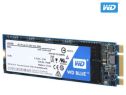
NAS SSDs (x4)
WD Blue 3D NAND 1TB Internal SSD – SATA III 6Gb/s 2.5″/7mm Solid State Drive – WDS100T2B0A
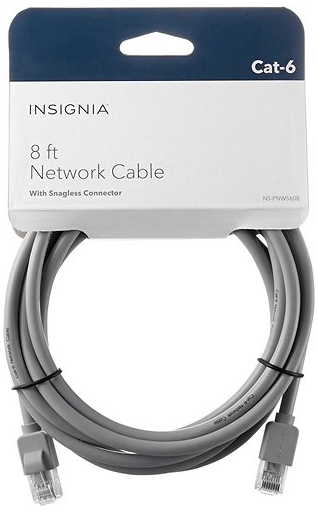
Insignia™ – 8′ Cat-6 Network Cable – Gray Best Buy
Cost: $89.94 ($14.99 ea.)
Home lab total cost as of today 1/25/2020: $5,580.70
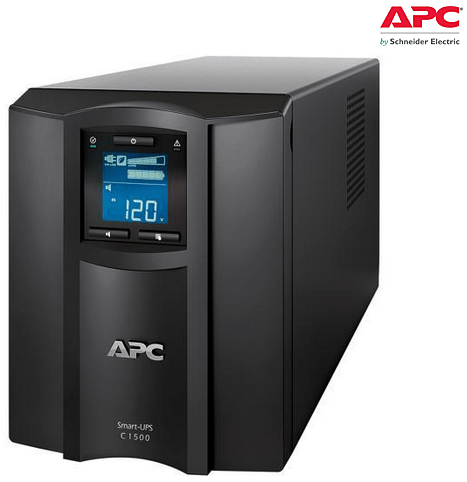
According to my APC, the total power being consumed atm: 185 watts (+/-). This also includes the white NAS and other home network equipment.
The lab itself is used for various things now that I’ve been working with VMware customers as a PSO sub contractor. I have nested hosts for different vCloud Director labs, vRealize Operations Manager, NSX and vRealize Log Insight to name a few VMware appliances. I’ve been adding more to it over time based on customer needs. I also use this lab for teaching myself scripting when I find the time. I currently have around 50 virtual machines in total, but that can change depending on the need for other labs.
For the purposes of this demonstration, I will be configuring NFS services on a CentOS 7 VM, deployed to a vSphere 6.7 U3 homelab environment.
NFS Server VM Configuration
Host Name: cb01-nfs01 IP Address: 10.0.0.35 CPU: 2 RAM: 4GB
Disk 1: 20GB – Linux installation (thin provisioned) Disk 2: 100GB – Will be used for the vCD NFS share (thin provisioned)
Configure the vCD NFS share disk
For this demonstration, I have chosen not to configure Disk 2 that was added to the VM. Therefore, this “how-to” assumes that a new disk has been added to the VM, and the NFS server has been powered on after.
1) Open a secure shell to the NFS server. I have switched to the root account. 2) On my NFS server, the new disk will be “/dev/sdb”, if you are unsure run the following command to identify the new disk on yours:
fdisk -l
3) We need to format the newly added disk. In my case /dev/sdb. So run the following command:
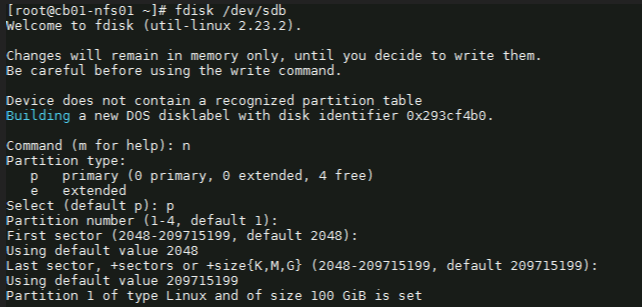
fdisk /dev/sdb
4) Next with the fdisk utility, we need to partition the drive. I used the following sequence: (for new partition) : n (for primary partition) : p (default 1) : enter (default first sector) : enter (default last sector) : enter
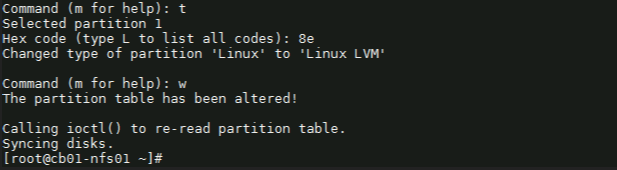
5) Before saving the partition, we need to change it to ‘Linux LVM’ from its current format ‘Linux’. We’ll first use the option ‘t’ to change the partition type, then use the hex code ‘8e’ to change it to Linux LVM like so:
Command (m for help): t Selected partition 1
Hex code (type L to list all codes): 8e Changed type of partition ‘Linux’ to ‘Linux LVM’.
Command (m for help): w
Once you see “Command (m for help):” type ‘w’ to save the config.
Create a ‘Physical Volume, Volume Group and Logical Volume
6) Now that the partition is prepared on the new disk, we can go ahead and create the physical volume with the following command:
# pvcreate /dev/sdb1
7) Now we to create a volume group. You can name it whatever suites your naming standards. For this demonstration, I’ve created a volume group named vg_nfsshare_vcloud_director using /dev/sdb1, using the following command:
# vgcreate vg_nfsshare_vcloud_director /dev/sdb1
Creating a volume group allows us the possibility of adding other devices to expand storage capacity when needed.
8) When it comes to creating logical volumes (LV), the distribution of space must take into consideration both current and future needs. It is considered good practice to name each logical volume according to its intended use. – In this example I’ll create one LV named vol_nfsshare_vcloud_director using all the space. – The -n option is used to indicate a name for the LV, whereas -l (lowercase L) is used to indicate a percentage of the remaining space in the container VG. The full command used looks like: # lvcreate -n vol_nfsshare_vcloud_director -l 100%FREE vg_nfsshare_vcloud_director
9) Before a logical volume can be used, we need to create a filesystem on top of it. I’ve used ext4 since it allows us both to increase and reduce the size of the LV. The command used looks like:
Writing the filesystem will take some time to complete. Once successful you will be returned to the command prompt.
Mounting the Logical Volume on Boot
10) Next, create a mount point for the LV. This will be used later on for the NFS share. The command looks like:
# mkdir -p /nfsshare/vcloud_director
11) To better identify a logical volume we will need to find out what its UUID (a non-changing attribute that uniquely identifies a formatted storage device) is. The command looks like:
To see that it was successfully mounted, use the following command similar to:
# mount | grep nfsshare
Assign Permissions to the NFS Share
14) According to the Preparing the Transfer Server Storage section of the vCloud DIrector 10.0 guide, you must ensure that its permissions and ownership are 750 and root:root .
Setting the permissions on the NFS share would look similar to:
# chmod 750 /nfsshare/vcloud_director
Setting the ownership would look similar to:
# chown root:root /nfsshare/vcloud_director
Install the NFS Server Utilities
15) Install the below package for NFS server using the yum command:
# yum install -y nfs-utils
16) Once the packages are installed, enable and start NFS services:
# systemctl enable nfs-server rpcbind
# systemctl start nfs-server rpcbind
16) Modify /etc/exports file to make an entry for the directory /nfsshare/vcloud_director .
– According to the Preparing the Transfer Server Storage guide, the method for allowing read-write access to the shared location for two cells named vcd-cell1-IP and vcd-cell2-IP is the no_root_squash method.
# vi /etc/exports
17) For this demonstration, my vCD appliance IP on the second nic is 10.0.0.38, so I add the following:
– There must be no space between each cell IP address and its immediate following left parenthesis in the export line. If the NFS server reboots while the cells are writing data to the shared location, the use of the sync option in the export configuration prevents data corruption in the shared location. The use of the no_subtree_check option in the export configuration improves reliability when a subdirectory of a file system is exported. – As this is only a lab, I only have a single vCD appliance for testing. If a proper production deployment, add additional lines for each appliance IP.
18) Each server in the vCloud Director server group must be allowed to mount the NFS share by inspecting the export list for the NFS export. You export the mount by running exportfs -a to export all NFS shares. To re-export use exportfs -r.
# exportfs -a
– To check the export, run the following command:
# exportfs -v
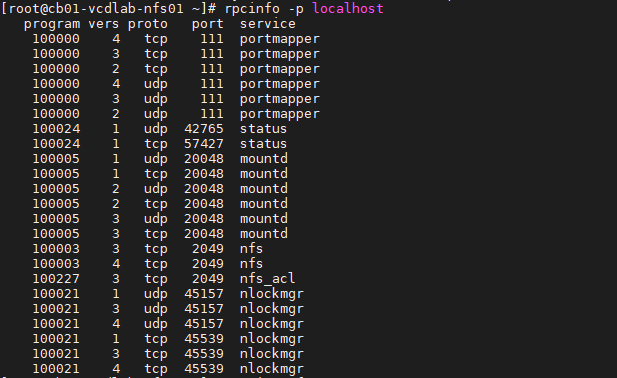
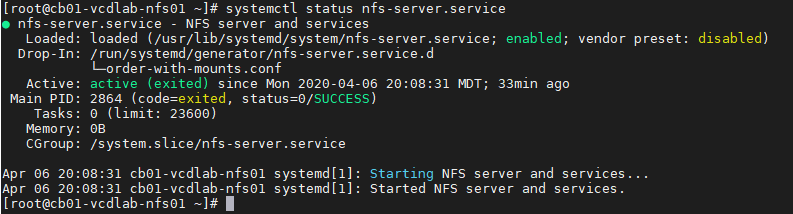
– Validate NFS daemons are running on the server by using rpcinfo -p localhost or service nfs status. NFS daemons must be running on the server.
# rpcinfo -p localhost
or
# systemctl status nfs-server.service
Configure the Firewall
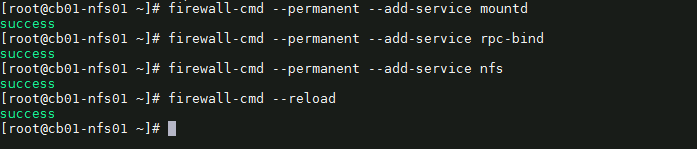
19) We need to configure the firewall on the NFS server to allow NFS client to access the NFS share. To do that, run the following commands on the NFS server. # firewall-cmd --permanent --add-service mountd # firewall-cmd --permanent --add-service rpc-bind # firewall-cmd --permanent --add-service nfs # firewall-cmd --reload
20) That’s it. Now we can deploy the vCloud Director 10.0 appliance(s).
Optional NFS Share Testing
I highly recommend testing the NFS share before continuing with the vCloud DIrector 10.0 appliance deployment. For my testing, I have deployed a temporary CentOS 7 VM, with the same hostname and IP address as my first vCD appliance. I have installed nfs-utils on my test VM. # yum install -y nfs-utils
OT-1) Check the NFS shares available on the NFS server by running the following command on the test VM. change the IP and share here to your NFS server.
# showmount -e 10.0.0.35
As you can see, my mount on my NFS server is showing one exported list for 10.0.0.38, my only vCD appliance
OT-2) Create a directory on NFS test VM to mount the NFS share /nfsshare/vcloud_director which we have created on the NFS server. # mkdir -p /mnt/nfsshare/vcloud_director
OT-3) Use below command to mount the NFS share /nfsshare/vcloud_director from NFS server 10.0.0.35 in /mnt/nfsshare/vcloud_director on NFS test VM.
# mount 10.0.0.35:/nfsshare/vcloud_director /mnt/nfsshare/vcloud_director
OT-4) Verify the mounted share on the NFS test VM using mount command.
# mount | grep nfsshare
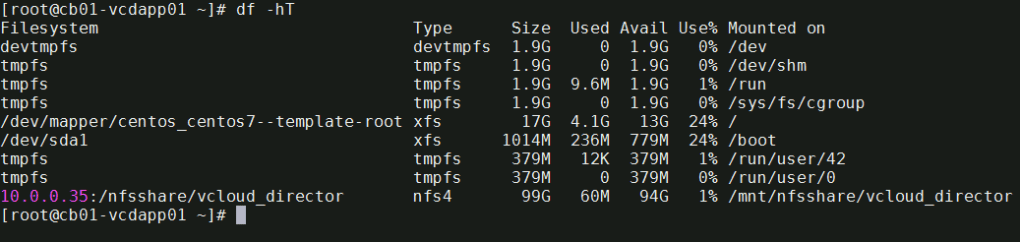
You can also use the df -hT command to check the mounted NFS share.
# df -hT
OT-5) Next we’ll create a file on the mounted directory to verify the read and write access on NFS share. IMPORTANT** during the vCD appliance deployment, it is expected that this directory is empty, else it could make the deployment fail. Remember to cleanup after the test.
# touch /mnt/nfsshare/vcloud_director/test
OT-6) Verify the test file exists by using the following command:
# ls -l /mnt/nfsshare/vcloud_director/
OT-7) Clean your room. Cleanup the directory so that it is ready for the vCD deployment.
# rm /mnt/nfsshare/vcloud_director/test
After successfully testing the share, we now know that we can write to that directory from the vCD appliance IP address, and that we can remove files.
In my next post, I will cover deploying the vCloud Director 10.0 appliance. Stay tuned!
The days are ticking away until VMworld Europe, but we have some exciting news that we just couldn’t keep quiet about! PowerCLI version 11.5.0 is here and it is a huge release! More than 20 cmdlets have been added. There are new properties available for the objects we all know and love, one of which […] The post New Release – PowerCLI 11.5.0 appeared first on VMware PowerCLI Blog.
We would like to remind you that the End of General Support (EOGS) for vSphere 6.0 and the below listed products is March 12, 2020. This includes the following releases: vCenter Server 6.0 vCenter Update Manager 6.0 ESXi 6.0 Site Recovery Manager 6.0 and 6.1 vSAN 6.0, 6.1 and 6.2 vSphere Data Protection 6.0 and The post vSphere 6.0 Reaches End Of General Support (EOGS) in March 2020 appeared first on VMware vSphere Blog.
It’s with great pleasure that we announce the immediate availability of VMware Fusion 11.5! Download here! Still on Fusion 10 or 8.5? Upgrade here! Release notes This release comes as a free upgrade to existing Fusion 11 users, with Fusion 8.5 and v10 customers being still eligible for discount upgrade pricing. This release also extends […] The post VMware Fusion 11.5 Available Now! appeared first on VMware Fusion Blog.
With clockwork efficiency after less than 6 months there a is new major release of vCloud Director – version 10. As usual, I will try to summarize all the new functionality compared to the previous release 9.7. I have similar posts about 9.7, 9.5 and 9.1 so you can get quickly up to speed if…
It is with great pleasure that we are able to announce the immediate availability of VMware Workstation 15.5 Pro and Player! Our major release this year comes as a free upgrade for existing version 15 customers, with upgrade discounts available for v12 and v14 customers. Release Notes Workstation Pro: Direct Windows download ::: Direct […] The post Workstation 15.5 Pro and Player Available Now! appeared first on VMware Workstation Zealot.
Looking back on this past week, all I can say is that it was pretty crazy. It was my first time to San Francisco, and I honestly left with mixed feelings on the City.
VMworld itself was pretty good! VMware cut back the general sessions to just two days (Monday and Tuesday), and I am honestly conflicted about the missing Thursday general session, as they usually showcase some non VMware related tech for this session.
If I could sum up VMworld in just one word this year, it would be: Kubernetes
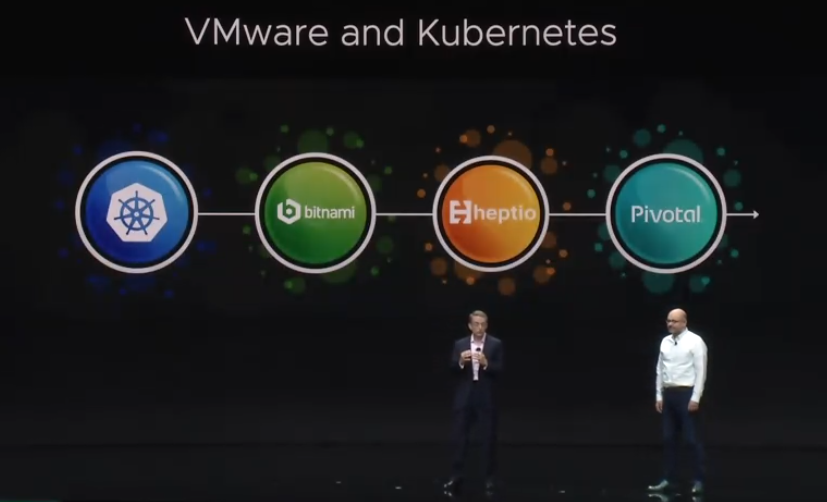
VMware debuted their cloud management solution VMware Tanzu with partnership with Pivital, and showcased the ability to manage multiple Kubernetes clusters across multiple clouds, all from one central management dashboard, and Project Pacific, VMware’s endeavor to embed Kubernetes into vSphere.
VMware also added the Odyssey competition this year just outside of the Hands on Labs area. This was in the HOL style, however this only gave attendees hints on what needed to be completed, and really allowed you to test your knowledge and skills in order to complete the task, without the hand holding that the typical HOL provides. Teams were able to compete against each other for the best times, and had some pretty decent prizes.
All in all, it was a decent VMworld, and they will be returning to San Francisco next year. I can’t say that I enjoyed the location, especially with the homeless problem San Francisco has, and I would much rather see VMworld bring it’s 20k+ attendees to a cleaner city, without the drugs, pan handlers, and human waste on the streets. You’d think that as someone who grew up on a farm, and is used to certain sights and smells, that it wouldn’t have bothered me so much, but this took me by surprise
This was also a special VMworld for me this year, as I was finally able to meet Pat Gelsinger. I can tell he really likes the community, and would love to stay longer and chat with everyone. I certainly would have loved the chance to talk with him longer, but I know he had other obligations that night.
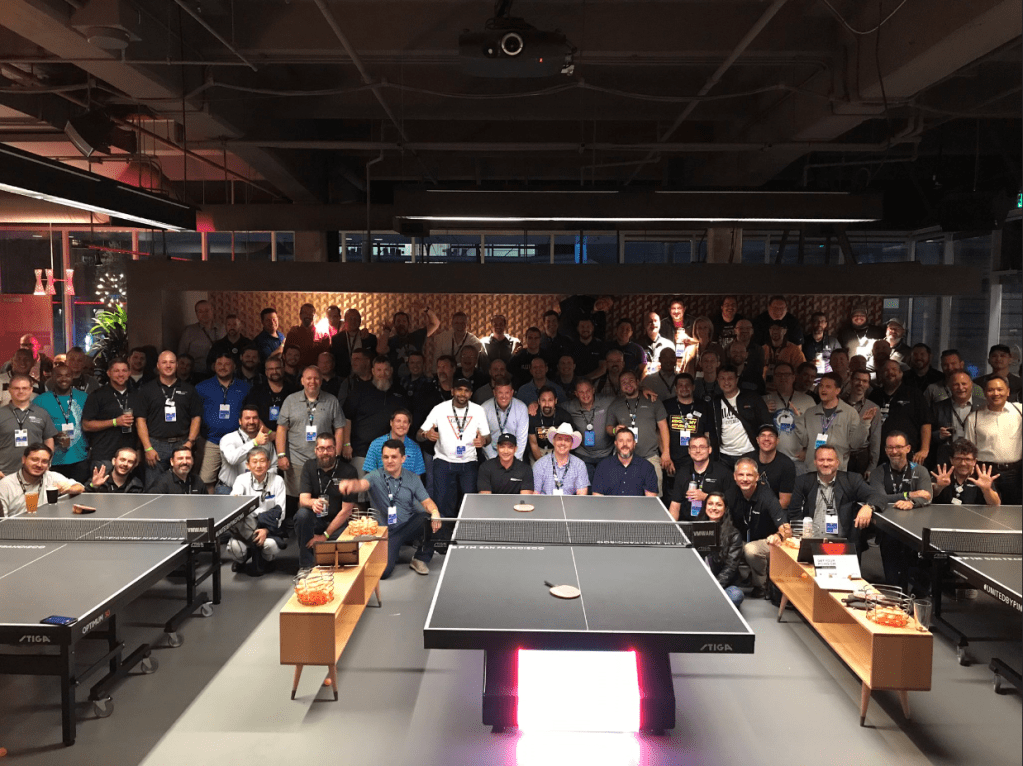
The vExpert party was fun as always, and we were able to get a nice photo of the group.
The last session I attended this year was “If this then that for vSphere – the power of event-driven automation” with keynote speakers William Lam, and Michael Gasch. Several well known VMware employees and bloggers were in attendance, including Alan Renouf, who was two chairs down from me, and for this first time I felt this crippling awkwardness of wanting to take pictures with all of them, but was so star stuck that I couldn’t bring myself to it. I know these guys are just normal folks who just happen to be stars in the vCommunity, but I had to contain myself, and enjoy the keynote. Hopefully our paths will cross again, and I can personally meet them.
Day 3 of VMworld 2019 in San Francisco is underway, and it is the second day of General sessions. Clearly today’s theme is Kubernetes, and VMware’s Ray O’Farrell kicked off the keynote by talking about VMware Tanzu and Tanzu’s mission control.
The Keynote then included the integration of NSX-T with Tanzu. The ability to test changes, to see the impact on the environment before going live, was truly amazing
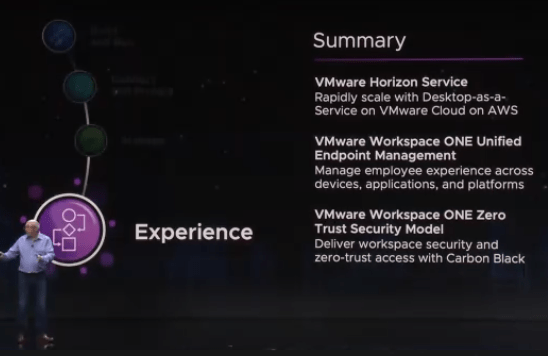
There was also an interesting demo with VMware Horizon and Workspace ONE, showcasing the usage deploying work spaces rapidly from the cloud, and creating zero-trust security policy withing workspace ONE with Carbon Black
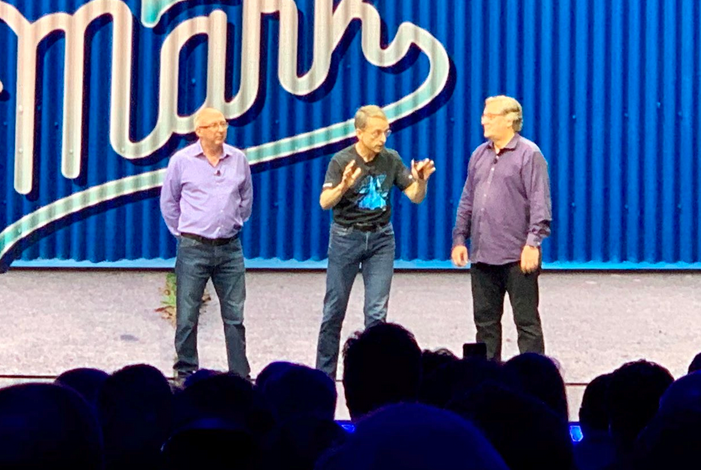
Pat jumped up on stage to announce that Ray O’Ferrell (@ray_ofarrell) would be leading VMware’s cloud native apps division, and Greg Lavender (@GregL_VMware) was named the New CTO of VMware.
VMware also announced a limited edition t-shirt that would be given away later that day. VMware had roughly 1000 of these shirts made up, and luckily I was able to get a shirt before they ran out.
Plenty of people were upset about not getting a shirt due to the limited run. Gives a whole new meaning to nerd rage…. (sorry I couldn’t help myself).
The start of VMworld 2019 in San Francisco is underway, and Pat kicked off the general session talking about his excitement for being back in San Francisco, while poking fun at us “Vegas lovers”. Pat also talked about technology, our digital lives, and technologies role being a force for good. He talked about charities, and cancer research foundations.
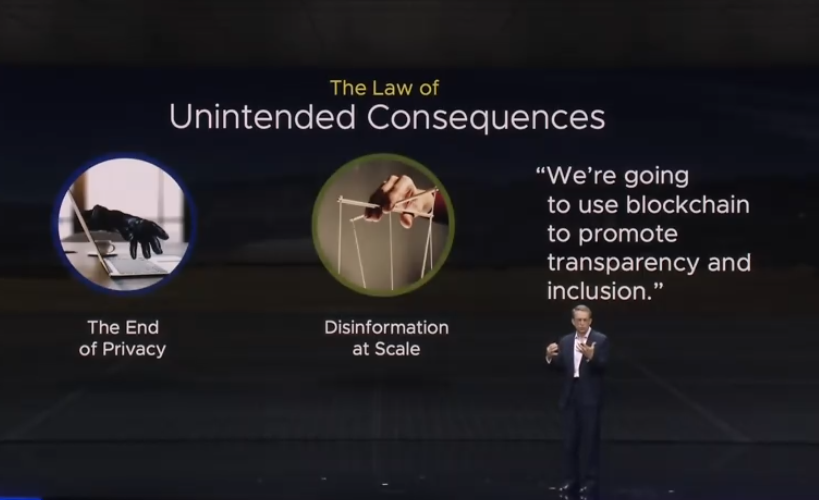
Pat Then talked about The Law of Unintended Consequences, and how technology has advanced, we as a society have given up certain aspects of Privacy, the need to combat disinformation at scale available widely on the social media platforms.
Surprisingly, according to Pat, Bitcoin is Bad and contributes to the climate crisis.
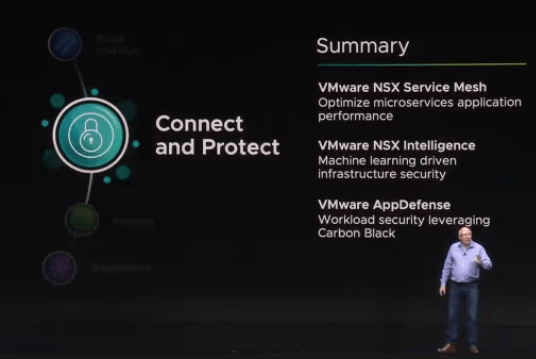
First Major Announcement with Kubernetes, as VMware has been focussing on containers
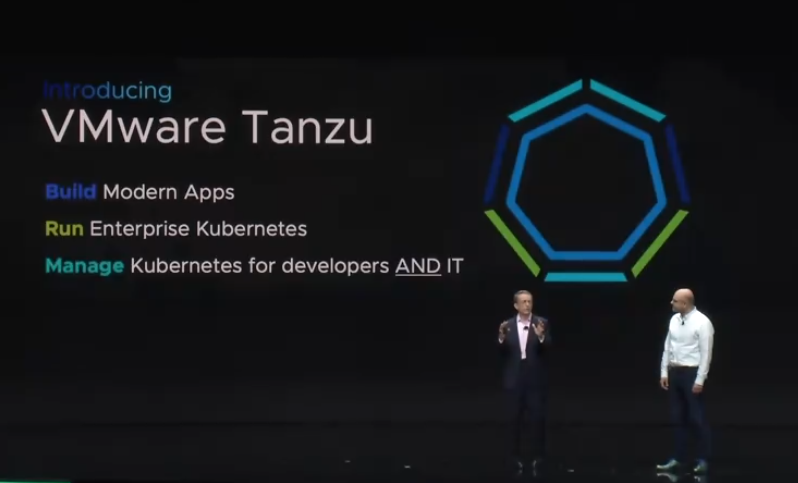
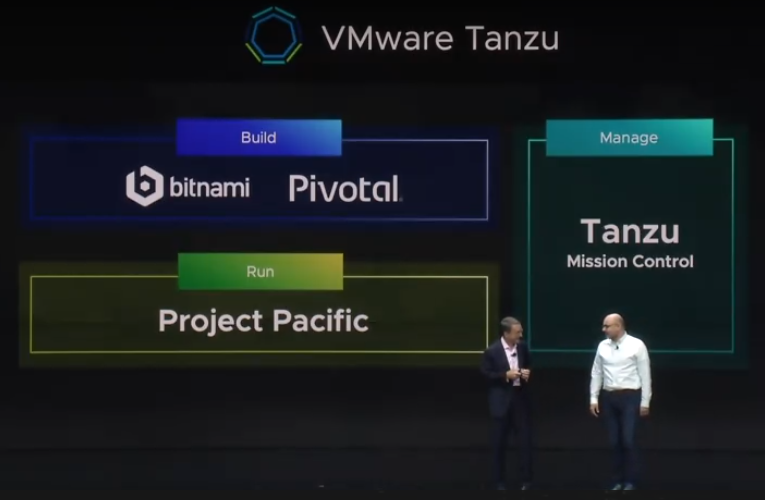
Pat then announced the creation of VMware Tanzu, which is the initiative to have a common platform that allows developers to build modern apps, run enterprise Kubernetes, and platform to manage Kubernetes for developers and IT..
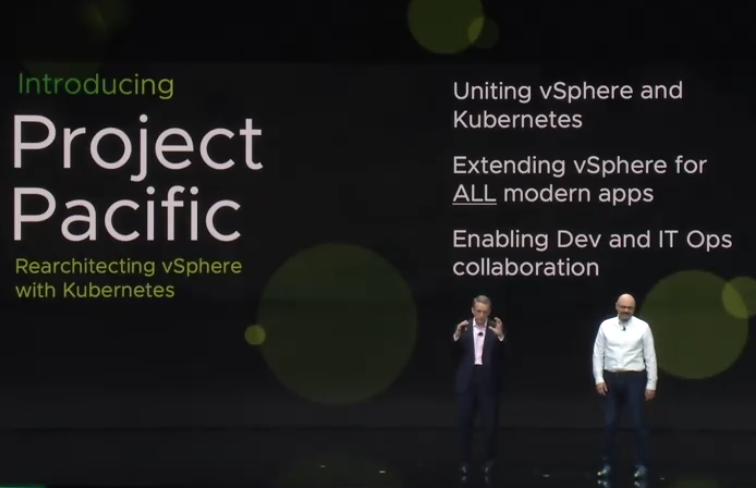
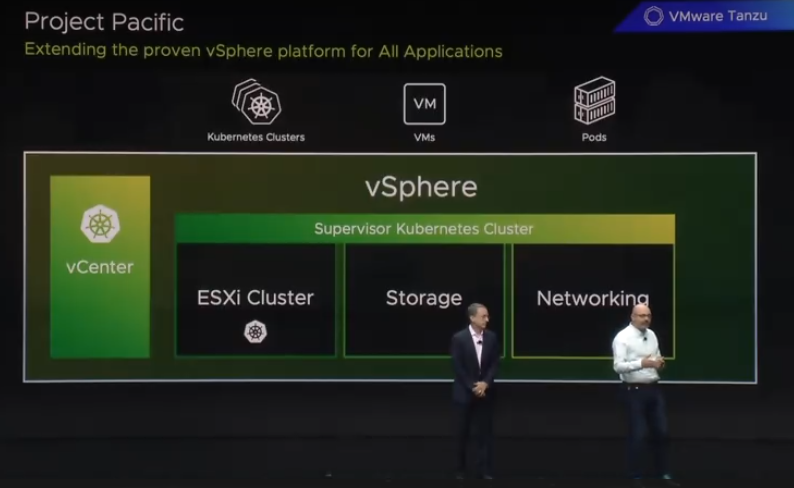
Second Major Announcement, Project Pacific. An ambitious project to unite vSphere and Kubernetes for the future of modern IT
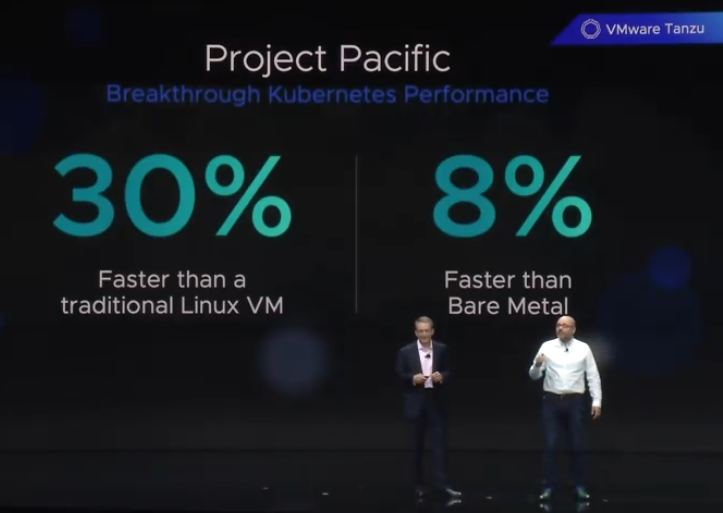
Interestingly, Project Pacific was announced to be 30% faster than a traditional Linux VM, and 8% faster than solutions running on bare metal.
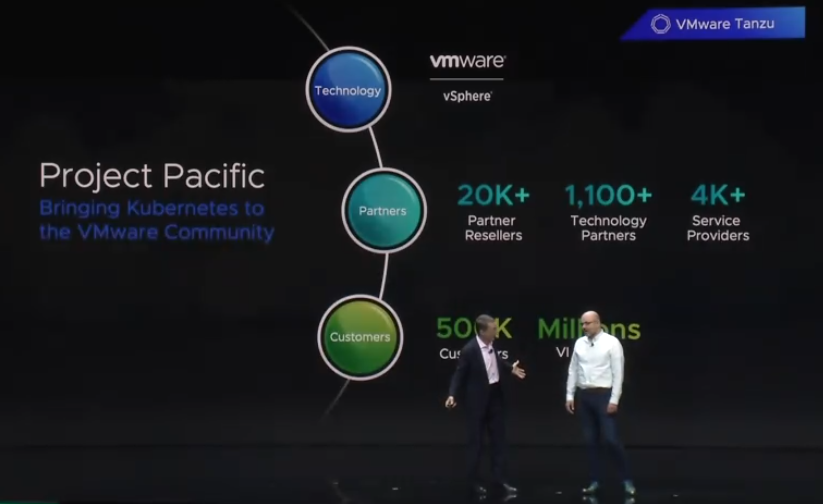
Project Pacific brings Kubernetes to the VMware Community, and will be offered by 20K+ Partner resellers, 4K+ Service providers and 1,100+ technology partners.
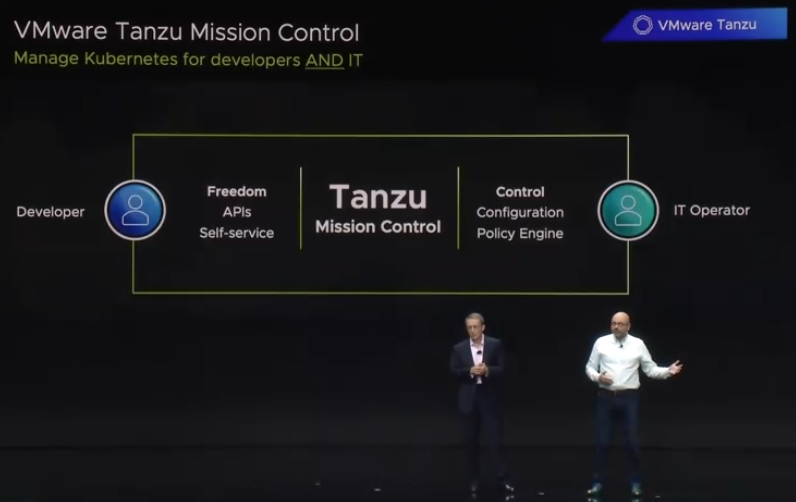
Tanzu also comes with mission control, a centralized tool allowing IT Operations to manage Kubernetes for developers and IT.



















 CaptainvOPS
You must be logged in to post a comment.