Today’s IT is building tomorrow’s world. It takes people like you to keep pace, handle the tough IT challenges, and leave an impact. Every day, you Make Your Mark. At VMworld 2019, you can learn more, explore further and push boundaries. That’s why VMworld 2019 isn’t just another IT event. It’s your discovery powerhouse. See you there!
In this second part of the blog series “Upgrading to vSphere 6.7 Update 1, and Using the vCenter Converge Tool”, I will go over my experience using the Convergence tool. Lets get started.
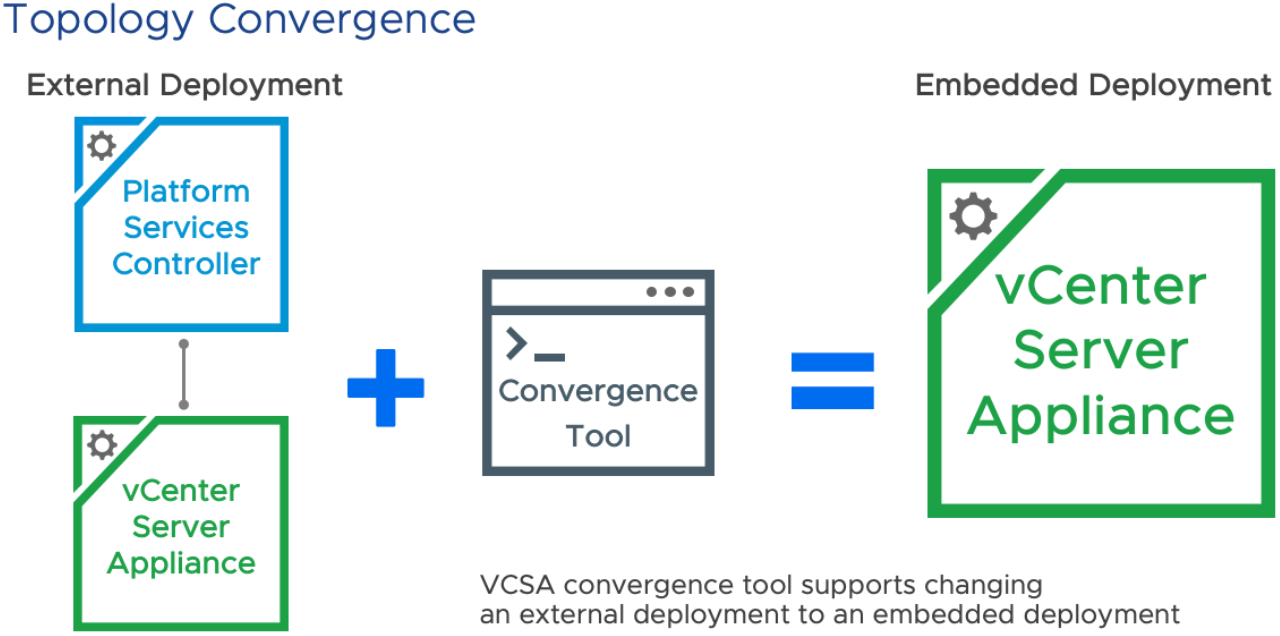
For this customer, I had three vCSA’s and three PSC’s that I needed to converge. Most of the blogs that I found didn’t cover PSC’s that were joined to a domain, environments with multiple vCenters, or with multiple PSC’s, so I thought I would write this up in a blog.
Planning the Convergence
The first thing I had to do was take note of any registered services with the SSO domain. I utilized VMware’s KB2043509 to identify these services, which I had none to worry about. VMware specifically calls out NSX and Site Recovery Manager (SRM), but since those were not in use at this customer, the only things I had to worry about were Horizon, vROps, vRLi and Zerto. Each of these services registered directly to the vCenters, so I had nothing to worry about there. If I had any services registered with the SSO domain, I’d simply need to re-register them once the convergence tool was ran. But since this didn’t apply, I can move forward with configuring the scripts for the convergence tool.
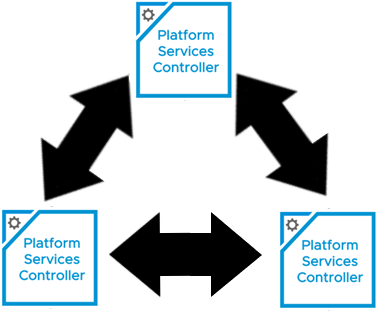
I also need to have an understanding of the replication typology of the existing SSO domain. VMware KB2127057 was an excellent resource I used to gather that information. Opening a putting session to a vCenter, and running the ‘vdcrepadmin’ command against each of the external PSCs, I was able to see the following:
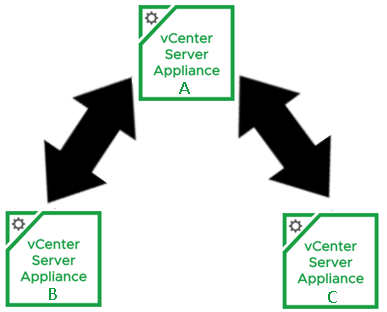
I can see they already have a ring topology, which is the desired architecture. If I were to draw the SSO typology out, it would look something like:
Setting Up the JSON Templates for the Convergence Tool
The converge.json template that the convergence tool uses, can be found in the VMware VCSA ISO, that was used for the 6.7 Update 1 upgrade, under the following path: DVD Drive (#):\VMware VCSA\vcsa-converge-cli\templates\
To make my life easier, I copied the contents of the entire ISO to a folder on the root of my C drive. I then made a seperate folder on the root of C called converge, and created a folder for each of the three vCenters I’d be working with: vCenter-A, vCenter-B, vCenter-C. I made a copy of the converge.json, and placed it into each folder.
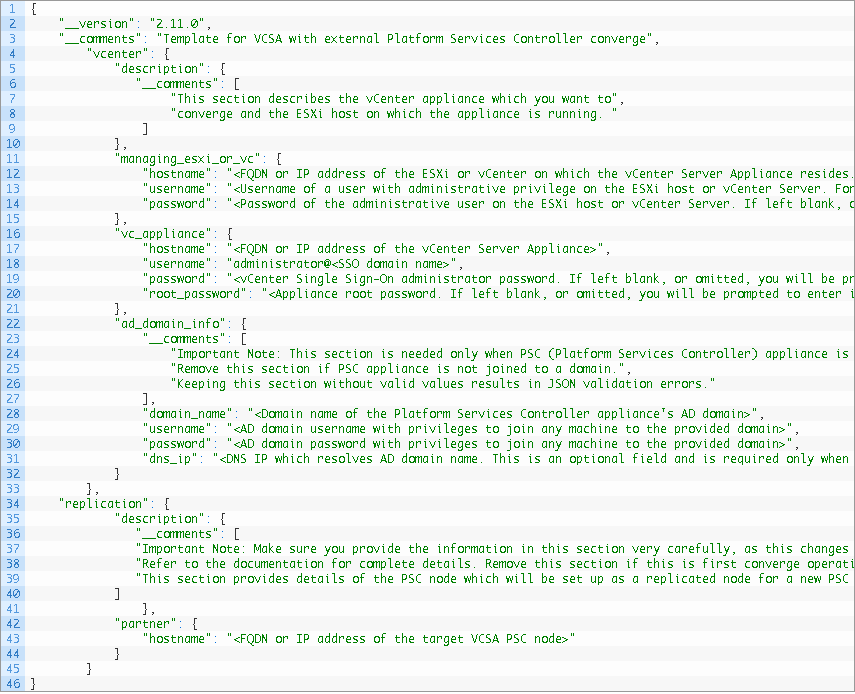
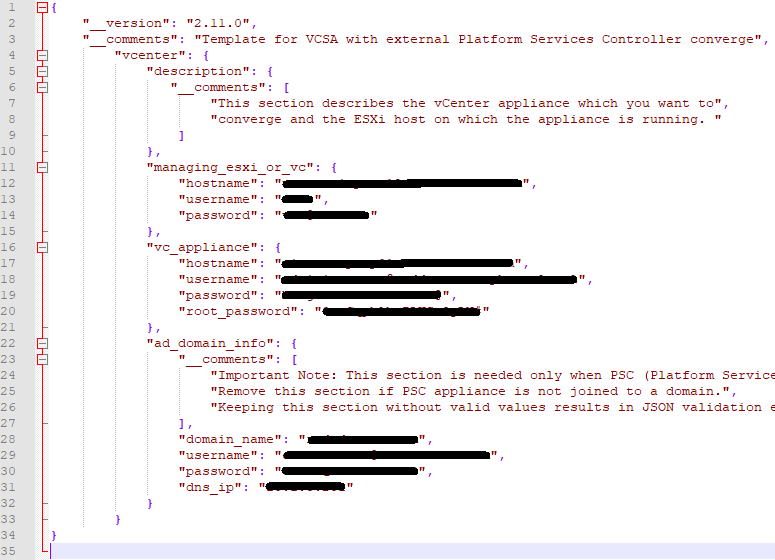
Taking a look at the converge.json for vCenter-A, the template tells you what data needs to be filled in, so pay close attention. Lines 10 – 15 needs entries for the ESXi host where the vCenter resides, or the managing vCenter appliance. Here I chose the option to used the Managing ESXi host. All I needed to do, was look in vSphere to see where the vCSA appliance VM resided on which host. While there, I also set the Cluster DRS settings to manual, to prevent the VMs from moving during the upgrade. Once I obtained the information needed, I completed that portion of the json. (I’ve redacted environment specific information).
Lines 16 – 21 need data entries for the first vCenter appliance (vCenter-A) to be converged. Here I need the FQDN for vCenter-A, for the Username, I need the administrator@vsphere.local account, its password, and the root password of the appliance.
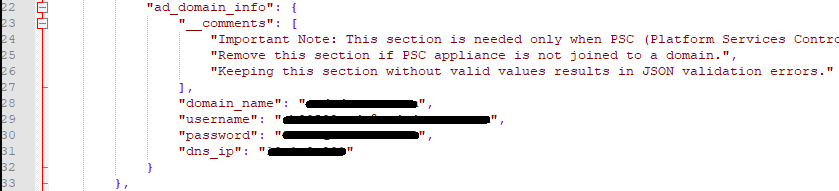
Lines 22 – 33 would be filled out IF the Platform Services Controller (PSC) appliance is joined to the domain. My customer was joined to the domain, so I needed to fill this section out. Otherwise you can remove this section from the JSON.
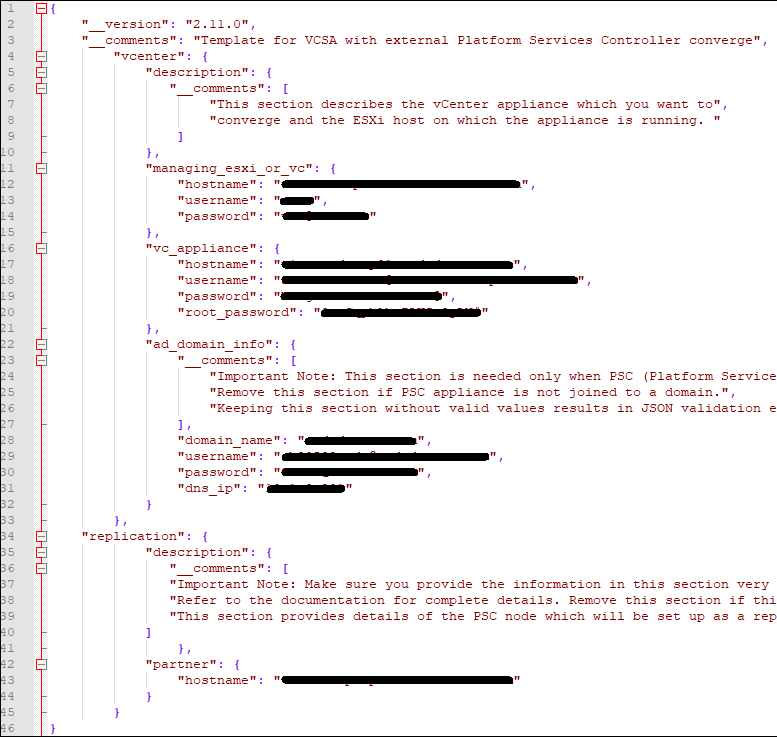
Now, because this is the first vCenter of three, in the same SSO domain, for the first convergence, I did not need this section, because the first vCenter does not have a partner yet. It will be needed however, on the second (vCenter-B) and third (vCenter-C) convergences.
Now I need to fill out a second and third converge.json file for the second and third convergence, saving each in its respective folder. For vCenter-B and vCenter-C, for the partner hostname on line 32, I used the FQDN of the first converged vCenter (vCenter-A), as that is the first partner of the SSO domain.
For vCenter-A, the first to be converged, the completed converge.json looks like this (take note of the commas, brackets and lines removed):
For the second convergence (vCenter-B), and third convergence (vCenter-C), the completed converge.json looks like this:
Now that we got the converge.json done for each of the vCenters, we can work on the decommission.json.
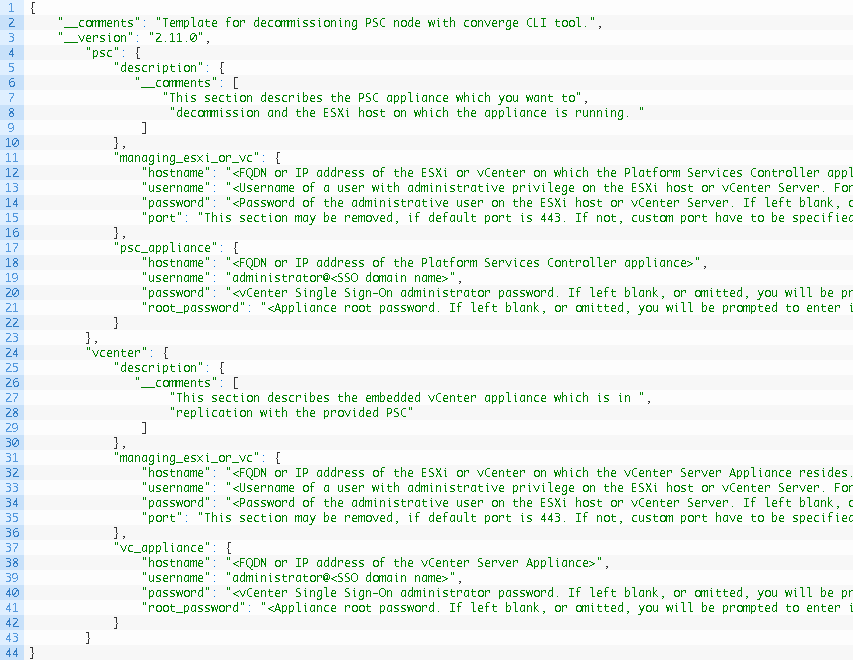
Here is the template VMware provides in the same directory:
Lines 11 – 15 require impute for the Managing vCenter or ESXi Host of the External PSC. Again, just like the vCenter, I used the ESXi host that the PSC is running on.
Lines 16 – 21 needs data for the Platform Services Controller that will be Decommissioned.
Lines 30 – 34 requires information for the vCenter the PSC was paired with. Again here I just used the ESXi host that the vCenter is currently running on
Lines 35 – 39 require the information for the vCenter, the PSC is paired with.
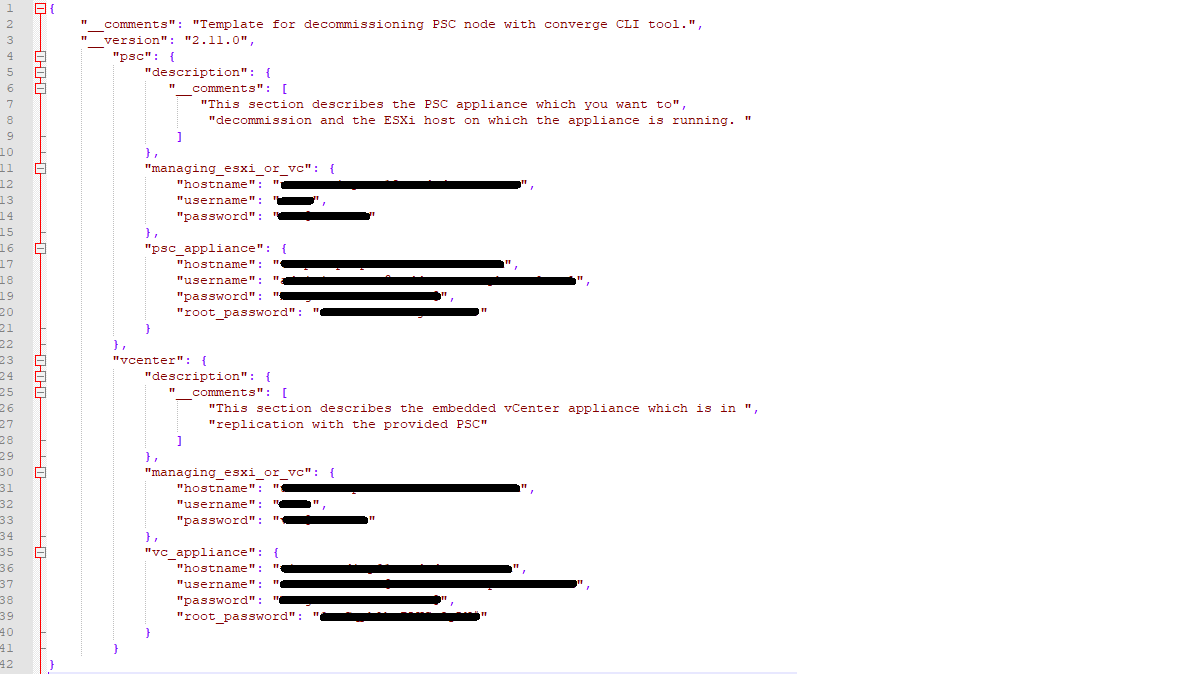
Now that we have the decommission.json filled out for the first vCenter (vCenter-A), I have to repeat the process for the second and third vCenters (vCenter-B, vCenter-C). The full decommission.json should look like
Now that both the converge.json and decommission.json have been filled out for each of my environments (3), and stored in the same directory on the root of C, I can move forward with the Convergence process.
Prerequisites and Considerations Before Starting the Convergence Process
The converge tool only supports the VCSA and PSC 6.7 Update 1. All nodes must be on 6.7 Update 1 before converting.
If you are currently running a Windows vCenter Server or PSC, you must migrate to the appliance first.
Before converting, take a backups of your VCSA(s) and PSCs in the vSphere SSO domain(VM snapshots, and DB backups).
Know all other solutions using the PSC for authentication in the environment. They will need to be re-registered after the convergence completes and before decommissioning.
A machine on a routable network which can communicate with the VCSA and PSC will be used to run the convergence and decommission process.
Set the DRS Automation Level to manual, and the Migration Threshold to conservative. There will be be issues if the VCSA being converged is moved during the process.
If VCHA is enabled, it must be disabled prior to running the convergence process.
The converge process will handle PSC HA load balancers. Make sure you point to the VIP in the JSON template if you have them.
All vSphere SSO data is migrated with the exception of local OS users.
Best to take snapshots of the vCSA and external PSC VMs before continuing. We’ve already backed up the database, but it doesn’t hurt to have snapshots as well.
Executing the Converge Tool
Now that converge.json template for each vCenter (vCenter-A, vCenter-B, vCenter-C) is filled out properly, we can now execute. We will run the convergence tool against the first vCenter (vCenter-A). Note: We can only run the converge tool against one vCSA at a time.
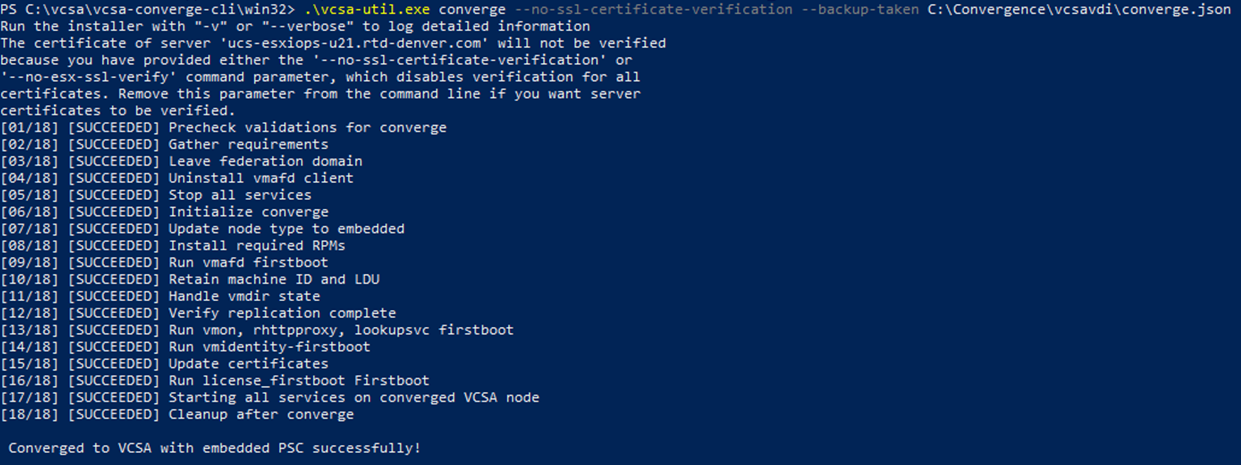
In powershell, we can first run the following command before proceeding with the upgrade to see what options/parameters are available with the converge tool.
The output in powershell should look something like:
It will then ask you to reboot the first vCenter before continuing.
Once the first vCenter (vCenter-A) came up, I executed the convergence tool for the second vCenter (vCenter-B). Once completed I restarted the appliance.
Finally, the last vCenter (vCenter-C) is on deck. I executed the converge.json against that vCenter, and once completed, I restarted it.
Here is where you would need to re-point those systems using the old SSO domain, but since I didn’t have any, I can move forward with the decommissioning steps.
Decommissioning the Old external Platform Services Controllers (PSC)
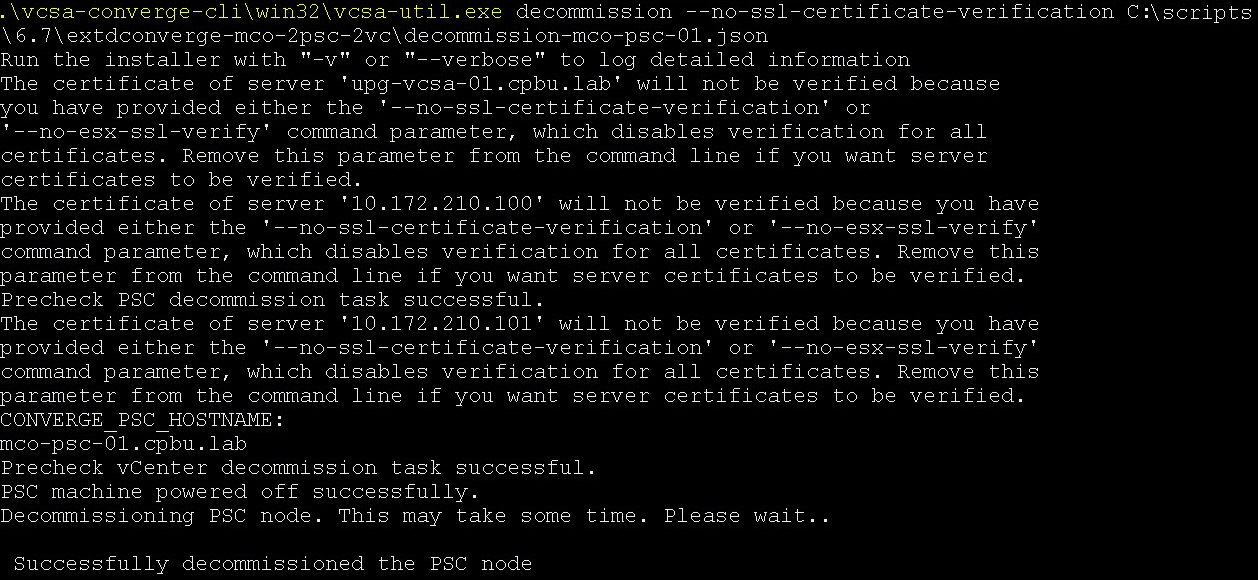
Using the Converge Tool with the decommission option to remove the external PSC’s. Just like before, we need to do this one PSC at a time. The command looks something like this:
Once the process successfully completes, move onto the next PSC. Repeat the process until all PSC’s have been decommissioned.
Validate the SSO Replication Topology After the Converge Process
If you’ll remember, when I setup the converge.json, I had the second vCenter (vCenter-B) and third vCenter (vCenter-C) replication partner set to the first converged vCenter (vCenter-A). My Replication topology currently looks like this:
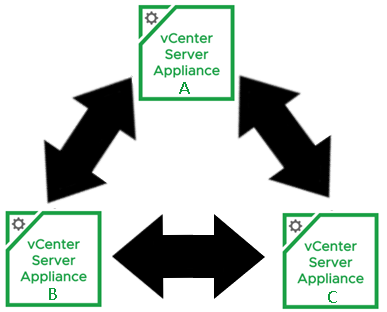
I needed to close the loop between vCenter-B and vCenter-C. Using VMware’s KB2127057 , I used the ‘createagreement’ parameter. I opened a putty session to vCenter-B and ran the following command:
Now that the SSO replication agreement has been made between vCenter-B and vCenter-C, my replication topology looks like this:
I’m not going to lie, the hardest part of using the convergence tool, was just getting started. I’ve been through enough fires in my day to know how bad of a time I would have had if something went wrong, and I lost either the vCenter, or external PSC before the convergence successfully completed. Once I got myself beyond that mental hurdle, the process was actually quite easy and smooth.
I know I’ve left this customer’s environment in a lot better shape than I found it, and having embedded PSCs will make future vCenter upgrades a breeze. For a VMware PSO consultant, this was a huge value add for the customer.
I recently wrapped up a vSphere 6.7 U1 upgrade project, while on a VMware Professional Services (PSO) engagement, with a customer in Denver Colorado. On this project, I had to upgrade their three VMware environments from 6.5, to 6.7 Update 1. This customer also had three external Platform Services Controllers (PSC), a configuration that is now depreciated in VMware architecture.
Check the VMware Interoperability, and Compatibility Matrices
The first thing I needed to do, was to take inventory of the customer’s environment. I needed to know how many vCenters, if they had external Platform Services Controllers, how many hosts, vSphere Distributed Switch (VDS), and what the versions were.
From my investigation, this customer had three vCenters, and three external platform services controllers (PSC), all apart of the same SSO domain.
I also made note of which vCenter was paired with what external PSO. This information is critical not only for the vSphere 6.7 U1 upgrade, but also the convergence process that I will be doing in part two of this blog series.
Looking at the customer’s ESXi hosts, the majority were running the same ESXi 6.5 build, but I did find a few Nutanix clusters, and six ESXi hosts still on version 5.5.
The customer had multiple vSphere Distributed Switch (VDS) that needed to be upgraded to 6.5 before the 6.7 upgrade.
The second thing that I needed to do was to look at the model of each ESXi host and determine if it is supported for the vSphere 6.7 U1 upgrade. I also need to validate the firmware and BIOS each host is using, to see if I need to have the customer upgrade the firmware and BIOS of the hosts. We’ll plug this information into the VMware Compatibility Guide .
From my investigation, the three ESXi hosts running ESXi 5.5 were not compatible with 6.7U1, however they were compatible with the current build of ESXi 6.5 the customer was running on their other hosts. I would need to upgrade these hosts to ESXi 6.5 before starting the vSphere 6.7 U1 upgrade.
This customer had a mix of Dell and Cisco UCS hosts, and almost all needed to have their firmware and BIOS upgraded to be compatible with ESXi 6.7 U1.
The third thing I needed to check was to see what other platforms, owned by VMware, and/or bolt on third parties, that I needed to worry about for this upgrade.
The customer is using a later version of VMware’s Horizon solution, and luckily for me, it is compatible with vSphere 6.7 U1, so no worries there.
The customer has Zerto 6.0 deployed, and unfortunately it needed to be upgraded to a compatible version.
The customer has Actifio backup solution, but that is also running a compatible version, so again no need to update it.
Lets Get those ESXi 5.5 hosts Upgraded to 6.5
I needed to schedule an outage with the customer, as they had three offsite locations, with two ESXi 5.5 hosts each. These hosts were using local storage to house and run the VMs, so even though they were in a host cluster, HA was not an option, and the VMs would need to be powered off.
Once I had the outage secured, I was able to move forward with upgrading these six hosts to ESXi 6.5.
Time to Upgrade the vSphere Distributed Switch (VDS)
For this portion of the upgrade, I only needed to upgrade the customers VDS’s to 6.5. This portion of the upgrade was fast, and I was able to do it mid day without the customer experiencing an outage. We did submit a formal maintenance request for visibility, and CYA. Total upgrade time to do all of their VDS’s was less than 15 minutes. Each switch took roughly a minute.
Upgrade the External Platform Services Controllers Before the vCenter Appliances
Now that I had all hosts to a compatible ESXi 6.5 version, I can move forward with the upgrade. I was able to do this upgrade during the day, as the customer would only lose the ability to manage their VMs using the vCenters. I made backups of the PSC and vCSA databases, and created snapshots of the VMs just in case.
I first needed to upgrade the external PSCs (3) to 6.7 U1, so I simply attached the vCSA.iso to my jump VM, and launched the .exe. I did this process one PSC at a time until they were all upgraded to 6.7 U1.
Upgrade the vCenter Appliances to 6.7 Update 1
Now that the external platform services controllers are on 6.7 U1, it is time to upgrade the vCenters. The process is the same with the exe, so I just did one vCenter at a time. Both the external PSC’s and the vCSA’s upgraded without issue, and within a couple of hours both the external PSC’s and vCSA’s had finished the vSphere 6.7 Update 1.
Upgrade Compatible ESXi Hosts to 6.7 Update 1
I really wanted to use the now embedded VMware Update Manager (VUM), but I either faced users who re-attached ISO’s to their Horizon VMs, or had administrators who were upgrading/installing VMware Tools. In one cluster I even happened to find a host that had improper networking configured compared to its peers in the cluster. Once I got all of that out of the way, I was able to schedule VUM to work its way down through each cluster, and upgrade the ESXi hosts to 6.7 Update 1. There were still some fringe cases where VUM wouldn’t work as intended, and I needed to do one host at a time.
Conclusion for the Upgrade
In the end, upgrading the customer’s three environments, vCSA, PSC and ESXi to 6.7 Update 1 took me about a couple of weeks to do alone. Not too shabby considering I finished ahead of schedule, even with all of the issues I faced. After the upgrade, the customer started having their Cisco UCS blades purple screen at random. After opening a case with GSS, that week Cisco came out with an emergency patch for the fnic driver, on the customer’s UCS blades, for the very issue they were facing. The customer was able to quickly patch the blades. Talk about good timing.
Part 2 Incoming
Part 2 of this series will focus on using the vCenter Converge Tool. Stay tuned.
Today we are proud to announce the upcoming release of VMware vRealize Operations 7.5, which will continue to refine the foundational “self-driving operations” vision established in the last two releases. The vision of Self-Driving Operations is to automate and simplify operations management by delivering on four primary tenets: Intent-driven continuous performance optimization Efficient capacity management The post What’s New in vRealize Operations 7.5? appeared first on VMware Cloud…Read More
I am excited to share that today we are announcing the VMware vSphere 6.7 Update 2 release, with key enhancements that will deliver an efficient and more secure hybrid cloud platform to our customers. We are also announcing the new vSphere Remote Office Branch Office Enterprise edition, as well as updates going specifically into vSphere The post Announcing vSphere 6.7 Update 2, vSphere Platinum updates, and vSphere ROBO Enterprise appeared first on VMware vSphere Blog.
VMware Cloud on AWS delivers a seamlessly integrated hybrid cloud service that extends on-premises vSphere environments to a VMware SDDC running on Amazon EC2 elastic, bare-metal infrastructure that is fully integrated as part of AWS. This service fulfils the needs of our customers across cloud migration, data center extension, disaster recovery and next-generation applications. Accelerated The post VMware Cloud on AWS expands to three additional AWS regions across three continents appeared…Read More
Announcing General Availability of VMware Cloud Foundation 3.7 Today, it’s my pleasure to announce the release of VMware Cloud Foundation 3.7. We’ve introduced a number of new features in this new release, and I’d like to take this opportunity to provide a short overview of some of them. As with every new release of Cloud The post Announcing VMware Cloud Foundation 3.7 General Availability appeared first on Cloud Foundation.













You must be logged in to post a comment.