VMware Cloud on AWS with NSX: Connecting SDDCs…

VMware Cloud on AWS with NSX: Connecting SDDCs Across Different AWS Regions

VMware Cloud on AWS with NSX: Connecting SDDCs…

I prior shared this post on the LinkedIN publishing platform and my personal blog at HumairAhmed.com. In my prior blog post, I discussed how with VMware Cloud on AWS (VMC on AWS) customers get the best of both worlds for their move to a Software Defined Data Center (SDDC) – the leading compute, storage, and The post VMware Cloud on AWS with NSX: Connecting SDDCs Across Different AWS Regions appeared first on Network Virtualization .


VMware Social Media Advocacy

VMware’s Cloud Nativeness

VMware’s Cloud Nativeness | filipv.net on WordPress.com

VMware’s Cloud Nativeness

At first glance it feels like VMware’s efforts related to cloud native applications are meant to cater to the traditional admins, people who are mainly running virtual machines today but want, or need, to support other types of workloads as well. People who secretly don’t “get” this new container hotness* and really want to manage…Read More


VMware Social Media Advocacy

VMware Cloud on AWS Cost Assessment

VMware Cloud on AWS Cost Assessment

VMware Cloud on AWS Cost Assessment

This video, we will show to run a VMware Cloud on AWS Cost Assessment to help you identify the costs of migrating applications / business services / clusters and VMs from private cloud to VMware Cloud on AWS. vRealize Business for Cloud comes with an easy to use assessment tool, which can quickly give you the number of hosts you will need, your estimated cost and a simple cost comparison to your current private cloud environment.


VMware Social Media Advocacy

Enable TLS v1 In vCloud Director 8.20 and vCloud Availability 1.0

VMware’s vCloud Director (vCD) and vCloud Availability (vCAV) only come with TLS v1.1 and 1.2 enabled out of the box.  This process will show you how to enable TLS v1.  If more information is needed, please visit VMware’s Documentation on vCloud Director 8.20, or the following KB2145796.  This work should be completed after hours as you would inevitably be moving VCD proxy service from one cell to another, and this could cause a brief outage for customers.  This process will require taking the cell offline, so do each cell one at a time starting with a cell not running the inventory service

  • Open an SSH session to a VCD cell, or vCAv cloud proxy cell, and su to root
  • Change to the ‘ /opt/vmware/vcloud-director/bin/ ‘ directory
  • Use the Cell Management Tool to quiesce the cell.  This will move active jobs over to another cell, and cleanly shutdown the cell.  You should make note which VCD cell has the proxy service enabled, and avoid that cell until last.
# ./cell-management-tool -u administrator cell --quiesce true
  • Get the status of any running jobs on each cell.   ** Verify Job count = 0   |  Is Active = false  | In Maintenance Mode  = false
# ./cell-management-tool -u administrator cell --status

Example Output:

Job count = 0
Is Active = false In Maintenance Mode = false
  • Shut the cell down to prevent any other jobs from becoming active on the cell.
# ./cell-management-tool -u administrator cell --shutdown

Example Output:

Cell successfully deactivated and all tasks cleared in preparation for shutdown Stopping vmware-vcd-watchdog:                              [  OK  ] Stopping vmware-vcd-cell:                                  [  OK  ]
  • Run the following command on the vCD cell in /opt/vmware/vcloud/bin/ to enable TLS1
# ./cell-management-tool ssl-protocols -d SSLv3,SSLv2Hello
  • Start the cell service, and validate that a vCD cell has the listener service running from the UI, and that vCenter is connected to one of the cells.
# service vmware-vcd start
  • To validate that TLS v1 has been enabled on the vCD cell, or vCAV cloud proxy cell, run the following command
# ./cell-management-tool ssl-protocols -l

Example output

Allowed SSL protocols:
* TLSv1.2
* TLSv1.1
* TLSv1
  • If you have additional VCD cells, or vCAV cloud proxy cells, repeat this process one at a time.


Network Scanners Can Crash vRealize Operations Manager Tomcat Service On Large Clusters

If network scanners are deployed in your production environments, it may be necessary to white-list the vROps nodes, as the network scanners can bring the tomcat service to its’ knees, especially on active vROps clusters.  In my case the network scanner was causing tomcat to crash, so when users would attempt to access the main vROps , they’d get the following error:

Unable to connect to platform services

While troubleshooting this issue, I went through the sizing of the cluster, performance, verifying there’s nothing backing up the vROps VMs, even made sure the datastores and specific hosts were health.  Even tried replacing the “/usr/lib/vmware-vcops/user/plugins/inbound” directory and files on all nodes from the master copy in hopes that it would make the cluster healthy again and stop tomcat from panicking.

The following was discovered after reviewing the /var/log/apache2/access_log on the master:

192.216.33.10 - - [10/Oct/2017:04:56:23 +0000] "GET /recipe/login.php?Password=%22'%3e%3cqqs%20%60%3b!--%3d%26%7b()%7d%3e&Username=&submit=Login HTTP/1.0" 301 362 "-" "-"
192.216.33.10 - - [10/Oct/2017:04:56:23 +0000] "GET /recipe/recipe/login.php?Password=%22'%3e%3cqqs%20%60%3b!--%3d%26%7b()%7d%3e&Username=&submit=Login HTTP/1.0" 301 369 "-" "-"
192.216.33.10 - - [10/Oct/2017:04:56:23 +0000] "GET /recipe/recipe_search.php?searchstring=alert(document.domain) HTTP/1.0" 301 326 "-" "-"
192.216.33.10 - - [10/Oct/2017:04:56:23 +0000] "GET /recipe/recipe/recipe_search.php?searchstring=alert(document.domain) HTTP/1.0" 301 333 "-" "-"
192.216.33.10 - - [12/Oct/2017:08:30:43 +0000] "GET /recipe_view.php?intId=char%2839%29%2b%28SELECT HTTP/1.1" 301 282 "-" "-"
192.216.33.10 - - [12/Oct/2017:08:31:06 +0000] "GET /modules.php?name=Search&type=stories&query=qualys&catebgory=-1%20&categ=%20and%201=2%20UNION%20SELECT%200,0,aid,pwd,0,0,0,0,0,0%20from%20nuke_authors/* HTTP/1.1" 301 410 "-" "-"
192.216.33.10 - - [12/Oct/2017:08:31:06 +0000] "GET /modules.php?name=Top&querylang=%20WHERE%201=2%20ALL%20SELECT%201,pwd,1,1%20FROM%20nuke_authors/* HTTP/1.1" 301 342 "-" "-"
192.216.33.10 - - [12/Oct/2017:08:31:10 +0000] "GET /index.php?option=com_jumi&fileid=-530%27%20UNION%20SELECT%202,concat%280x6a,0x75,0x6d,0x69,0x5f,0x73,0x71,0x6c,0x5f,0x69,0x6e,0x6a,0x65,0x63,0x74,0x69,0x6f,0x6e%29,null,null,null,0,0,1%20--%20%27 HTTP/1.1" 301 445 "-" "-"
192.216.33.10 - - [10/Oct/2017:04:20:19 +0000] "GET /recipe_view.php?intId=char%2839%29%2b%28SELECT HTTP/1.1" 301 282 "-" "-"
192.216.33.10 - - [10/Oct/2017:04:20:42 +0000] "GET /modules.php?name=Search&type=stories&query=qualys&category=-1%20&categ=%20and%201=2%20UNION%20SELECT%200,0,aid,pwd,0,0,0,0,0,0%20from%20nuke_authors/* HTTP/1.1" 301 410 "-" "-"
192.216.33.10 - - [10/Oct/2017:04:22:32 +0000] "GET /third_party/fckeditor/editor/_source/classes/fckstyle.js HTTP/1.1" 301 284 "-" "-"
192.216.33.10 - - [10/Oct/2017:04:22:32 +0000] "GET /third_party/tinymce/jscripts/tiny_mce/plugins/advlink/readme.txt HTTP/1.1" 301 292 "-" "-"
192.216.33.10 - - [10/Oct/2017:04:22:32 +0000] "GET /rsc/smilies/graysmile.gif HTTP/1.1" 301 253 "-" "-"
192.216.33.10 - - [10/Oct/2017:04:22:32 +0000] "GET /media/users/admin/faceyourmanga_admin_girl.png HTTP/1.1" 301 274 "-" "-"


Tomcat service is being pushed to the limits and using many more resources than planned. There is upwards of 10,000 requests in bursts from a single IP address.  From the logs it certainly looks like an attack, but that’s coming from an internal IP address.

My advice – get your security team to white-list your vROps appliances.

To restart the web service on all vROps nodes either by issuing this command to each node: ‘service vmware-vcops-web restart’ , or log into the admin page, take the cluster offline and then back online.

Install Hyperic Agent 5.8.x On SUSE 11 and SUSE 12 Based VMware Appliances

Let me start out by saying that if you’d like to install the Hyperic agent, a VMware platform (vRealize Hyperic) that is nearing the end of its’ life (late 2018), you should first **make sure having the agent installed on VMwares’ SUSE based appliance is supported.**

vRealize Hyperic is a terrific platform, that unfortunately has reached the end of its product development life cycle, and will ultimately reach the end of support late 2018.

With that said…

In this particular case I wanted to monitor the SUSE appliance virtual machines of VMware’s vCloud Availability, and since I already am using Hyperic to monitor our production environment management virtual machines…

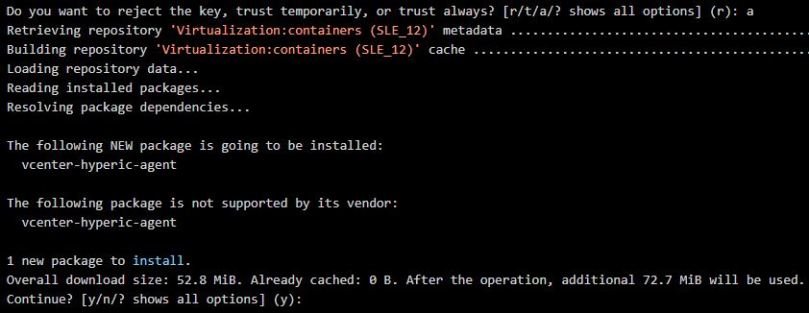
  • To start the installation run:
# zypper install vcenter-hyperic-agent-5.8.4.EE-1.noarch.rpm

example output:
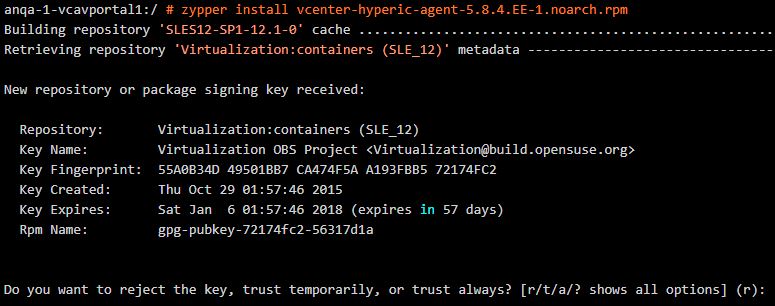
hyperic

  • Respond with:     a

example output:

hyperic2

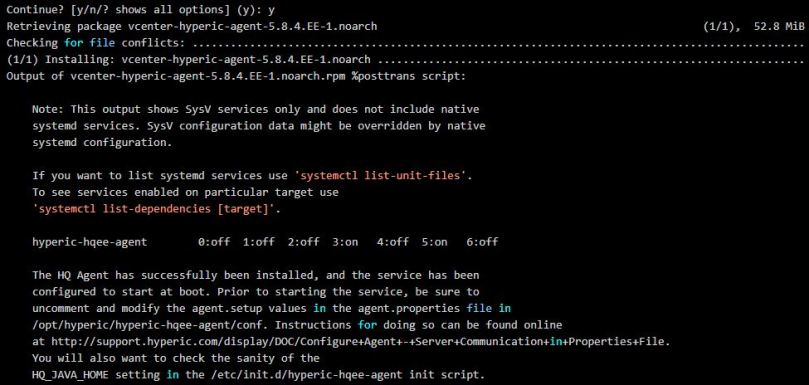
  • Respond with:      y

example output:

hyperic3

UPDATE SYSTEM FIREWALL TO ALLOW TCP PORT 7080

  • Edit /etc/sysconfig/SuSEfirewall2 and update lines 281 and 379 with the addition of port 2144 for SUSE 11, or lines 253 and 351 with the addition of port 2144 for SUSE 12
  • Note: For listing multiple ports SuSEfirewall 2 uses the following schema “1234 1234 1234”  Inject port 2144 where applicable.

Line 281 for SUSE 11, or line 253 for SUSE 12

FW_SERVICES_EXT_TCP="2144"

Line 379 for SUSE 11, or line 351 for SUSE 12

FW_SERVICES_INT_TCP="2144"
  • Stop and start the firewall so configuration is loaded
/etc/SuSEfirewall2 stop

Pause 5 seconds

/etc/SuSEfirewall2 start
UPDATE JAVA CONFIGURATION FOR SUSE 12

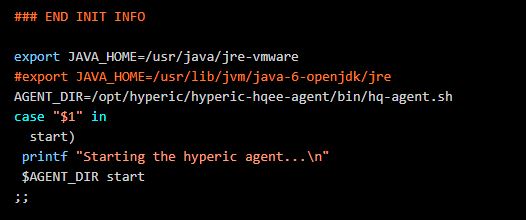
  • Edit /etc/init.d/hyperic-hqee-agent .  Copy the following line (17) .  #export JAVA_HOME=/usr/lib/jvm/java-6-openjdk/jre
    • For VMware appliances SUSE 12 this needs to be updated to: export JAVA_HOME=/usr/java/jre-vmware.
    • For VMware appliances SUSE 11 this needs to be updated to:  export HQ_JAVA_HOME=/usr/java/default
  • Add the new line, save and quit

hyperic4

CONFIGURE THE AGENT

  • Prior to starting the service, be sure to uncomment and modify the agent.setup values in the agent.properties file in /opt/hyperic/hyperic-hqee-agent/conf:
 # vi /opt/hyperic/hyperic-hqee-agent/conf/agent.properties

Uncomment and modify lines 71 through 80

agent.setup.camIP=<hyperic server IP or FQDN>
agent.setup.camPort=7080
agent.setup.camSSLPort=7443
agent.setup.camSecure=yes
agent.setup.camLogin=hqadmin
agent.setup.camPword= <hqadmin_password>
agent.setup.agentIP=*default*
agent.setup.agentPort=*default*
agent.setup.resetupTokens=no
agent.setup.acceptUnverifiedCertificate=yes

Uncomment line 86

agent.setup.unidirectional=no

Modify line 204.  set to =true

accept.unverified.certificates=true
  • ‘wq’ the file to save and exit

START THE AGENT

# sh /opt/hyperic/hyperic-hqee-agent/bin/hq-agent.sh start

-= OR =-

#  /etc/init.d/hyperic-hqee-agent start


  • Now you should be able to log into the hyperic UI and add the new server to inventory

Free vSphere 6.5 Host Resources Deep Dive E-Book

Free vSphere 6.5 Host Resources Deep Dive E-Book #vmware #esxideepdive

Free vSphere 6.5 Host Resources Deep Dive E-Book

In June of this year, Niels and I published the vSphere 6.5 Host Resources Deep Dive, and the community was buzzing. Twitter exploded, and many community members provided rave reviews. This excitement caught Rubriks attention, and they decided to support the community by giving away 2000 free copies of the printed version at VMworld. The […] The post Free vSphere 6.5 Host Resources Deep Dive E-Book appeared first on frankdenneman.nl .


VMware Social Media Advocacy