Install Hyperic Agent 5.8.x On SUSE 11 and SUSE 12 Based VMware Appliances

Let me start out by saying that if you’d like to install the Hyperic agent, a VMware platform (vRealize Hyperic) that is nearing the end of its’ life (late 2018), you should first **make sure having the agent installed on VMwares’ SUSE based appliance is supported.**

vRealize Hyperic is a terrific platform, that unfortunately has reached the end of its product development life cycle, and will ultimately reach the end of support late 2018.

With that said…

In this particular case I wanted to monitor the SUSE appliance virtual machines of VMware’s vCloud Availability, and since I already am using Hyperic to monitor our production environment management virtual machines…

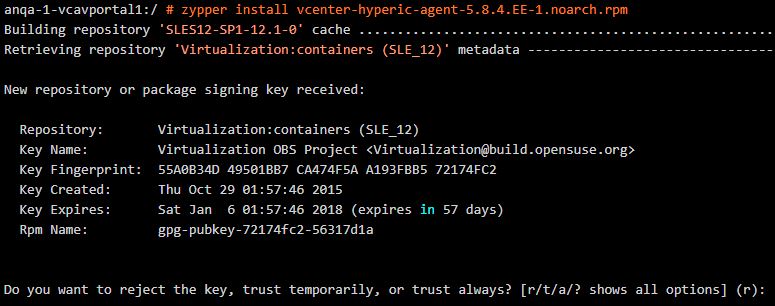
  • To start the installation run:
# zypper install vcenter-hyperic-agent-5.8.4.EE-1.noarch.rpm

example output:

hyperic

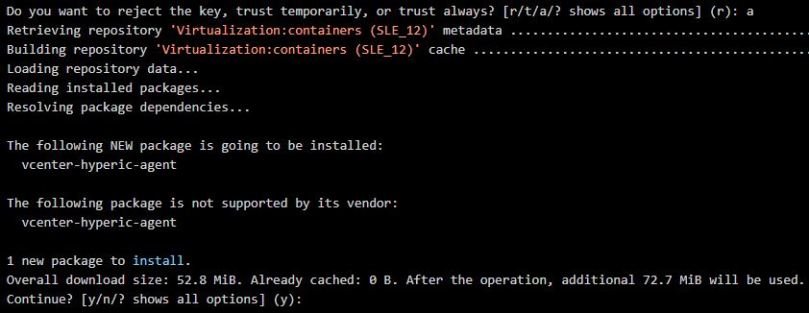
  • Respond with:     a

example output:

hyperic2

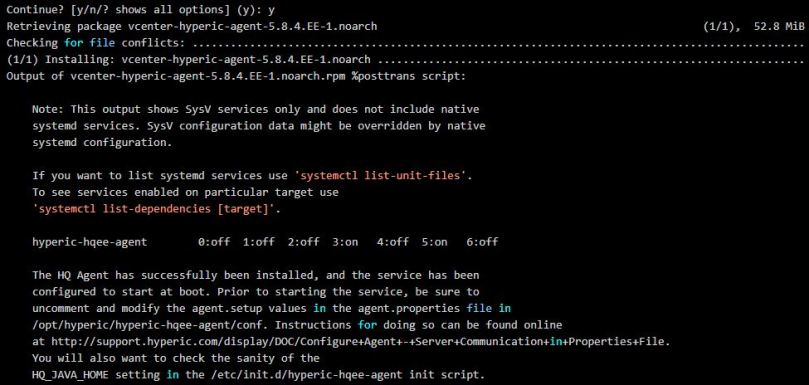
  • Respond with:      y

example output:

hyperic3

UPDATE SYSTEM FIREWALL TO ALLOW TCP PORT 7080

  • Edit /etc/sysconfig/SuSEfirewall2 and update lines 281 and 379 with the addition of port 2144 for SUSE 11, or lines 253 and 351 with the addition of port 2144 for SUSE 12
  • Note: For listing multiple ports SuSEfirewall 2 uses the following schema “1234 1234 1234”  Inject port 2144 where applicable.

Line 281 for SUSE 11, or line 253 for SUSE 12

FW_SERVICES_EXT_TCP="2144"

Line 379 for SUSE 11, or line 351 for SUSE 12

FW_SERVICES_INT_TCP="2144"
  • Stop and start the firewall so configuration is loaded
/etc/SuSEfirewall2 stop

Pause 5 seconds

/etc/SuSEfirewall2 start

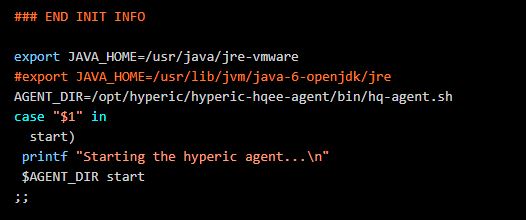
UPDATE JAVA CONFIGURATION FOR SUSE 12

  • Edit /etc/init.d/hyperic-hqee-agent .  Copy the following line (17) .  #export JAVA_HOME=/usr/lib/jvm/java-6-openjdk/jre
    • For VMware appliances SUSE 12 this needs to be updated to: export JAVA_HOME=/usr/java/jre-vmware.
    • For VMware appliances SUSE 11 this needs to be updated to:  export HQ_JAVA_HOME=/usr/java/default
  • Add the new line, save and quit

hyperic4

CONFIGURE THE AGENT

  • Prior to starting the service, be sure to uncomment and modify the agent.setup values in the agent.properties file in /opt/hyperic/hyperic-hqee-agent/conf:
 # vi /opt/hyperic/hyperic-hqee-agent/conf/agent.properties

Uncomment and modify lines 71 through 80

agent.setup.camIP=<hyperic server IP or FQDN>
agent.setup.camPort=7080
agent.setup.camSSLPort=7443
agent.setup.camSecure=yes
agent.setup.camLogin=hqadmin
agent.setup.camPword= <hqadmin_password>
agent.setup.agentIP=*default*
agent.setup.agentPort=*default*
agent.setup.resetupTokens=no
agent.setup.acceptUnverifiedCertificate=yes

Uncomment line 86

agent.setup.unidirectional=no

Modify line 204.  set to =true

accept.unverified.certificates=true
  • ‘wq’ the file to save and exit

START THE AGENT

# sh /opt/hyperic/hyperic-hqee-agent/bin/hq-agent.sh start

-= OR =-

#  /etc/init.d/hyperic-hqee-agent start


  • Now you should be able to log into the hyperic UI and add the new server to inventory

Free vSphere 6.5 Host Resources Deep Dive E-Book

Free vSphere 6.5 Host Resources Deep Dive E-Book #vmware #esxideepdive

Free vSphere 6.5 Host Resources Deep Dive E-Book

In June of this year, Niels and I published the vSphere 6.5 Host Resources Deep Dive, and the community was buzzing. Twitter exploded, and many community members provided rave reviews. This excitement caught Rubriks attention, and they decided to support the community by giving away 2000 free copies of the printed version at VMworld. The […] The post Free vSphere 6.5 Host Resources Deep Dive E-Book appeared first on frankdenneman.nl .


VMware Social Media Advocacy

vExpert Cloud 2017 Award Announcement

vExpert Cloud 2017 Award Announcement

vExpert Cloud 2017 Award Announcement

Thank you to everyone who applied for vExpert Cloud. We had a lot of applications for this program and we are pleased to announce the list of 2017 vExperts who received the vExpert Cloud award. Each of these vExperts has demonstrated significant contributions to the community and a willingness to share their expertise with others. Contributing is […] The post vExpert Cloud 2017 Award Announcement appeared first on VMTN Blog .


VMware Social Media Advocacy

Kubernetes Introduction for VMware Users – Part…

Kubernetes Introduction for VMware Users – Part 1: The Theory

Kubernetes Introduction for VMware Users – Part…

By Hany Michaels, Senior Staff Solutions Architect NSBU, VMware This is the second part of my “Kubernetes in the Enterprise” blog series. As I mentioned in my last article, it is important to get everyone to the same level of understanding about Kubernetes (K8s) before we can proceed to the design and implementation guides. I am The post Kubernetes Introduction for VMware Users – Part 1: The Theory appeared first on Cloud-Native Apps .


VMware Social Media Advocacy

Configuring Hybrid Linked Mode (HLM) for VMware…

Configuring Hybrid Linked Mode (HLM) for VMware Cloud on AWS

Configuring Hybrid Linked Mode (HLM) for VMware…

Hybrid Linked Mode (HLM) is a brand new feature available only for VMware Cloud on AWS (VMC), which was announced during VMworld US in August 2017. HLM provides the ability to extend an administrator’s management view from on-premises to VMC. This may sound oddly familiar if you are using Enhanced Linked Mode (ELM) in your […] The post Configuring Hybrid Linked Mode (HLM) for VMware Cloud on AWS appeared first on emadyounis.com .


VMware Social Media Advocacy

Upgrade Existing vRealize Operations Manager Add-on/Solution Paks

The following was recorded using a vRealize Operations Manager (VROps) 6.6 cluster, however older versions of VROps can be upgraded the same way.

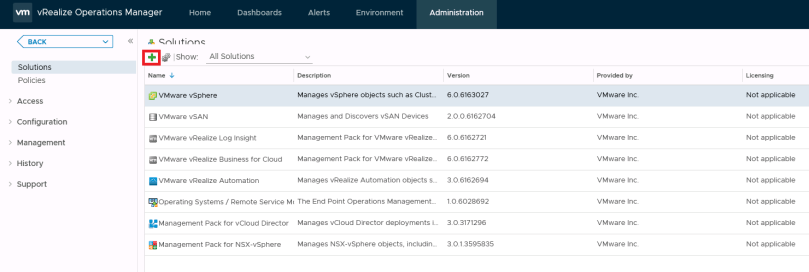
  • Log into the vROps environment, go to the Administration tab, and select solutions in the left column.
  • Here you can see all of the add-on/solutions paks that I have installed in this environment.  To upgrade an existing solution, simply click the green plus button.
Image.png
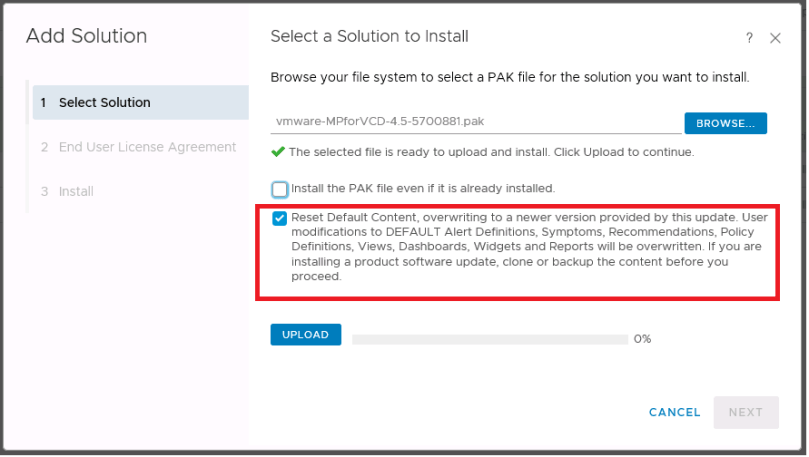
  • Browse for the new pak.  In this example I have selected “Reset Default Content” option.  As the statement suggests, this can override policies, customized alerts, symptoms etc. that may have been customized by your organization, forcing that work to be re-created.  However, I like using this option because I get those new changes, and can adjust my monitoring accordingly.  Use at your own discretion

Image.png

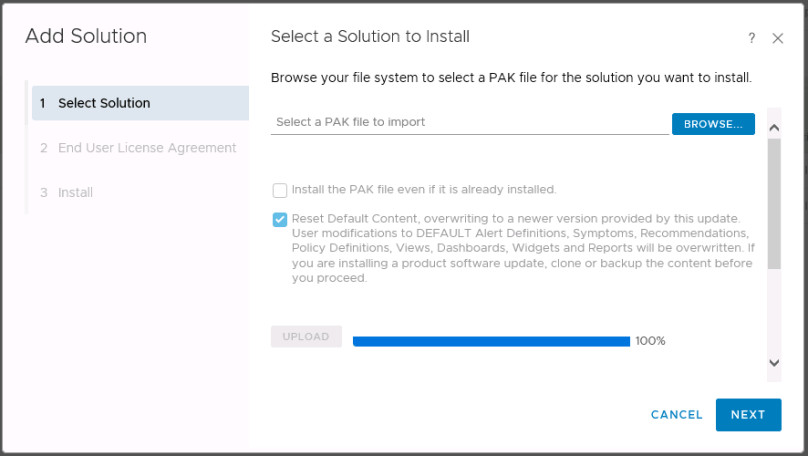
  • Click ‘upload’
Image.png
  • Click ‘Next’
  • Read and accept the EULA if you so desire
  • Click ‘Next’

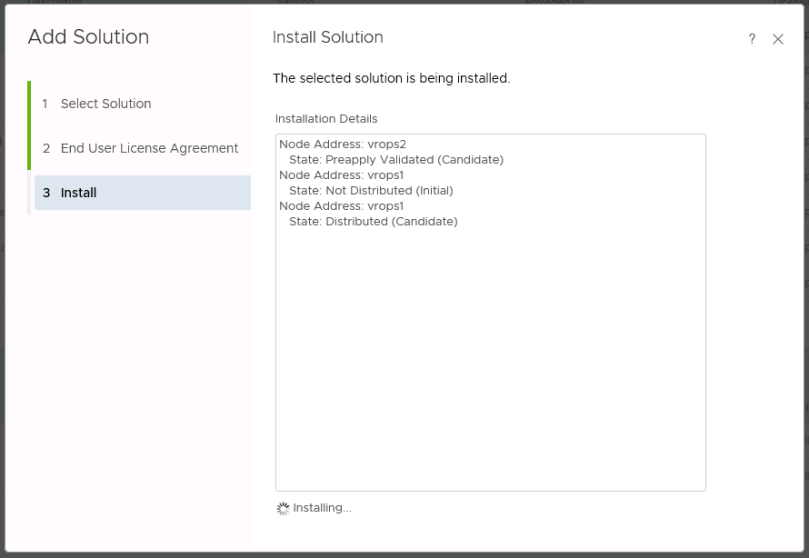
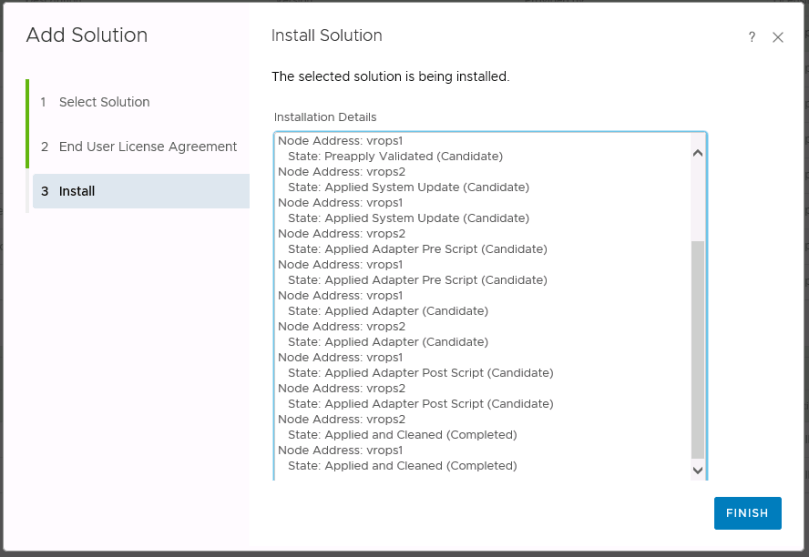
Now the installation process will begin.  This shouldn’t take longer than 5 minutes.

vrops54

  • Click Finish

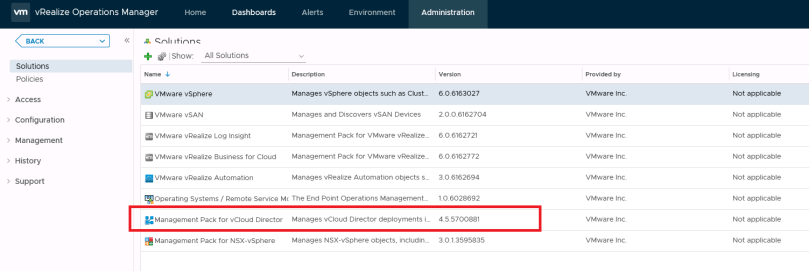
vrops55

Now the latest version of the Add-on/solutions pak is installed and ready for use.  In most cases it will just pick up the config from older versions.
Image.png

Enabling shell access for Active Directory…

Enabling shell access for Active Directory users via SSH to vCenter Server Appliance (VCSA)

Enabling shell access for Active Directory…

I had a question the other day on whether it was possible to enable shell access for Active Directory users when logging into the vCenter Server Appliance (VCSA) via SSH? The answer is yes and though this is documented here, it is not very clear whether this is only applicable to SSO-based users only. In any case, […]


VMware Social Media Advocacy

Collecting Java Heap dump from vCloud Director Cells

You just need to generate the java heap dump from one of the cells.  What you’ll need to succeed:

  • JCONSOLE
  • IP tables disabled on the cell you are connecting to.
  • Disk space available on the cell to accommodate the dump – I believe these can be between 8 and 10 GB in size
  • Unless an emergency, do this operation outside of normal business hours as it will be CPU intensive for up to 3 minutes, can impact API call performance, and can potentially cause the VCD cell inventory service to hang.

Step #1: Disable iptables on the cell

  • ssh to the desired cell and run the following command:

# service iptables stop

Step #2: Connect with jconsole (java console)

  • domain credentials should work here depending on your environment
  • connect to port: 8999
  • connect to desired cell

vcd9

  • If you get this message “Secure connection failed. Retry Insecurely?” just click the ‘insecure’ button to continue


vcd10

Step #3: Generate the heap dump

  1. On the MBeans tab, in the com.sun.management/HotSpotDiagnostics object, select the Operation section.
  2. In dumpHeap parameters, enter the following information:

    p0: [heap-output-path]

    p1: true – do a garbage collection before dump heap

    For example:

    p0: /opt/vmware/vcloud-director/vcd_cell_name_heap-dump-file.hprof

    p1: true

  3. Click the dumpHeap button.

vcd11


  • There will be no indication that the heapdump completes.  I just watch the size of the file until the growth stops on the cell.  This process typically takes less than two minutes.

Step #4: Cleanup and send-off

  • Locate the heap dump in /opt/vmware/vcloud-director/ and move off to a location where you can compress and upload to VMware FTP site as you would for logs.
  • Start the iptables on the cell: # service iptables start