Restarting Syslog Service on ESXi

Syslogs, we all use them in some form or another, and most places have their syslogs going to a collection server like Splunk or VMware’s own vRealize Log insight.  In the event you have an alert configured that notifies you when an ESXi host has stopped sending syslogs to the logging server, or you get a “General System Error” when attempting to change the syslog.global.logdir configuration option on the ESXi host itself, you should open a secure shell to the ESXi server and investigate further.

1. Once a secure shell has been established with the ESXi host, check the config of the vmsyslogd service, and that the process is running by using the following command:

# esxcli system syslog config get
  • If the process is running and configured, output received would be something similar to:
Default Network Retry Timeout: 180
Local Log Output: /vmfs/volumes/559dae9e-675318ea-b724-901b0e223e18/logs
Local Log Output Is Configured: true
Local Log Output Is Persistent: true
Local Logging Default Rotation Size: 1024
Local Logging Default Rotations: 8
Log To Unique Subdirectory: true
Remote Host: udp://logging-server.mydomain-int.net:514

2. If the process is up, look for the current syslog process with the following command:

# ps -Cc | grep vmsyslogd

3. If the service is running, the output received would be similar to the example below.  If there is no output, then the  vmsyslogd service is dead and needs to be started.  Skip ahead to step 5 if this is the case.

132798531 132798531 vmsyslogd            /bin/python -OO /usr/lib/vmware/vmsyslog/bin/vmsyslogd.pyo
132798530 132798530 wdog-132798531       /bin/python -OO /usr/lib/vmware/vmsyslog/bin/vmsyslogd.pyo

4. In this example, we would need to kill the vmsyslogd and wdog processes before we can restart the syslog daemon on the host.

# kill -9 132798530
# kill -9 132798531

5. To start the process issue the following command:

# /usr/lib/vmware/vmsyslog/bin/vmsyslogd

6. Verify that the process is correctly configured and running again.

# esxcli system syslog config get

Default Network Retry Timeout: 180
Local Log Output: /vmfs/volumes/559dae9e-675318ea-b724-901b0e223e18/logs
Local Log Output Is Configured: true
Local Log Output Is Persistent: true
Local Logging Default Rotation Size: 1024
Local Logging Default Rotations: 8
Log To Unique Subdirectory: true
Remote Host: udp://logging-server.mydomain-int.net:514

7. Log into the syslog collection server and verify the ESXi host is now properly sending logs.

Creating, Listing and Removing VM Snapshots with PowerCLi and PowerShell

PowerCLi + PowerShell Method

-=Creating snapshots=-

Let’s say you are doing a maintenance, and need a quick way to snapshot certain VMs in the vCenter.  The create_snapshot.ps1 PowerShell does just that, and it can be called from PowerCli.

createsnapshot

  •  Open PowerCLi and connect to the desired vCenter

powercli_connect

  • From the directory that you have placed the create_snapshot.ps1 script, run the command and watch for output.
> .\create_snapshot.ps1 -vm <vm-name>,<vm-name> -name snapshot_name

Like so:

snapshot2

In vCenter recent tasks window, you’ll see something similar to:

snapshot1


-=Removing snapshots=-

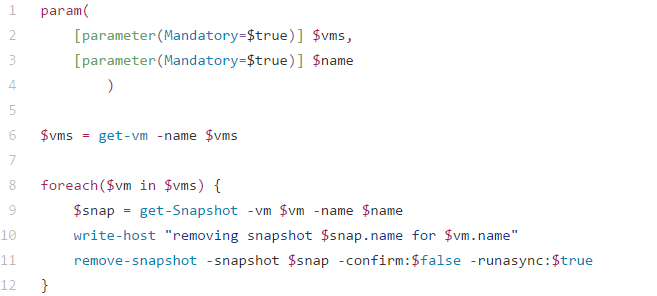
Once you are ready to remove the snapshots, the remove_snapshot.ps1 PowerShell script does just that.

snapshot5

  • Once you are logged into the vCenter through PowerCli like before, from the directory that you have placed the remove_snapshot.ps1 script, run the command and watch for output.
> .\remove_snapshot.ps1 -vm xx01-vmname,xx01-vmname -name snapshot_name 

Like so:

snapshot3

In vCenter recent tasks window, you’ll see something similar to:

snapshot4

Those two PowerShell scripts can be found here:

create_snapshot.ps1 and remove_snapshot.ps1

_________________________________________________________________

PowerCLi Method

-=Creating snapshots=-

The PowerCLi New-Snapshot cmdlet allows the creation of snapshots in similar fashion, and there’s no need to call on a PowerShell script.  However can be slower

> get-vm an01-jump-win1,an01-1-automate | new-snapshot -Name "cbtest" -Description "testing" -Quiesce -Memory

snapshot6

  • If the VM is running and it has virtual tools installed, you can opt for a quiescent snapshot withQuiesce parameter.  This has the effect of saving the virtual disk in a consistent state.
  • If the virtual machine is running, you can also elect to save the memory state as well with the –Memory parameter
  • You can also

Keep in mind using these options increases the time required to take the snapshot, but it should put the virtual machine back in the exact state if you need to restore back to it.

-=Listing Snapshots=-

If you need to check the vCenter for any VM that contains snapshots,  the get-snapshot cmdlet allows you to do that.  You can also use cmdlets like format-list to make it easier to read.

> Get-vm | get-snapshot | format-list vm,name,created

snapshot8

Other options:

Description
Created
Quiesced
PowerState
VM
VMId
Parent
ParentSnapshotId
ParentSnapshot
Children
SizeMB
IsCurrent
IsReplaySupported
ExtensionData
Id
Name
Uid

-=Removing snapshots=-

The PowerCLi remove-snapshot cmdlet does just that, and used in combination with the get-snapshot cmdlet looks something like this.

> get-snapshot -name cbtest -VM an01-jump-win1,an01-1-automate | remove-snapshot -RunAsync -confirm:$false

snapshot7

  • If you don’t want to be prompted, include –confirm:$False.
  • Removing a snapshot can be a long process so you might want to take advantage of the –RunAsync parameter again.
  • Some snapshots may have child snapshots if you are taking many during a maintenance, so you can also use –RemoveChildren to clean those up as well.


Failure Adding an Additional Node to vRealize Operations Manager Due to Expired Certificate

The Issue:

Unable to add additional nodes to cluster.  This error happened while adding an additional data and remote collector.  The cause ended up being a expired customer certificate, and surprisingly there was no noticeable mechanism such as a yellow warning banner in vROps UI to warn that a certificate had expired, or is about to expire.

Troubleshooting:

Log into the the new node being added, and tail the vcopsConfigureRoles.log

# tail -f /storage/vcops/log/vcopsConfigureRoles.log

You would see entries similar to:

2016-08-10 00:11:56,254 [22575] - root - WARNING - vc_ops_utilities - runHttpRequest - Open URL: 'https://localhost/casa/deployment/cluster/join?admin=172.22.3.14' returned reason: 
[SSL: CERTIFICATE_VERIFY_FAILED] certificate verify failed (_ssl.c:581), exception: 
2016-08-10 00:11:56,254 [22575] - root - DEBUG - vcopsConfigureRoles - joinSliceToCasaCluster - Add slice to CaSA cluster response code: 9000
2016-08-10 00:11:56,254 [22575] - root - DEBUG - vcopsConfigureRoles - joinSliceToCasaCluster - Expected response code not found. Sleep and retry. 0 
2016-08-10 00:12:01,259 [22575] - root - INFO - vcopsConfigureRoles - joinSliceToCasaCluster - Add Cluster to slice response code: 9000 
2016-08-10 00:12:01,259 [22575] - root - INFO - vc_ops_logging - logInfo - Remove lock file: /usr/lib/vmware-vcopssuite/utilities/sliceConfiguration/conf/vcops-configureRoles.lck
2016-08-10 00:12:01,259 [22575] - root - DEBUG - vcopsPlatformCommon - programExit - Role State File to Update: '/usr/lib/vmware-vcopssuite/utilities/sliceConfiguration/data/roleState.properties'
2016-08-10 00:12:01,260 [22575] - root - DEBUG - vcopsPlatformCommon - UpdateDictionaryValue - Update section: "generalSettings" key: "failureDetected" with value: "true" file: "/usr/lib/vmware-vcopssuite/utilities/sliceConfiguration/data/roleState.properties"
2016-08-10 00:12:01,260 [22575] - root - DEBUG - vcopsPlatformCommon - loadConfigFile - Loading config file "/usr/lib/vmware-vcopssuite/utilities/sliceConfiguration/data/roleState.properties"
2016-08-10 00:12:01,261 [22575] - root - DEBUG - vcopsPlatformCommon - copyPermissionsAndOwner - Updating file permissions of '/usr/lib/vmware-vcopssuite/utilities/sliceConfiguration/data/roleState.properties.new' from 100644 to 100660
2016-08-10 00:12:01,261 [22575] - root - DEBUG - vcopsPlatformCommon - copyPermissionsAndOwner - Updating file ownership of '/usr/lib/vmware-vcopssuite/utilities/sliceConfiguration/data/roleState.properties.new' from 1000/1003 to 1000/1003
2016-08-10 00:12:01,261 [22575] - root - DEBUG - vcopsPlatformCommon - UpdateDictionaryValue - The key: failureDetected was updated 
2016-08-10 00:12:01,261 [22575] - root - DEBUG - vcopsPlatformCommon - programExit - Updated failure detected to true 
2016-08-10 00:12:01,261 [22575] - root - INFO - vcopsPlatformCommon - programExit - Exiting with exit code: 1, Add slice to CaSA Cluster failed. Response code: 9000.  Expected: 200

Resolution:

Step #1

Take snapshot of all vROps nodes

Step #2

Revert back to VMware’s default certificate on all nodes using the following kb article. KB2144949

Step #3

The custom cert files that need to be renamed on the nodes are located at /storage/vcops/user/conf/ssl.  This should be completed on all nodes.   Alternatively, you can remove them, but renaming them is sufficient.

# mv customCert.pem customCert.pem.BAK
# mv customChain.pem customChain.pem.BAK
# mv customKey.pem customKey.pem.BAK
# mv uploaded_cert.pem uploaded_cert.pem.BAK   

Step #4

Now attempt to add the new node again.  From the master node, you can watch the installation of the new node by tailing the casa.log

# tail -f /storage/vcops/log/casa/casa.log

Delete the snapshots as soon as possible.

  • To add a new custom certificate to the vRealize Operations Manager, follow this KB article: KB2046591

_________________________________________________________________

Alternative Solutions

  • There could be an old management pak installed that was meant for an older version of vROps.  This has been know to cause failures.  Follow this KB for more information: KB2119769


  • If you are attempting to add a node to the cluster using an IP address previously used, the operation may fail.  Follow this KB for more information: KB2147076


NSX Host VIB Upgrade From 6.1.X to 6.2.4

There is a known issue when upgrading the NSX host VIB from 6.1.X to 6.2.4, where once the host is upgraded to VIB 6.2.4, and the virtual machines are moved to it, if they should somehow find their way back to a 6.1.X host, the VM’s NIC will become disconnected causing an outage. This has been outlined in KB2146171

Resolution

We found the following steps to be the best solution in getting to the 6.2.4 NSX VIB version on ESXi 6u2, without causing any interruptions in regards to the network connectivity of the virtual machines.

  1. Log into the vSphere web client, go to Networking & Security, select Installation on the navigation menu, and then select the Host preparation tab.
  2. Select the desired cluster, and click the “Upgrade Available” message next to it.  This will start the upgrade process of all the hosts, and once completed, all hosts will display “Reboot Required”.
  3. Mark the first host for maintenance mode as you normally would, and once all virtual machines have evacuated off, and the host marked as in maintenance mode, restart it as you normally would.
  4. While we wait for the host to reboot, right click on the host cluster being upgraded and select Edit Settings.  Select vSphere DRS, and set the automation level to Manual.  This will give you control over host evacuations and where the virtual machines go.
  5. Once the host has restarted, monitor the Recent Tasks window and wait for the NSX vib installation to complete.
  6. Bring the host out of maintenance mode.  Now migrate a test VM over to the new host and test network connectivity.  Ping to another VM on a different host, and then make sure you can ping out to something like 8.8.8.8.
  7.  Verify the VIB has been upgraded to 6.2.4 from the vSphere web Networking & Security host preparation section.
  8. Open PowerCLI and connect to the vCenter where this maintenance activity is being performed.  In order to safely control the migration of virtual machines from hosts containing the NSX VIV 6.1.X to the host that has been upgraded to 6.2.4, we will use the following command to evacuate the next host’s virtual machines onto the one that was just upgraded.
Get-VM -Location "<sourcehost>" | Move-VM -Destination (Get-Vmhost "<destinationhost>")
  • “sourcehost” being the next host you wish to upgrade, and the “destinationhost” being the one that was just upgraded.

9.  Once the host is fully evacuated, place the host in maintenance mode, and reboot it.

10. VMware provided us with a script that should ONLY be executed against NSX vib 6.2.4 hosts, and does the following:

  • Verifies the VIB version running on the host.
    For example: If the VIB version is between VIB_VERSION_LOW=3960641, VIB_VERSION_HIGH=4259819 then it is considered to be a host with VIB 6.2.3 and above. Any other VIB version the script will fail with a warningCustomer needs to make sure that the script is executed against ALL virtual machines that have been upgraded since 6.1.x.
  • Once the script sets the export_version to 4, the version is persistent across reboots.
  • There is no harm if customer executes the script multiple times on the same host as only VMs that need modification will be modified.
  • Script should only be executed NSX-v 6.2.4 hosts

I have attached a ZIP file containg the script here:  fix_exportversion.zip

Script Usage

  • Copy the script to a common datastore accessible to all hosts and run the script on each host.
  • Log in to the 6.2.4 ESXi host via ssh or CONSOLE, where you intend to execute the script.
  • chmod u+x the files
  • Execute the script:
./vmfs/volumes/<Shared_Datastore>/fix_exportversion.sh /vmfs/volumes/<Shared_Datastore>/vsipioctl


Example output:

~ # /vmfs/volumes/NFS-101/fix_exportversion.sh /vmfs/volumes/NFS-101/vsipioctl
Fixed filter nic-39377-eth0-vmware-sfw.2 export version to 4.
Fixed filter nic-48385-eth0-vmware-sfw.2 export version to 4.
Filter nic-50077-eth0-vmware-sfw.2 already has export version 4.
Filter nic-52913-eth0-vmware-sfw.2 already has export version 4.
Filter nic-53498-eth0-vmware-sfw.2 has export version 3, no changes required.

Note: If the export version for any VM vNIC shows up as ‘2’, the script will modify the version to ‘4’ and does not modify other VMs where export version is not ‘2’.

11.  Repeat steps 5 – 10 on all hosts in the cluster until completion.  This script appears to be necessary as we have seen cases where a VM may still lose its NIC even if it is vmotioned from one NSX vib 6.2.4 host to another 6.2.4 host.

12. Once 6.2.4 host VIB installation is complete, and the script has been run against the hosts and virtual machines running on them, DRS can be set back to your desired setting like Fully automated for instance.

13.  Virtual machines should now be able to vmotion between hosts without losing their NICs.

  • This process was thoroughly tested in a vCloud Director cloud environment containing over 20,000 virtual machines, and on roughly 240 ESXi hosts without issue. vCenter environment was vCSA version 6u2, and ESXi version 6u2.

vMotion fails at 67% on esxi 6 in vCenter 6.

Came across an interesting error the other night while on call, as I had a host in a cluster that VM’s could not vMotion off of either manually or through DRS.  I was seeing the following error message in vSphere:


The source detected that the destination failed to resume.

vMotion migration [-1062731518:1481069780557682] failed: remote host <192.168.1.2> failed with status Failure.
vMotion migration [-1062731518:1481069780557682] failed to asynchronously receive and apply state from the remote host: Failure.
Failed waiting for data. Error 195887105. Failure.


  • While tailing the host.d log on the source host I was seeing the following error:
2016-12-09T19:44:40.373Z warning hostd[2B3E0B70] [Originator@6876 sub=Libs] ResourceGroup: failed to instantiate group with id: -591724635. Sysinfo error on operation return ed status : Not found. Please see the VMkernel log for detailed error information


  • While tailing the host.d log on the destination host, I was seeing the following error:
2016-12-09T19:44:34.330Z info hostd[33481B70] [Originator@6876 sub=Snmpsvc] ReportVMs: processing vm 223
2016-12-09T19:44:34.330Z info hostd[33481B70] [Originator@6876 sub=Snmpsvc] ReportVMs: serialized 36 out of 36 vms
2016-12-09T19:44:34.330Z info hostd[33481B70] [Originator@6876 sub=Snmpsvc] GenerateFullReport: report file /tmp/.vm-report.xml generated, size 915 bytes.
2016-12-09T19:44:34.330Z info hostd[33481B70] [Originator@6876 sub=Snmpsvc] PublishReport: file /tmp/.vm-report.xml published as /tmp/vm-report.xml
2016-12-09T19:44:34.330Z info hostd[33481B70] [Originator@6876 sub=Snmpsvc] NotifyAgent: write(33, /var/run/snmp.ctl, V) 1 bytes to snmpd
2016-12-09T19:44:34.330Z info hostd[33481B70] [Originator@6876 sub=Snmpsvc] GenerateFullReport: notified snmpd to update vm cache
2016-12-09T19:44:34.330Z info hostd[33481B70] [Originator@6876 sub=Snmpsvc] DoReport: VM Poll State cache - report completed ok
2016-12-09T19:44:40.317Z warning hostd[33081B70] [Originator@6876 sub=Libs] ResourceGroup: failed to instantiate group with id: 727017570. Sysinfo error on operation returne d status : Not found. Please see the VMkernel log for detailed error information


  • While tailing the destination vmkernel.log host, I was seeing the following error:
2016-12-09T19:44:22.000Z cpu21:35086 opID=b5686da8)World: 15516: VC opID AA8C46D5-0001C9C0-81-91-cb-a544 maps to vmkernel opID b5686da8
2016-12-09T19:44:22.000Z cpu21:35086 opID=b5686da8)Config: 681: "SIOControlFlag2" = 1, Old Value: 0, (Status: 0x0)
2016-12-09T19:44:22.261Z cpu21:579860616)World: vm 579827968: 1647: Starting world vmm0:oats-agent-2_(e00c5327-1d72-4aac-bc5e-81a10120a68b) of type 8
2016-12-09T19:44:22.261Z cpu21:579860616)Sched: vm 579827968: 6500: Adding world 'vmm0:oats-agent-2_(e00c5327-1d72-4aac-bc5e-81a10120a68b)', group 'host/user/pool34', cpu: shares=-3 min=0 minLimit=-1 max=4000, mem: shares=-3 min=0 minLimit=-1 max=1048576
2016-12-09T19:44:22.261Z cpu21:579860616)Sched: vm 579827968: 6515: renamed group 5022126293 to vm.579860616
2016-12-09T19:44:22.261Z cpu21:579860616)Sched: vm 579827968: 6532: group 5022126293 is located under group 5022124087
2016-12-09T19:44:22.264Z cpu21:579860616)MemSched: vm 579860616: 8112: extended swap to 46883 pgs
2016-12-09T19:44:22.290Z cpu20:579860616)Migrate: vm 579827968: 3385: Setting VMOTION info: Dest ts = 1481312661276391, src ip = <192.168.1.2> dest ip = <192.168.1.17> Dest wid = 0 using SHARED swap
2016-12-09T19:44:22.293Z cpu20:579860616)Hbr: 3394: Migration start received (worldID=579827968) (migrateType=1) (event=0) (isSource=0) (sharedConfig=1)
2016-12-09T19:44:22.332Z cpu0:33670)MigrateNet: vm 33670: 2997: Accepted connection from <::ffff:192.168.1.2>
2016-12-09T19:44:22.332Z cpu0:33670)MigrateNet: vm 33670: 3049: data socket size 0 is less than config option 562140
2016-12-09T19:44:22.332Z cpu0:33670)MigrateNet: vm 33670: 3085: dataSocket 0x430610ecaba0 receive buffer size is 562140
2016-12-09T19:44:22.332Z cpu0:33670)MigrateNet: vm 33670: 2997: Accepted connection from <::ffff:192.168.1.2>
2016-12-09T19:44:22.332Z cpu0:33670)MigrateNet: vm 33670: 3049: data socket size 0 is less than config option 562140
2016-12-09T19:44:22.332Z cpu0:33670)MigrateNet: vm 33670: 3085: dataSocket 0x4306110fab70 receive buffer size is 562140
2016-12-09T19:44:22.332Z cpu0:33670)VMotionUtil: 3995: 1481312661276391 D: Stream connection 1 added.
2016-12-09T19:44:24.416Z cpu1:32854)elxnet: elxnet_allocQueueWithAttr:4255: [vmnic0] RxQ, QueueIDVal:2
2016-12-09T19:44:24.416Z cpu1:32854)elxnet: elxnet_startQueue:4383: [vmnic0] RxQ, QueueIDVal:2
2016-12-09T19:44:24.985Z cpu12:579860756)VMotionRecv: 658: 1481312661276391 D: Estimated network bandwidth 471.341 MB/s during pre-copy
2016-12-09T19:44:24.994Z cpu4:579860755)VMotionSend: 4953: 1481312661276391 D: Failed to receive state for message type 1: Failure
2016-12-09T19:44:24.994Z cpu4:579860755)WARNING: VMotionSend: 3979: 1481312661276391 D: failed to asynchronously receive and apply state from the remote host: Failure.
2016-12-09T19:44:24.994Z cpu4:579860755)WARNING: Migrate: 270: 1481312661276391 D: Failed: Failure (0xbad0001) @0x4180324c6786
2016-12-09T19:44:24.994Z cpu4:579860755)WARNING: VMotionUtil: 6267: 1481312661276391 D: timed out waiting 0 ms to transmit data.
2016-12-09T19:44:24.994Z cpu4:579860755)WARNING: VMotionSend: 688: 1481312661276391 D: (9-0x43ba40001a98) failed to receive 72/72 bytes from the remote host <192.168.1.2>: Timeout
2016-12-09T19:44:24.998Z cpu4:579860616)WARNING: Migrate: 5454: 1481312661276391 D: Migration considered a failure by the VMX. It is most likely a timeout, but check the VMX log for the true error.


We are using the vSphere distributed switch in our environment, and each host has a vmk dedicated to vMotion traffic only, so this was my first test, verified the IP and subnet for the vmk on the source/destination hosts, and I was successfully able to ping using vmkping to the destination host, and tested the connection both ways.

The second test completed was to power off a VM, and test its ability to vMotion off of the host – this worked.  When I powered the VM back on it immediately went back to the source host.  I then tried to vMotion the VM again while it was powered on from the affected source host, and move it to the destination host like I had before, and to my surprise it worked now.  Tested this process with a few other VMs for consistency.  I tried to restart a VM on the affected host, and then move it off to another host, but this did not work.

My final test was to vMotion a VM from a different host to the affected host.  This worked as well, and I was even able to vMotion off from that affected host again.


In our environment we have a Trend-micro agent VM and a GI VM running on each host.  I logged into the vSphere web-client to look at the status of the Trend-micro VM and there was no indication of an error, I found the same status checking the GI vm.

Knowing we have had issues with Trend-micro in the past, I powered down the Trend-micro VM running on the host, and attempted a manual vMotion of a test VM I knew couldn’t move before – IT WORKED.  Tried another with the same result.  Put the host into maintenance mode to try and evacuate the rest of the customer VMs off from it with success!

To wrap all of this up, the Trend-micro agent VM running on the esxi6 host was preventing other VMs from vMotioning off either manually or through DRS.  Once the trend-micro agent VM was powered off, I was able to evacuate the host.


Creating vROps Policies and How To Apply Them To Object Groups.

Creating policies in VMware’s vRealize Operations Appliance can be strait forward, if there is a decent understanding of every platform it’s monitoring.  In my last post of this series, I covered the creation of object groups, and that post is important here because policies can be created and assigned to those object groups, allowing the tuning of alerts received for those groups.

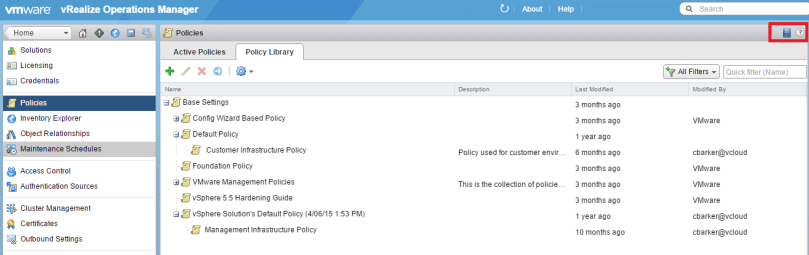
Once logged in to the vROps appliance, go into the administration section, and there you will find the policies.

vrops37.png

  • VMware has included many base policies in the policy library, which in most cases will be fine for the initial configuration for the appliance, but you may want to create additional policies to suite your specific environment needs.
  • Also take note of the blue film strip in the upper right corner.  This will take you to VMware’s video repository of policies explanation and a brief how-to video.  These video links can be found throughout the configuration of the appliance, and more are added with each release.

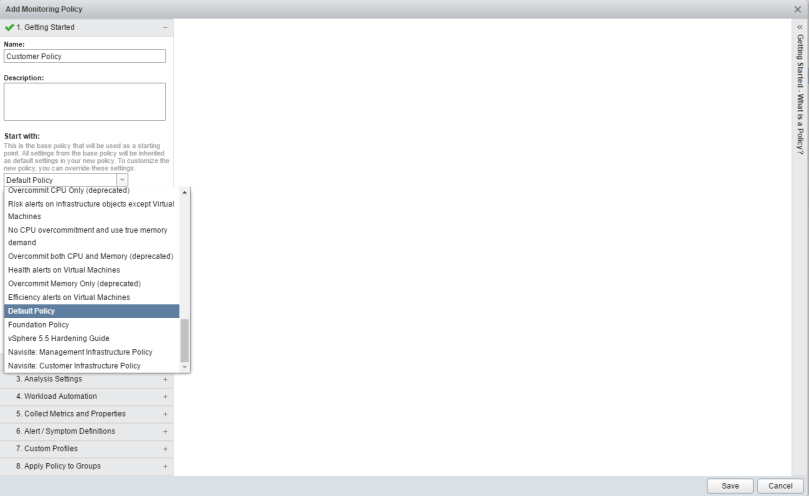
To create a new policy click on the green plus sign to get started.  Give the policy a unique name, and it would be good practice to give a description of what the policy is intended to do.  When creating a policy, you have the ability to “start with” a VMware pre-defined policy, and I recommend taking advantage of that until there is a firm understanding of what these policies do.

vrops38

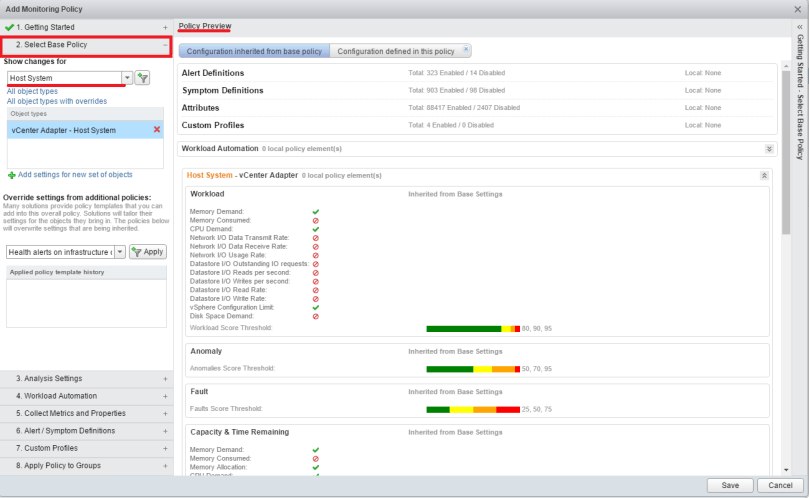
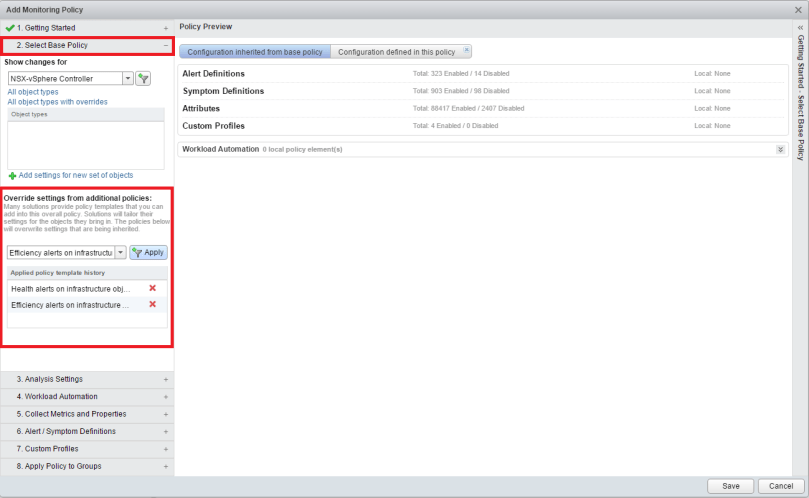
On the Select Base Policy tab, you can use the drop down menu on the left to get a policy overview of what is being monitored.  In this example, Host system was selected.

vrops39

Policy Overrides can also be incorporated into this policy.  In other words, if there are certain alerts that you do not want, one of the pre-defined policies may already have those alerts turned off, so those policies can be added to the new policy being created here.  Work smarter, not harder right?

vrops40

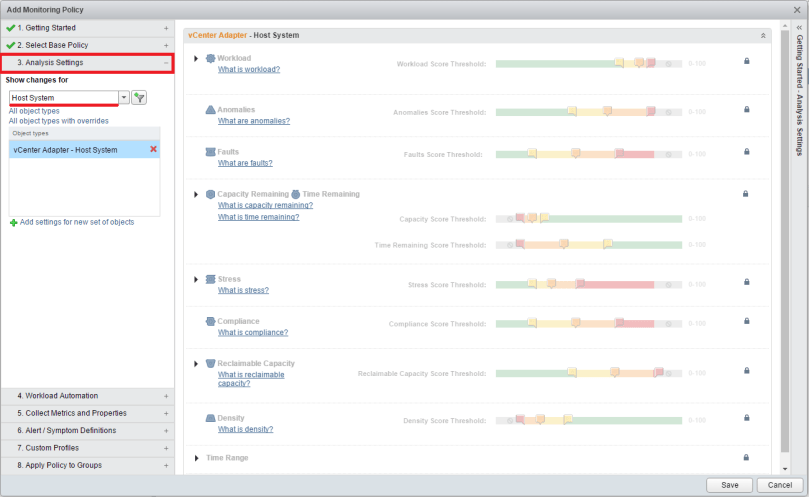
Moving along to the Analysis Settings tab, here you can see how vROps analyses the alerts, determines thresholds, and assigned system badges.  These can be left at their current settings per the policy you are building off of, or you can click on the padlock to the right and make individual changes.  Keep in mind under the “Show changes for” drop down menu, you will have many objects to select to change the analysis settings on.

vrops41

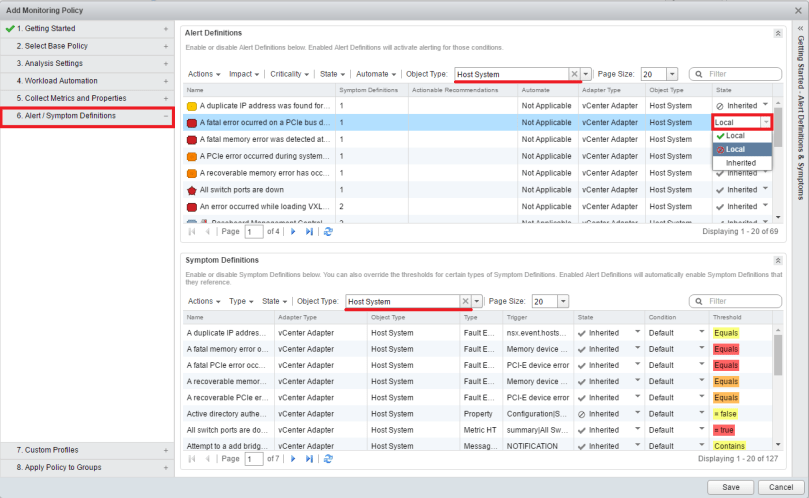
The Alert/Systems Definitions tab is probably where the majority of time will be spent.  The “Alert Definitions” box at the top is where alerts can be turned on or off based on the base policy used to create this one, or the override policies used.

  • Each management pack installed will have it’s own category for object type.  In other words, “host system” is listed under the vCenter category, but if vCloud Director management pack was installed, it would also have a “host system” under its category.  Each management pack has the ability to add additional alerts for objects referenced in other management packs.  Take time going through each category to see what alerts may need configuring.
  • The State of each alert will either be local with a green check-mark: meaning you enabled it, inherited with a grey check-mark: meaning it is enabled via another policy that was used to create this one, Local with the red crossed out circle: meaning you disabled the alert for the policy, or inherited with a grayed out crossed out circle: meaning it is disabled via another policy that was used to create this one.  Disabling alerts here will still allow the metrics to be collected for the object, you just wont get the alarm for it.
  • The System Definitions section has the same “object type” drop down menu, and you can select the object type here to configure system thresholds for how the symptoms are triggered for the alert selected in the top Alert Definition box above.  I typically do these in tandem.

vrops43

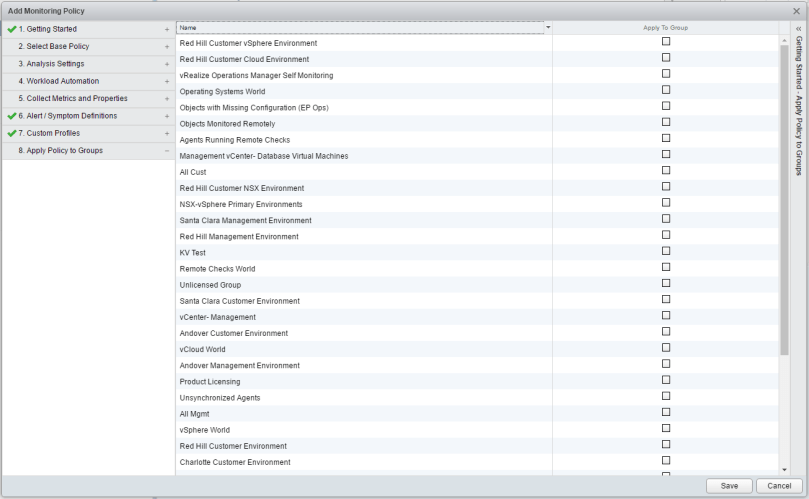
Finally, you can apply the policy to the custom groups you created before in the Apply Policy to Groups tab.

vrops42

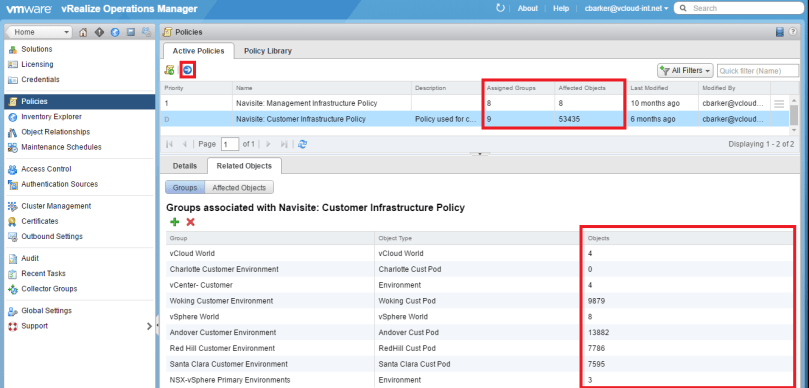
Once you click save, and go back to the Active Policies tab, you will be able to see the new policy created, and within five minutes, you should see the Affected Objects count rise.  You can see here that I have a policy marked with “D” meaning it is the default appliance policy.  You can set your own policy as default by clicking the blue circle icon with the arrow on the upper left side.  It may take up to 24 hours before the active alert page reflects the settings of the new policy.  Otherwise you can manually clear those alerts.

vrops44

Previous post to this series: Configuring VMware vRealize Operations Manager Object Groups

ESXi host fails to upgrade from 5.5 Update 3 to 6 Update 2

This happened to me today and thought it was worth sharing.  Most of the hosts in this particular cluster upgraded fine to ESXi 6u2 from ESXi 5.5u3 with the exception of this one host.  Update manager kept giving me this error “Cannot run upgrade script on host” in the vCenter Recent Tasks pane.

esxi01

A quick google search brought me to this KB article 2007163, but after following the KB I wasn’t able to find the referenced error “Remediation failed due to non mode failure “on the update manager server (Win2008) under C:\AppData\VMware\Update Manager\Logs\vmware-vum-server-log4cpp.log file.

I started an SSH session to the ESXi host, but wasn’t able to find and entry similar to the error “OSError: [Errno 39] Directory not empty:” in the /var/log/vua.log file

I instead found this error:

—————————————————————-

[FFD0D8C0 error ‘Default’] Alert:WARNING: This application is not using QuickExit().

The exit code will be set to 0.@ bora/vim/lib/vmacore/main/service.cpp:147

–> Backtrace:

–> backtrace[00] rip 1bc228c3 Vmacore::System::Stacktrace::CaptureFullWork(unsigned int)

—————————————————————–

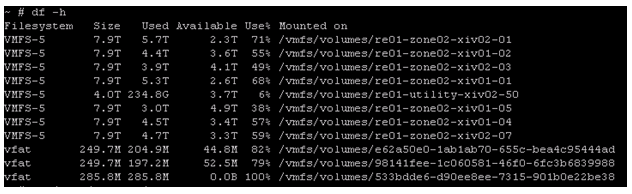
By chance, I happened to check space on the ESXi host #df -h and found I had a partition that was 100% full.

esxi02

So I changed directory to it # cd /storage/core/……./ where I found two more directories  /var/core/ .  Using the command #ls to list the directory, I found two zdumps.

esxi03

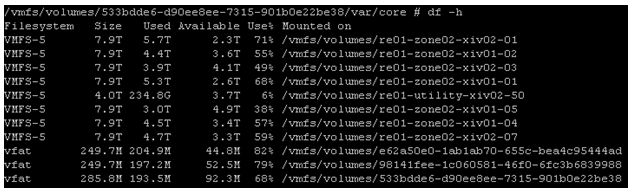
I deleted the two zdumps, and then checked the space again #df -h

esxi04

Seeing now that my directory is now 68% utilized instead of 100%, I attempted the ESXi 6u2 upgrade again this time with success.


How to evacuate virtual machines from one host to another with PowerCLI

If you ever find yourself in need of evacuating an esxi host there is a handy PowerCLI command that can do just that, and it maintains the resource pools for the virtual machines too.  This was used in vCenter 6u2, PowerCLI 6.3 R1, esxi 5.5

–  –  –  –  –  –  –  –  –  –  –  –  –  –  –  –  –  –  –  –  –  –  –  –  –  –  –  –  –  –  –  –  –  –  –  –

Connect-VIserver <vcenter-name/ip>

Get-VM -Location “<sourcehost>” | Move-VM -Destination (Get-Vmhost “<destinationhost>”).

–  –  –  –  –  –  –  –  –  –  –  –  –  –  –  –  –  –  –  –  –  –  –  –  –  –  –  –  –  –  –  –  –  –  –  –

I recently went through an outage that affected our ability to put hosts into maintenance mode, as the vMotion operation would get stuck at the vCenter level at 13%, with no indication at the host level that something was happening.  This PowerCLI command allowed me to evacuate one host’s virtual machines onto another getting me through all 18 hosts in the cluster.