With a new role, a new adventure awaits.

I am excited to share that as of today, I have accepted a position with Rackspace, as a VMware product engineer.

In this new role, I will take my hands on experience as a VMware Cloud Engineer, and apply it towards this new role, getting deeper into the designing, testing and documenting systems architecture, and getting to work with the latest technologies in the cloud space.   I fully expect new blog posts in the future to revolve more around VMware based cloud solutions, and I cannot wait to get started.  I appreciate those of you who visit my blog site, and I will be back with more technology blogs in the coming months.  I also plan to purchase another node for my Home Lab, so that I can have true hosts supporting my environment.  Nested is fun, but nothing beats the power of a dedicated host.  Stay tuned!

Traveling. First vmug Usercon in Denver Colorado.

In my quest for finding a new role in Colorado, I decided to travel there for the vmug (VMware User Group) Denver usercon last week.

As this was my first ever VMUG, I don’t really have anything to compare it to other than a pocket sized VMworld. Some pretty cool sessions by the community, for the community.

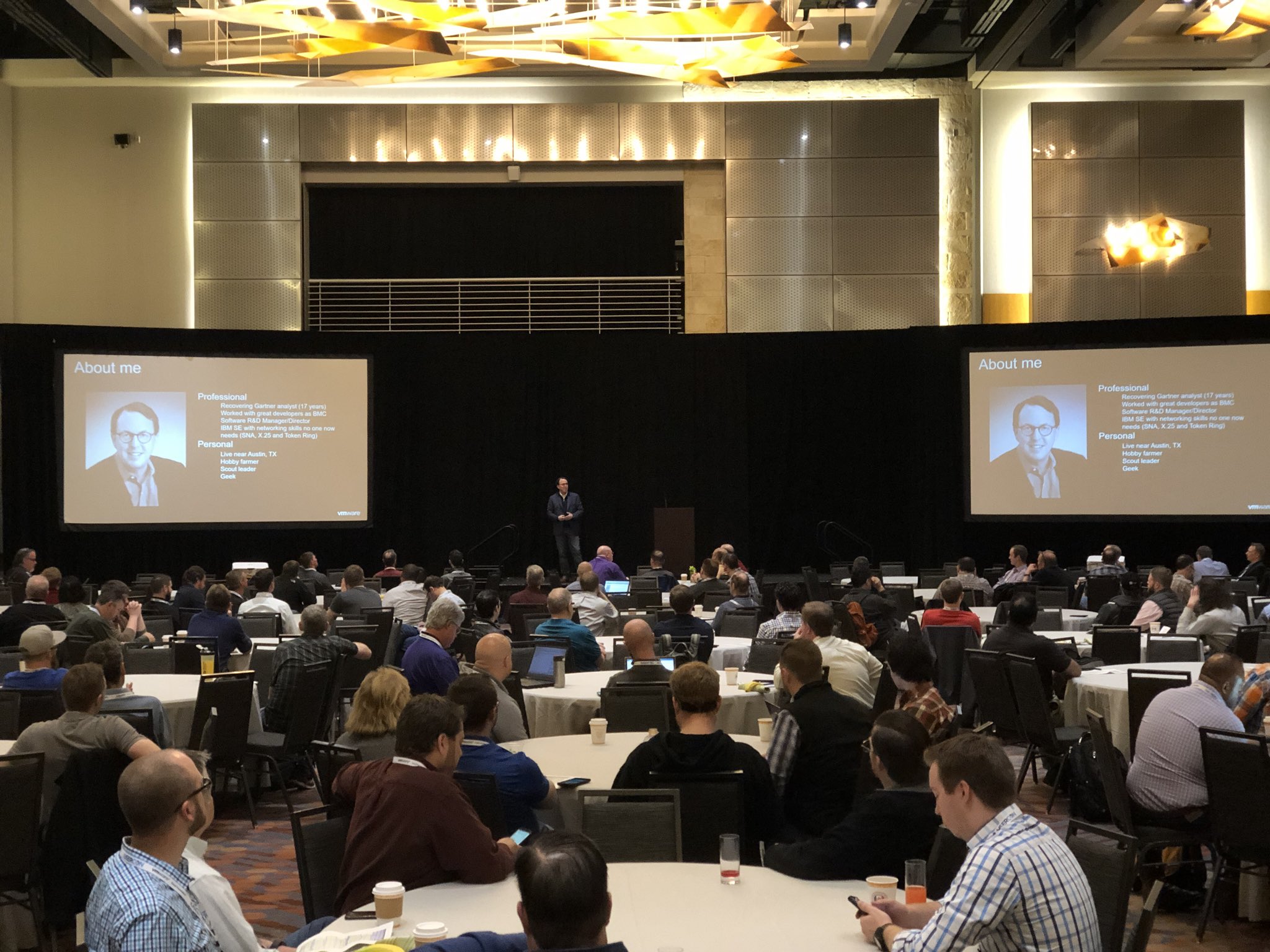
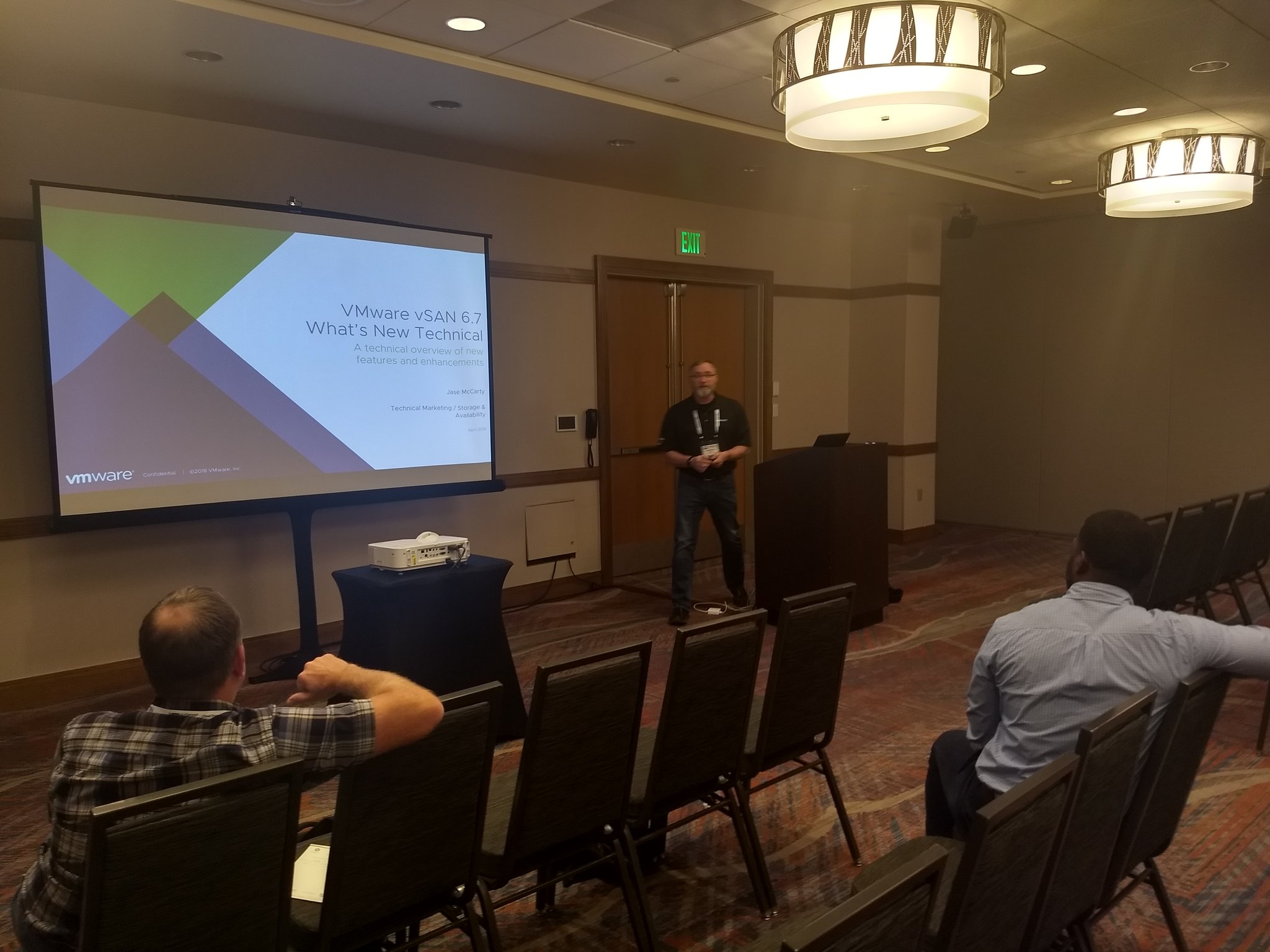
Checked out as many sessions as I could, but quickly found that VMware lead sessions and community lead sessions were happening at the same time. I did manage to catch Jase McCarty’s session on VSAN.

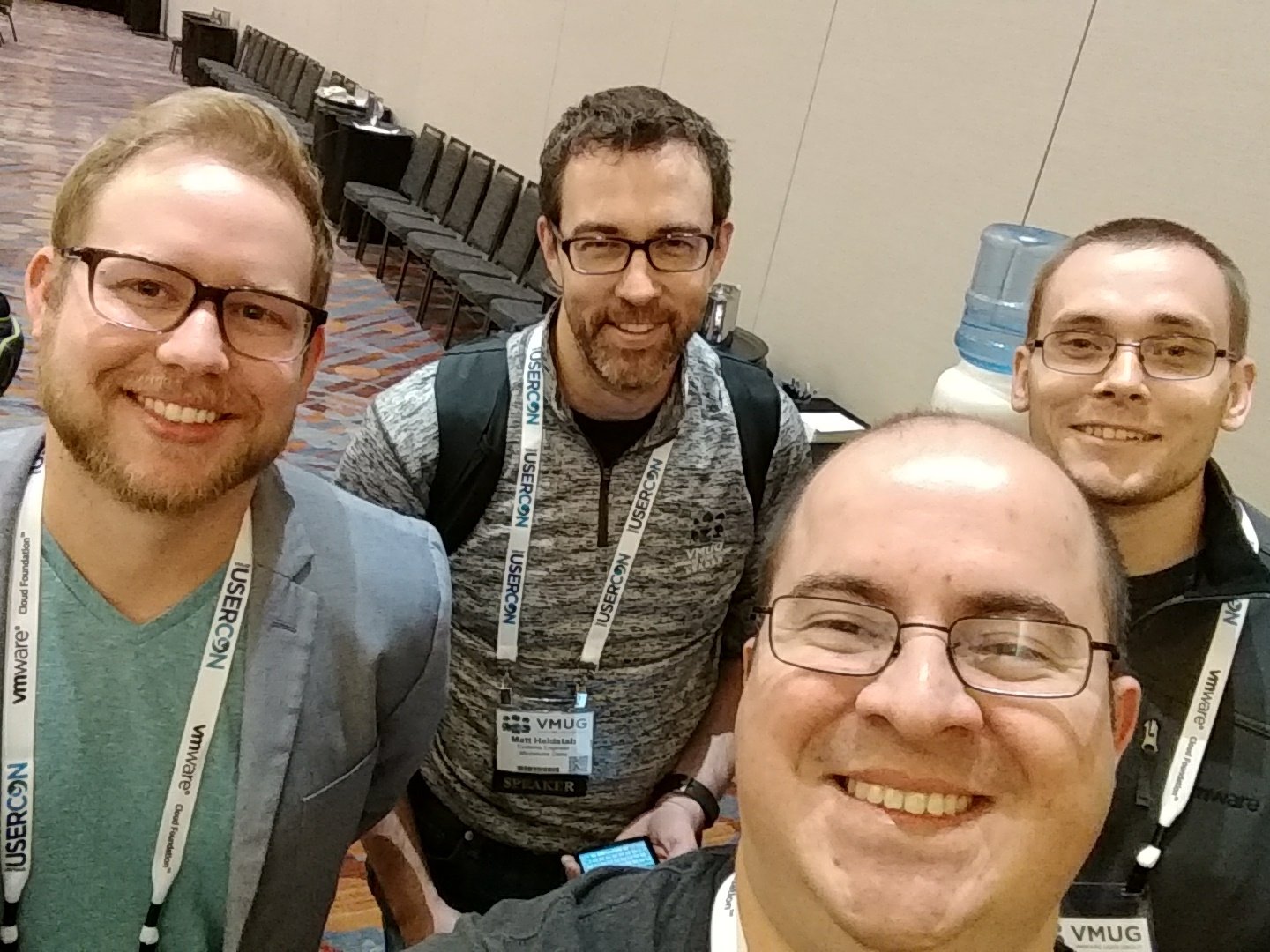
Met up with my good friend and community leader while at the Denver UserCon: Ariel Sanchez Mora.

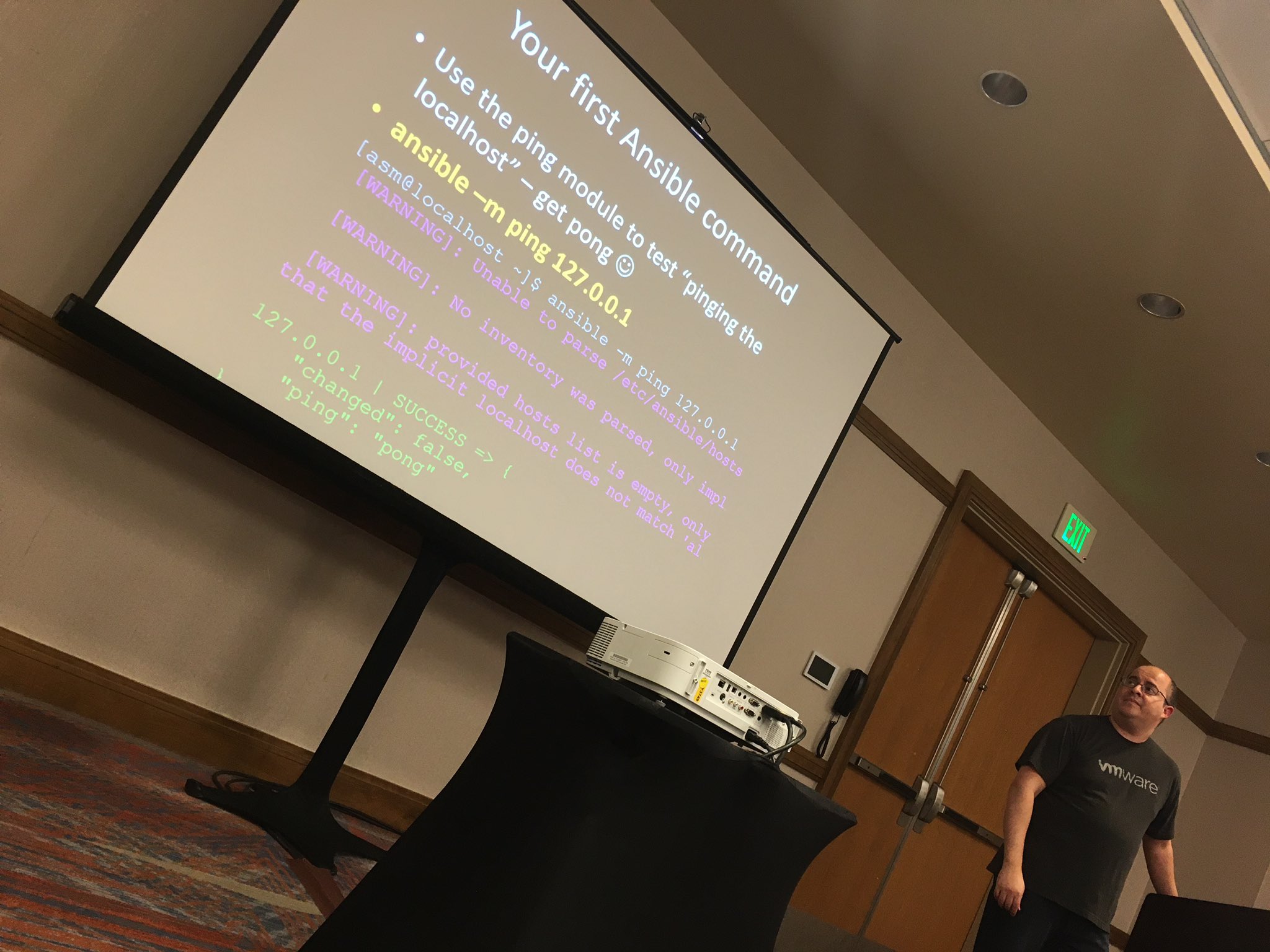
Ariel gave a pretty dope presentation on automating vSphere with Ansible for beginners, and really broke it down to the basics to help people take their first steps. (photo credit: @joeypiccola)

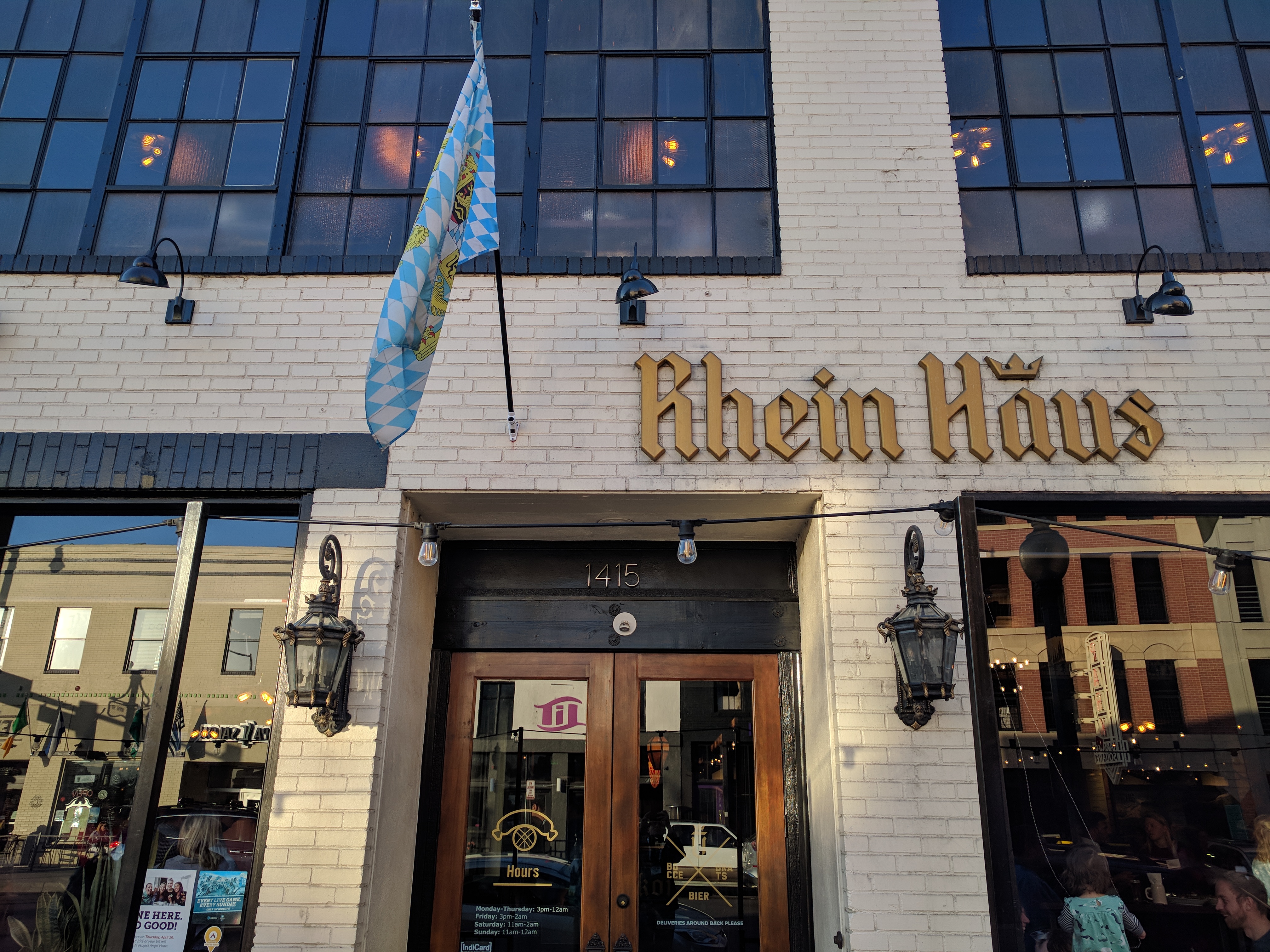
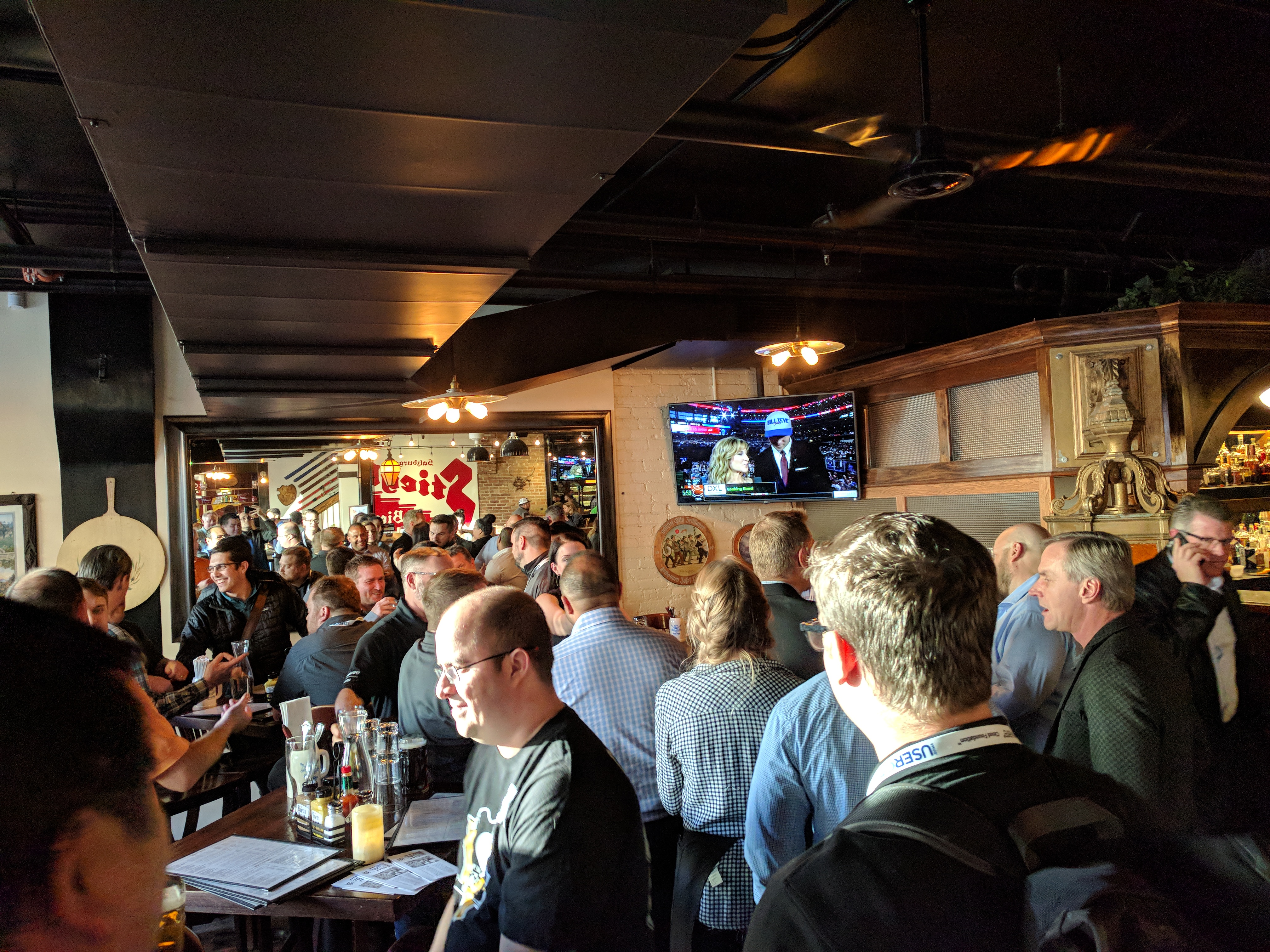
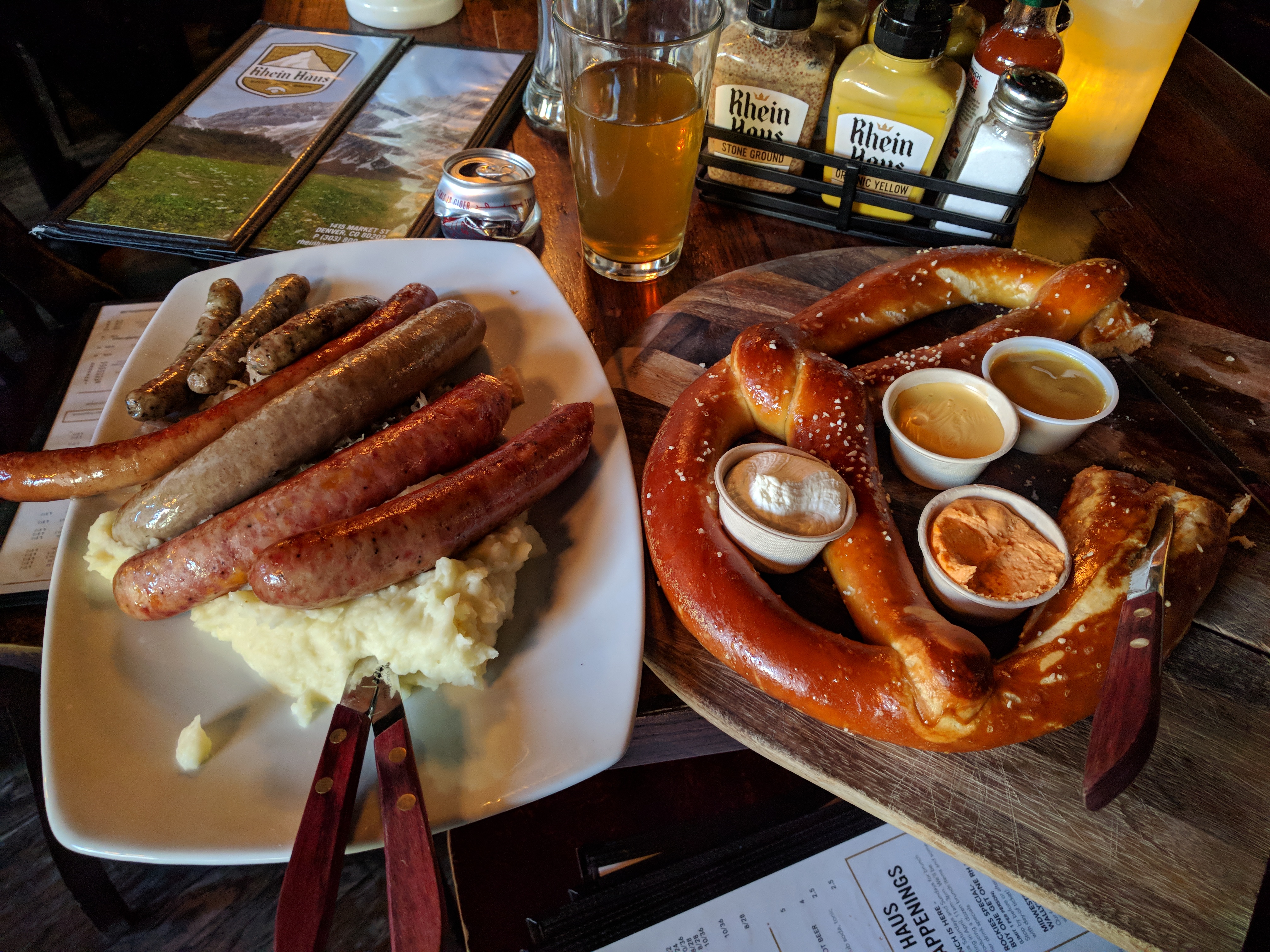
Afterwards we got together with other folks for Denver vbeers at this killer German inspired pub called Rhein Haus over on Market Street.

Shout-out to @jasemccarty and @AntonNApril and others for putting together a killer vbeers, and a special shout-out to Rhein Haus, for their friendly staff, and killer German inspired food. This place was on point, and it will certainly be on my list for places to eat when I am out that way again.

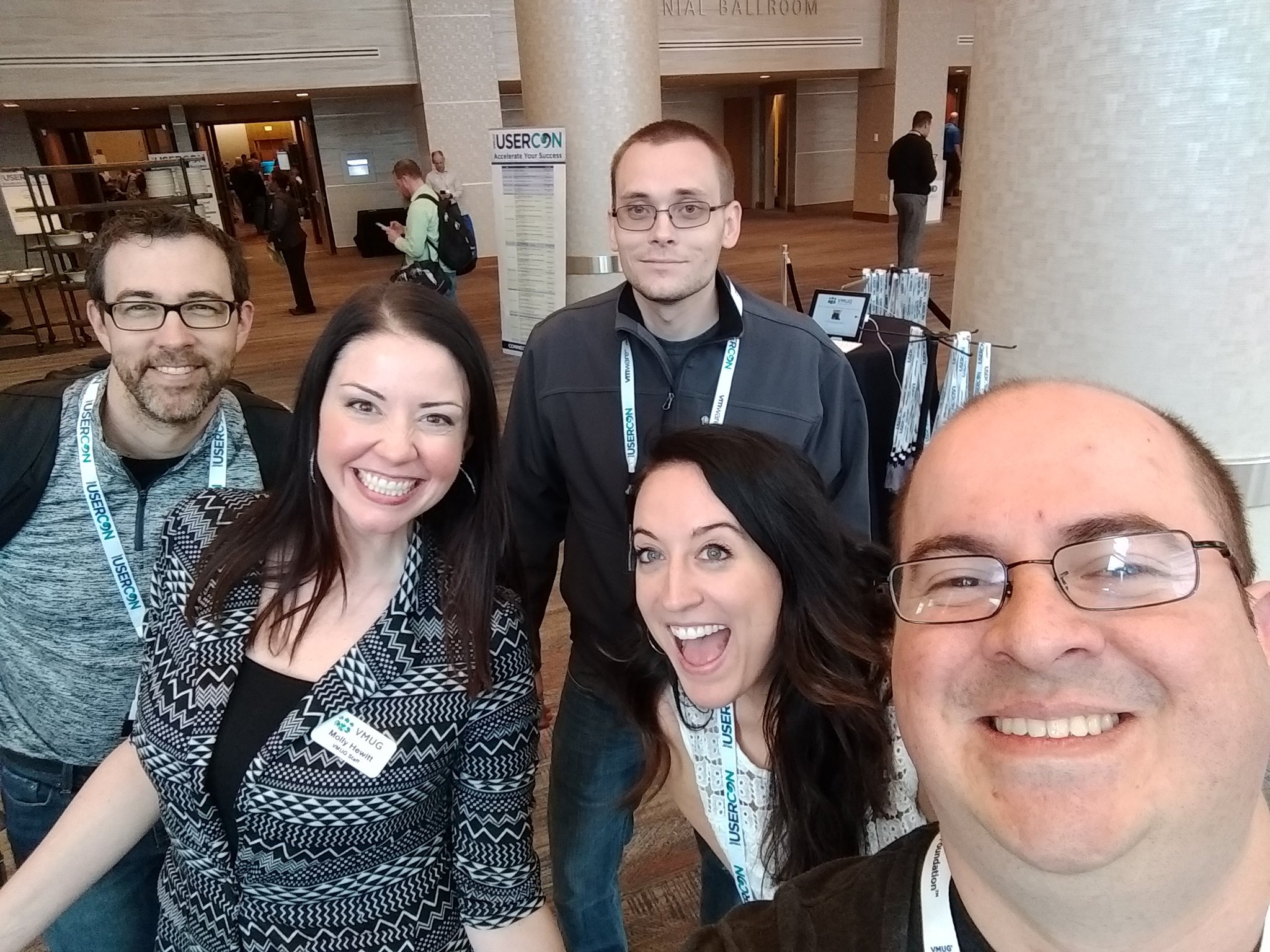
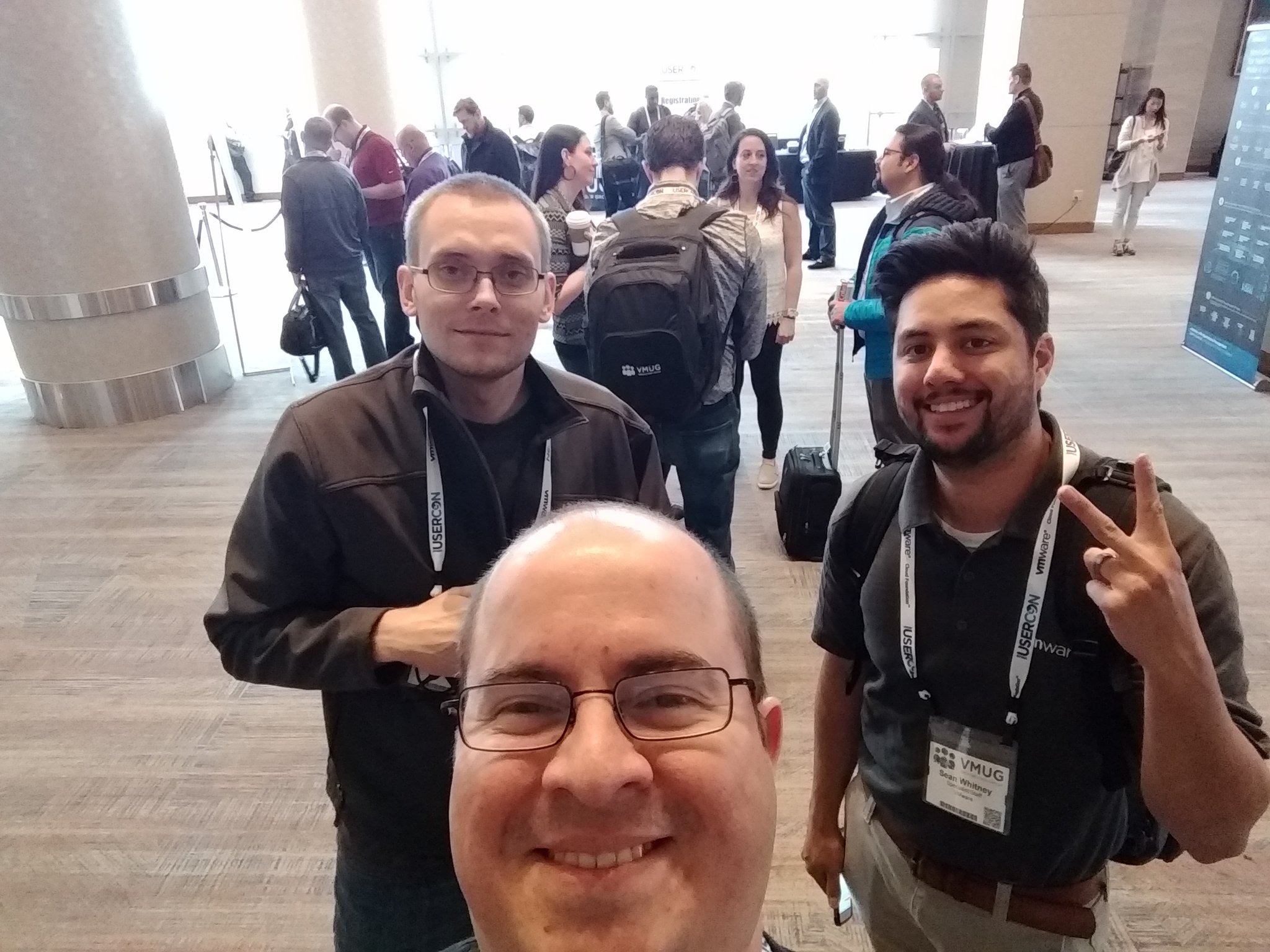
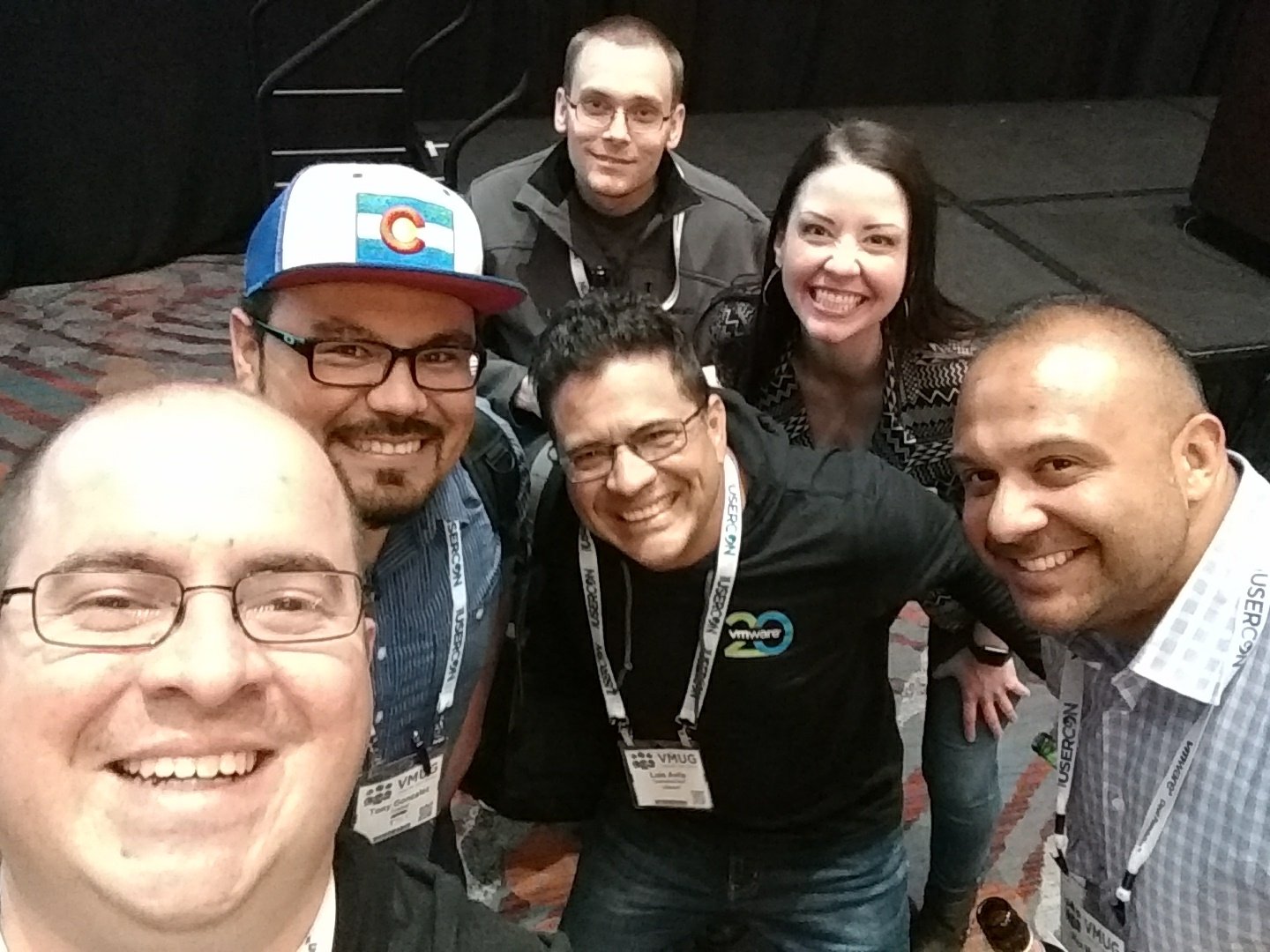
I met these awesome people while attending #DVVMUG; what an amazing community! Don’t tell Ariel but I stole some of his photos from the event:) Twitter shout-outs: @vMollyHewitt @MaginMills @mattheldstab @AlexDanMorales @avila_la @thatvirtualboy @seanbwhitney @vGonzilla @vMbanusi @JonOnDaCloud @AntonNApril @RebeccaFitzhugh @jasemccarty @vScottSeifert

Afterwards the mass of community geeks departed vbeers, Ariel, myself and Jon Harris checked out this cool dinner called Sam’s No. 3 over on Curtis Street to talk shop, and eat some great food. I’ll spare you the food pics, as you’ll just have to experience the place for yourself 🙂

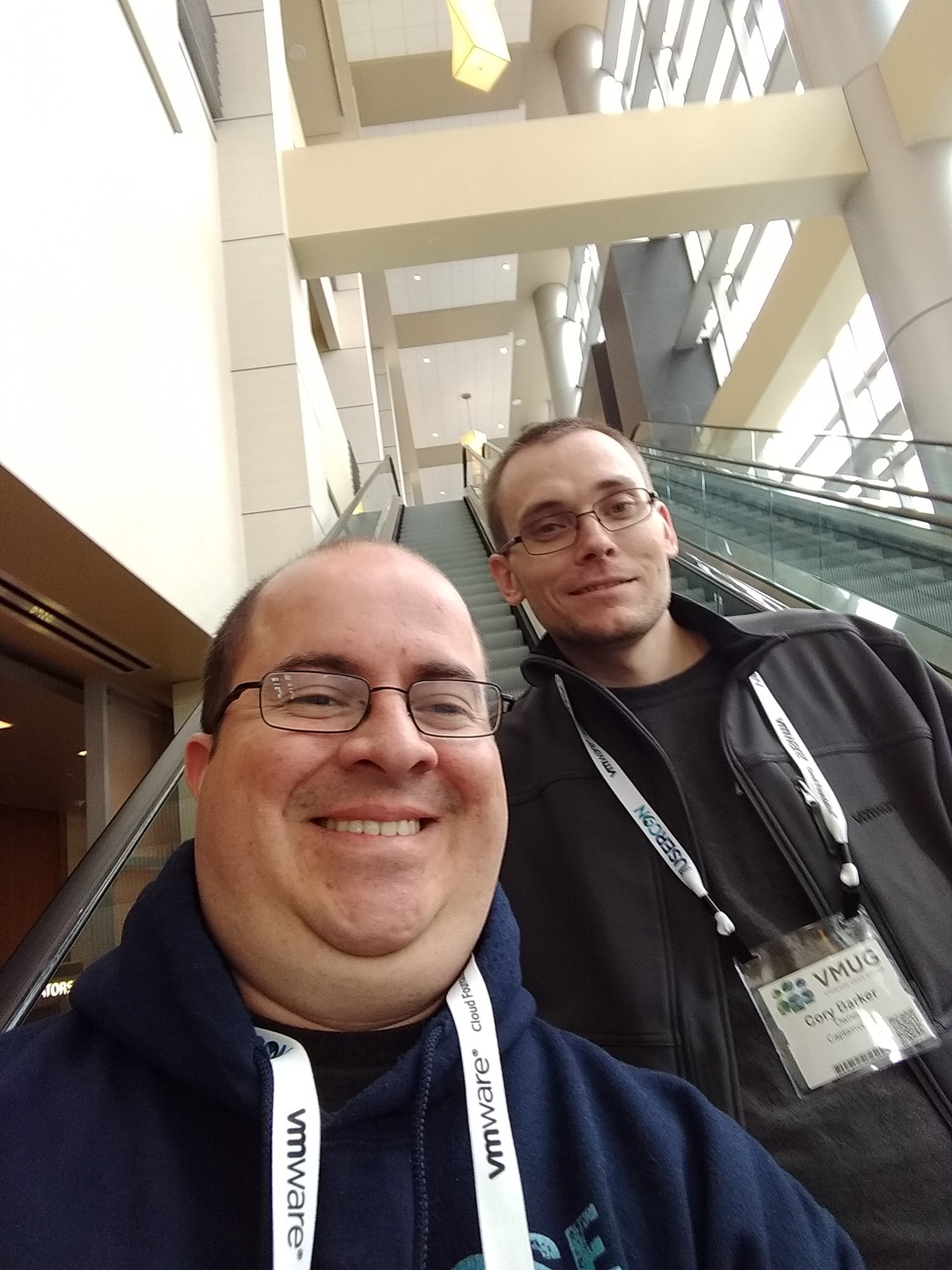
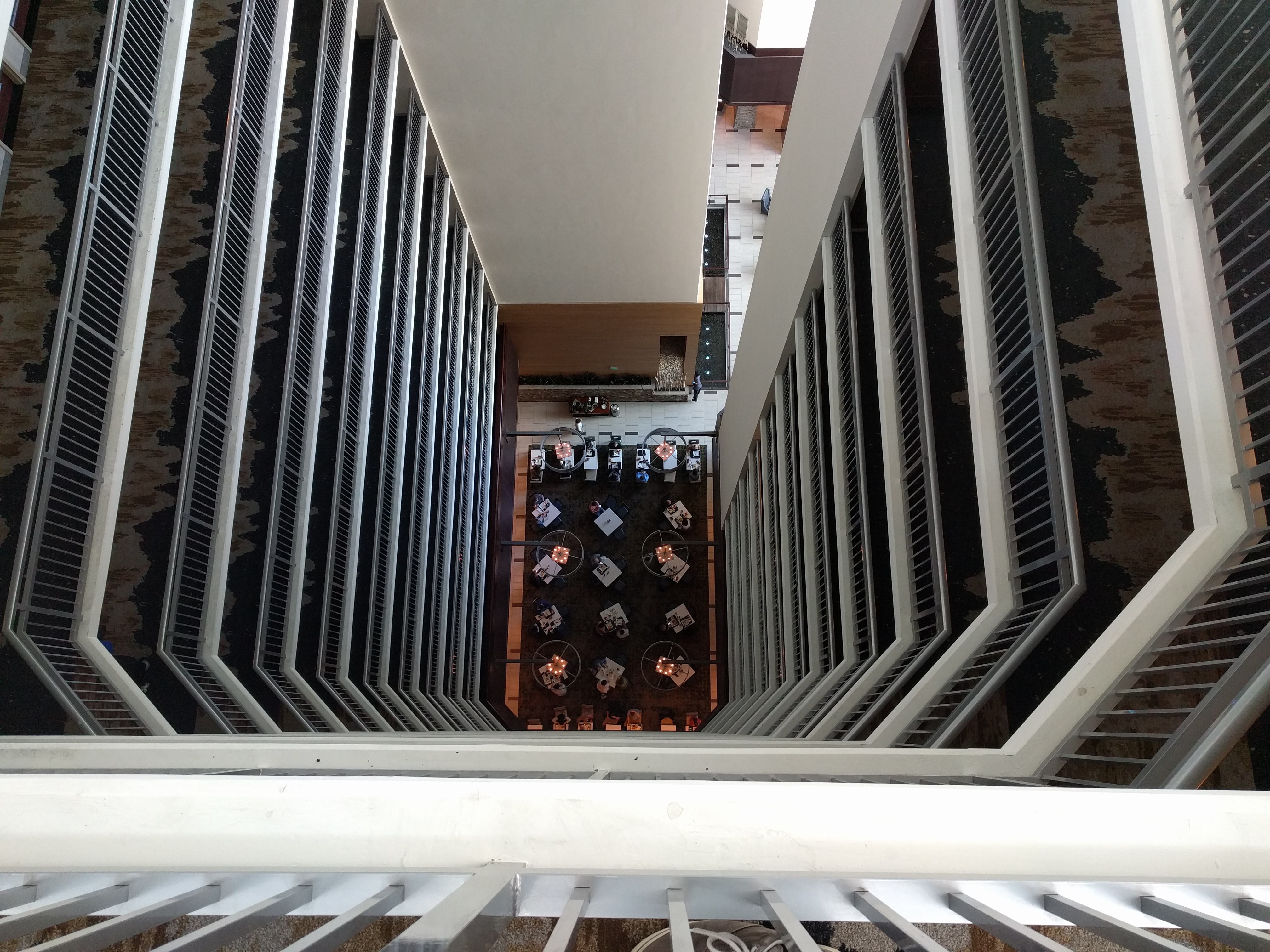
Ariel and I got together the next morning for some breakfast. Side note, if Ariel ever asks if you’re afraid of heights, it’s a trap! All kidding aside this was a pretty cool atrium shot.

Afterword, Ariel and I hit the road to travel North to Fort Collins Colorado, where I spent the weekend with a good friend of mine.

I can’t say it enough about what a boss Ariel was that day. I had only expected him to take me to the Denver airport so that I could catch the bus to Fort Collins, but this dude just drove me up there himself. That’s the vCommunity in action right there.

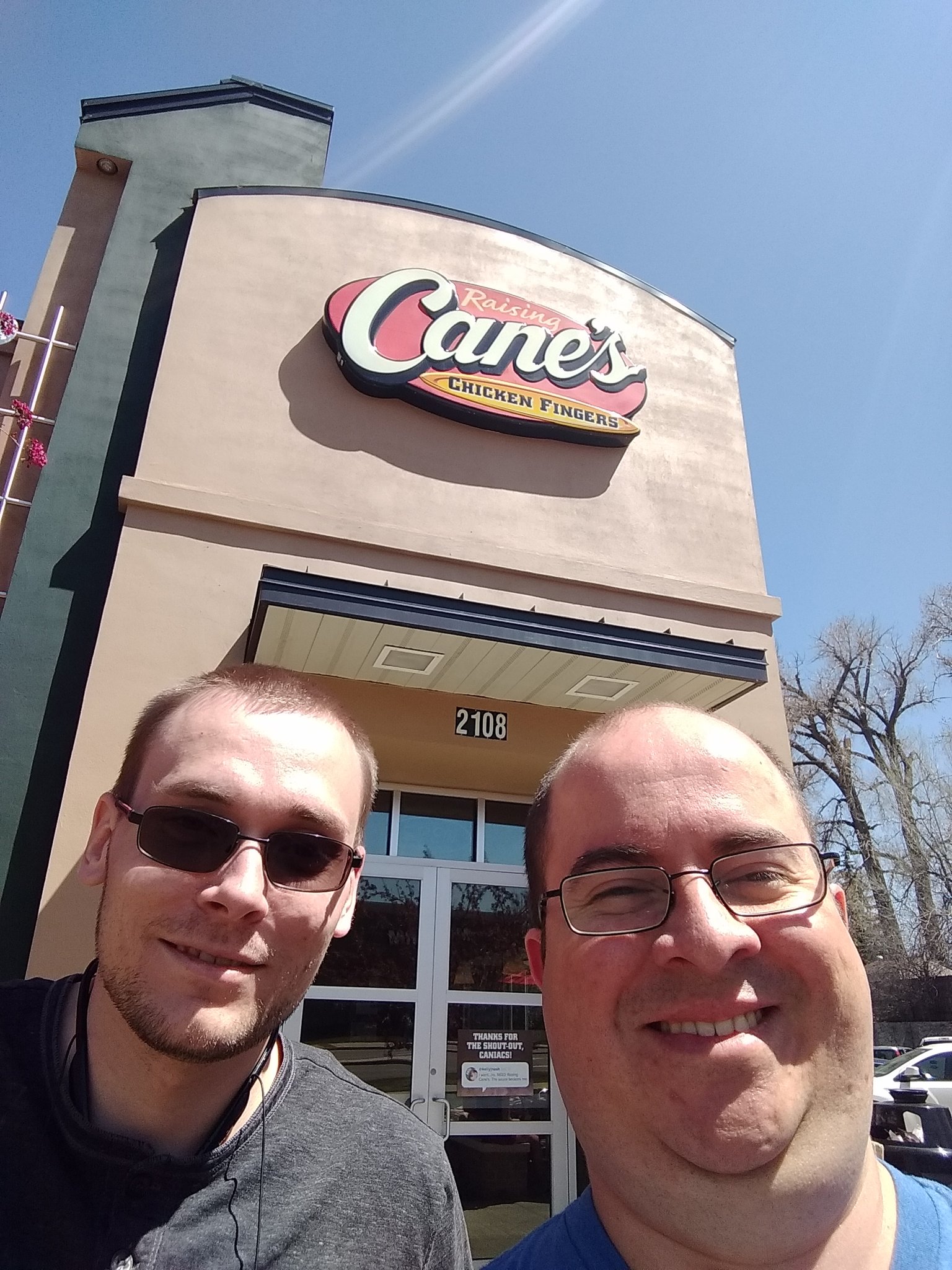
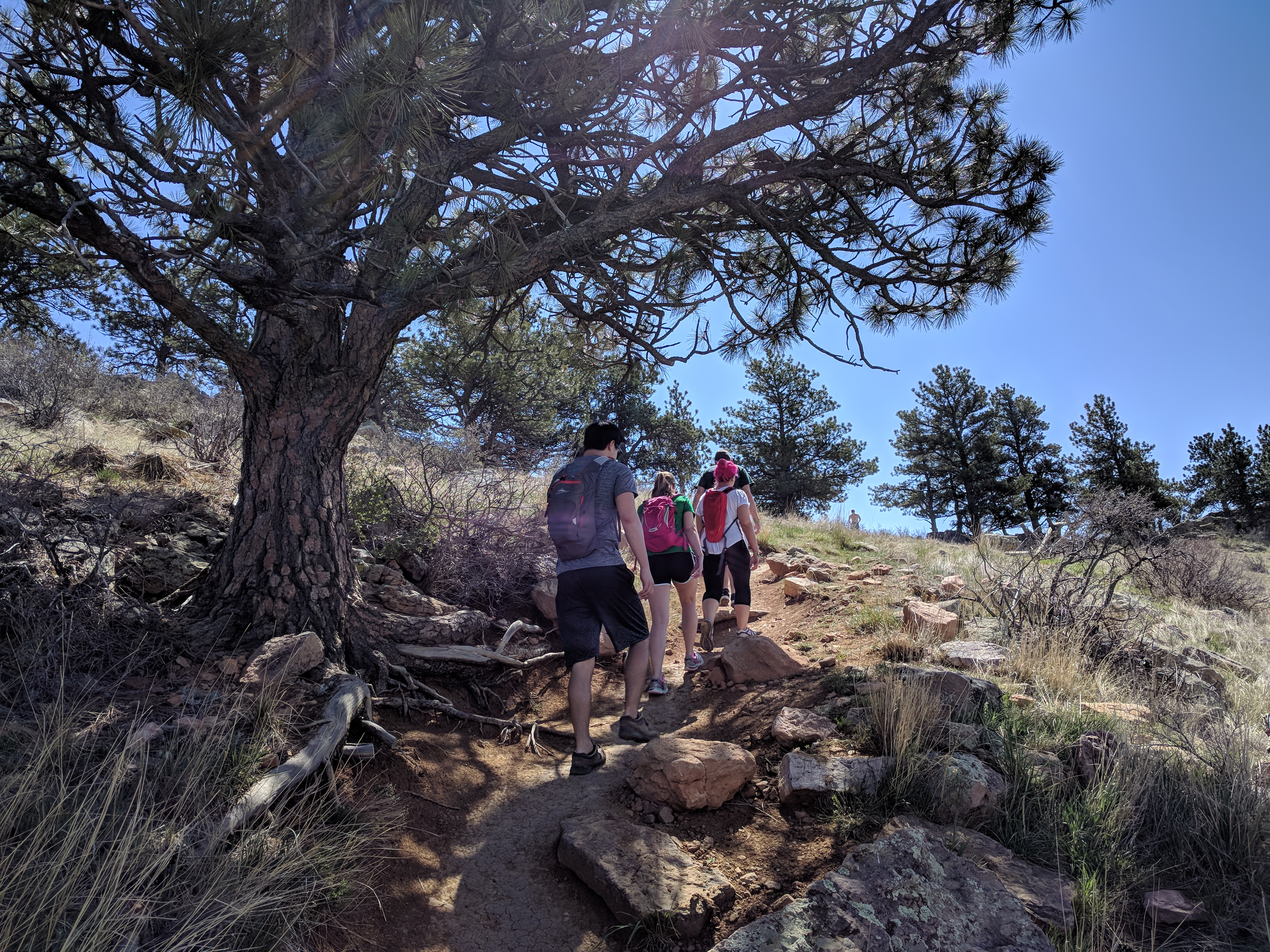
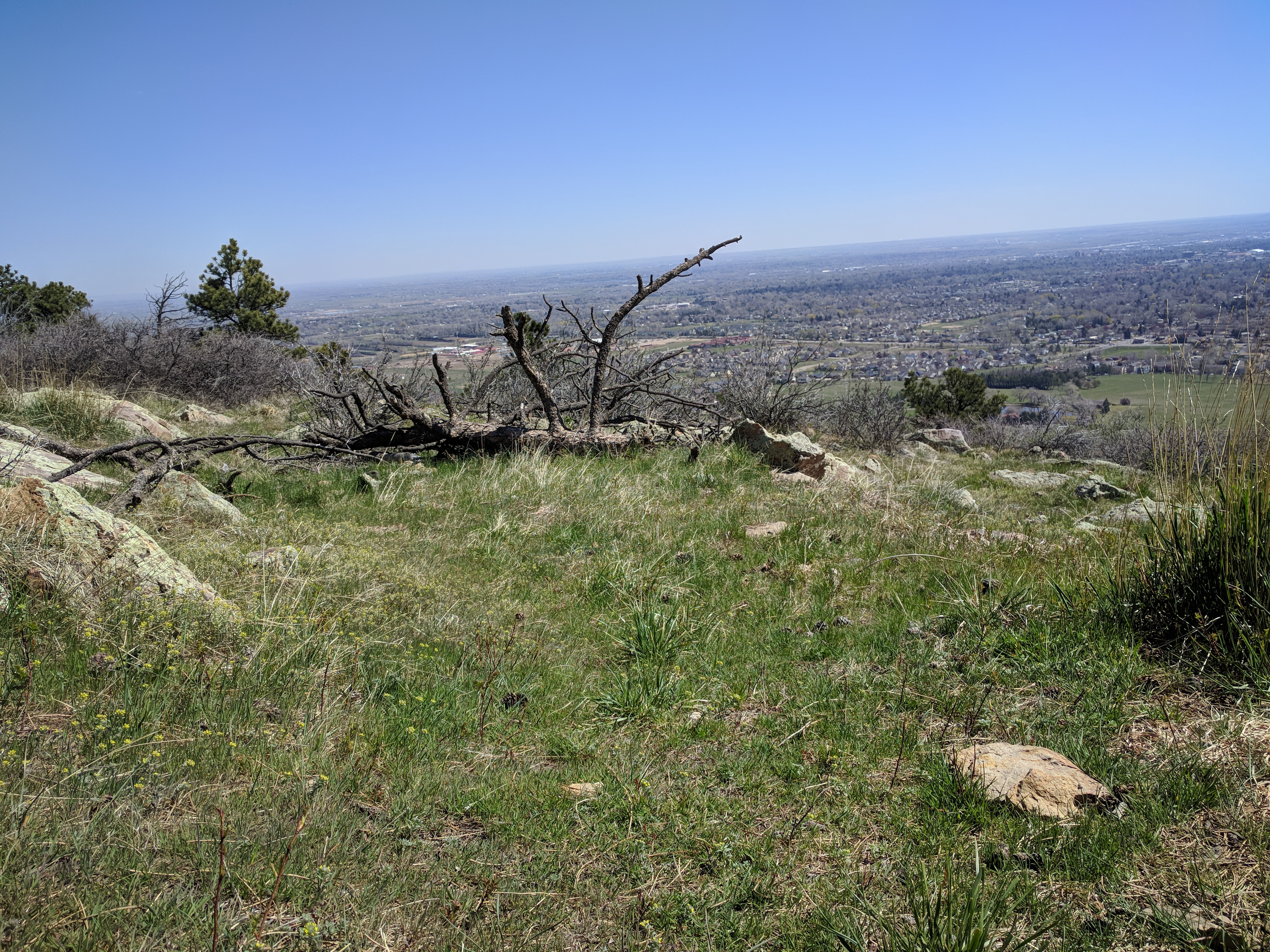
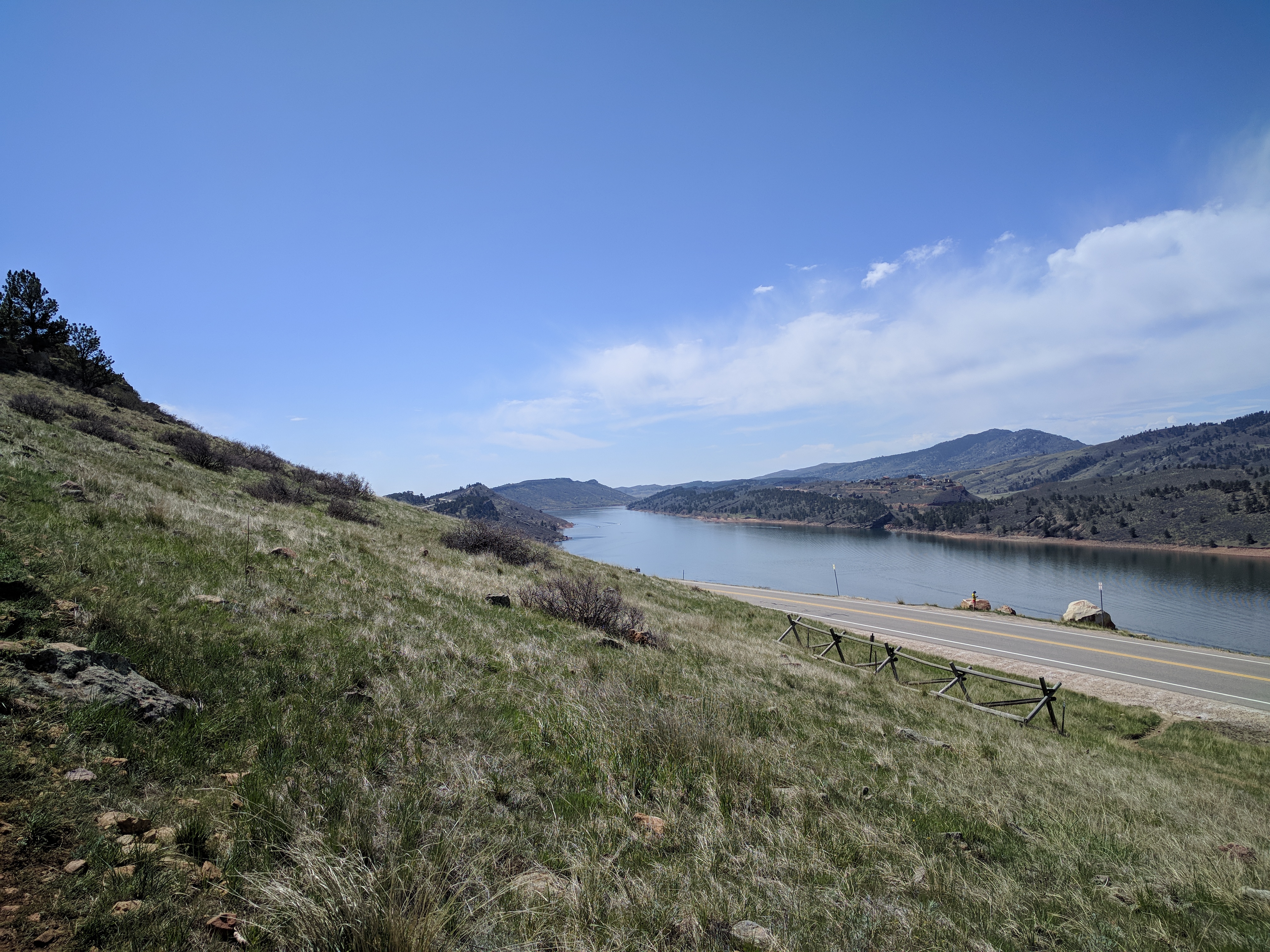
Before Ariel and I parted ways, he showed me one of his favorite restaurants in the area, where we got lunch. I’ll finish the post up with some other photos I took that weekend.


The Home Lab Hardware

IMG_20171117_170133

Setup

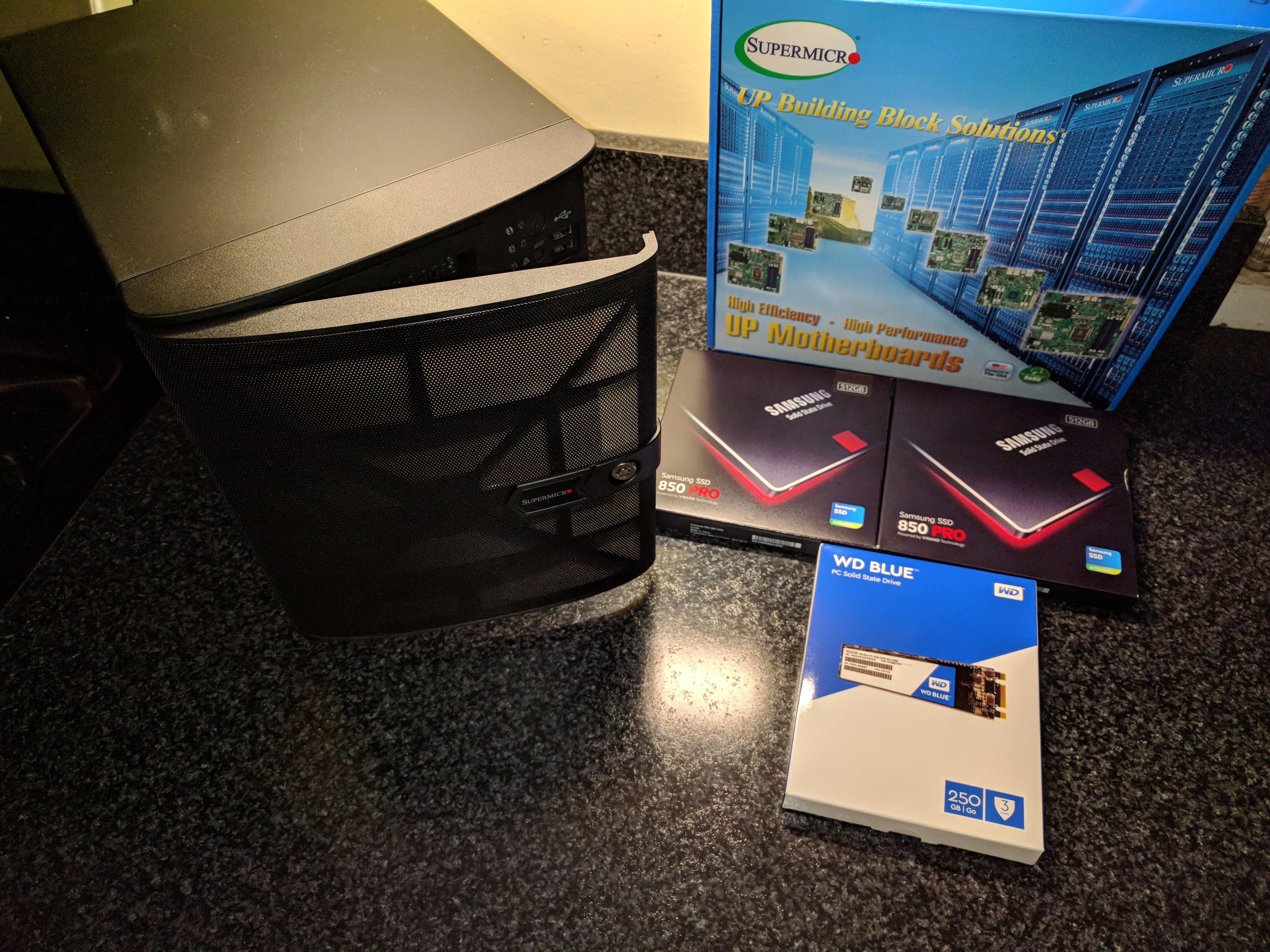
I decided to go with a Supermicro build as I wanted something power efficient, yet expandable, and this motherboard supports up to 128GB of ECC RDIMM DDR4 2133MHz server grade memory.  Now with this setup, when I feel the need to expand out my lab, I can build two more nodes, and I’ll have a rather nice VSAN cluster.  However I’m hoping the cost of DDR4 memory will have come down by then…

I did look at the Supermicro SYS-E300-8D and SYS-E200-8D style micro servers, but like most, I was concerned about the fan noise, and thus decided to go with a slightly larger chassis to get the larger fan.  Honestly the fan in the unit I bought makes no more noise then a regular desktop computer.

Here’s my hardware:


Motherboard

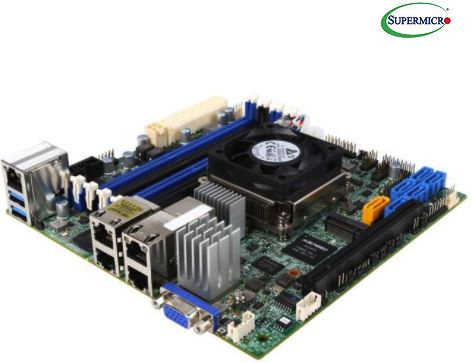
motherboard

SUPERMICRO MBD-X10SDV-TLN4F-O Mini ITX Server Motherboard Xeon processor D-1541 FCBGA 1667 

Newegg


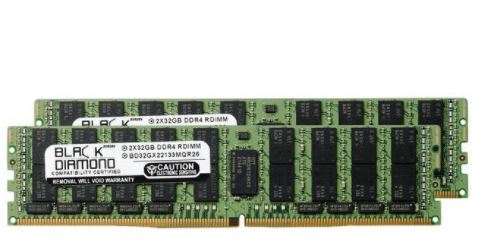
Memory

memory

Black Diamond Memory 64GB (2 x 32GB) 288-Pin DDR4 SDRAM ECC Registered DDR4 2133 (PC4 17000) Server Memory Model BD32GX22133MQR26

                                   Newegg


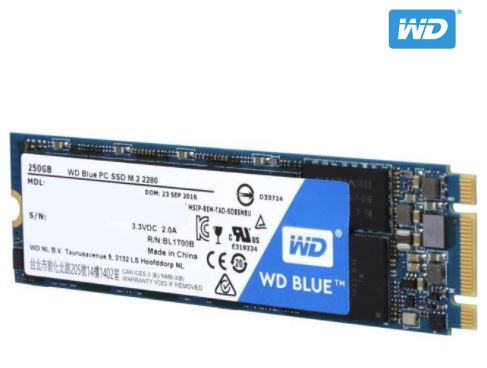
M.2 SSD

m.2ssd

WD Blue M.2 250GB Internal SSD Solid State Drive – SATA 6Gb/s – WDS250G1B0B

Newegg


SSD

ssd

(x 2) SAMSUNG 850 PRO 2.5″ 512GB SATA III 3D NAND Internal Solid State Drive (SSD) MZ-7KE512BW

Newegg


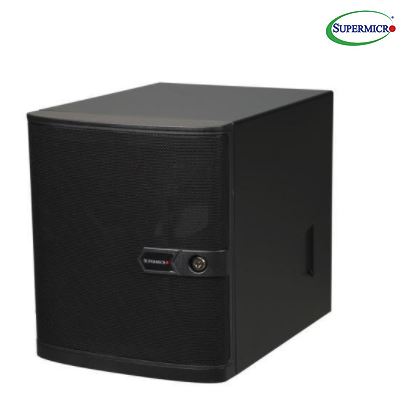
Case

chassis

SUPERMICRO CSE-721TQ-250B Black Mini-Tower Server Case 250W Flex ATX Multi-output Bronze Power Supply

Newegg

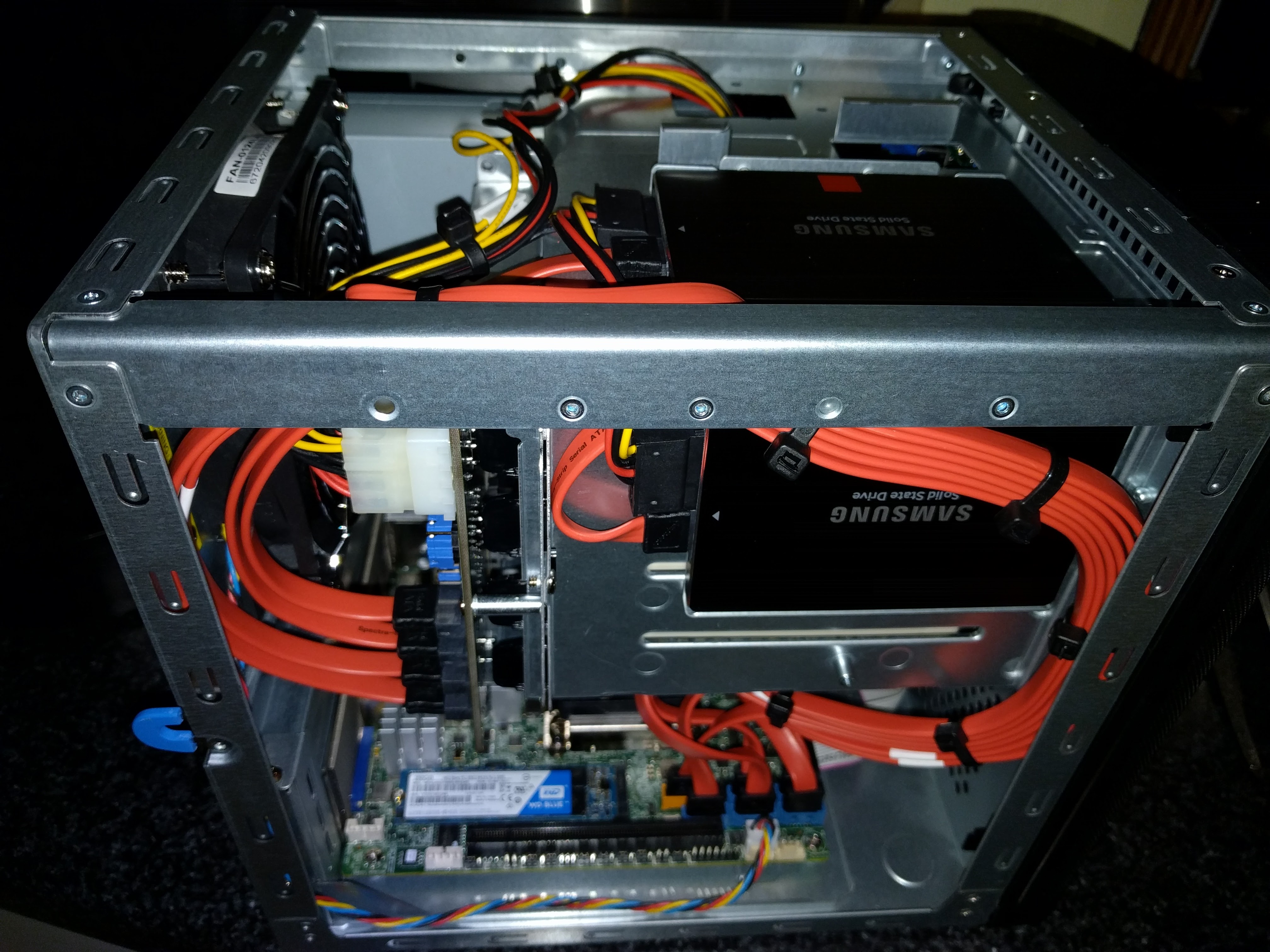
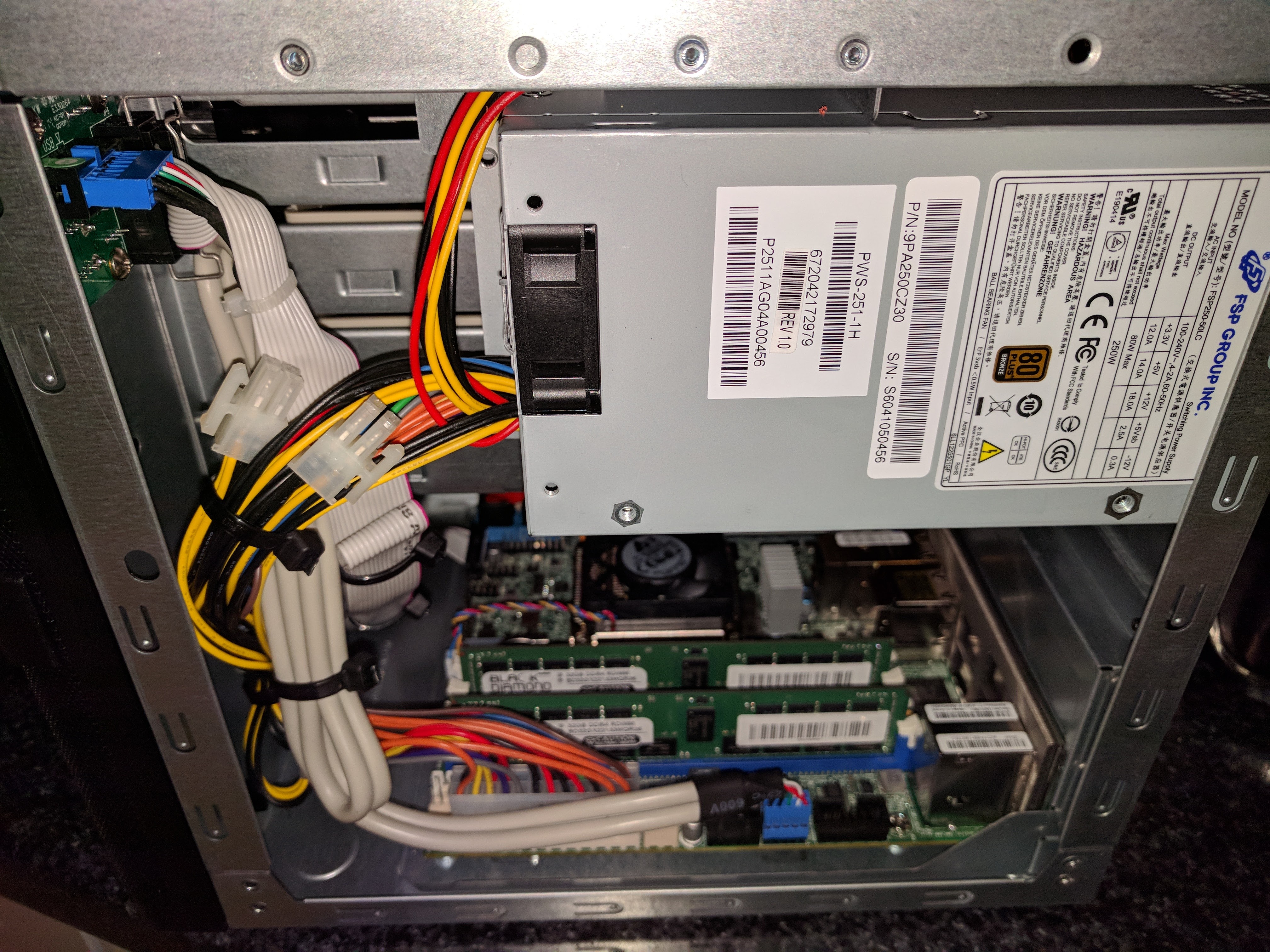
Who doesn’t love some internal shots after the lab-box has been put together?  🙂

In the coming blog posts, I’ll be building out my lab.  Stay tuned….

Go west young man! Looking ahead towards an exciting 2018, as I search for my next career opportunity.

VMW-LOGO-vEXPERT-2018-k

2018 VMware vExpert Award Announcement | My Community vExpert Profile

First of all, I would like to say that I am honored to be among some of the brightest VMware community technologists for a second year. Secondly I would like to personally welcome the new additions to the vExpert family.

vexpert-2-year

I’ve honestly debated using this platform to blog about things currently underway in my personal life, but the first step in solving any problem, is recognizing that there is one.  If I am being completely honest, 2018 started pretty rough for me. Shortly after returning to work after being out for surgery, I was informed that the company that I had been working for, for the past three plus years was shifting its priorities, and downsizing due to our parent company’s merger. Unfortunately my position with the company was affected. The past three years, and eight months had been some of the most exciting in my career, both from a technology standpoint, and a people standpoint as well. In those three plus years, I quickly had to ramp up on VMware technologies and concepts that I had never used before in a large cloud service provider environment.

My time spent with this company has afforded me with hands on expertise in managing multiple virtual environments that exceeded 500 ESXi hypervisors, several vCenter server appliances, NSX appliances, vROPS clusters, and several vCloud Director environments, in data centers all over the world.  I battled the on-call boogeyman in intense hand-to-hand combat, restored three production data centers affecting over a thousand vCloud Director and Zerto tenants, and got to work on several fun POCs including working with VMware engineering on deploying VMware’s vCloud Availability. It was an amazing ride, with some of the best teammates I ever had the pleasure to work with.  In those three plus years, I found time to obtain my VCP6-DCV certification, start my own tech blog, and become an active member in the VMware community sharing my experiences, and learning from others. But when one door closes, another will eventually open to greater opportunities.

IMG_20160703_110706

Recently I have been thinking a great deal about moving west for my next adventure in cloud computing, and I would be lying if I said Colorado wasn’t on my mind. My goal now is to continue contributing my passion for VMware technologies to the VMware community, to help others, and learn from others, while I search for my next career to elevate my skills even higher, and to help business adopt virtualization and cloud technologies.

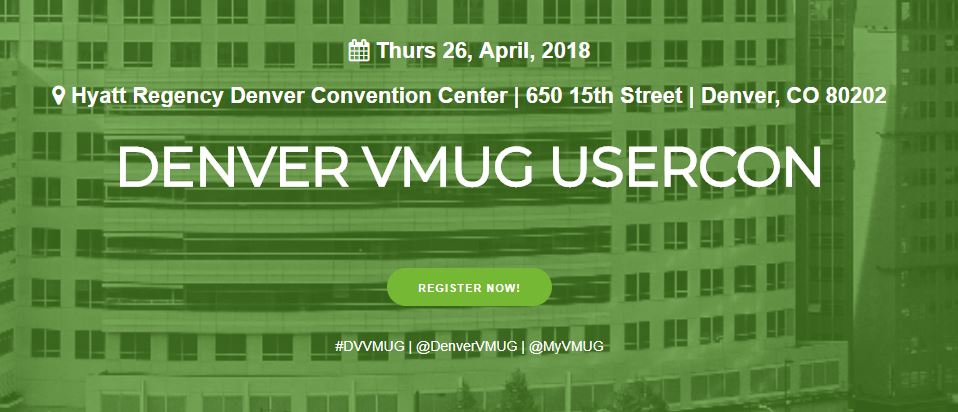
As such, I am making plans to attend the Denver VMUG usercon in April.  Hope to see you there.

denverusercon


vmw-logo-vexpert-2017-k

vExpert-Cloud-2017-badge-300x198

VMW-LGO-CERT-PRO-6-DATA-CTR-VIRT

Failure Installing NSX VIB Module On ESXi Host: VIB Module For Agent Is Not Installed On Host

Now admittedly I did this to myself as I was tracking down a root cause on how operations engineers were putting hosts back into production clusters without a properly functioning vxlan.  Apparently the easiest way to get a host into this state is to repeatedly move a host in and out of a production cluster to an isolation cluster where the NSX VIB module is uninstalled.  This is a bug that is resolved in vCenter 6 u3, so at least there’s that little nugget of good news.

Current production setup:

  • NSX: 6.2.8
  • ESXi:  6.0.0 build-4600944 (Update 2)
  • VCSA: 6 Update 2
  • VCD: 8.20

So for this particular error, I was seeing the following in vCenter events: “VIB Module For Agent Is Not Installed On Host“.  After searching the KB articles I came across this one KB2053782 “Agent VIB module not installed” when installing EAM/VXLAN Agent using VUM”.  Following the KB, I made sure my update manager was in working order, and even tried following steps in the KB, but I still had the same issue.

  • Investigating the EAM.log, and found the following:
 1-12T17:48:27.785Z | ERROR | host-7361-0 | VibJob.java | 761 | Unhandled response code: 99 
 2018-01-12T17:48:27.785Z | ERROR | host-7361-0 | VibJob.java | 767 | PatchManager operation failed with error code: 99 
 With VibUrl: https://172.20.4.1/bin/vdn/vibs-6.2.8/6.0-5747501/vxlan.zip 
 2018-01-12T17:48:27.785Z | INFO | host-7361-0 | IssueHandler.java | 121 | Updating issues: 

 eam.issue.VibNotInstalled { 
 time = 2018-01-12 17:48:27,785, 
 description = 'XXX uninitialized', 
 key = 175, 
 agency = 'Agency:7c3aa096-ded7-4694-9979-053b21297a0f:669df433-b993-4766-8102-b1d993192273', 
 solutionId = 'com.vmware.vShieldManager', 
 agencyName = '_VCNS_159_anqa-1-zone001_VMware Network Fabri', 
 solutionName = 'com.vmware.vShieldManager', 
 agent = 'Agent:f509aa08-22ee-4b60-b3b7-f01c80f555df:669df433-b993-4766-8102-b1d993192273', 
 agentName = 'VMware Network Fabric (89)',
  • Investigating the esxupdate.log file and found the following:
 bba9c75116d1:669df433-b993-4766-8102-b1d993192273')), com.vmware.eam.EamException: VibInstallationFailed 
 2018-01-12T17:48:25.416Z | ERROR | agent-3 | AuditedJob.java | 75 | JOB FAILED: [#212229717] 
 EnableDisableAgentJob(AgentImpl(ID:'Agent:c446cd84-f54c-4103-a9e6-fde86056a876:669df433-b993-4766-8102-b1d993192273')), 
 com.vmware.eam.EamException: VibInstallationFailed 
 2018-01-12T17:48:27.821Z | ERROR | agent-2 | AuditedJob.java | 75 | JOB FAILED: [#1294923784] 
 EnableDisableAgentJob(AgentImpl(ID:'Agent:f509aa08-22ee-4b60-
  • Restarting the VUM services didn’t work, as the VIB installation would still fail.
  • Restarting the host didn’t work.
  • On the ESXi host I ran the following command to determine if any VIBS were installed, but it didn’t show any information:  esxcli software vib list 

Starting to suspect that the ESXi host may have corrupted files.  Digging around a little more, I found the following KB2122392 Troubleshooting vSphere ESX Agent Manager (EAM) with NSX“, and KB2075500 Installing VIB fails with the error: Unknown command or namespace software vib install

Decided to manually install the NSX VIB package on the host following KB2122392 above.  Did the manuel extract the downloaded “vxlan.zip”. Below are contents of the vxlan.zip. It Contains the 3 VIB files:
  • esx-vxlan
  • esx-vsip
  • esx-dvfilter-switch-security

Tried install them manually, but got errors indicating corrupted files on the esxi host.  Had to run the following commands first to restore the corrupted files.  **CAUTION – NEEDED TO REBOOT HOST AFTER THESE TWO COMMANDS**:

  • # mv /bootbank/imgdb.tgz /bootbank/imgdb.gz.bkp
  • # cp /altbootbank/imgdb.tgz /bootbank/imgdb.tgz
  • # reboot

Once the host came back up, I attempted to continue with the manual VIB installation.  All three NSX VIBS successfully installed.  Host now showing a healthy status in NSX preparation.  Guest introspection (GI) successfully installed.


Manually starting vRealize Hyperic 5.8.X Appliance

I’ve had this happen to me on the 5.8.4 appliance and thought I would share.  Normally The Hyperic appliance is deployed as a vApp consisting of two VMs, and when the vApp is started/restarted, they each start in the proper order.  This process might be needed if the database doesn’t exit/shutdown normally and thus doesn’t start up right the next time.  And if the database isn’t running, the Hyperic UI server won’t start.

Login to the server with ssh, use the hqamdin password with the root username that you specified during the vRealize Hyperic Appliance deployment, unless you have changed them of course…

First start the Postgresql database: hypericdb.  These services have to be started under the hqadmin account.  

  • To check the status of the service run the following command:
# su -c '/opt/vmware/vpostgres/9.1/bin/pg_ctl status -D /opt/vmware/vpostgres/9.1/data/' - hqadmin
  • To start the service run the following command:
# su -c '/opt/vmware/vpostgres/9.1/bin/pg_ctl start -D /opt/vmware/vpostgres/9.1/data/' - hqadmin

Once the database is running, start the hyperic server: hyperic.  This service has to be started under the hyperic account.

  • You can check the status of the hyperic server service by running the following command:
# su -c '/opt/hyperic/server-5.8.4-EE/bin/./hq-server.sh status' - hyperic
  • You can start the service by running the following command:
# su -c '/opt/hyperic/server-5.8.4-EE/bin/./hq-server.sh start' - hyperic


You can follow if the Hyperic server starts properly from the bootstrap log on the xx01-m-hyperic server.

# tail -f /opt/hyperic/server-5.8.4-EE/bin/logs/bootstrap.log


Hope this helps anyone out there who still uses vRealize Hyperic


Enable TLS v1 In vCloud Director 8.20 and vCloud Availability 1.0

VMware’s vCloud Director (vCD) and vCloud Availability (vCAV) only come with TLS v1.1 and 1.2 enabled out of the box.  This process will show you how to enable TLS v1.  If more information is needed, please visit VMware’s Documentation on vCloud Director 8.20, or the following KB2145796.  This work should be completed after hours as you would inevitably be moving VCD proxy service from one cell to another, and this could cause a brief outage for customers.  This process will require taking the cell offline, so do each cell one at a time starting with a cell not running the inventory service

  • Open an SSH session to a VCD cell, or vCAv cloud proxy cell, and su to root
  • Change to the ‘ /opt/vmware/vcloud-director/bin/ ‘ directory
  • Use the Cell Management Tool to quiesce the cell.  This will move active jobs over to another cell, and cleanly shutdown the cell.  You should make note which VCD cell has the proxy service enabled, and avoid that cell until last.
# ./cell-management-tool -u administrator cell --quiesce true
  • Get the status of any running jobs on each cell.   ** Verify Job count = 0   |  Is Active = false  | In Maintenance Mode  = false
# ./cell-management-tool -u administrator cell --status

Example Output:

Job count = 0
Is Active = false In Maintenance Mode = false
  • Shut the cell down to prevent any other jobs from becoming active on the cell.
# ./cell-management-tool -u administrator cell --shutdown

Example Output:

Cell successfully deactivated and all tasks cleared in preparation for shutdown Stopping vmware-vcd-watchdog:                              [  OK  ] Stopping vmware-vcd-cell:                                  [  OK  ]
  • Run the following command on the vCD cell in /opt/vmware/vcloud/bin/ to enable TLS1
# ./cell-management-tool ssl-protocols -d SSLv3,SSLv2Hello
  • Start the cell service, and validate that a vCD cell has the listener service running from the UI, and that vCenter is connected to one of the cells.
# service vmware-vcd start
  • To validate that TLS v1 has been enabled on the vCD cell, or vCAV cloud proxy cell, run the following command
# ./cell-management-tool ssl-protocols -l

Example output

Allowed SSL protocols:
* TLSv1.2
* TLSv1.1
* TLSv1
  • If you have additional VCD cells, or vCAV cloud proxy cells, repeat this process one at a time.


Network Scanners Can Crash vRealize Operations Manager Tomcat Service On Large Clusters

If network scanners are deployed in your production environments, it may be necessary to white-list the vROps nodes, as the network scanners can bring the tomcat service to its’ knees, especially on active vROps clusters.  In my case the network scanner was causing tomcat to crash, so when users would attempt to access the main vROps , they’d get the following error:

Unable to connect to platform services

While troubleshooting this issue, I went through the sizing of the cluster, performance, verifying there’s nothing backing up the vROps VMs, even made sure the datastores and specific hosts were health.  Even tried replacing the “/usr/lib/vmware-vcops/user/plugins/inbound” directory and files on all nodes from the master copy in hopes that it would make the cluster healthy again and stop tomcat from panicking.

The following was discovered after reviewing the /var/log/apache2/access_log on the master:

192.216.33.10 - - [10/Oct/2017:04:56:23 +0000] "GET /recipe/login.php?Password=%22'%3e%3cqqs%20%60%3b!--%3d%26%7b()%7d%3e&Username=&submit=Login HTTP/1.0" 301 362 "-" "-"
192.216.33.10 - - [10/Oct/2017:04:56:23 +0000] "GET /recipe/recipe/login.php?Password=%22'%3e%3cqqs%20%60%3b!--%3d%26%7b()%7d%3e&Username=&submit=Login HTTP/1.0" 301 369 "-" "-"
192.216.33.10 - - [10/Oct/2017:04:56:23 +0000] "GET /recipe/recipe_search.php?searchstring=alert(document.domain) HTTP/1.0" 301 326 "-" "-"
192.216.33.10 - - [10/Oct/2017:04:56:23 +0000] "GET /recipe/recipe/recipe_search.php?searchstring=alert(document.domain) HTTP/1.0" 301 333 "-" "-"
192.216.33.10 - - [12/Oct/2017:08:30:43 +0000] "GET /recipe_view.php?intId=char%2839%29%2b%28SELECT HTTP/1.1" 301 282 "-" "-"
192.216.33.10 - - [12/Oct/2017:08:31:06 +0000] "GET /modules.php?name=Search&type=stories&query=qualys&catebgory=-1%20&categ=%20and%201=2%20UNION%20SELECT%200,0,aid,pwd,0,0,0,0,0,0%20from%20nuke_authors/* HTTP/1.1" 301 410 "-" "-"
192.216.33.10 - - [12/Oct/2017:08:31:06 +0000] "GET /modules.php?name=Top&querylang=%20WHERE%201=2%20ALL%20SELECT%201,pwd,1,1%20FROM%20nuke_authors/* HTTP/1.1" 301 342 "-" "-"
192.216.33.10 - - [12/Oct/2017:08:31:10 +0000] "GET /index.php?option=com_jumi&fileid=-530%27%20UNION%20SELECT%202,concat%280x6a,0x75,0x6d,0x69,0x5f,0x73,0x71,0x6c,0x5f,0x69,0x6e,0x6a,0x65,0x63,0x74,0x69,0x6f,0x6e%29,null,null,null,0,0,1%20--%20%27 HTTP/1.1" 301 445 "-" "-"
192.216.33.10 - - [10/Oct/2017:04:20:19 +0000] "GET /recipe_view.php?intId=char%2839%29%2b%28SELECT HTTP/1.1" 301 282 "-" "-"
192.216.33.10 - - [10/Oct/2017:04:20:42 +0000] "GET /modules.php?name=Search&type=stories&query=qualys&category=-1%20&categ=%20and%201=2%20UNION%20SELECT%200,0,aid,pwd,0,0,0,0,0,0%20from%20nuke_authors/* HTTP/1.1" 301 410 "-" "-"
192.216.33.10 - - [10/Oct/2017:04:22:32 +0000] "GET /third_party/fckeditor/editor/_source/classes/fckstyle.js HTTP/1.1" 301 284 "-" "-"
192.216.33.10 - - [10/Oct/2017:04:22:32 +0000] "GET /third_party/tinymce/jscripts/tiny_mce/plugins/advlink/readme.txt HTTP/1.1" 301 292 "-" "-"
192.216.33.10 - - [10/Oct/2017:04:22:32 +0000] "GET /rsc/smilies/graysmile.gif HTTP/1.1" 301 253 "-" "-"
192.216.33.10 - - [10/Oct/2017:04:22:32 +0000] "GET /media/users/admin/faceyourmanga_admin_girl.png HTTP/1.1" 301 274 "-" "-"


Tomcat service is being pushed to the limits and using many more resources than planned. There is upwards of 10,000 requests in bursts from a single IP address.  From the logs it certainly looks like an attack, but that’s coming from an internal IP address.

My advice – get your security team to white-list your vROps appliances.

To restart the web service on all vROps nodes either by issuing this command to each node: ‘service vmware-vcops-web restart’ , or log into the admin page, take the cluster offline and then back online.
Install Hyperic Agent 5.8.x On SUSE 11 and SUSE 12 Based VMware Appliances

Let me start out by saying that if you’d like to install the Hyperic agent, a VMware platform (vRealize Hyperic) that is nearing the end of its’ life (late 2018), you should first **make sure having the agent installed on VMwares’ SUSE based appliance is supported.**

vRealize Hyperic is a terrific platform, that unfortunately has reached the end of its product development life cycle, and will ultimately reach the end of support late 2018.

With that said…

In this particular case I wanted to monitor the SUSE appliance virtual machines of VMware’s vCloud Availability, and since I already am using Hyperic to monitor our production environment management virtual machines…

  • To start the installation run:
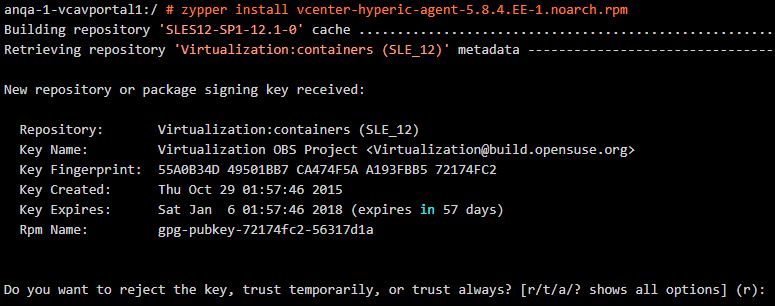
# zypper install vcenter-hyperic-agent-5.8.4.EE-1.noarch.rpm

example output:

hyperic

  • Respond with:     a

example output:

hyperic2

  • Respond with:      y

example output:

hyperic3

UPDATE SYSTEM FIREWALL TO ALLOW TCP PORT 7080

  • Edit /etc/sysconfig/SuSEfirewall2 and update lines 281 and 379 with the addition of port 2144 for SUSE 11, or lines 253 and 351 with the addition of port 2144 for SUSE 12
  • Note: For listing multiple ports SuSEfirewall 2 uses the following schema “1234 1234 1234”  Inject port 2144 where applicable.

Line 281 for SUSE 11, or line 253 for SUSE 12

FW_SERVICES_EXT_TCP="2144"

Line 379 for SUSE 11, or line 351 for SUSE 12

FW_SERVICES_INT_TCP="2144"
  • Stop and start the firewall so configuration is loaded
/etc/SuSEfirewall2 stop

Pause 5 seconds

/etc/SuSEfirewall2 start

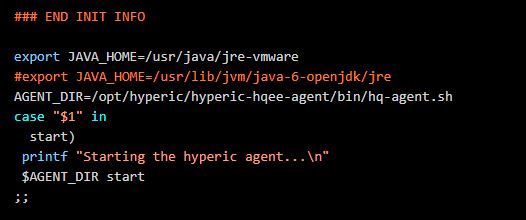
UPDATE JAVA CONFIGURATION FOR SUSE 12

  • Edit /etc/init.d/hyperic-hqee-agent .  Copy the following line (17) .  #export JAVA_HOME=/usr/lib/jvm/java-6-openjdk/jre
    • For VMware appliances SUSE 12 this needs to be updated to: export JAVA_HOME=/usr/java/jre-vmware.
    • For VMware appliances SUSE 11 this needs to be updated to:  export HQ_JAVA_HOME=/usr/java/default
  • Add the new line, save and quit

hyperic4

CONFIGURE THE AGENT

  • Prior to starting the service, be sure to uncomment and modify the agent.setup values in the agent.properties file in /opt/hyperic/hyperic-hqee-agent/conf:
 # vi /opt/hyperic/hyperic-hqee-agent/conf/agent.properties

Uncomment and modify lines 71 through 80

agent.setup.camIP=<hyperic server IP or FQDN>
agent.setup.camPort=7080
agent.setup.camSSLPort=7443
agent.setup.camSecure=yes
agent.setup.camLogin=hqadmin
agent.setup.camPword= <hqadmin_password>
agent.setup.agentIP=*default*
agent.setup.agentPort=*default*
agent.setup.resetupTokens=no
agent.setup.acceptUnverifiedCertificate=yes

Uncomment line 86

agent.setup.unidirectional=no

Modify line 204.  set to =true

accept.unverified.certificates=true
  • ‘wq’ the file to save and exit

START THE AGENT

# sh /opt/hyperic/hyperic-hqee-agent/bin/hq-agent.sh start

-= OR =-

#  /etc/init.d/hyperic-hqee-agent start


  • Now you should be able to log into the hyperic UI and add the new server to inventory

Upgrade Existing vRealize Operations Manager Add-on/Solution Paks

The following was recorded using a vRealize Operations Manager (VROps) 6.6 cluster, however older versions of VROps can be upgraded the same way.

  • Log into the vROps environment, go to the Administration tab, and select solutions in the left column.
  • Here you can see all of the add-on/solutions paks that I have installed in this environment.  To upgrade an existing solution, simply click the green plus button.
Image.png
  • Browse for the new pak.  In this example I have selected “Reset Default Content” option.  As the statement suggests, this can override policies, customized alerts, symptoms etc. that may have been customized by your organization, forcing that work to be re-created.  However, I like using this option because I get those new changes, and can adjust my monitoring accordingly.  Use at your own discretion

Image.png

  • Click ‘upload’
Image.png
  • Click ‘Next’
  • Read and accept the EULA if you so desire
  • Click ‘Next’

Now the installation process will begin.  This shouldn’t take longer than 5 minutes.

vrops54

  • Click Finish

vrops55

Now the latest version of the Add-on/solutions pak is installed and ready for use.  In most cases it will just pick up the config from older versions.
Image.png