Aria Operations Report Tracking Datastore Over-commitment.

Blog Date: January 16, 2024

One of my customers was interested in tracking datastore over-provisioning in Aria Operations, since they started deploying all of their virtual machines with thin-provisioned disks. After doing some digging, I found there is a Overcommit ratio metric for datastores, so in this blog I will review the creation of a custom view that we will then use in a report.

In Aria Operations under Visualize -> Views, create a new view. In this example, we’ll just call it Datastore Overcommit. Click NEXT
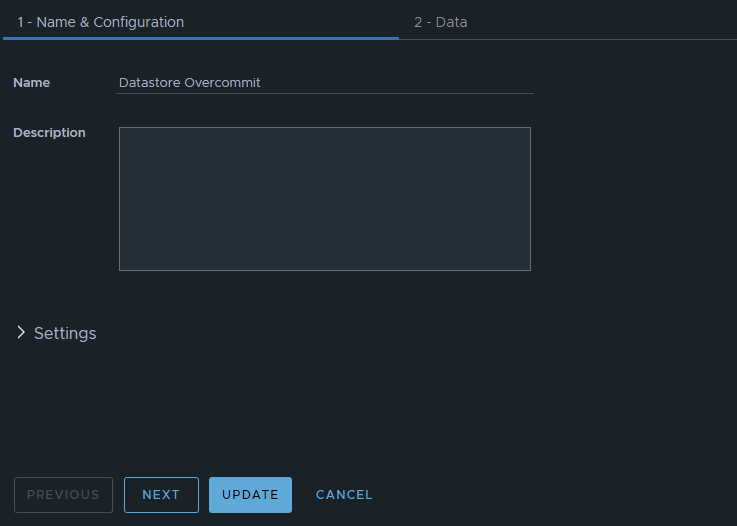
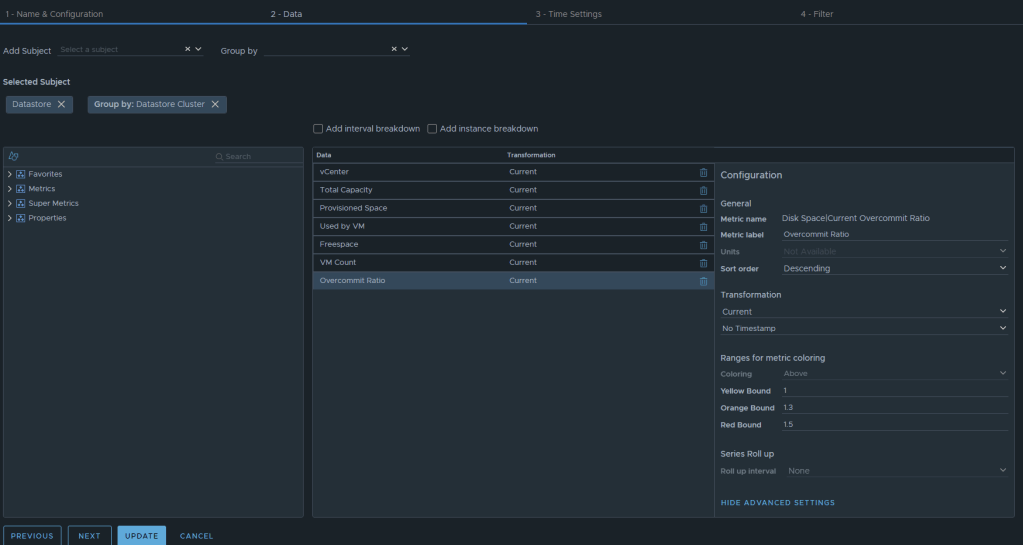
Now we can select the metrics desired. We will want to add the subject of “vCenter | datastore”, and then you could also group by “vCenter|Datastore Cluster” if you desire. For this example, I have selected the following datastore metrics:
Metric: “Summary|Parent vCenter”. Label: “vCenter”
Metric: “Disk Space|Total Capacity (GB)”. Label: “Total Capacity”. Unit: “GB”
Metric: “Disk Space|Total Provisioned Disk Space With Overhead (GB)”. Label: “Provisioned Space”. Unit: “GB”
Metric: “Disk Space|Virtual Machine used (GB)”. Label: “Used by VM”. Unit: “GB”
Metric: “Disk Space|Freespace (GB)”. Label: “Freespace”. Unit: “GB”
Metric: “Summary|Total Number of VMs”. Label: “VM Count”. Unit: “GB”
Metric: “Disk Space|Current Overcommit Ratio”. Label: “Overcommit Ratio”. Sort Order: “Descending” Coloring Above: Yellow Bound: “1”. Orange Bound: “1.3”. Red Bound: “1.5”

The end result should look something like this:
I typically will set the Preview Source as “vSphere World” to see the output data I am getting.
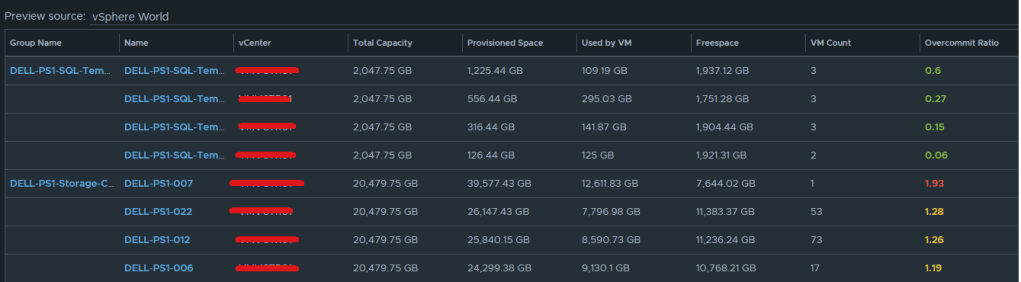
If you don’t like the datastores being grouped by the datastore cluster, then just undo the grouping option, and all of the datastores that are the worst overcommit offenders will rise to the top. The view can now be saved. 

Creating an Aria Operations Report.

In Aria Operations, Under Visualize -> Reports, create a new report. In this example we call it Datastore Overcommitment.
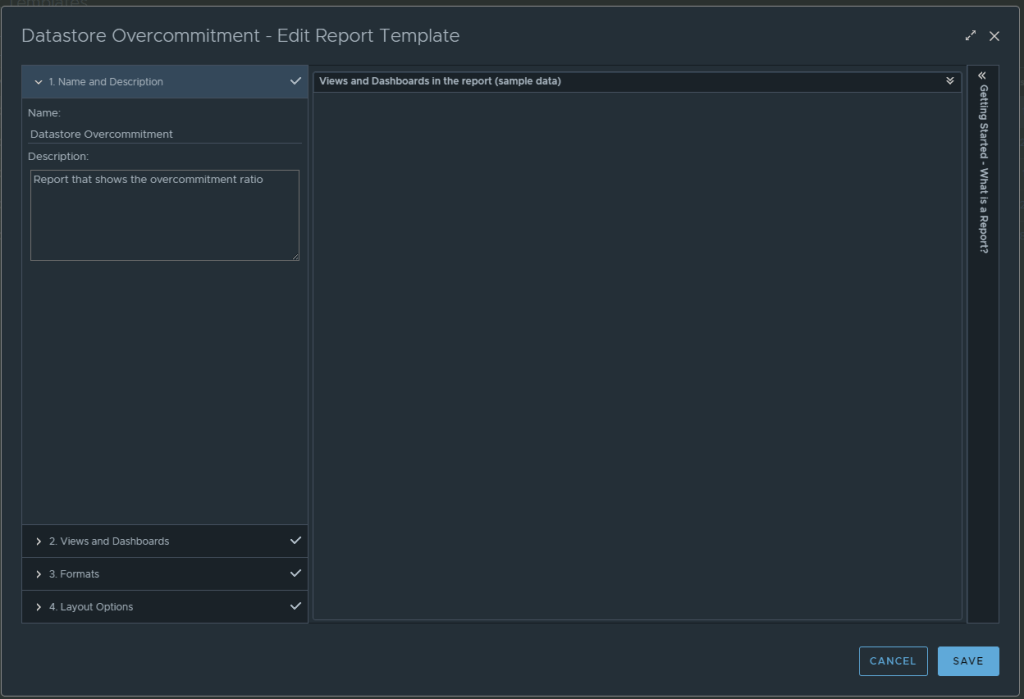
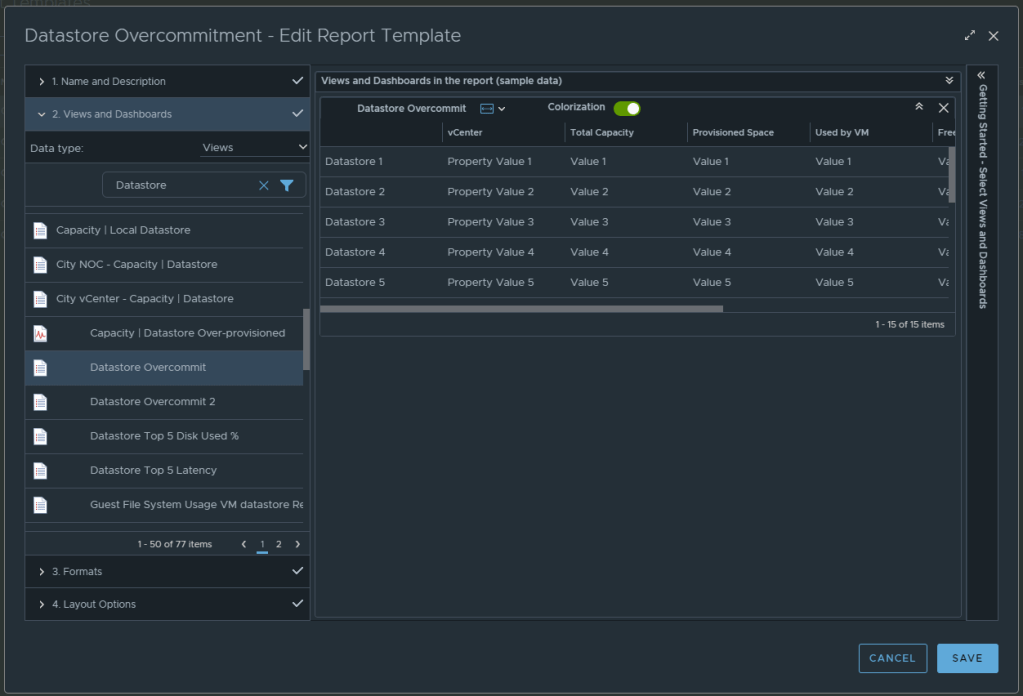
In section 2 for views and dashboards, I searched for datastore and found the newly created “Datastore Overcommit” view created earlier. I dragged it to the right. I changed the Orientation to landscape, and turned on Colorization.
From here, under section 3 you can select the format of the report PDF and/or CSV, and then under section 4 you can elect to add a cover page and what not. I personally like getting a PDF and CSV. Now can click SAVE to save the report. 

From here, you can run the report or schedule it. It’s that simple.

Aria Operations Dashboard: VM Guest File System Usage

December 2023
Aria Operations 8.12.1

For the past couple of months, I have been working with a customer developing Aria Operations (formally vROps) dashboards for various interests. The dashboard I’ll cover here was one I created to help them track and identify the guest file system usage of the virtual machine. This works for both Microsoft and Linux based systems.

Box 1a is a heatmap widget configured as a self provider configured to refresh every 300 seconds. Additional configuration as follows:

The heatmap is a nice visual that will turn red as the guest file system consumes disks on the VM to spot problems. You then select a box in the heatmap to populate the 2a. Box 2a then feeds data into 2b, 2c, 2d, and 2e.

Box 2a is a custom list view widget i created that lists several metrics of the virtual machine with custom metric labels. It is configured to auto select the first row.

Those metrics are:
Badge|Health%“,
Configuration|Hardware|Disk Space“,
Guest File System|Utilization (%)“, (Coloring above: Yellow 75, Orange 80, Red 90);
Virtual Disk:Aggregate of all instances|Read IOPS“, (Coloring above: Yellow 100, Orange 200, Red 300);
Virtual Disk:Aggregate of all instances|Write IOPS“, (Coloring above: Yellow 100, Orange 200, Red 300);
Virtual Disk:Aggregate of all instances|Read Latency (ms)“, (Coloring above: Yellow 10, Orange 20, Red 30);
Virtual Disk:Aggregate of all instances|Write Latency (ms)“, (Coloring above: Yellow 10, Orange 20, Red 30);
Datastore:Aggregate of all instances|Total Latency (ms)“,
Datastore:Aggregate of all instances|Total Throughput“,
Disk Space|Snapshot|Age (Days)“, (Coloring above: Yellow 7, Orange 14, Red 21);
Disk Space|Snapshot Space“.

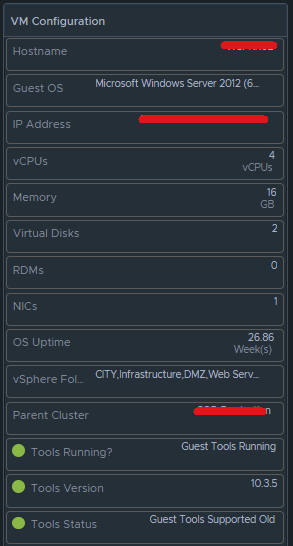
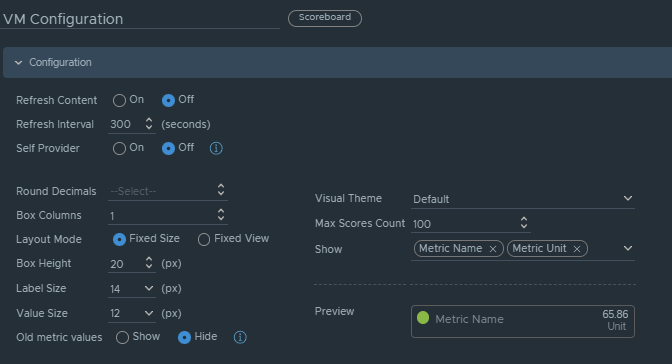
Box 2b is a Scoreboard widget configured to list the selected VM details regarding information on how the VM is configured.

Configuration is set like so:

Under Input Transformation, set to self.

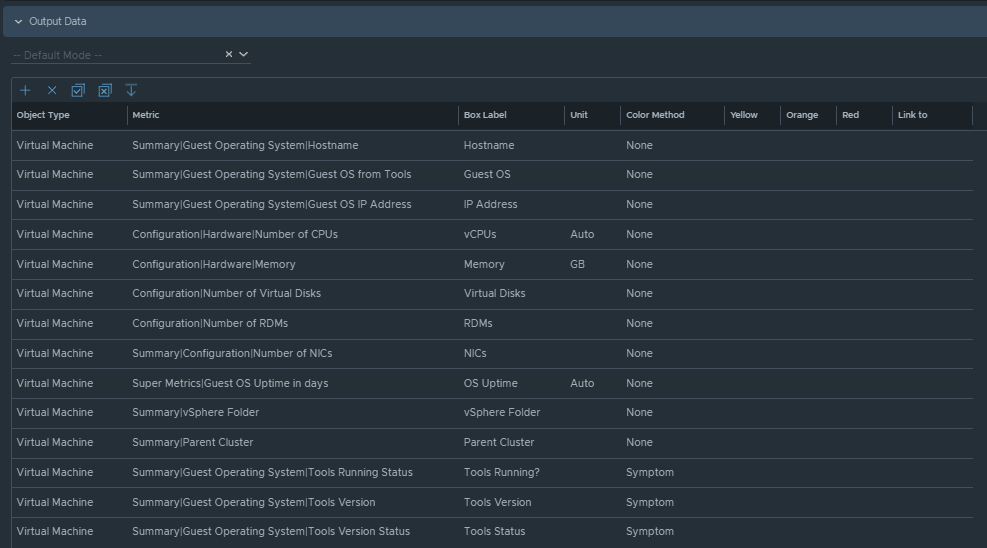
Output Data will be configured as follows:

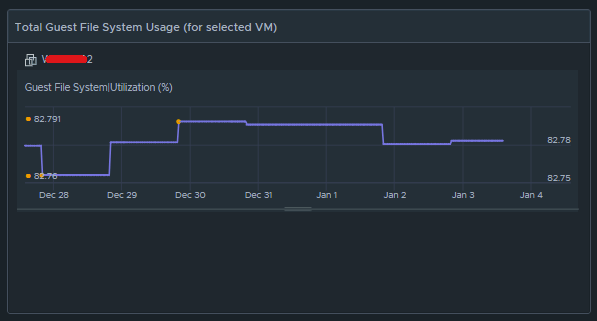
Box 2c is a metric chart widget with the Input Transformation configured as self, and the Output data configured to use the virtual machine metric “Guest File System|Utilization”.

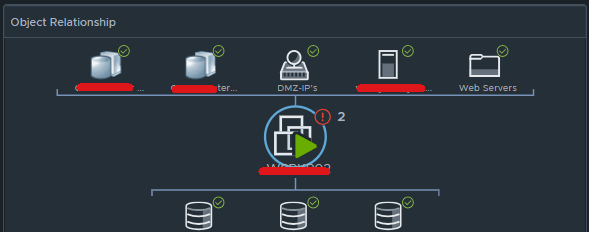
Box 2d is simply the Object Relationship widget.

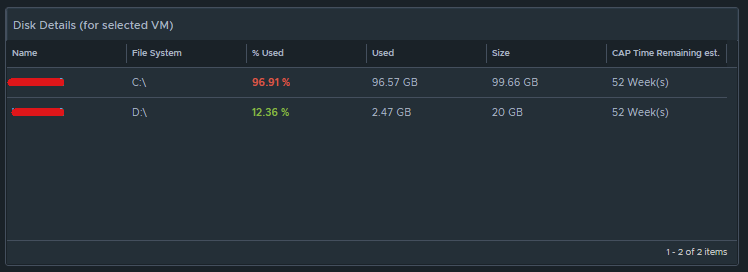
Box 2e is another custom list view and is configured to refresh every 300 seconds. 

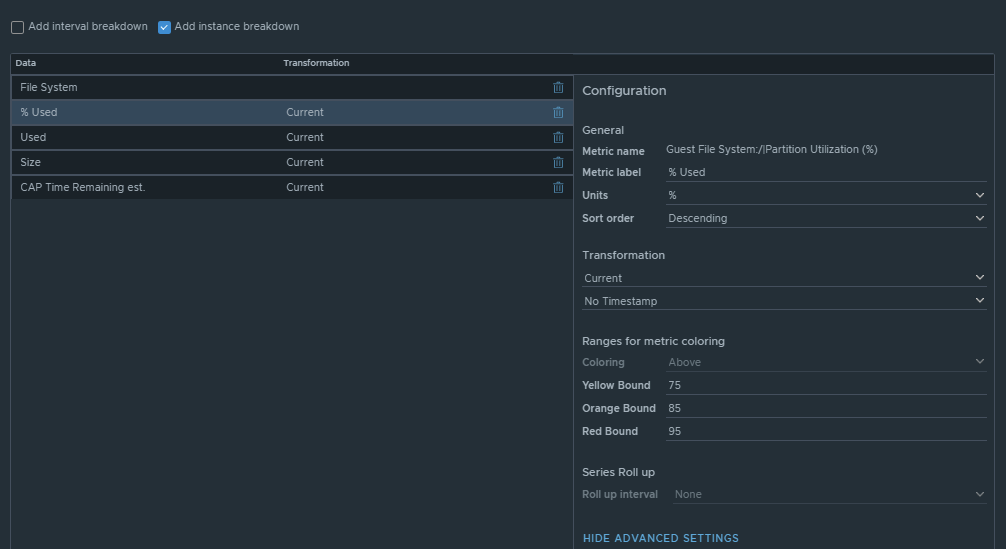
This list view is configured to do an instance breakdown of the following metrics:

Guest File System:/|Partition Utilization (%)“, (Coloring above: Yellow 75, Orange 85, Red 95);
Guest File System:/|Partition Utilization“;
Guest File System:/|Partition Capacity (GB)“;
Capacity Analytics Generated|Time Remaining“.

Box 3a is fed data from 2e so that we can see how the virtual machine disks are behaving on the datastore(s).

This is another custom list view configured as follows:

Configuration is set to refresh content at 300 seconds. Output data is configured with a custom list view with the following metrics:
Devices:Aggregate of all instances|Read Latency (ms)“, (Coloring above: Yellow 10, Orange 20, Red 30);
Devices:Aggregate of all instances|Write Latency (ms)“, (Coloring above: Yellow 10, Orange 20, Red 30);
Devices:Aggregate of all instances|Read IOPS“, (Coloring above: Yellow 100, Orange 200, Red 300);
Devices:Aggregate of all instances|Write IOPS“, (Coloring above: Yellow 100, Orange 200, Red 300);
Devices:Aggregate of all instances|Read Throughput“;
Devices:Aggregate of all instances|Write Throughput“.

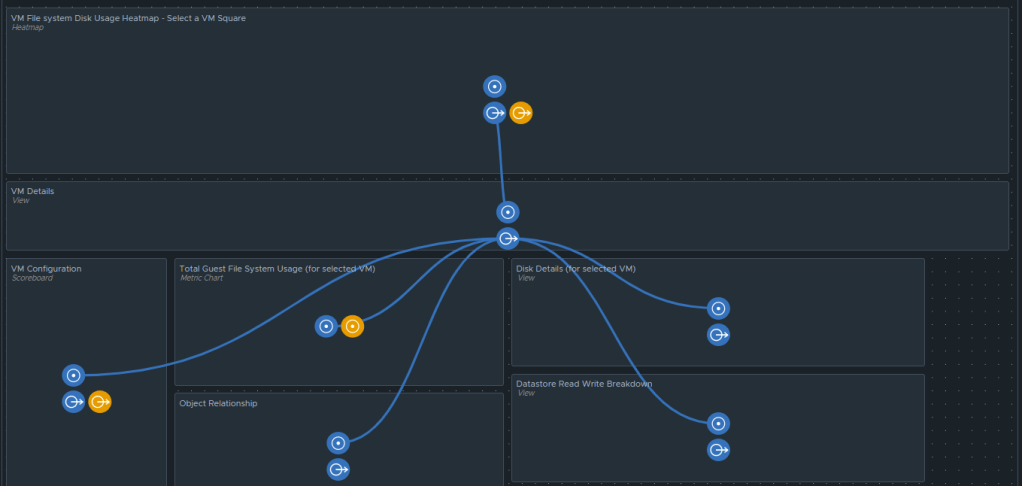
Those are all of the configured widgets on this dashboard. The integration schema will look like this:

I do hope to share this dashboard with the VMware Code sample exchange, and I will update this blog once that has been completed. I hope my breadcrumbs above will enable you to create a similar dashboard in the meantime.

vRealize Operations Manager Dashboard: vSphere DRS Cluster Health. Part 2

This blog series assumes that the reader has some understanding of how to create a vRealize Operations Manager (vROps) dashboard.

vROps dashboards are made up of what is called widgets. These widgets can either be configured as “self providers”, or can be populated with data by a “parent” widget. Self provider widgets, are configured to individually show specific data. In other words, one widget shows hosts, another shows datastores, and another showing virtual machines, however the widgets will not interact, nor are they dependent of each other. Parent widgets, are configured to provide data from a specific source, and then feed it into other child widgets on the page. This is useful when data is desired to be displayed in different formats of consumption. The dashboard I configured called “vSphere DRS Cluster Health”, does just that. I will break the widgets down to different sections as I walk through the configuration.

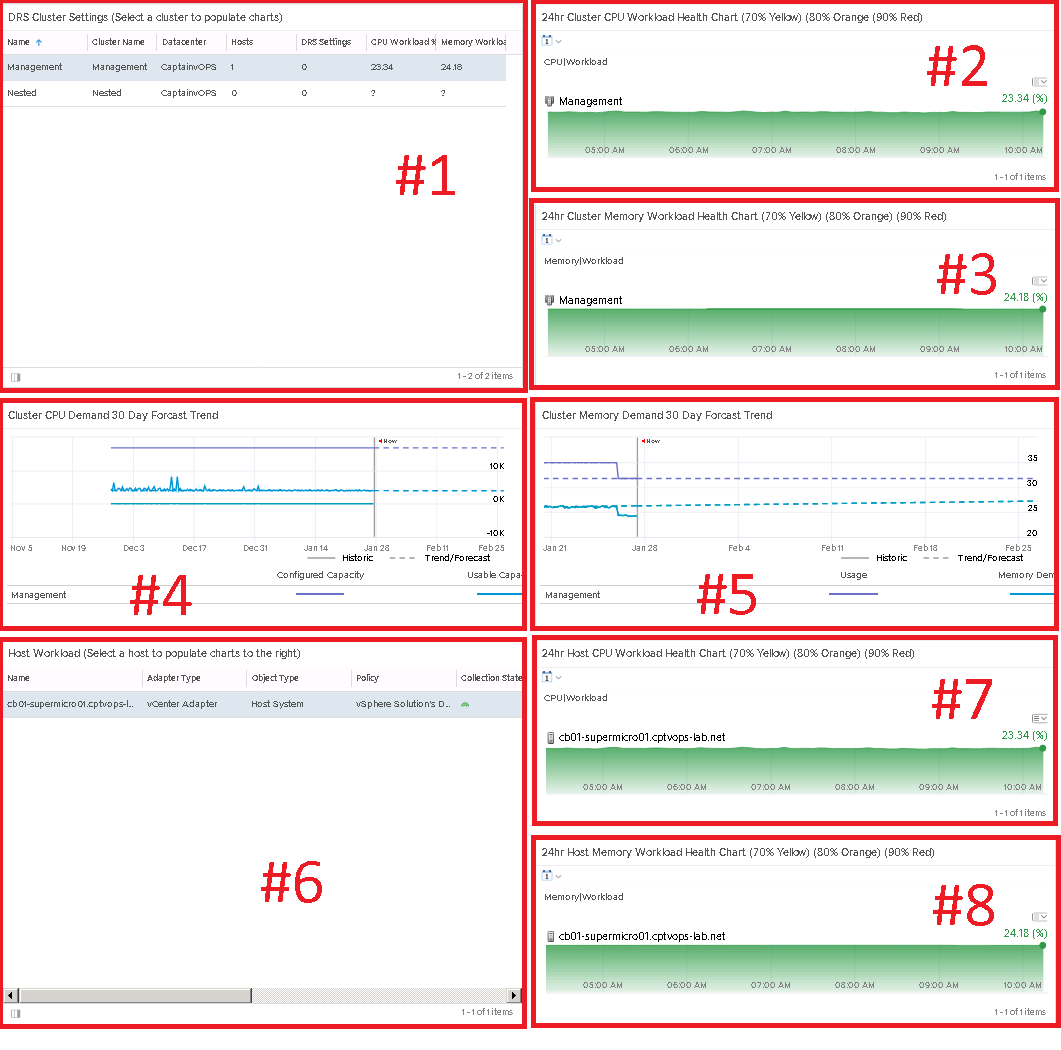
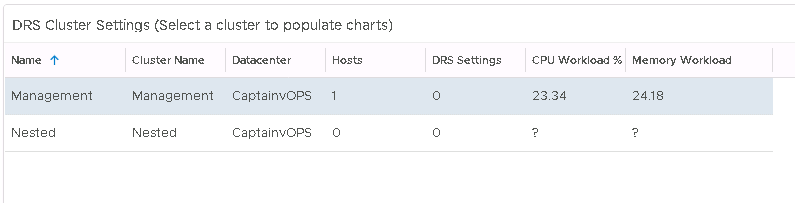
Widget #1 – This widget is known as an “object list“, and will be the parent widget of this dashboard. In other words, widgets #2 through #6 rely on the data presented by widget #1. In this case I have the object list widget, configured to show/list the different host clusters in my homelab.

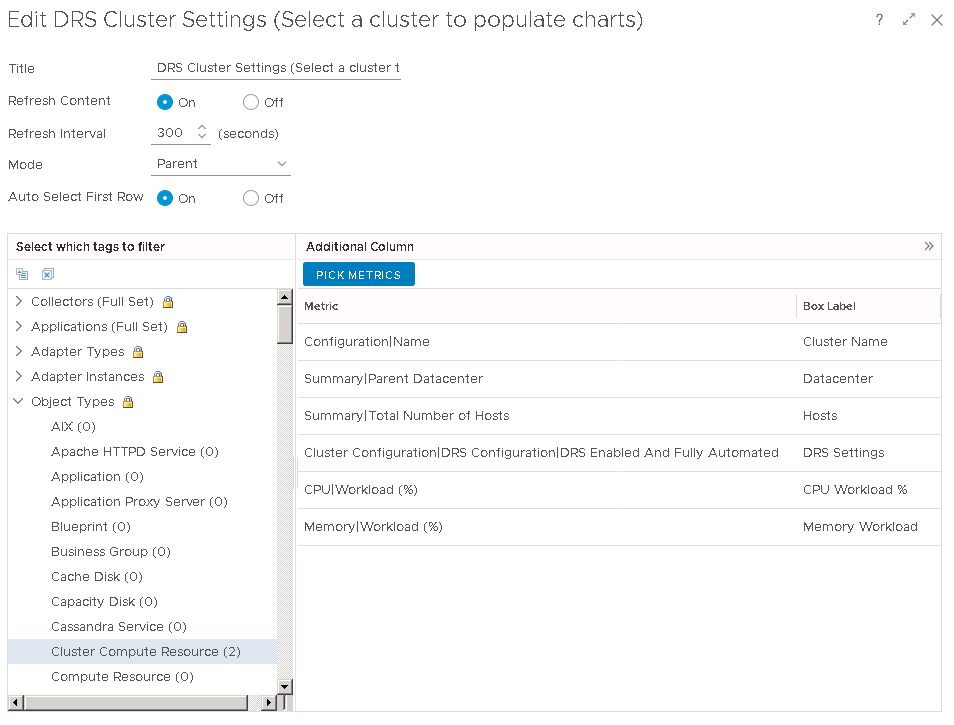
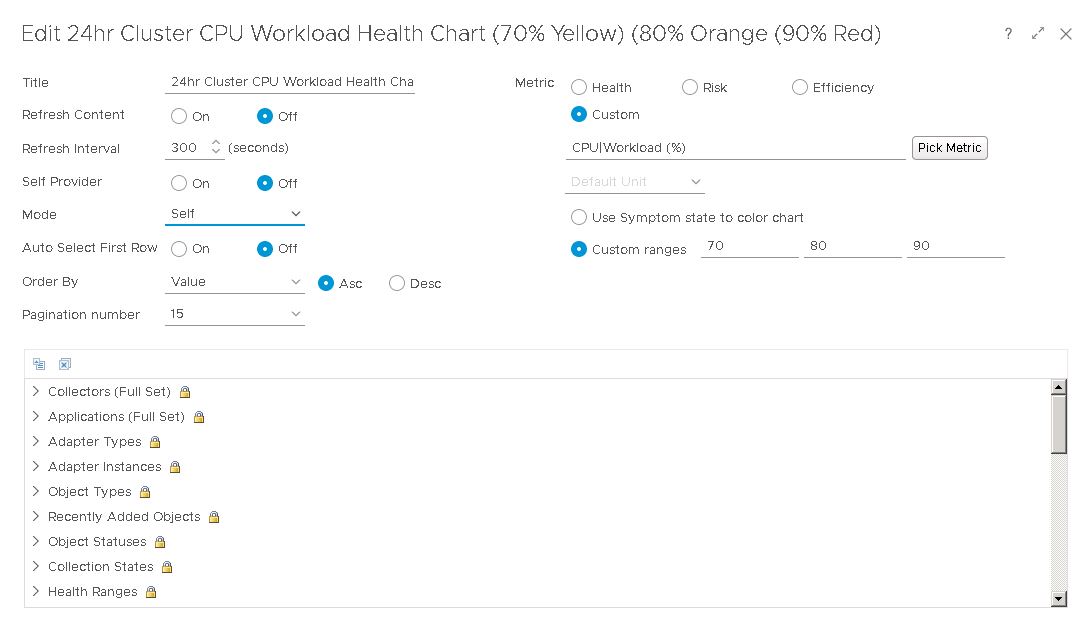
I have given it a title, set refresh content to ON, set the mode to PARENT, and have it set to auto select the first row. In the lower left section “Select which tags to filter”, I have created an environment group in vROps called “Cluster Compute Resource” where I have specified my host clusters. In the lower right box, I have a few metrics selected which I would also like this “object list” widget to show.

This is just a single esxi homelab, so this won’t look as grand as it would if it were to be configured for a production environment. But each object in this list is select-able, and the cool thing is that each object in this list, when it is selected, will change the other widgets.

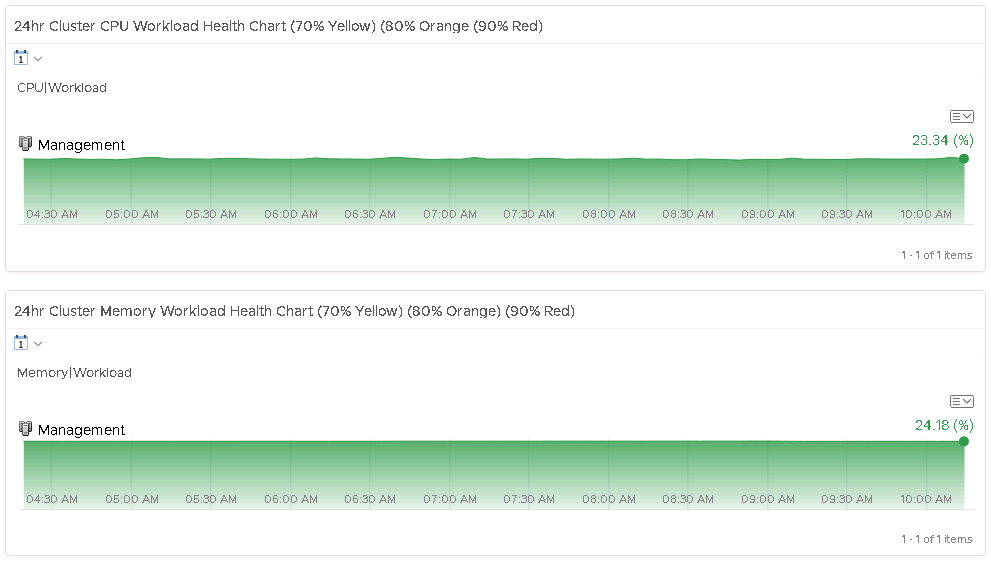
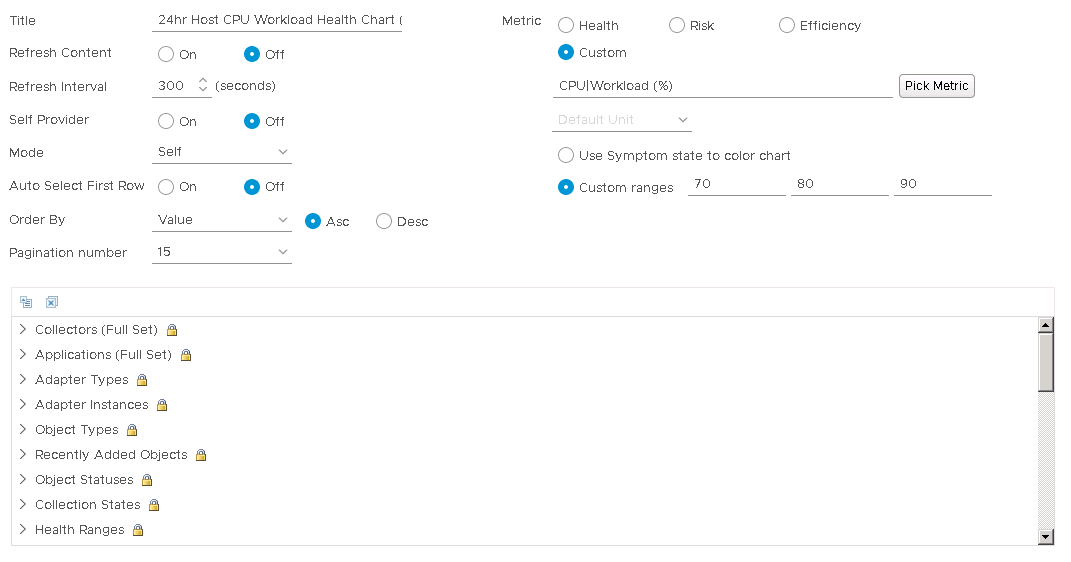
Widgets #2 and #3 are called “health charts”. I have one configured with the metric for cluster CPU workload %, and the other configured with the metric cluster memory workload %. Both configurations are the same, with the exception that one has a custom metric of Cluster CPU Workload %, and the other is configured with the custom metric of Cluster Memory Workload %. I have both configured to show data for the past 24hrs.

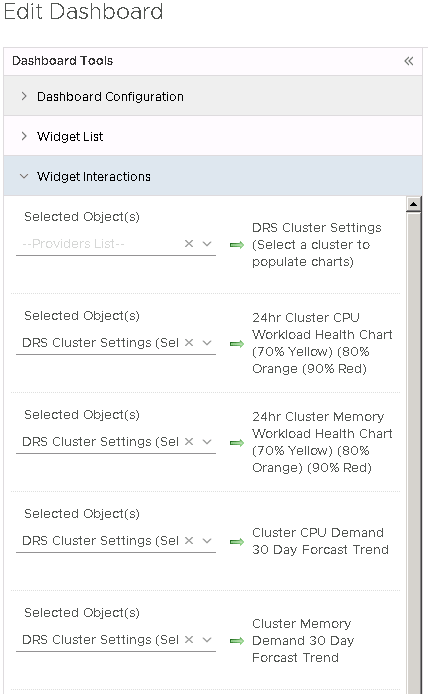
Important: For these two widgets, under “widget interactions“, set both to the first widget: DRS Cluster Settings (Select a cluster to populate charts)

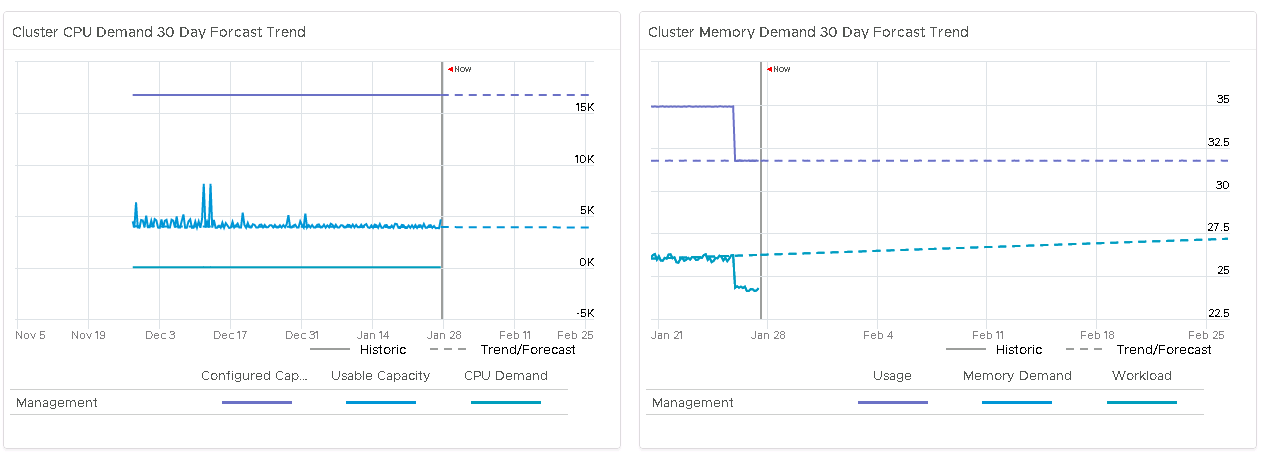
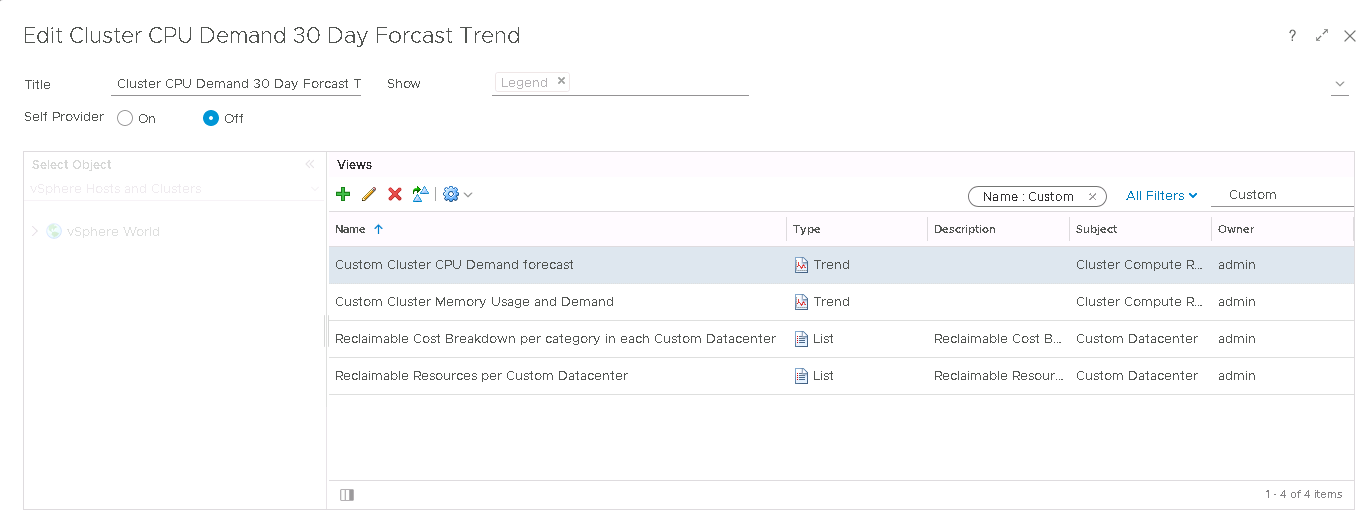
Widgets #4 and #5 are called “View widgets”. One is configured to show the current Cluster CPU Demand, and the other is configured to show the current Cluster Memory Demand. These are also configured to forecast out for 30 days, so that we can potentially see if the clusters will run short of capacity in the near future, allowing us the ability to add more compute to the cluster preemptively.

These are two custom “views” I created. I will go over how to create custom views in a future post, but for those who already know how, I have one “widget view” configured with each.

Important: For these two widgets, under “widget interactions“, set both to the first widget: ” DRS Cluster Settings (Select a cluster to populate charts) ” like we did above.

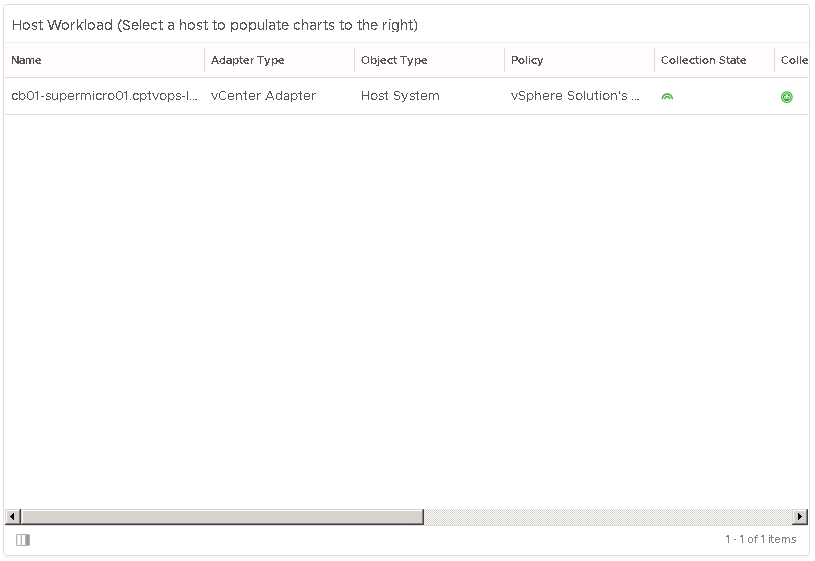
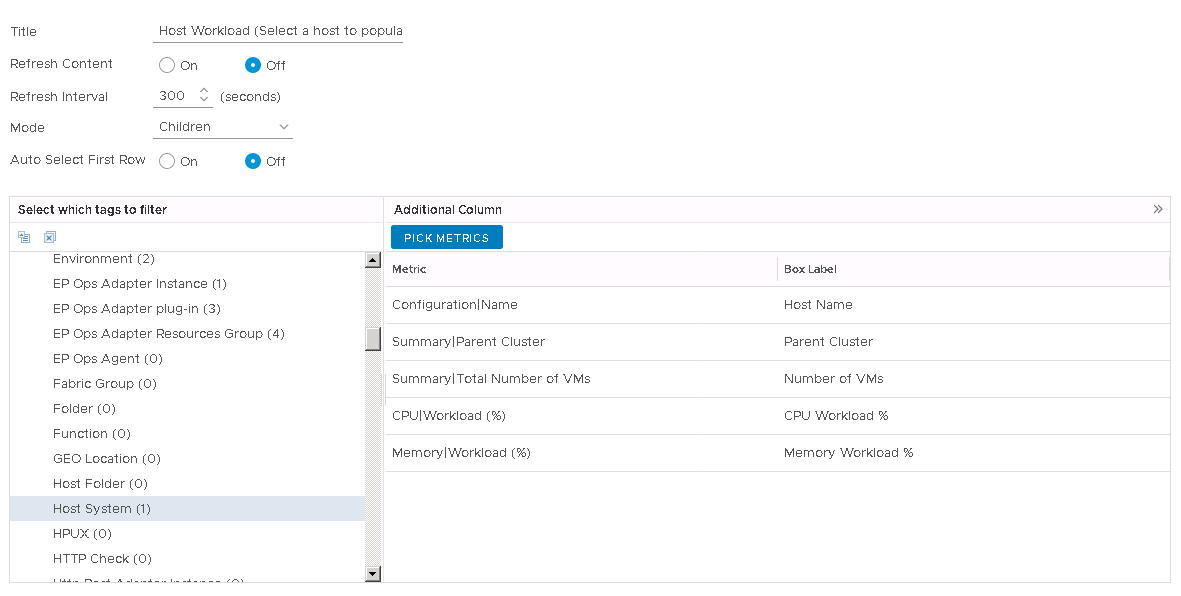
Widget #6 is another “Object List” widget, and I have this configured to show only host systems, of the selected cluster in Widget #1. Widget #6 will be used to provide data to Widgets #7 and #8.

I also have certain Host System metrics selected here so that I can get high level information of the hosts in the cluster.

Important: For these two widgets, under “widget interactions“, set both to the first widget: ” DRS Cluster Settings (Select a cluster to populate charts)” like we did above.

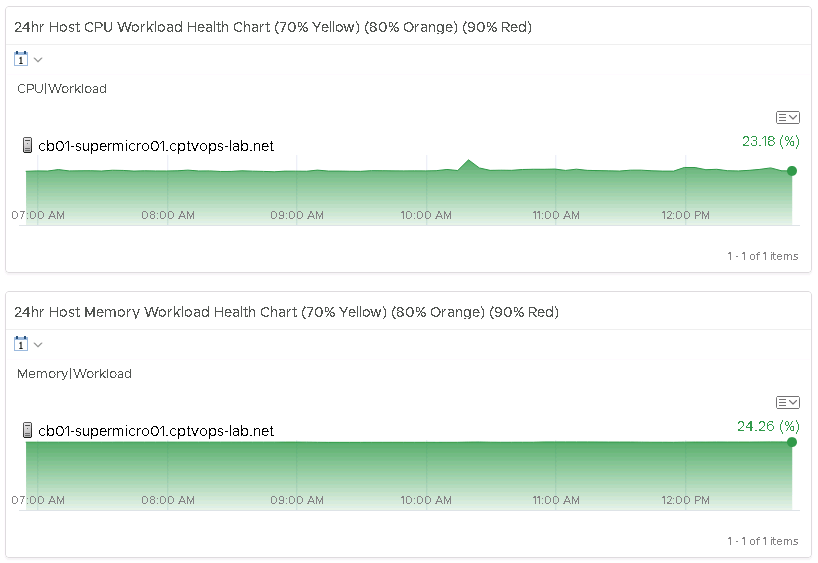
The final two widgets, #7 and #8, are also called “health chart” widgets. One is configured using the metric host system CPU workload %, and the other is configured using the metric host system Memory workload %. I have both configured to show data for the past 24hrs.

Important: For these two widgets, under “widget interactions“, set both to widget #6, in this example: Host Workload (select a host to populate charts to the right).

vRealize Operations Manager Dashboard: vSphere DRS Cluster Health. Part 1

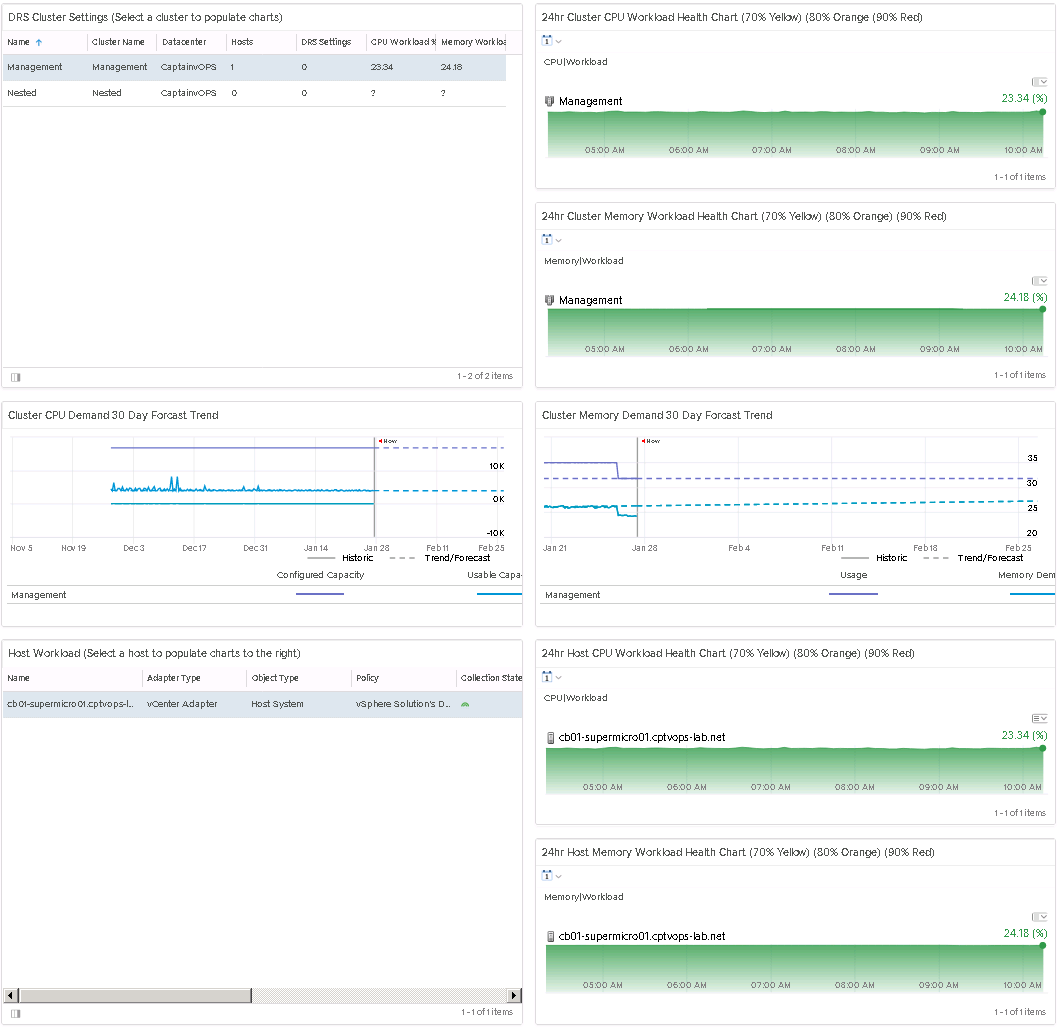
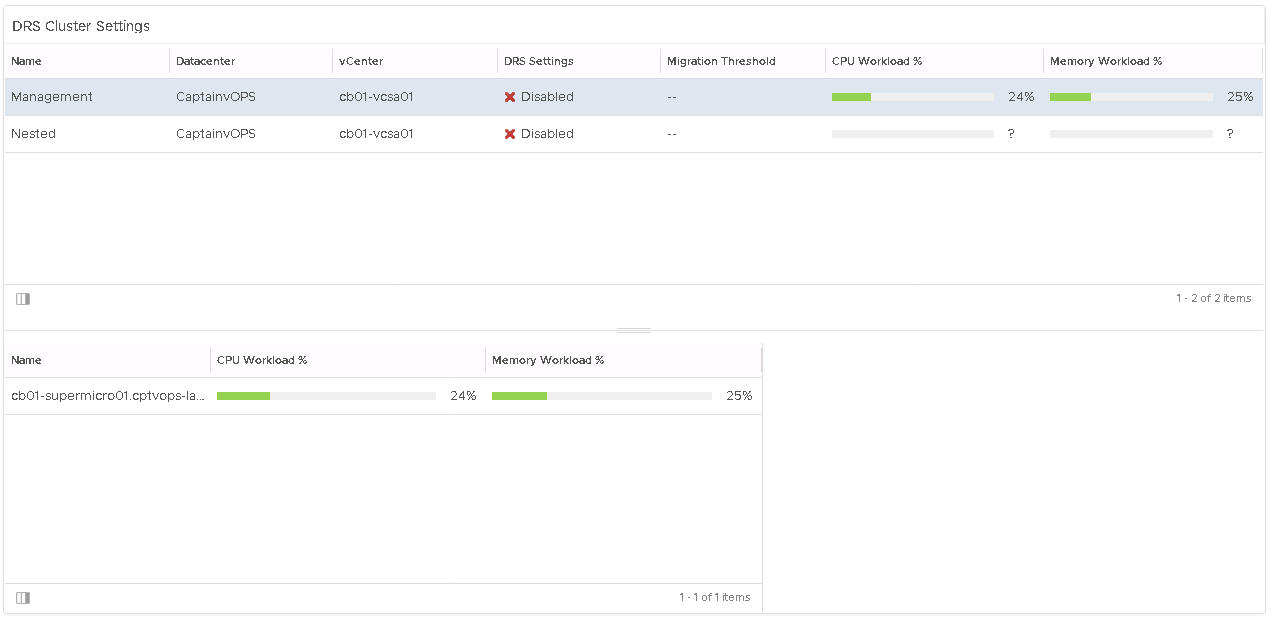
A few weeks ago, I had a customer ask me about creating a custom vROPs dashboard for them, so that they could monitor the health of the clusters. For those of you who were unaware, VMware has packaged vROPs with a widget called “DRS Cluster Settings”, that does something similar, and look like this:

The idea behind this widget, is that it will list all clusters attached to the vCenter, giving you high level information such as the DRS setting, and the memory and CPU workload of the cluster. With a cluster selected, in the lower window you will see all of the ESXi hosts apart of that cluster, with their CPU and memory workloads as well. If you are interested in this widget, it can be added when creating a new custom dashboard, and you will find it at the bottom of the available widget list.

While this widget gave me some high level detail, it wasn’t exactly what I wanted, so I decided to create my own to give a deeper level of detail. I used the widget above as a template, and went from there.

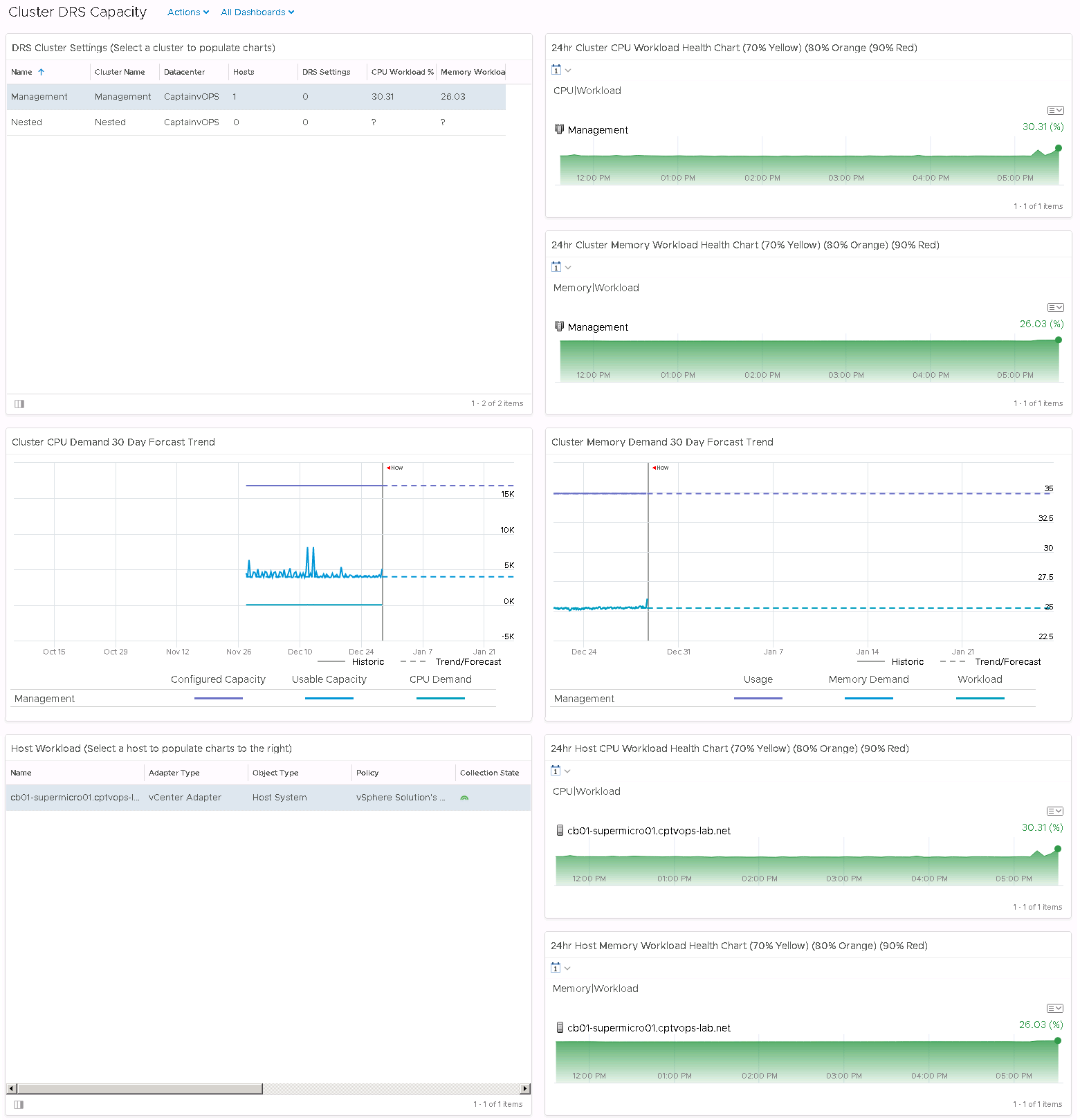
This dashboard gives me the current memory and CPU workloads for each cluster in the upper left box, and once a cluster selected, it populates the right, and two middle boxes with data. The top right boxes gives me the memory and CPU workload for the past 24hrs, and the two middle boxes gives me the CPU demand and memory demand forecasts for the next 30 days.

Much like the widget mentioned above, by selecting a cluster in the upper left side, in the lower left side there is a box that will populate with all hosts attached to that cluster. Once a host is selected, in the lower right box, we also get a memory and CPU workload for the past 24hrs for the selected host. This dashboard is slightly larger than a page will allow, so unfortunately users would need to scroll down to see all of the data, but I believe it gives an outstanding birds-eye view of the clusters DRS capabilities.

In my next blog post, I’ll break down what’s involved in creating this dashboard.

Add Custom Recommendation to vROps alert definition for versions prior to 6.6

  • This is useful when a new SOP document is created, we will be able to link to it directly on the alert email that is sent.

Step-By-Step

  1. Log into the main vRealize Operations Manager page.
  2. Click Content and then Recommendations

  3. On this page you can create, edit and delete custom recommendations.  Click the green plus sign to create a new custom recommendation.
  4. Here you can enter the test for the custom recommendation.  Paste the link to the SOP, highlight it, and then click the hyperlink icon.  Now paste the link again and click OK.  The “actions” section will allow the use of automated functions if you were looking at the triggered alert in vROps.  For now, just click save.
  5. Now you can add the custom recommendation to an alert definition.  Click Content and then Alert Definitions.
  6. Search for the alert that you would like to add the SOP to, select it and click the edit button.
  7. Click on section 5: Add Recommendations and then click on the plus sign
  8. Now you will need to search for the new SOP recommendation you just created, so search for SOP, find it in the list on the left, click and drag to position under the Recommendations section.
  9. Finally click save.  Now when this alert is triggered, and an email is sent, there will be a clickable link in the email to the SOP document.

Network Scanners Can Crash vRealize Operations Manager Tomcat Service On Large Clusters

If network scanners are deployed in your production environments, it may be necessary to white-list the vROps nodes, as the network scanners can bring the tomcat service to its’ knees, especially on active vROps clusters.  In my case the network scanner was causing tomcat to crash, so when users would attempt to access the main vROps , they’d get the following error:

Unable to connect to platform services

While troubleshooting this issue, I went through the sizing of the cluster, performance, verifying there’s nothing backing up the vROps VMs, even made sure the datastores and specific hosts were health.  Even tried replacing the “/usr/lib/vmware-vcops/user/plugins/inbound” directory and files on all nodes from the master copy in hopes that it would make the cluster healthy again and stop tomcat from panicking.

The following was discovered after reviewing the /var/log/apache2/access_log on the master:

192.216.33.10 - - [10/Oct/2017:04:56:23 +0000] "GET /recipe/login.php?Password=%22'%3e%3cqqs%20%60%3b!--%3d%26%7b()%7d%3e&Username=&submit=Login HTTP/1.0" 301 362 "-" "-"
192.216.33.10 - - [10/Oct/2017:04:56:23 +0000] "GET /recipe/recipe/login.php?Password=%22'%3e%3cqqs%20%60%3b!--%3d%26%7b()%7d%3e&Username=&submit=Login HTTP/1.0" 301 369 "-" "-"
192.216.33.10 - - [10/Oct/2017:04:56:23 +0000] "GET /recipe/recipe_search.php?searchstring=alert(document.domain) HTTP/1.0" 301 326 "-" "-"
192.216.33.10 - - [10/Oct/2017:04:56:23 +0000] "GET /recipe/recipe/recipe_search.php?searchstring=alert(document.domain) HTTP/1.0" 301 333 "-" "-"
192.216.33.10 - - [12/Oct/2017:08:30:43 +0000] "GET /recipe_view.php?intId=char%2839%29%2b%28SELECT HTTP/1.1" 301 282 "-" "-"
192.216.33.10 - - [12/Oct/2017:08:31:06 +0000] "GET /modules.php?name=Search&type=stories&query=qualys&catebgory=-1%20&categ=%20and%201=2%20UNION%20SELECT%200,0,aid,pwd,0,0,0,0,0,0%20from%20nuke_authors/* HTTP/1.1" 301 410 "-" "-"
192.216.33.10 - - [12/Oct/2017:08:31:06 +0000] "GET /modules.php?name=Top&querylang=%20WHERE%201=2%20ALL%20SELECT%201,pwd,1,1%20FROM%20nuke_authors/* HTTP/1.1" 301 342 "-" "-"
192.216.33.10 - - [12/Oct/2017:08:31:10 +0000] "GET /index.php?option=com_jumi&fileid=-530%27%20UNION%20SELECT%202,concat%280x6a,0x75,0x6d,0x69,0x5f,0x73,0x71,0x6c,0x5f,0x69,0x6e,0x6a,0x65,0x63,0x74,0x69,0x6f,0x6e%29,null,null,null,0,0,1%20--%20%27 HTTP/1.1" 301 445 "-" "-"
192.216.33.10 - - [10/Oct/2017:04:20:19 +0000] "GET /recipe_view.php?intId=char%2839%29%2b%28SELECT HTTP/1.1" 301 282 "-" "-"
192.216.33.10 - - [10/Oct/2017:04:20:42 +0000] "GET /modules.php?name=Search&type=stories&query=qualys&category=-1%20&categ=%20and%201=2%20UNION%20SELECT%200,0,aid,pwd,0,0,0,0,0,0%20from%20nuke_authors/* HTTP/1.1" 301 410 "-" "-"
192.216.33.10 - - [10/Oct/2017:04:22:32 +0000] "GET /third_party/fckeditor/editor/_source/classes/fckstyle.js HTTP/1.1" 301 284 "-" "-"
192.216.33.10 - - [10/Oct/2017:04:22:32 +0000] "GET /third_party/tinymce/jscripts/tiny_mce/plugins/advlink/readme.txt HTTP/1.1" 301 292 "-" "-"
192.216.33.10 - - [10/Oct/2017:04:22:32 +0000] "GET /rsc/smilies/graysmile.gif HTTP/1.1" 301 253 "-" "-"
192.216.33.10 - - [10/Oct/2017:04:22:32 +0000] "GET /media/users/admin/faceyourmanga_admin_girl.png HTTP/1.1" 301 274 "-" "-"


Tomcat service is being pushed to the limits and using many more resources than planned. There is upwards of 10,000 requests in bursts from a single IP address.  From the logs it certainly looks like an attack, but that’s coming from an internal IP address.

My advice – get your security team to white-list your vROps appliances.

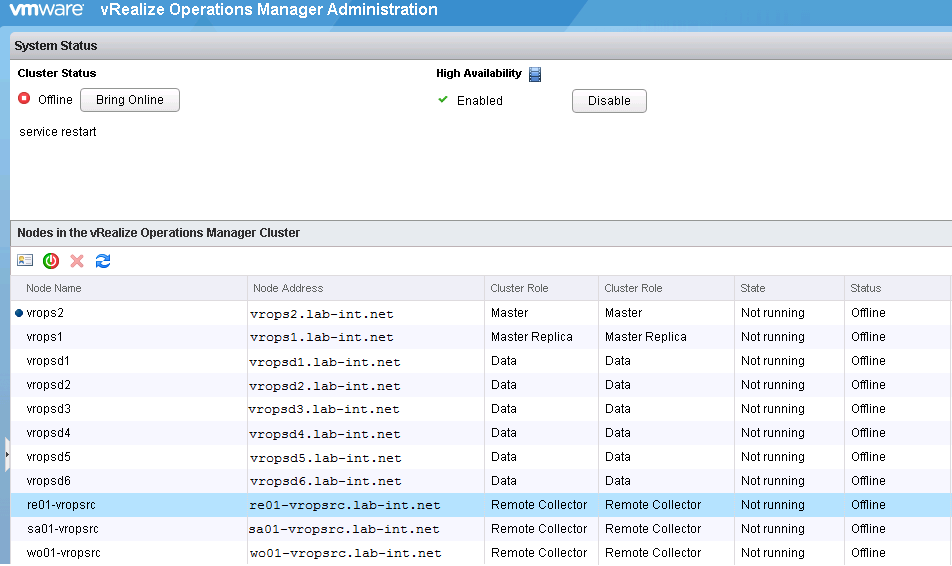
To restart the web service on all vROps nodes either by issuing this command to each node: ‘service vmware-vcops-web restart’ , or log into the admin page, take the cluster offline and then back online.

Upgrade Existing vRealize Operations Manager Add-on/Solution Paks

The following was recorded using a vRealize Operations Manager (VROps) 6.6 cluster, however older versions of VROps can be upgraded the same way.

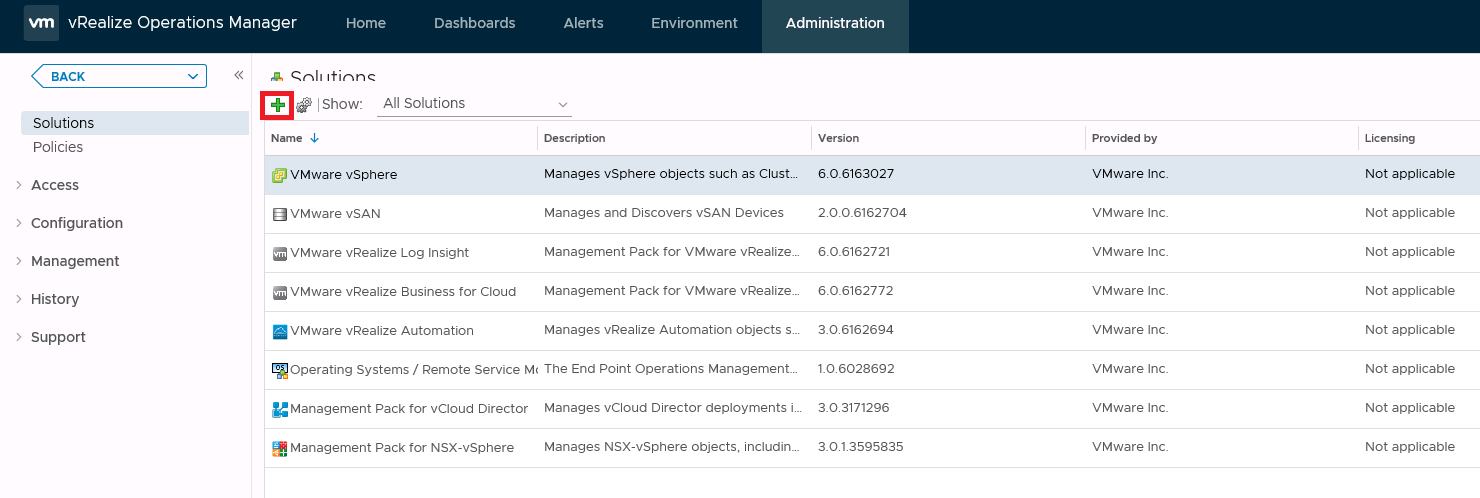
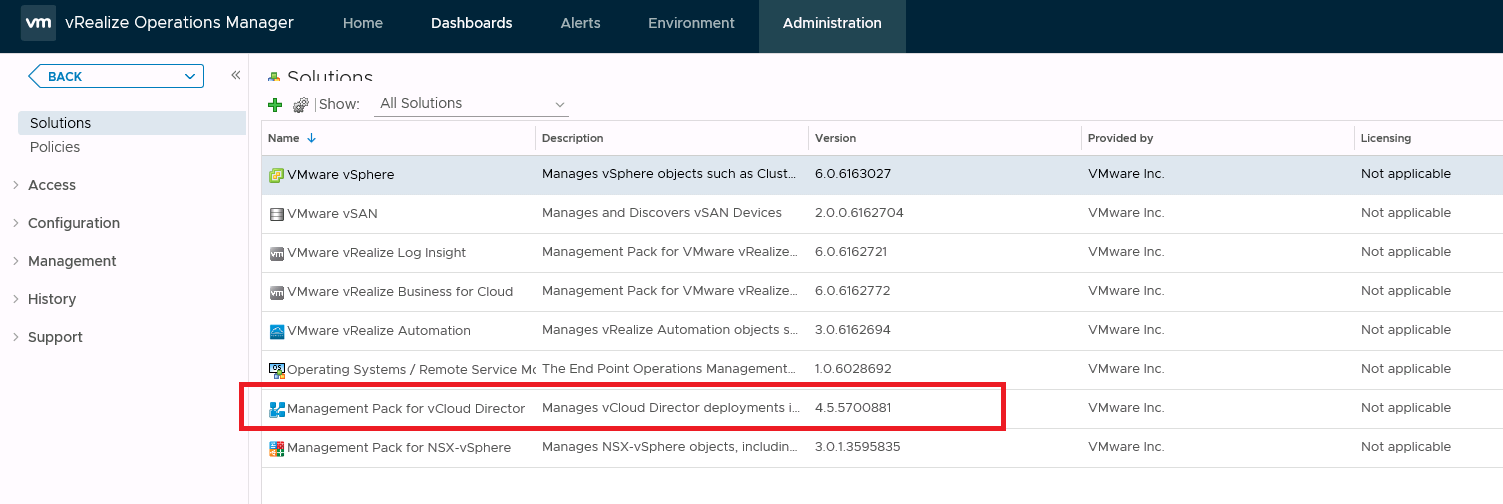
  • Log into the vROps environment, go to the Administration tab, and select solutions in the left column.
  • Here you can see all of the add-on/solutions paks that I have installed in this environment.  To upgrade an existing solution, simply click the green plus button.
Image.png
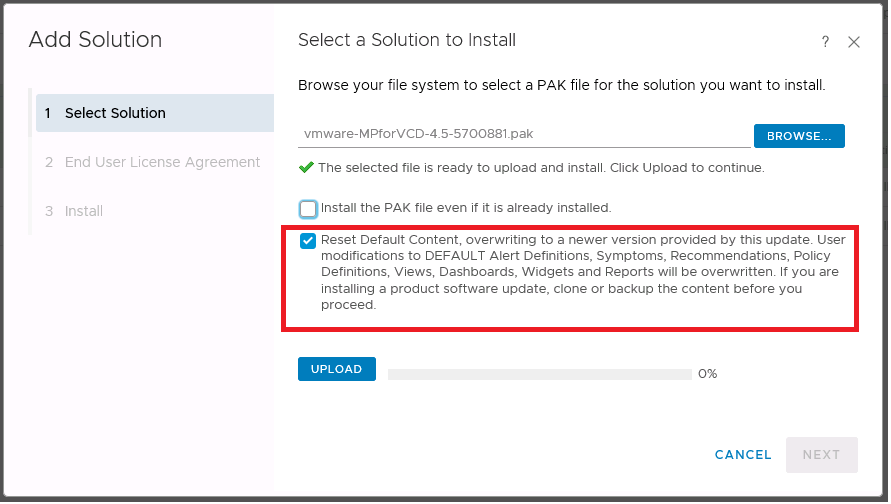
  • Browse for the new pak.  In this example I have selected “Reset Default Content” option.  As the statement suggests, this can override policies, customized alerts, symptoms etc. that may have been customized by your organization, forcing that work to be re-created.  However, I like using this option because I get those new changes, and can adjust my monitoring accordingly.  Use at your own discretion

Image.png

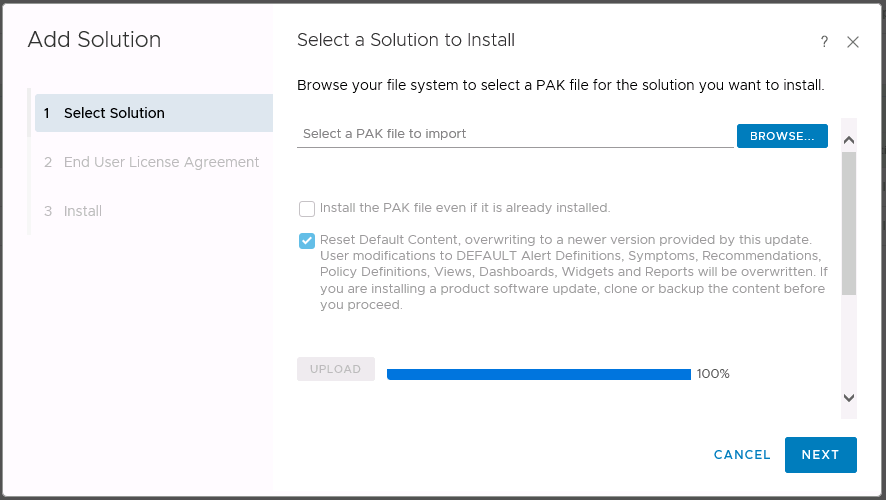
  • Click ‘upload’
Image.png
  • Click ‘Next’
  • Read and accept the EULA if you so desire
  • Click ‘Next’

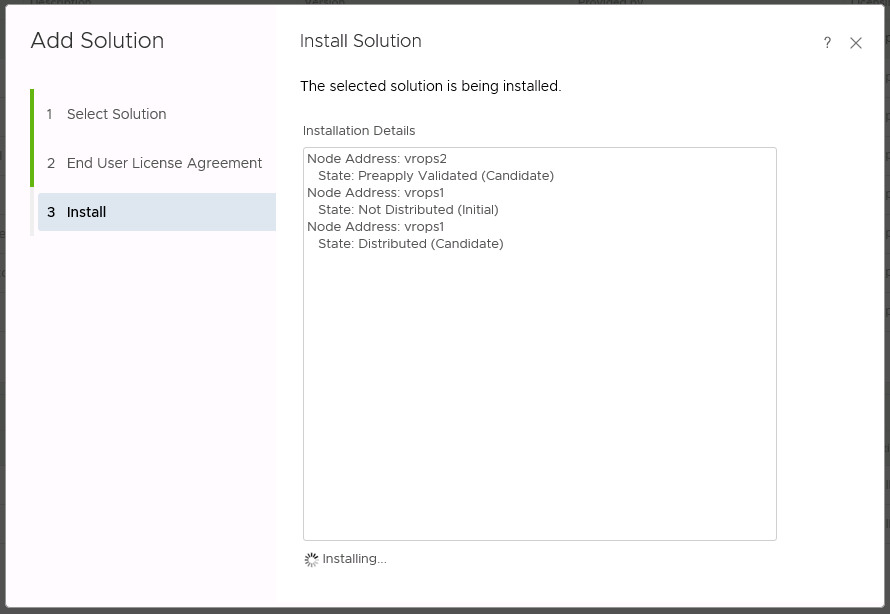
Now the installation process will begin.  This shouldn’t take longer than 5 minutes.

vrops54

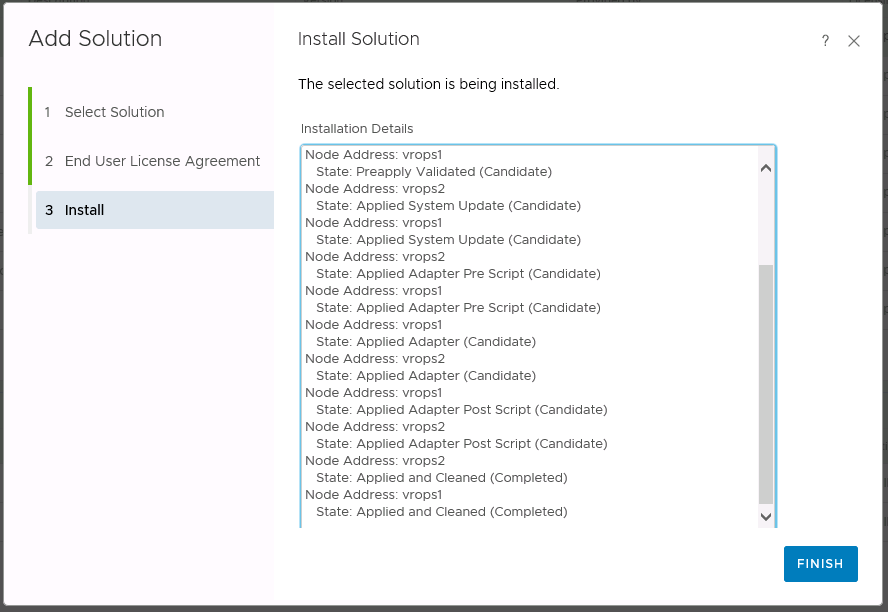
  • Click Finish

vrops55

Now the latest version of the Add-on/solutions pak is installed and ready for use.  In most cases it will just pick up the config from older versions.
Image.png

Performing A Database Health Check On vRealize Operation Manager (vROPS) 6.5

In a previous post I showed how you could perform a healthcheck, and possibly resolve database load issues in vROPs versions from 6.3 and older. When VMware released the vROPS 6.5, they changed the way you would access the nodetool utility that is available with cassandra database.

 $VCOPS_BASE/cassandra/apache-cassandra-2.1.8/bin/nodetool --port 9008 status

For the 6.5 release and newer, they added the requirement of using a ‘maintenanceAdmin’ user along with a password file.  The new command to check the load status of the activity tables in a vROPS 6.5+ is as follows:

  $VCOPS_BASE/cassandra/apache-cassandra-2.1.8/bin/nodetool -p 9008 --ssl -u maintenanceAdmin --password-file /usr/lib/vmware-vcops/user/conf/jmxremote.password status

Example output would be something similar to this if your cluster is in a healthy state:

vrops51

If any of the nodes have over 600 MB of load, you should consult with VMware GSS or a TAM on the next steps to take, and how to elevate the load issues.

Next we can check the syncing status of the cluster to determine overall health.  The command is as follows:

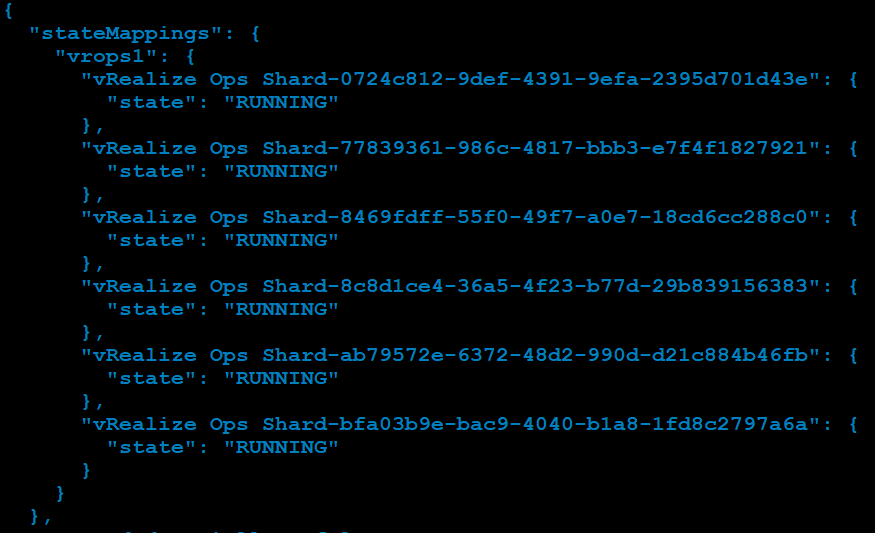
$VMWARE_PYTHON_BIN /usr/lib/vmware-vcops/tools/vrops-platform-cli/vrops-platform-cli.py getShardStateMappingInfo

Example output:

vrops52

The “vRealize Ops Shard” refers to the data nodes, and the Master and Master Replica nodes in the main cluster. The available status’ are RUNNING, SYNCING, BALANCING, OUT_OF_BALANCE, and OUT_OF_SYNC.

  • Out of Balance and Out of Sync should be enough to open an SR and have VMware take a look.

Lastly, we can take a look at the size of the activity table.  You can do this by running the following command:

 du -sh /storage/db/vcops/cassandra/data/globalpersistence/activity_tbl-*

Example Output:

vrops53

If there are two listed here, you should consult with VMware GSS as to which one can safely be removed, as one would be left over from a previous upgrade.


Removing Old vROps Adapter Certificates

I’ve come across this issue in previous versions of vRealize Operations Manager prior to the 6.5 release, where you delete an adapter for data collection like vSphere, NSX or VCD, and immediately try to re-create it.  Whether it was a timing issue, or vROps just didn’t successfully complete the deletion process, I’d typically get an error that the new adapter instance could not be created because a previous one exists with the same name.  Now there are two ways around this.  You can connect the adapter to whatever instance (VCD, NSX, vSphere) you are trying to collect data from using the IP address, instead of the FQDN (or vice-versa), or you can cleanup the certificate that was left behind manually as I will outline the steps below.

To resolve the issue, delete the existing certificate from Cassandra DB and accept the new certificate re-creating adapter instance.

1. Take snapshots of the cluster

2.  SSH to the master node.  Access the Cassandra DB by running the following command:

 $VMWARE_PYTHON_BIN $VCOPS_BASE/cassandra/apache-cassandra-2.1.8/bin/cqlsh --ssl --cqlshrc $VCOPS_BASE/user/conf/cassandra/cqlshrc

3. Access the database by running the following command:

use globalpersistence;

4.  We will need to look at the entries in the global persistence certificate store.  To do this, first list all the entries in globalpersistence.certificate store by running the following command:

SELECT * from globalpersistence.certificate;

5. From the list, find the desired certificate.  Now select that specific certificate with the following command:

 SELECT * from globalpersistence.certificate where key = 'Certificate.<ThumbprintOfVCCert>' and classtype = 'certificate' ALLOW FILTERING;

For example:

 SELECT * from globalpersistence.certificate where key = 'Certificate.e88b13c9e346633f94e46d2a74182d219a3c98b2' and classtype = 'certificate' ALLOW FILTERING;

6.   The tables which contains the information:

namespace | classtype | key | blobvalue | strvalue | valuetype | version
——————-+—————+——-+—————–+————–+—————–+———

7.  Select the Key which matches the Thumbprint of the Certificate you wish to remove and run the following command:

 DELETE FROM globalpersistence.certificate where key = 'Certificate.<ThumbprintOfVCCert>' and classtype = 'certificate' and namespace = 'certificate';

For example:

 DELETE FROM globalpersistence.certificate where key = 'Certificate.e88b13c9e346633f94e46d2a74182d219a3c98b2' and classtype = 'certificate' and namespace = 'certificate';

8.  Verify that the Certificate has been removed from the VMware vRealize Operations Manager UI by navigating to:

Administration > Certificates

9.  Click the Gear icon on the vSphere Solution to Configure.

10.  Click the icon to create an new instance. Do not remove the existing instance unless the data can be lost.  If the old instance has already been deleted prior to this operation, then this warning can be ignored.

11.  Click Test Connection and the new certificate will be imported.

12.   Upon clicking Save there will be an error stating the Resource Key already exists. Ignore this and click Close and the UI will show Discard Changes?. Click Yes.

13.   Upon clicking Certificates Tab the Certificate is shown for an existing VC Instance.  Now you should have a new adapter configured and collecting.  If you kept the old adapter for the data, it can safely be removed after the data retention period has expired.

Shutdown and Startup Sequence for a vRealize Operations Manager Cluster

You ever hear the phrase “first one in, last one out”?  That is the methodology you should use when the need arises to shutdown or startup a vRealize Operations Manager (vROps) cluster.  The vROps master should always be the last node to be brought offline in vCenter, and the first node VM to be started in vCenter.

The proper shutdown sequence is as follows:

  • FIRST: The data nodes
  • SECOND: The master replica
  • LAST: The master

The remote collectors can be brought down at any time.  When shutting down the cluster, it is important to “bring the cluster offline”.  Thing of this as a graceful shutdown of all the services in a controlled manor.  You do this from the appliance admin page

1. Log into the admin ui…. https://<vrops-master>/admin/

vrops48

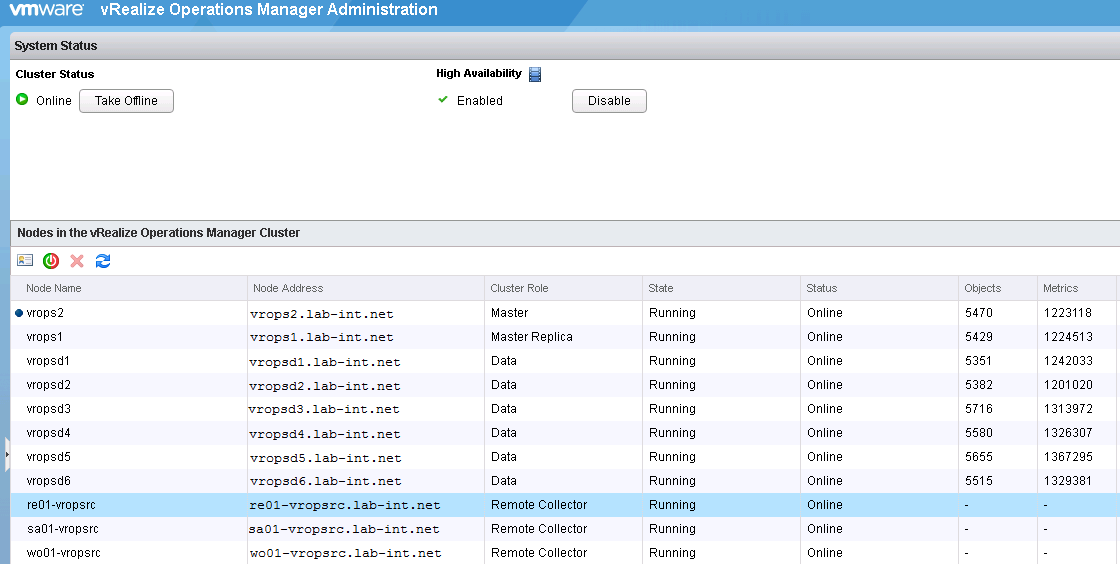
2. Once logged into the admin UI, click the “Take Offline” button at the top.  This will start the graceful shutdown of services running in the cluster.  Depending on the cluster size, this can take some time.

vrops49

3. Once the cluster reads offline, log into the vCenter where the cluster resides and begin shutting down the nodes, starting with the datanodes, master replica, and lastly the master.  The remote collectors can be shutdown at any time.

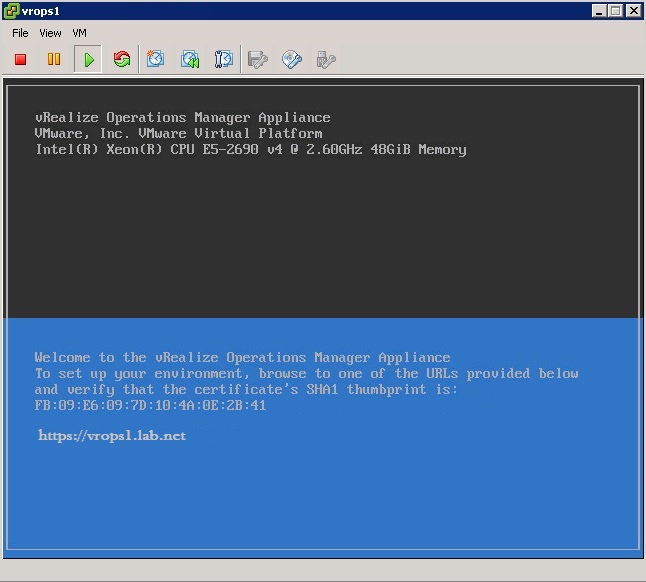
4. When ready, open a VM console to the master VM and power it on.  Watch the master power up until it reaches the following splash page example.  It may take some time, and SUSE may be running a disk check on the VM.  Don’t touch it if it is, just go get a coffee as this may take an hour to complete.
The proper startup sequence is as follows:

  • FIRST: The master
  • SECOND: The master replica
  • LAST: The data nodes, remote collectors

vrops4

5. Power on the master replica, and again wait for it to fully boot-up to the splash page example above.  Then you can power on all remaining data nodes altogether.

6. Log into the admin ui…. https://<vrops-master>/admin/

7. Once logged in, all the nodes should have a status of offline and in a state of Not running before proceeding.  If there are nodes with a status of not available, the node has not fully booted up.

vrops50

8. Once all nodes are in the preferred state, bring the cluster online through the admin UI.

Alternatively…..

If there was a need to shutdown the cluster from the back-end using the same sequence, but you should always use the Admin UI when possible:

Proper shutdown:

  • FIRST: The data nodes
  • SECOND: The master replica
  • LAST: The master

You would need to perform the following command to bring the slice offline.  Each node is considered to be a slice.  You would do this on each node.

# service vmware-vcops-web stop; service vmware-vcops-watchdog stop; service vmware-vcops stop; service vmware-casa stop
$VMWARE_PYTHON_BIN /usr/lib/vmware-vcopssuite/utilities/sliceConfiguration/bin/vcopsConfigureRoles.py --action=bringSliceOffline --offlineReason=troubleshooting

If there was a need to startup the cluster from the back-end using the same sequence, but you should always use the Admin UI when possible:

Proper startup:

  • FIRST: The master
  • SECOND: The master replica
  • LAST: The data nodes, remote collectors

You would need to perform the following command to bring the slice online.  Each node is considered to be a slice.  You would do this on each node.

# $VMWARE_PYTHON_BIN $VCOPS_BASE/../vmware-vcopssuite/utilities/sliceConfiguration/bin/vcopsConfigureRoles.py --action bringSliceOnline
# service vmware-vcops-web start; service vmware-vcops-watchdog start; service vmware-vcops start; service vmware-casa start

If there is a need to check the status of the running services on vROps nodes, the following command can be used.

# service vmware-vcops-web status; service vmware-vcops-watchdog status; service vmware-vcops status; service vmware-casa status