Part of our goal as a certification program is to create policies that enable you to validate your expertise and show your relevancy in the industry. The recertification policy of a two-year upgrade was in place to help you maintain that relevancy through upgraded certifications and up-to-date skills. Recertification is important enough to create The post VMware Certification: Recertification Is Changing and What It Means to You appeared first on VMware Education Services.
This blog series assumes that the reader has some understanding of how to create a vRealize Operations Manager (vROps) dashboard.
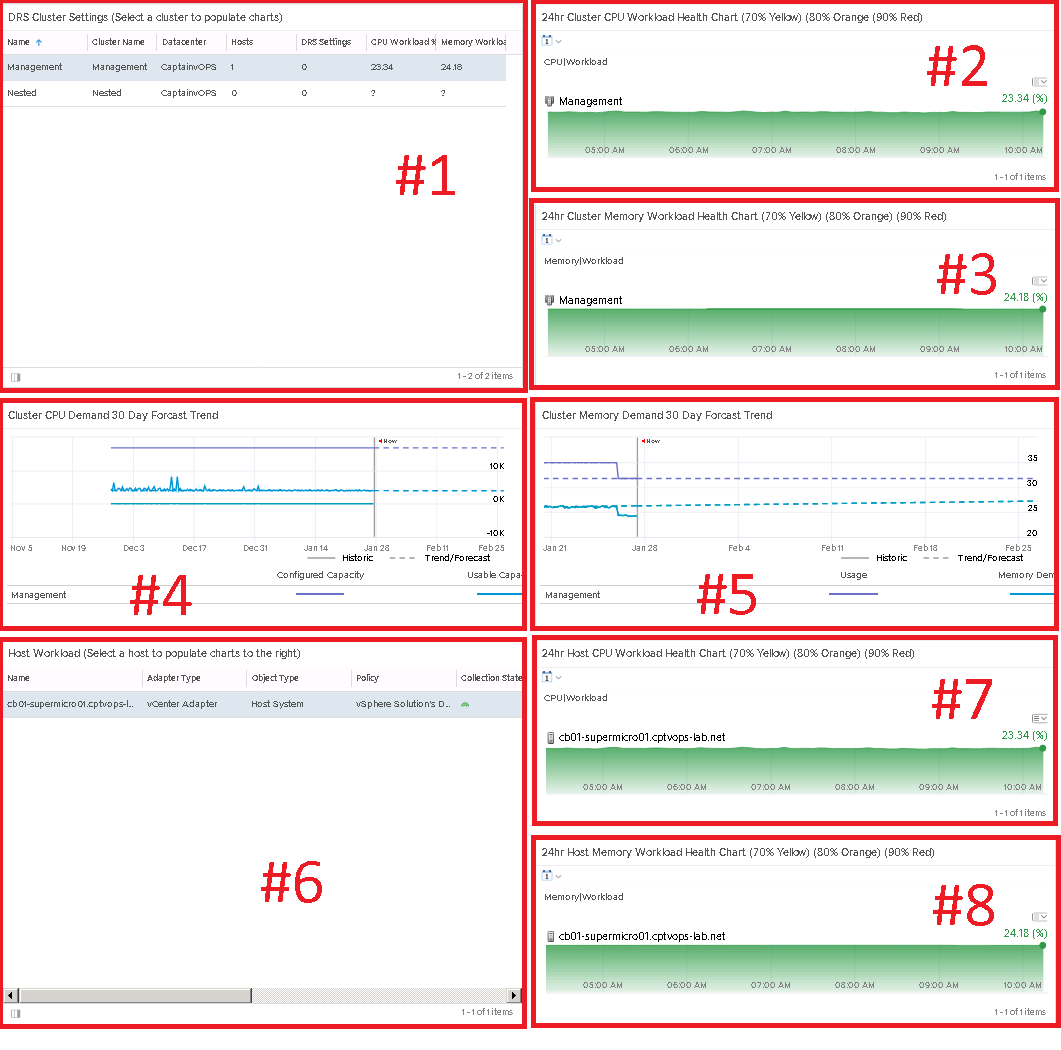
vROps dashboards are made up of what is called widgets. These widgets can either be configured as “self providers”, or can be populated with data by a “parent” widget. Self provider widgets, are configured to individually show specific data. In other words, one widget shows hosts, another shows datastores, and another showing virtual machines, however the widgets will not interact, nor are they dependent of each other. Parent widgets, are configured to provide data from a specific source, and then feed it into other child widgets on the page. This is useful when data is desired to be displayed in different formats of consumption. The dashboard I configured called “vSphere DRS Cluster Health”, does just that. I will break the widgets down to different sections as I walk through the configuration.
Widget #1 – This widget is known as an “object list“, and will be the parent widget of this dashboard. In other words, widgets #2 through #6 rely on the data presented by widget #1. In this case I have the object list widget, configured to show/list the different host clusters in my homelab.
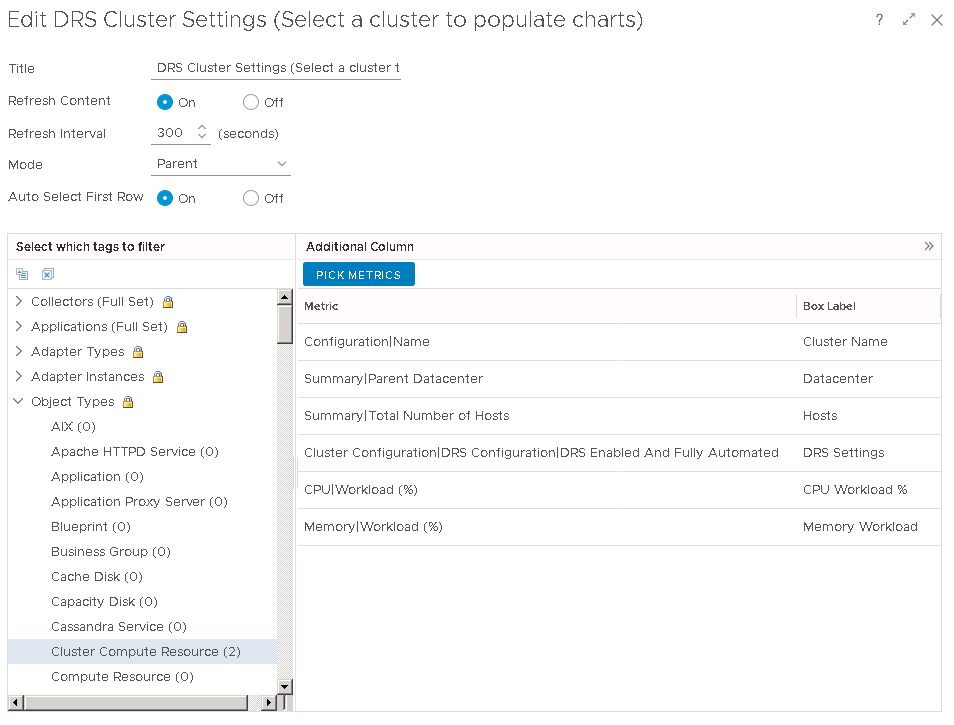
I have given it a title, set refresh content to ON, set the mode to PARENT, and have it set to auto select the first row. In the lower left section “Select which tags to filter”, I have created an environment group in vROps called “Cluster Compute Resource” where I have specified my host clusters. In the lower right box, I have a few metrics selected which I would also like this “object list” widget to show.
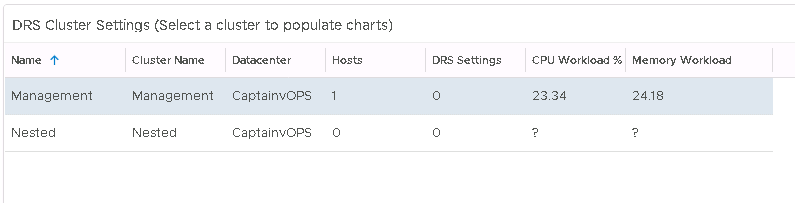
This is just a single esxi homelab, so this won’t look as grand as it would if it were to be configured for a production environment. But each object in this list is select-able, and the cool thing is that each object in this list, when it is selected, will change the other widgets.
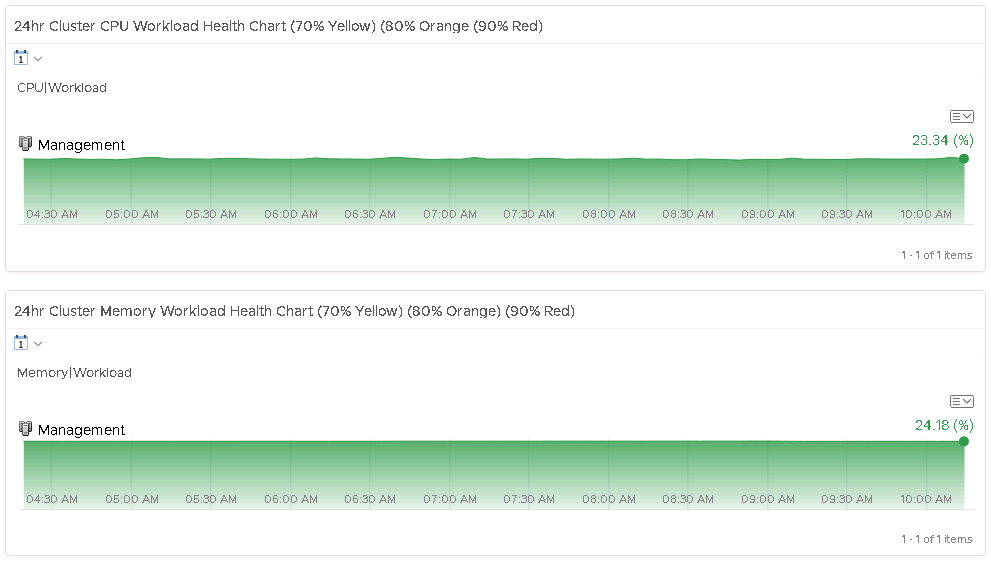
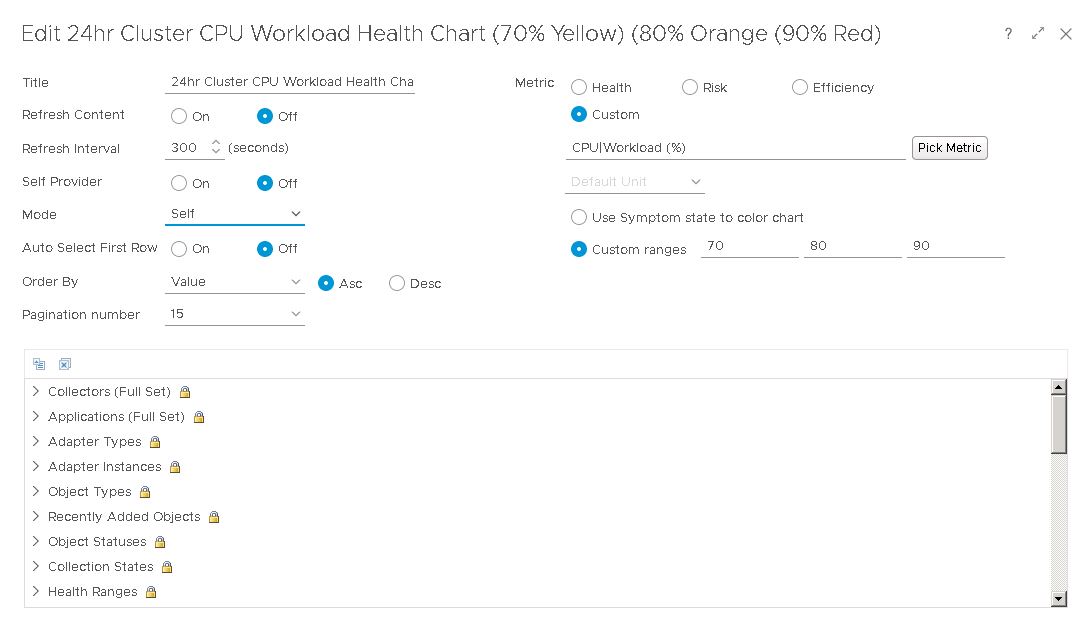
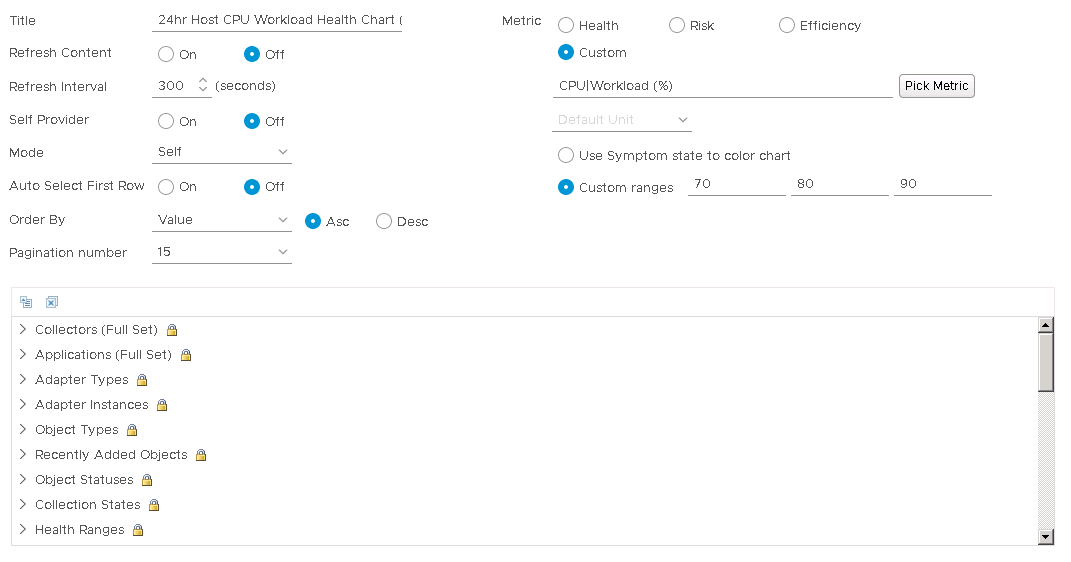
Widgets #2 and #3 are called “health charts”. I have one configured with the metric for cluster CPU workload %, and the other configured with the metric cluster memory workload %. Both configurations are the same, with the exception that one has a custom metric of Cluster CPU Workload %, and the other is configured with the custom metric of Cluster Memory Workload %. I have both configured to show data for the past 24hrs.
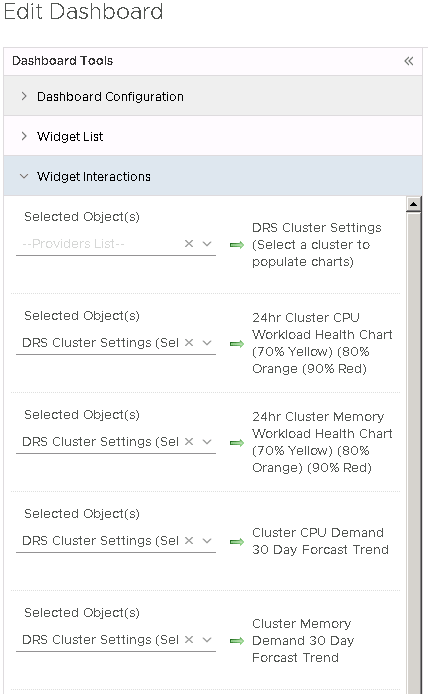
Important: For these two widgets, under “widget interactions“, set both to the first widget: DRS Cluster Settings (Select a cluster to populate charts)
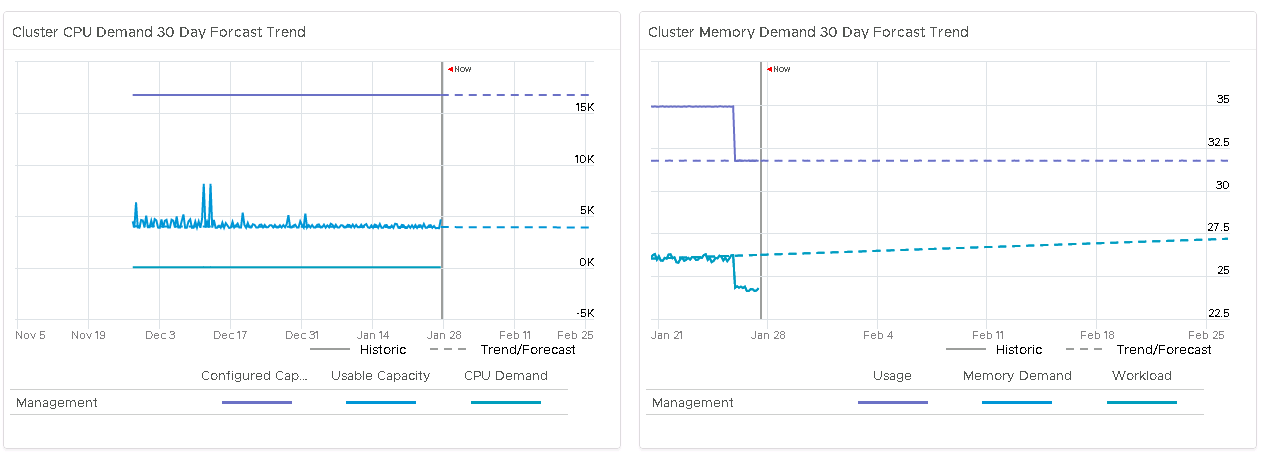
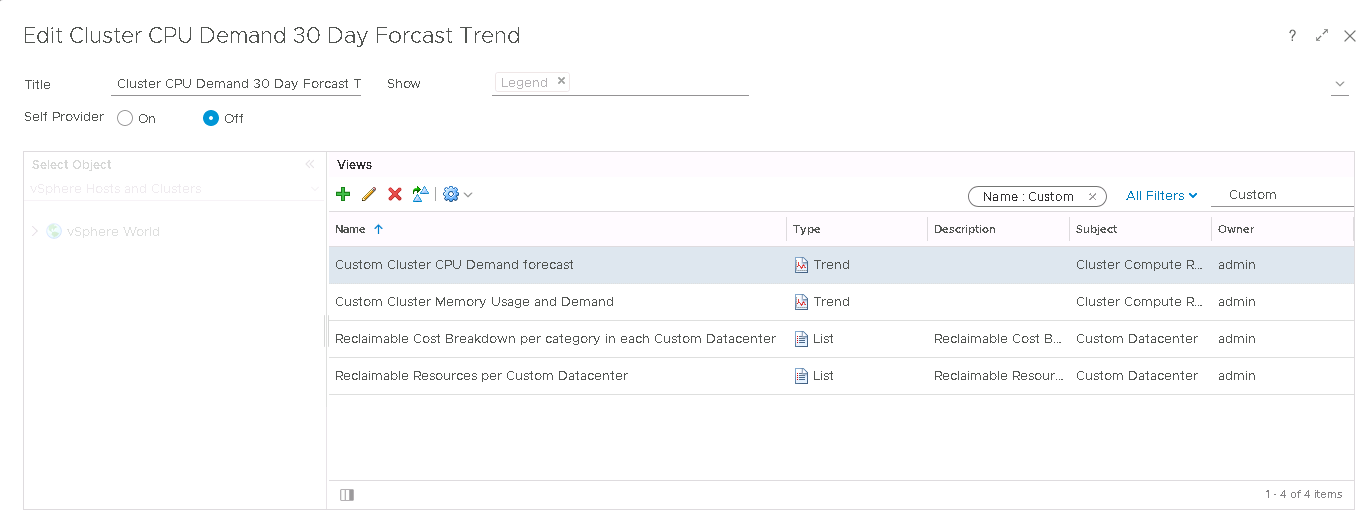
Widgets #4 and #5 are called “View widgets”. One is configured to show the current Cluster CPU Demand, and the other is configured to show the current Cluster Memory Demand. These are also configured to forecast out for 30 days, so that we can potentially see if the clusters will run short of capacity in the near future, allowing us the ability to add more compute to the cluster preemptively.
These are two custom “views” I created. I will go over how to create custom views in a future post, but for those who already know how, I have one “widget view” configured with each.
Important: For these two widgets, under “widget interactions“, set both to the first widget: ” DRS Cluster Settings (Select a cluster to populate charts) ” like we did above.
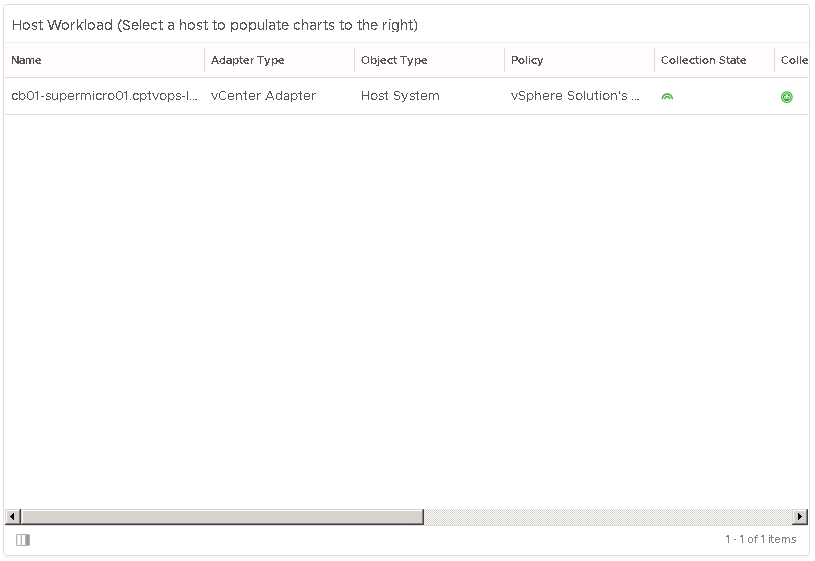
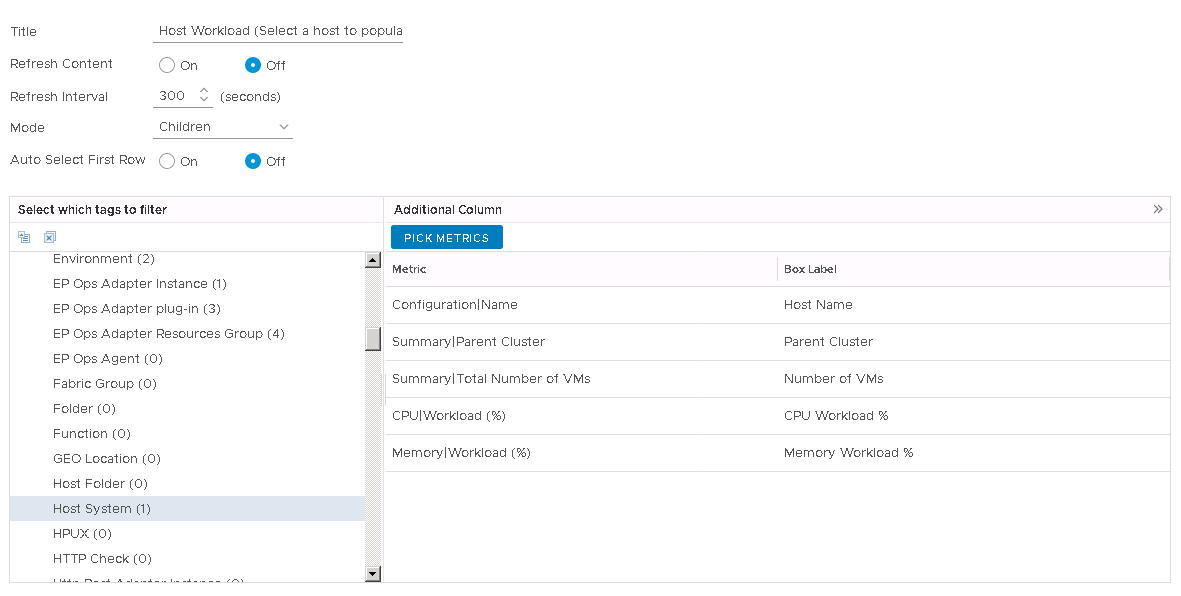
Widget #6 is another “Object List” widget, and I have this configured to show only host systems, of the selected cluster in Widget #1. Widget #6 will be used to provide data to Widgets #7 and #8.
I also have certain Host System metrics selected here so that I can get high level information of the hosts in the cluster.
Important: For these two widgets, under “widget interactions“, set both to the first widget: ” DRS Cluster Settings (Select a cluster to populate charts)” like we did above.
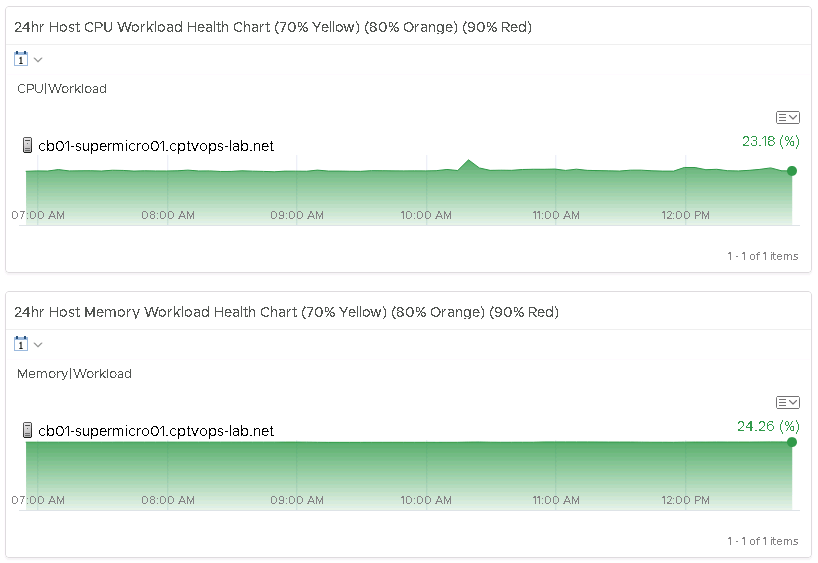
The final two widgets, #7 and #8, are also called “health chart” widgets. One is configured using the metric host system CPU workload %, and the other is configured using the metric host system Memory workload %. I have both configured to show data for the past 24hrs.
Important: For these two widgets, under “widget interactions“, set both to widget #6, in this example: Host Workload (select a host to populate charts to the right).
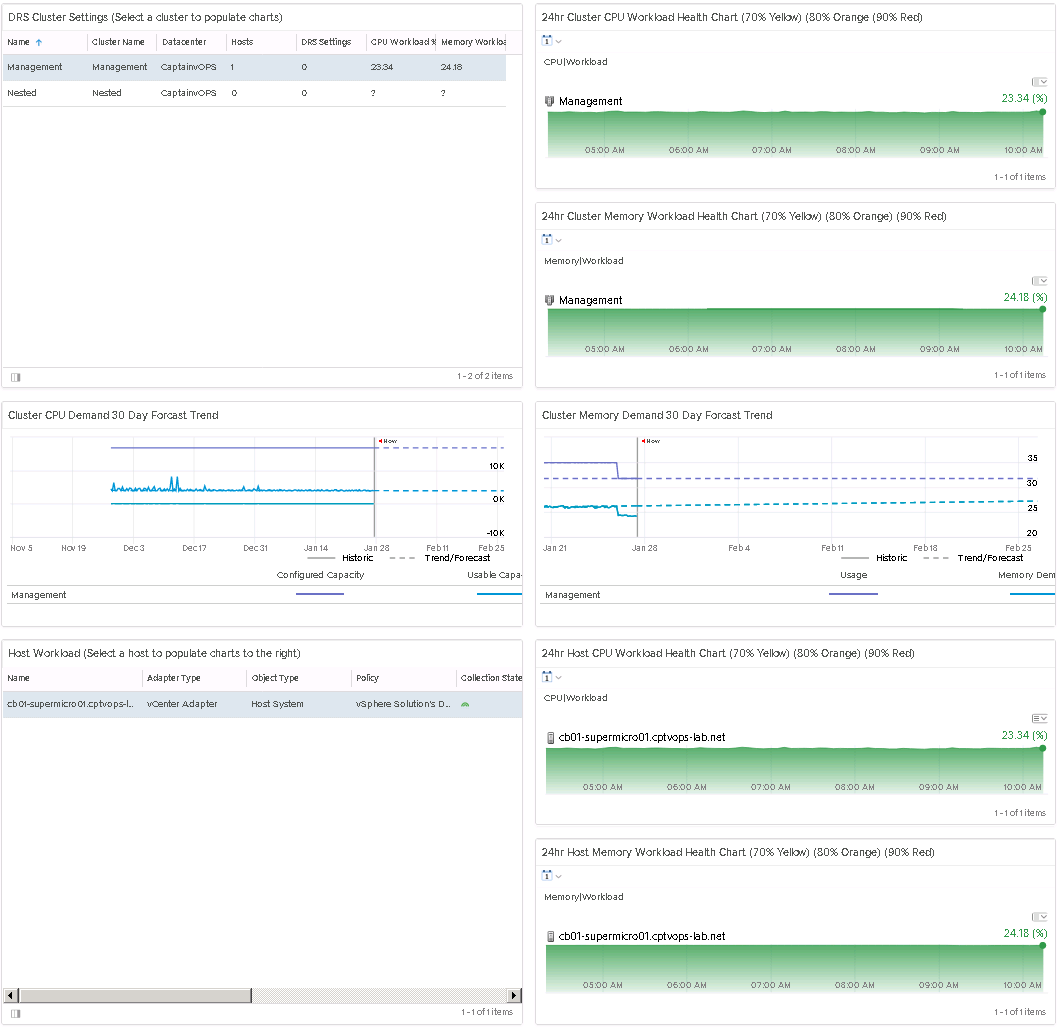
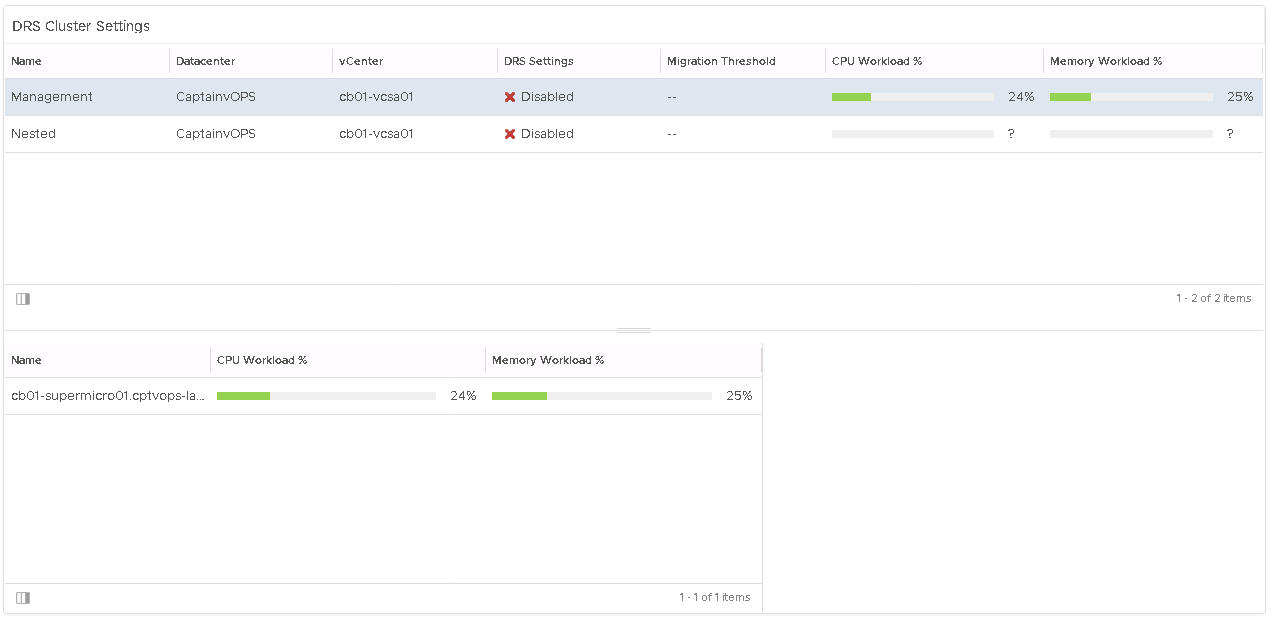
A few weeks ago, I had a customer ask me about creating a custom vROPs dashboard for them, so that they could monitor the health of the clusters. For those of you who were unaware, VMware has packaged vROPs with a widget called “DRS Cluster Settings”, that does something similar, and look like this:
The idea behind this widget, is that it will list all clusters attached to the vCenter, giving you high level information such as the DRS setting, and the memory and CPU workload of the cluster. With a cluster selected, in the lower window you will see all of the ESXi hosts apart of that cluster, with their CPU and memory workloads as well. If you are interested in this widget, it can be added when creating a new custom dashboard, and you will find it at the bottom of the available widget list.
While this widget gave me some high level detail, it wasn’t exactly what I wanted, so I decided to create my own to give a deeper level of detail. I used the widget above as a template, and went from there.
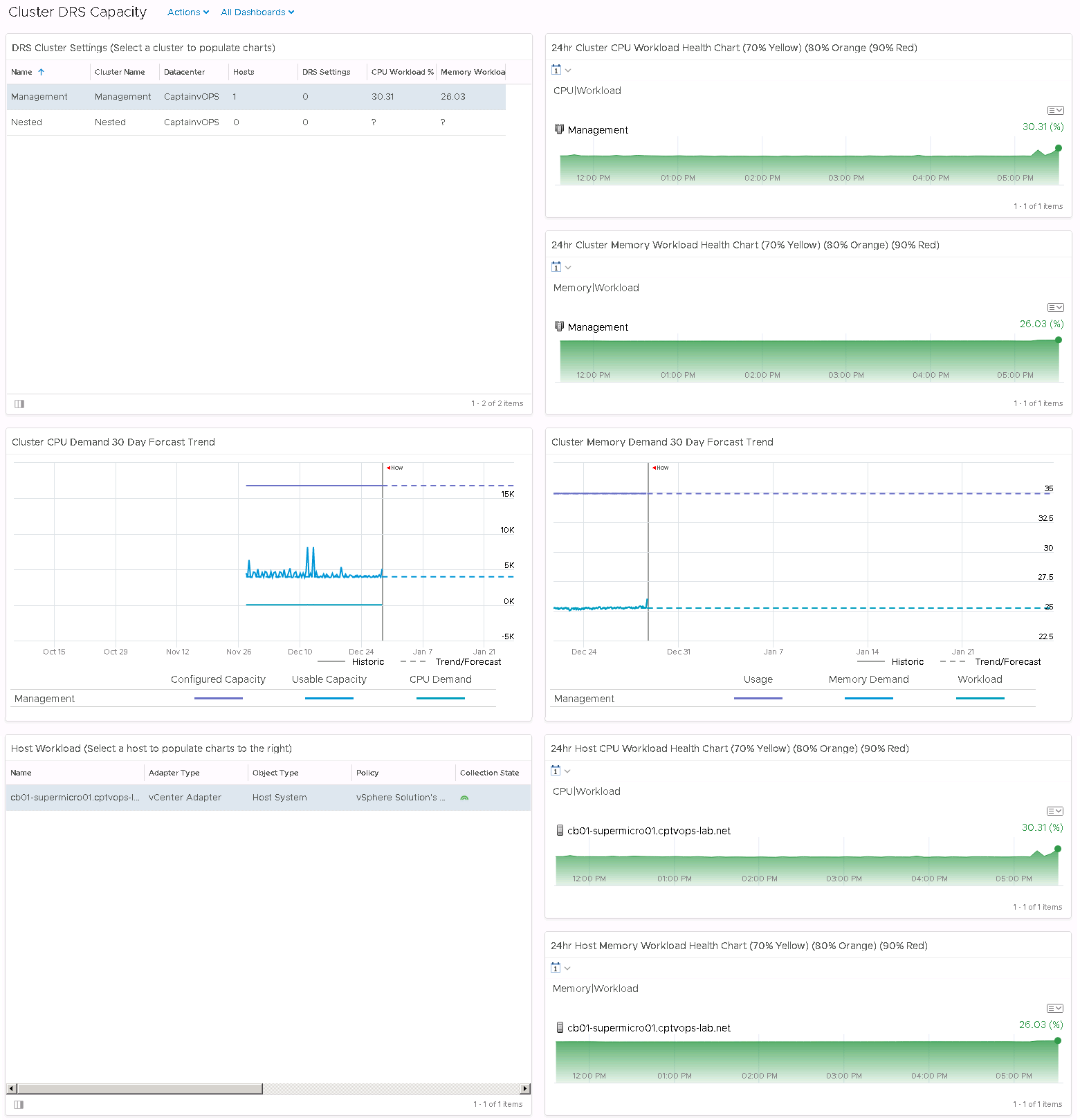
This dashboard gives me the current memory and CPU workloads for each cluster in the upper left box, and once a cluster selected, it populates the right, and two middle boxes with data. The top right boxes gives me the memory and CPU workload for the past 24hrs, and the two middle boxes gives me the CPU demand and memory demand forecasts for the next 30 days.
Much like the widget mentioned above, by selecting a cluster in the upper left side, in the lower left side there is a box that will populate with all hosts attached to that cluster. Once a host is selected, in the lower right box, we also get a memory and CPU workload for the past 24hrs for the selected host. This dashboard is slightly larger than a page will allow, so unfortunately users would need to scroll down to see all of the data, but I believe it gives an outstanding birds-eye view of the clusters DRS capabilities.
In my next blog post, I’ll break down what’s involved in creating this dashboard.
Looking to test-drive vSAN? Get started with this 30 minute intro hands-on lab to learn about deduplication and compression, RAID 5/6 erasure encoding and more.
Announcing General Availability of VMware Cloud Foundation 3.5 At VMworld EMEA 2018 VMware announced the upcoming VMWare Cloud Foundation 3.5 release. Today, it’s my pleasure to announce that this latest release on our best in class private cloud solution has reached general availability. We’ve introduced a number of new features in this new release, and The post Announcing VMware Cloud Foundation 3.5 General Availability appeared first on Cloud Foundation.
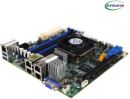
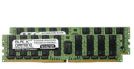
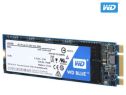
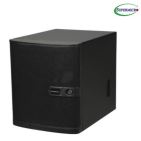
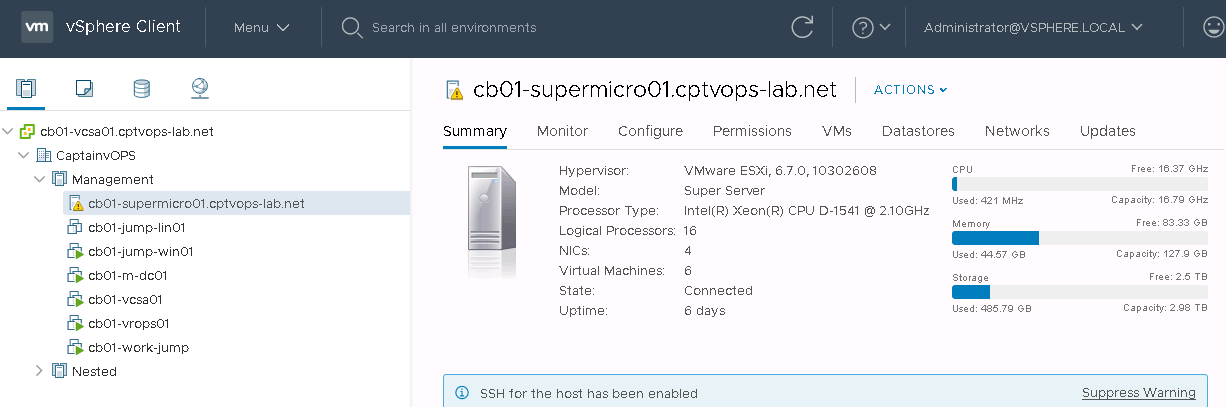
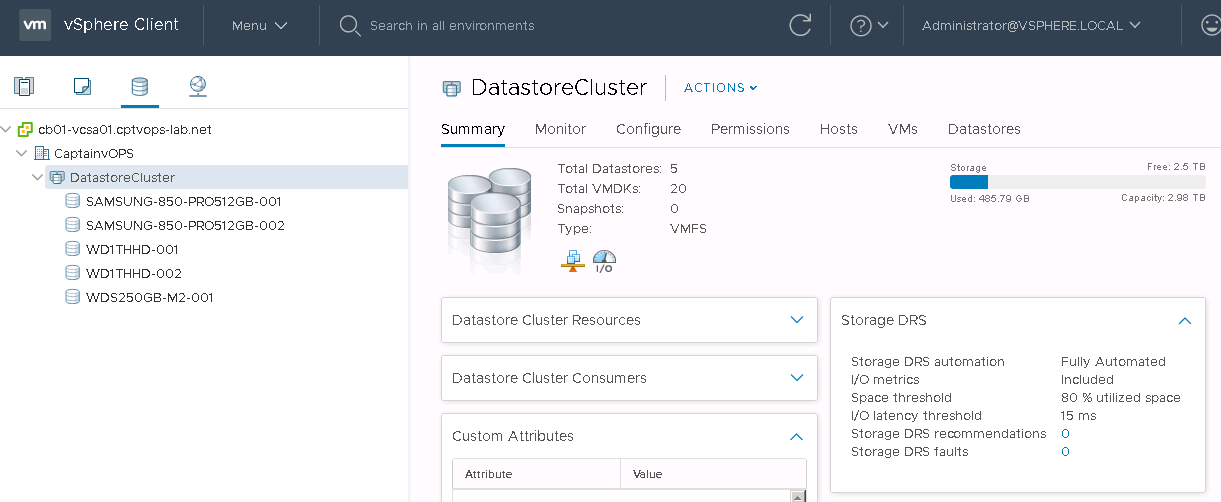
The very long over due followup post to my The Home Lab entry made earlier this year. I did recently purchase another 64GB (2x 32GB) Diamond Black DDR4 memory to bring my server up to 128GB. I had some old 1TB spinning disks I installed in the box for some extra storage as well, although I will phase them out with more SSDs in the future. So as a recap, this is my setup now:
Motherboard
SUPERMICRO MBD-X10SDV-TLN4F-O Mini ITX Server Motherboard Xeon processor D-1541 FCBGA 1667
Initially when I built the lab, I decided to use VMware workstation, but I recently just rebuilt it, installing ESXi 6.7 as the base. Largely for better performance and reliability. For the time being this will be a single host environment, but keeping with the versioning, vCSA and vROps are 6.7 as well. Can an HTML 5 interface be sexy? This has come a long way from the flash client days.
I decided against fully configuring this host as a single vSAN node, just so that I can have the extra disk. However, when I do decide to purchase more hardware and build a second or third box, this setup will allow me to grow my environment, and reconfigure it for vSAN use. Although I am tempted to ingest the SSDs into my NAS, carve out datastores from it and not use vSAN, at least for the base storage.
Networking is flat for now, so there’s nothing really to show here. As I expand and add a second host, I will be looking at some networking hardware, and have my lab in it’s own isolated space.
Now that I am in the professional services space, working with VMware customers, I needed a lab that was more production. I’m still building out the lab so I’ll have more content to come.
Supermicro kits such as the E200-8D is a very popular platform amongst the VMware community and with powerful Xeon-based CPUs and support for up to 128GB of memory, it is perfect for running a killer vSphere/vSAN setup! Earlier this Fall, Supermicro released a “big daddy” version to the E200-8D, dubbed E300-9D and specifically, I want to focus […]
Thanksgiving… a time for friends, family, food… and Amazon re:Invent! In just one short week VMware {code} will be headed to Las Vegas, Nevada, to take part in Amazon’s annual conference, re:Invent! From Monday November 26 to Thursday November 29th, the VMware {code} booth will be running Power Sessions at the Aria at The Quad.







You must be logged in to post a comment.