Upgrading VMware vCloud Director to 8.20

This document was creating while upgrading an existing vCloud Director 8.10.1 environment with an Oracle database, and multiple cloud cells.

After downloading the latest version of vCloud Director 8.20 for service providers,  SCP the upgrade to all VCD cells.  You can review the release notes here.

What you’ll need to do before getting started:

  • SSH into each cell and ‘sudo su -‘ to root
  • move the bin to the root directory
  • chmod +x vmware-vcloud-director-distribution-8.20.0-5515092.bin
  • I strongly advise opening an support request with VMWare before proceeding with the upgrade.  You may not need it, but it comes in handy having one logged beforehand.

Maintenance – Shutdown the cells

1. Open an SSH session into each VCD cell


2. Sudo to root using the following command:

# sudo su -

3. Change to the vcloud-director/bin/  directory

# cd /opt/vmware/vcloud-director/bin/

4. Use the Cell Management Tool to quiesce the cell.  This will move active jobs over to another cell.

# ./cell-management-tool -u administrator cell --quiesce true

5. Get the status of any running jobs on each cell.   ** Verify Job count = 0   |  Is Active = false  | In Maintenance Mode  = false

# ./cell-management-tool -u administrator cell --status

Example Output:

vcd6

6. Shut the cell down to prevent any other jobs from becoming active on the cell.  This command will also allow active jobs to cleanly finish

# ./cell-management-tool -u administrator cell --shutdown

Example Output:

vcd7

7. Get a status on the cells to be sure everything is down

# service vmware-vcd status

8. Now complete steps 4 – 7 on the remaining cells to cleanly shutdown the vCD service on all cells.

9. Here is where I would shutdown the VCD cell virtual machines, and database to get a clean snapshot while the environment is powered off

10. Once the database virtual machine is fully up, power-on the VCD cell virtual machines.

11. Log back into the vCloud Director environment to verify functionality before the upgrade.

12. SSH to all VCD cell virtual machines and use the following command to stop the service again on each cell.  Here there is an assumption made that we are now well within a maintenance window.

# service vmware-vcd stop

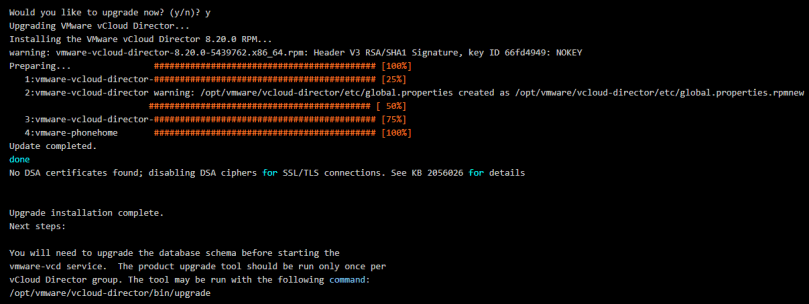
Starting The vCloud Director Upgrade

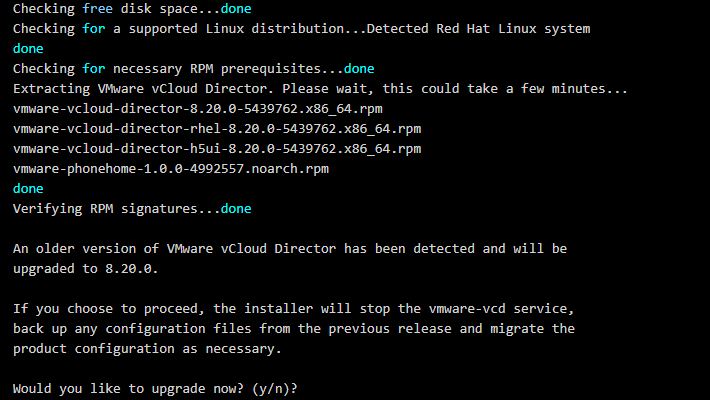
1. Start with the first cell, and run the first half of the upgrade.  DO NOT upgrade the database yet.

# ./vmware-vcloud-director-distribution-8.20.0-5515092.bin

Example Output:
vCD1

2. Respond with: y

Example Output:

vcd2

3. Stop.  Now you need to run steps one and two on the rest of the vCloud Director Cells, and install the upgrade.  Do them one at a time.  DO NOT upgrade the database yet.

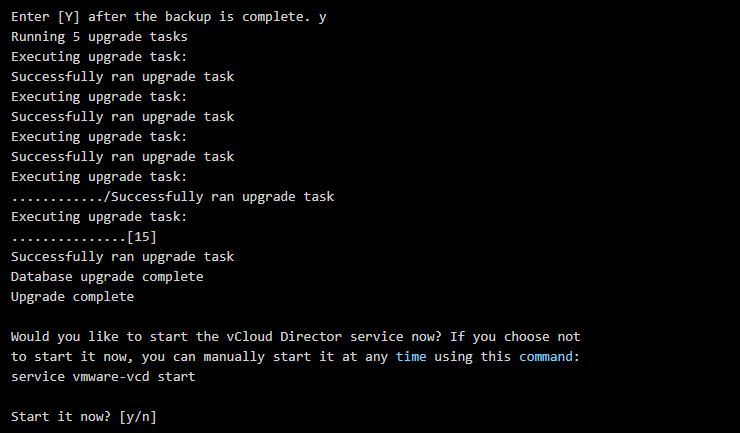
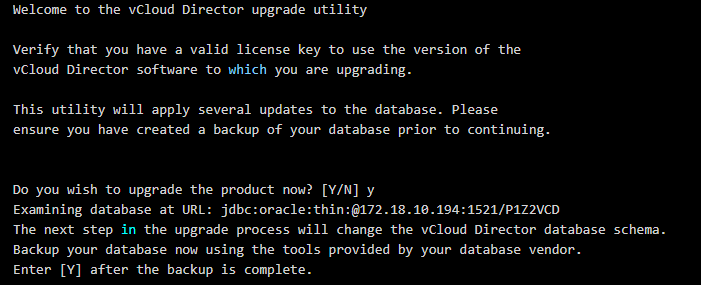
4. Now that all cells have been upgraded, go back to the first cell and run the database upgrade.

# ./opt/vmware/vcloud-director/bin/upgrade

Example vCD Database upgrade output:
vcd3

5. Respond with: y

vcd4

6. Start the the first cell by responding with ‘y’

vcd8

7. Manually start the VCD service on the remaining cells

# service vmware-vcd start

8. Get the VCD status of all cells by running the following command on each

# service vmware-vcd status

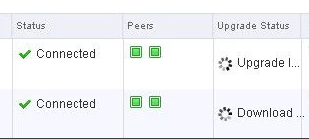
9. Log into the cell, and watch/wait for vCenter to sync with vCD under the Manage & Monitor section → vCenters.  This normally takes 30 minutes or so.  Once done the status will change from a spinning circle to a green check mark.

10. Run some environment validation tests to be sure everything is working and is proper, and then delete those snapshots taken earlier.


 

Closing Out VMWORLD 2017

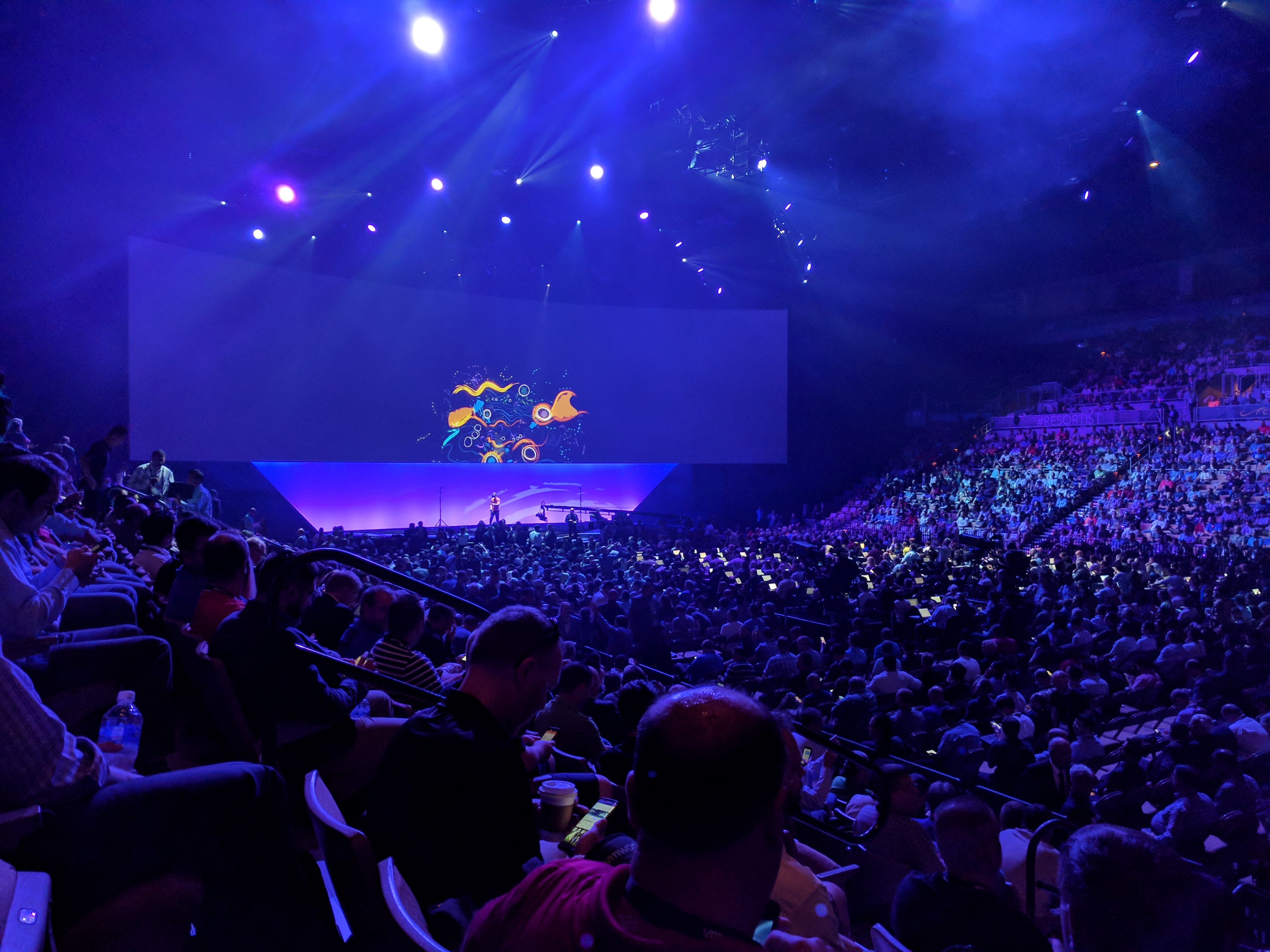
vmware’s annual party was held at the T-Mobile arena in Las Vegas this year.

Great entertainment, however the convention ran out of food pretty quick at several kiosks.  This year’s entertainment was a band from New Jersey called Bleachers who put on a decent show.

The main headliner for the night was Blink-182.  Certainly not the band I remember growing up, but they hit a lot of the songs from my youth.

On Thursday, the last day of the conference, vmware invited several guests on stage to discuss the future of science and technology.

The first speaker discussed the advancement of facial recognition, and the desire to track human emotions.  The ability to have artificial intelligence (A.i) understand empathy, and the ability to deliver digital content based on the emotional preferences of the viewer.  Although this session was cool, I personally feel that this technology is dangerous to pursue.

  • Delivering digital content to the viewer based on their viewing habits feels as if it would lead us to an era where people become emotionally numb.  If people are not shown content that exposes them to the full spectrum of emotions, it feels as if society would become even more disconnected from the world around them.
  • Giving A.I the ability to show empathy, and more huminized emotions may not be a bad thing if the proper requlations are in place.  I think as we become more escustomed to having our robotic companions, this would certainly make thss frustrating to use.

The second speaker discussed the advancement in prosthetics.  This was probably the most exciting keynote I’ve watched.

  • The speaker discussed his double leg amputation in his early twenties due to frostbite while mountain climbing.  He discussed his research at MIT where not only did he design his own prosthetics, but began a journey with colleagues that will ultimately change the future of prosthetics.  They identified a problem with the current generation and the lack of true innovation.
  • The speaker also discussed the crude method surgeons still currently use that prevents the rewiring of the human body, to feel the prosthetic, and to be able to flex and use it as if it were a real limb.  He then went on to show a new surgical procedure that allows the human body to do just that, and it was truly inspiring.

The final speaker of the keynote was a pediatric surgeon discussing the advancement of surgical “batting practice” where the teams practicing surgical procedures on patients is now finally becoming a thing of the past, and instead surgeons have teamed up with Hollywood special affects organizations.

  • This partnership has allowed the creation of life like surgical dummies that allows surgeons to practice in preparation for the real thing.  This allows surgeons to tackle complex cases, theories procedures, and then order these surgical dummies to suit these theories, and the patients specific medical condition.
  • They can then perform the multiple procedures, attend after action meetings to discuss, and ultimately find the best surgical solution for the patient.  This ultimately allows the surgeon to discuss these findings with families before even asking them to come to the hospital for the procedure, giving them the confidence that the surgical teams have practiced of their child’s specific condition.

VMware, Pivotal and Google Cloud Collaborate to…

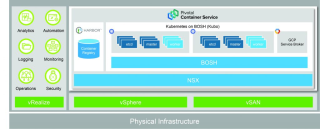
VMware, Pivotal and Google Cloud Collaborate to Unveil New Kubernetes-based Container Service – Pivotal Container Service (PKS)

VMware, Pivotal and Google Cloud Collaborate to…

By Paul Fazzone, GM, Cloud-Native Apps, VMware The Importance of Custom Application Development Digital disruption is fueling new business models. Whether it’s mobile banking, personalized retail, smart medicine or connected cars, custom applications have come to the fore and are critical to customer brand experience and revenue generation in the modern enterprise. To enable this digital The post VMware, Pivotal and Google Cloud Collaborate to Unveil New Kubernetes-based Container Service –…Read More


VMware Social Media Advocacy

VMware Cloud on AWS Technical Overview

VMware Cloud on AWS Technical Overview

VMware Cloud on AWS Technical Overview

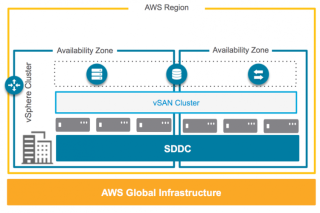
Yesterday we launched the VMware Cloud on AWS service. VMware Cloud on AWS allows you to run your applications across private, public, and hybrid cloud environments based on VMware vSphere, with optimized access to AWS services. The Cloud SDDC consists of vSphere, NSX and vSAN technology to provide you a familiar environment which can be […] The post VMware Cloud on AWS Technical Overview appeared first on frankdenneman.nl .


VMware Social Media Advocacy

Understanding VMware AppDefense: A Tom Corn…

Understanding VMware AppDefense: A Tom Corn Perspective

Understanding VMware AppDefense: A Tom Corn…

VMware AppDefense is a new security solution that allows organizations to create least privilege environments around their applications running in virtualized or cloud systems, a key feature according to VMware’s senior vice president for security products, Tom Corn. Watch VMware’s Tom Corn illustrate how VMware AppDefense significantly enhances application security when working across clouds in this light board presentation.


VMware Social Media Advocacy

VMWORLD 2017 is off to a great start

VMware Unveils New Security Model VMware AppDefense ( Link Here ) .  vmware also had several partners join them on stage to discuss how they use vmware’s portfolio of platforms, including the Red Cross.  The Red Cross discussed efforts underway in Texas to help those affected by the storm.  Finishing out the presentation, vmware hinted at more exciting announcements tomorrow when Michael Dell joins the stage.

Goodbye, vSphere Web Client!

Goodbye, vSphere Web Client!

Goodbye, vSphere Web Client!

VMware plans to deprecate the Flash-based vSphere Web Client with the next numbered release (not update release) of vSphere. The next version of vSphere will be the terminal release for which vSphere Web Client will be available. The vSphere GUIs, including the vSphere Web Client and HTML5-based vSphere Client, are tools that are used every day The post Goodbye, vSphere Web Client! appeared first on VMware vSphere Blog .


VMware Social Media Advocacy

Upgrading NSX from 6.2.4 to 6.2.8 In a vCloud Director 8.10.1 Environment

We use NSX to serve up the edges in vCloud Director environment currently running on 8.10.1.  One of the important caveats to note here, that when you do upgrade an NSX 6.2.4 appliance in this configuration, you will no longer be able to redeploy the edges in vCD until you upgrade and redeploy the edge first in NSX.  Then and only then will the subsequent redeploys in vCD work.  The cool thing about that though, is VMware finally has a decent error message that displays in vCD if you do try to redeploy an edge before upgrading it in NSX, you’d see an error message similar to:

—————————————————————————————————————–

“[ 5109dc83-4e64-4c1b-940b-35888affeb23] Cannot redeploy edge gateway (urn:uuid:abd0ae80) com.vmware.vcloud.fabric.nsm.error.VsmException: VSM response error (10220): Appliance has to be upgraded before performing any configuration change.”

—————————————————————————————————————–

Now we get to the fun part – The Upgrade…

A little prep work goes a long way:

  • If you have a support contract with VMware, I HIGHLY RECOMMEND opening a support request with VMware, and detail with GSS your upgrade plans, along with the date of the upgrade.  This allows VMware to have a resource available in case the upgrade goes sideways.
  • Make a clone of the appliance in case you need to revert (keep powered off)
  • Set host clusters DRS where vCloud Director environment/cloud VMs are to manual (keeps VMs/edges stationed in place during upgrade)
  • Disable HA
  • Do a manual backup of NSX manager in the appliance UI

Shutdown the vCloud Director Cell service

  • It is highly advisable to stop the vcd service on each of the cells in order to prevent clients in vCloud Director from making changes during the scheduled outage/maintenance.  SSH to each vcd cell and run the following in each console session:
# service vmware-vcd stop
  • A good rule of thumb is to now check the status of each cell to make sure the service has been disabled.  Run this command in each cell console session:
# service vmware-vcd status
  • For more information on these commands, please visit the following VMware KB article: KB1026310

Upgrading the NSX appliance to 6.2.8

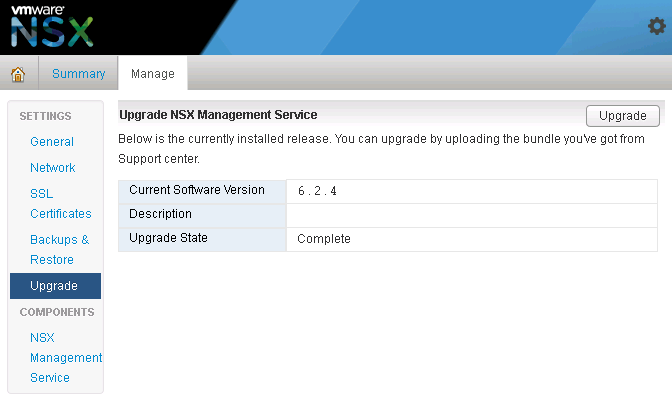
  1. Log into NSX manager and the vCenter client
  2. Navigate to Manage→ Upgrade

nsx4

  1. Click ‘upgrade’ button
  2. Click the ‘Choose File’ button
  3. Browse to upgrade bundle and click open
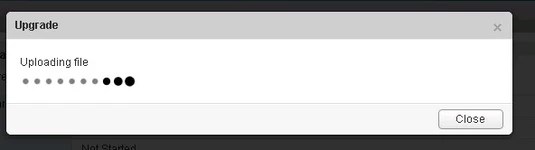
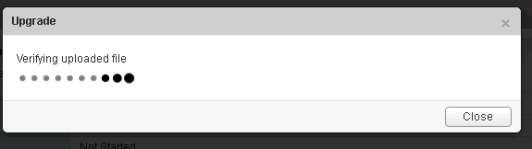
  4. Click the ‘continue button’, the install bundle will be uploaded and installed.


nsx1

nsx2

  1. You will be prompted if you would like to enable SSH and join the customer improvement program
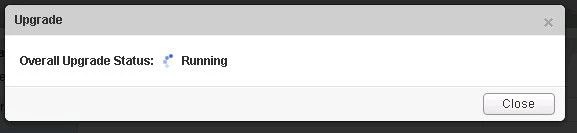
  2. Verify the upgrade version, and click the upgrade button.

nsx5

  1. The upgrade process will automatically reboot the NSX manager vm in the background. Having the console up will show this.  Don’t trust the ‘uptime’ displayed in the vCenter for the VM.
  2. Once the reboot has completed the GUI will come up quick but it will take a while for the NSX management services to change to the running state. Give the appliance 10 minutes or so to come back up, and take the time now to verify the NSX version. If using guest introspection, you should wait until the red flags/alerts clear on the hosts before proceeding.
  3. In the vSphere web client, make sure you see ‘Networking & Security’ on the left side.  If it does not show up, you may need to ssh into the vCenter appliance and restart the web service.  Otherwise continue to step 12.
# service vsphere-client restart

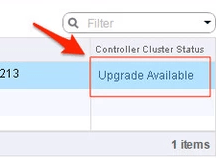
12. In the vsphere web client, go to Networking and Security -> Installation and select the Management Tab.  You have the option to select your controllers and download a controller snapshot.  Otherwise click the “Upgrade Available” link.

nsx8

13. Click ‘Yes’ to upgrade the controllers.  Sit back and relax.  This part can take up to 30 minutes.  You can click the page refresh in order to monitor progress of the upgrades on each controller.

nsx9

14.  Once the upgrade of the controllers has completed, ssh into each controller and run the following in the console to verify it indeed has connection back to the appliance

# show control-cluster status

15. On the ESXi hosts/blades in each chassis, I would run this command just as a sanity check to spot any NSX controller connection issues.

 esxcli network ip connection list | grep 1234
  • If all controllers are connected you should see something similar in your output

nsx10

  • If controllers are not in a healthy state, you may get something similar to this next image in your output.  If this is the case, you can first try to reboot the controller.  If that doesn’t work try a reboot.  If that doesn’t work…..weep in silence. Then call VMware using the SR I strongly suggested creating before the upgrade, and GSS or your TAM can get you squared away.

nsx11

16.  Now in the vSphere web client, if you go back to Network & Security -> Installation -> Host Preparation,  you will see that there in an upgrade available for the clusters.  Depending on the size of your environment, you may choose to do the upgrade now or at a later time outside of the planned outage.  Either way you would click on the target cluster ‘Upgrade Available’ link and select yes.  Reboot one host at a time that way the vibs are installed in a controlled fashion. If you simply click resolve, the host will attempt to go into maintenance mode and reboot.

17. After the new vibs have been installed on each host, run the following command to be sure they have the new vib version:

# esxcli software vib list | grep -E 'esx-dvfiler|vsip|vxlan'

Start the vCloud Director Cell service

  • On each cell run the following commands

To start:

# service vmware-vcd start

Check the status after :

# service vmware-vcd status
  • Log into VCD and by now the inventory service should be syncing with the underlining vCenter.  I would advise waiting for it to complete, then run some sanity checks (provision orgs, edges, upgrade edges, etc)