We use NSX to serve up the edges in vCloud Director environment currently running on 8.10.1. One of the important caveats to note here, that when you do upgrade an NSX 6.2.4 appliance in this configuration, you will no longer be able to redeploy the edges in vCD until you upgrade and redeploy the edge first in NSX. Then and only then will the subsequent redeploys in vCD work. The cool thing about that though, is VMware finally has a decent error message that displays in vCD if you do try to redeploy an edge before upgrading it in NSX, you’d see an error message similar to:
—————————————————————————————————————–
“[ 5109dc83-4e64-4c1b-940b-35888affeb23] Cannot redeploy edge gateway (urn:uuid:abd0ae80) com.vmware.vcloud.fabric.nsm.error.VsmException: VSM response error (10220): Appliance has to be upgraded before performing any configuration change.”
—————————————————————————————————————–
Now we get to the fun part – The Upgrade…
A little prep work goes a long way:
- If you have a support contract with VMware, I HIGHLY RECOMMEND opening a support request with VMware, and detail with GSS your upgrade plans, along with the date of the upgrade. This allows VMware to have a resource available in case the upgrade goes sideways.
- Make a clone of the appliance in case you need to revert (keep powered off)
- Set host clusters DRS where vCloud Director environment/cloud VMs are to manual (keeps VMs/edges stationed in place during upgrade)
- Disable HA
- Do a manual backup of NSX manager in the appliance UI
Shutdown the vCloud Director Cell service
- It is highly advisable to stop the vcd service on each of the cells in order to prevent clients in vCloud Director from making changes during the scheduled outage/maintenance. SSH to each vcd cell and run the following in each console session:
# service vmware-vcd stop
- A good rule of thumb is to now check the status of each cell to make sure the service has been disabled. Run this command in each cell console session:
# service vmware-vcd status
- For more information on these commands, please visit the following VMware KB article: KB1026310
Upgrading the NSX appliance to 6.2.8
- Log into NSX manager and the vCenter client
- Navigate to Manage→ Upgrade
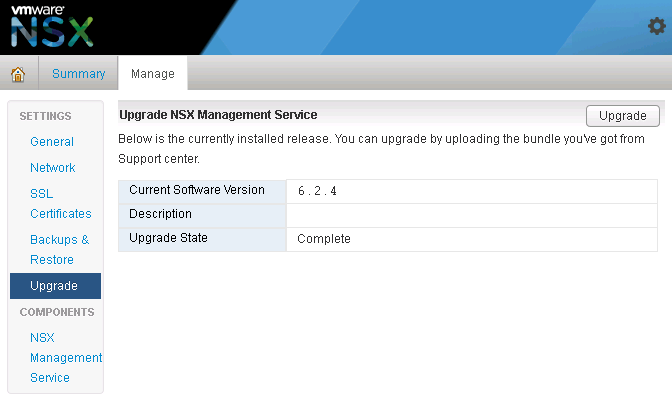
- Click ‘upgrade’ button
- Click the ‘Choose File’ button
- Browse to upgrade bundle and click open
- Click the ‘continue button’, the install bundle will be uploaded and installed.
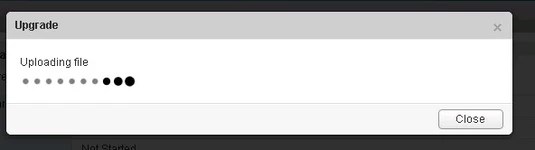
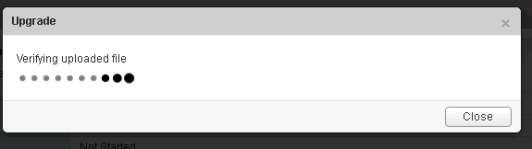
- You will be prompted if you would like to enable SSH and join the customer improvement program
- Verify the upgrade version, and click the upgrade button.
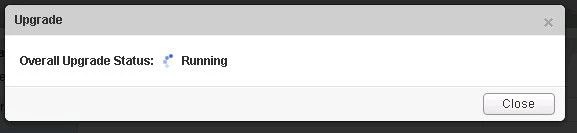
- The upgrade process will automatically reboot the NSX manager vm in the background. Having the console up will show this. Don’t trust the ‘uptime’ displayed in the vCenter for the VM.
- Once the reboot has completed the GUI will come up quick but it will take a while for the NSX management services to change to the running state. Give the appliance 10 minutes or so to come back up, and take the time now to verify the NSX version. If using guest introspection, you should wait until the red flags/alerts clear on the hosts before proceeding.
- In the vSphere web client, make sure you see ‘Networking & Security’ on the left side. If it does not show up, you may need to ssh into the vCenter appliance and restart the web service. Otherwise continue to step 12.
# service vsphere-client restart
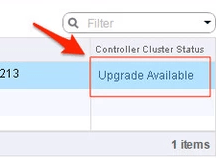
12. In the vsphere web client, go to Networking and Security -> Installation and select the Management Tab. You have the option to select your controllers and download a controller snapshot. Otherwise click the “Upgrade Available” link.
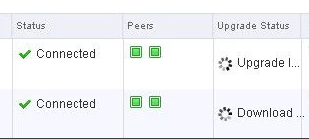
13. Click ‘Yes’ to upgrade the controllers. Sit back and relax. This part can take up to 30 minutes. You can click the page refresh in order to monitor progress of the upgrades on each controller.
14. Once the upgrade of the controllers has completed, ssh into each controller and run the following in the console to verify it indeed has connection back to the appliance
# show control-cluster status
15. On the ESXi hosts/blades in each chassis, I would run this command just as a sanity check to spot any NSX controller connection issues.
esxcli network ip connection list | grep 1234
- If all controllers are connected you should see something similar in your output

- If controllers are not in a healthy state, you may get something similar to this next image in your output. If this is the case, you can first try to reboot the controller. If that doesn’t work try a reboot. If that doesn’t work…..weep in silence. Then call VMware using the SR I strongly suggested creating before the upgrade, and GSS or your TAM can get you squared away.

16. Now in the vSphere web client, if you go back to Network & Security -> Installation -> Host Preparation, you will see that there in an upgrade available for the clusters. Depending on the size of your environment, you may choose to do the upgrade now or at a later time outside of the planned outage. Either way you would click on the target cluster ‘Upgrade Available’ link and select yes. Reboot one host at a time that way the vibs are installed in a controlled fashion. If you simply click resolve, the host will attempt to go into maintenance mode and reboot.
17. After the new vibs have been installed on each host, run the following command to be sure they have the new vib version:
# esxcli software vib list | grep -E 'esx-dvfiler|vsip|vxlan'
Start the vCloud Director Cell service
- On each cell run the following commands
To start:
# service vmware-vcd start
Check the status after :
# service vmware-vcd status
- Log into VCD and by now the inventory service should be syncing with the underlining vCenter. I would advise waiting for it to complete, then run some sanity checks (provision orgs, edges, upgrade edges, etc)






You must be logged in to post a comment.