Removing Old vROps Adapter Certificates

I’ve come across this issue in previous versions of vRealize Operations Manager prior to the 6.5 release, where you delete an adapter for data collection like vSphere, NSX or VCD, and immediately try to re-create it.  Whether it was a timing issue, or vROps just didn’t successfully complete the deletion process, I’d typically get an error that the new adapter instance could not be created because a previous one exists with the same name.  Now there are two ways around this.  You can connect the adapter to whatever instance (VCD, NSX, vSphere) you are trying to collect data from using the IP address, instead of the FQDN (or vice-versa), or you can cleanup the certificate that was left behind manually as I will outline the steps below.

To resolve the issue, delete the existing certificate from Cassandra DB and accept the new certificate re-creating adapter instance.

1. Take snapshots of the cluster

2.  SSH to the master node.  Access the Cassandra DB by running the following command:

 $VMWARE_PYTHON_BIN $VCOPS_BASE/cassandra/apache-cassandra-2.1.8/bin/cqlsh --ssl --cqlshrc $VCOPS_BASE/user/conf/cassandra/cqlshrc

3. Access the database by running the following command:

use globalpersistence;

4.  We will need to look at the entries in the global persistence certificate store.  To do this, first list all the entries in globalpersistence.certificate store by running the following command:

SELECT * from globalpersistence.certificate;

5. From the list, find the desired certificate.  Now select that specific certificate with the following command:

 SELECT * from globalpersistence.certificate where key = 'Certificate.<ThumbprintOfVCCert>' and classtype = 'certificate' ALLOW FILTERING;

For example:

 SELECT * from globalpersistence.certificate where key = 'Certificate.e88b13c9e346633f94e46d2a74182d219a3c98b2' and classtype = 'certificate' ALLOW FILTERING;

6.   The tables which contains the information:

namespace | classtype | key | blobvalue | strvalue | valuetype | version
——————-+—————+——-+—————–+————–+—————–+———

7.  Select the Key which matches the Thumbprint of the Certificate you wish to remove and run the following command:

 DELETE FROM globalpersistence.certificate where key = 'Certificate.<ThumbprintOfVCCert>' and classtype = 'certificate' and namespace = 'certificate';

For example:

 DELETE FROM globalpersistence.certificate where key = 'Certificate.e88b13c9e346633f94e46d2a74182d219a3c98b2' and classtype = 'certificate' and namespace = 'certificate';

8.  Verify that the Certificate has been removed from the VMware vRealize Operations Manager UI by navigating to:

Administration > Certificates

9.  Click the Gear icon on the vSphere Solution to Configure.

10.  Click the icon to create an new instance. Do not remove the existing instance unless the data can be lost.  If the old instance has already been deleted prior to this operation, then this warning can be ignored.

11.  Click Test Connection and the new certificate will be imported.

12.   Upon clicking Save there will be an error stating the Resource Key already exists. Ignore this and click Close and the UI will show Discard Changes?. Click Yes.

13.   Upon clicking Certificates Tab the Certificate is shown for an existing VC Instance.  Now you should have a new adapter configured and collecting.  If you kept the old adapter for the data, it can safely be removed after the data retention period has expired.

Get VM Tools Version with VMware’s PowerCLI

I had an engineer visit me the other day asking if there was an automated way to get the current version of VMtools running for a set of virtual machines, and in this case, it was for a particular customer running in our vCenter.   I said there most certainly was using PowerCLI.

Depending on the size of the environment, the first option here may be sufficient, although it can be an “expensive” query as I’ve noticed it takes longer to return results.  Using PowerCLI, you can connect to the desired vCenter and run the following one-liner to get return output on the console.  Here I was looking for a specific customer in vCloud Director, so in the vCenter I located the customers folder containing the VMs.   Replace the ‘foldername’ inside the asterisks with the desired folder of VMs.  This command would also work in a normal vCenter as well.

Get-Folder -name *foldername* | get-vm | get-vmguest | select VMName, ToolsVersion | FT -autosize

Example output:

vmtools01

You can see that this example that folder has a mix of virtual machines running, some not (no ToolsVersion value returned), and has a mix of VMtools versions running.

What if you just wanted a list of all virtual machines in the vCenter, the whole jungle?

 Get-Datacenter -Name "datacentername" | get-vm | get-vmguest | select VMName, ToolsVersion | FT -autosize

In either case, if you want to redirect output to a CSV add the following to the end of the line

 | export-csv -path "\path\to\file\filename.csv" -NoTypeInformation -UseCulture

Example:

Get-Folder -name *foldername* | get-vm | get-vmguest | select VMName, ToolsVersion | export-csv -path "\path\to\file\filename.csv" -NoTypeInformation -UseCulture


Another method/example of getting the tools version, and probably the fastest is using ‘Get-view’. A much longer string of command-lets, but this would be the ideal method for large environments if a quick return of data was needed, lets say for a nightly script that was least impactful to the vCenter.

 Get-Folder -name *foldername* | Get-VM | % { get-view $_.id } | select name, @{Name=“ToolsVersion”; Expression={$_.config.tools.toolsversion}}, @{ Name=“ToolStatus”; Expression={$_.Guest.ToolsVersionStatus}}

Example Output:

vmtools02

If you are after a list of all virtual machines running in the vCenter, a command similar to this can be used:

 Get-VM | % { get-view $_.id } | select name, @{Name=“ToolsVersion”; Expression={$_.config.tools.toolsversion}}, @{ Name=“ToolStatus”; Expression={$_.Guest.ToolsVersionStatus}}

VMware has put together a nice introductory blog on using get-view HERE

Just like last time, if you want to redirect output to a CSV file just take the following on to the end of the line for either method ie specific folder or entire vCenter:

 | export-csv -path "\path\to\file\filename.csv" -NoTypeInformation -UseCulture


VMware Certified Professional 6 – Data Center Virtualization

VMW-LGO-CERT-PRO-6-DATA-CTR-VIRT

Certificate

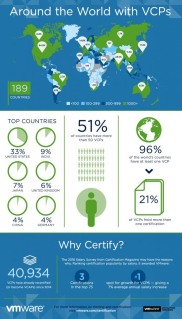
I do apologies for being MIA these past couple of weeks.  Anyone who has taken the VCP exam knows, it can be a brutal test to study for.  I thought it best to keep my head down, and study hard so I can pass the VCP6-DCV exam on the first go around.

As I wait for VMware Education to finalize my records, I will be readying new material to share with my fellow virtualization geeks in the coming weeks ahead.

All the Best,

Cory B.


NEW White Paper: DevOps and Agile Development –…

NEW White Paper: DevOps and Agile Development – A VMware Field Perspective [blogs.vmware.com/accelerate]

NEW White Paper: DevOps and Agile Development –…

DevOps is both a hot topic and an overused term today, leading to an endless stream of contradicting definitions and confusion. Is it a technology? An organizational construct? A combination of the two? It depends on who you ask.


VMware Social Media Advocacy

VMworld 2017 Global Registration is Live!

VMworld 2017 Global Registration is Live! [blogs.vmware.com/vmworld]

VMworld 2017 Global Registration is Live!

Join the industry’s top thought leaders, subject-matter experts and IT professionals at VMworld 2017 to immerse yourself in the latest in cloud infrastructure and digital workspace innovations. At VMworld, you’ll discover the technology, trends, and people like you who are shaping digital business. Registration is now live for both VMworld 2017 US and VMworld 2017 Europe – don’t delay!


VMware Social Media Advocacy