— AMD PBS (**THIS IS OPTIONAL BASED ON YOUR CONFIG**) — PCIe/GFX Lane Configuration – x8 — GFX Lane Speed – Gen 4 — SSD0 – Gen 4 — SSD1 – Gen 4 — SSD2 – Gen 4
— AMD CBS — NBIO Common Options — IOMMU – Enabled — PSPP – Performance — FCH Common Options — AC Power Loss – Previous — SMU Common Options — TjMax – 78
In my next Blog, I will cover my basic network set.
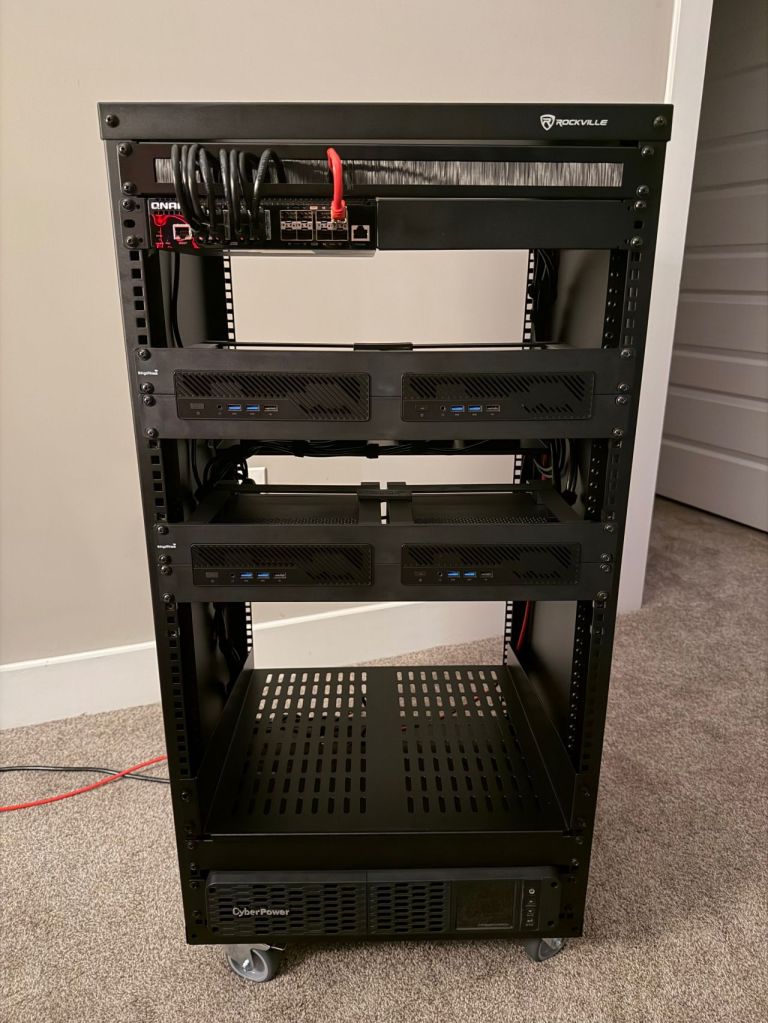
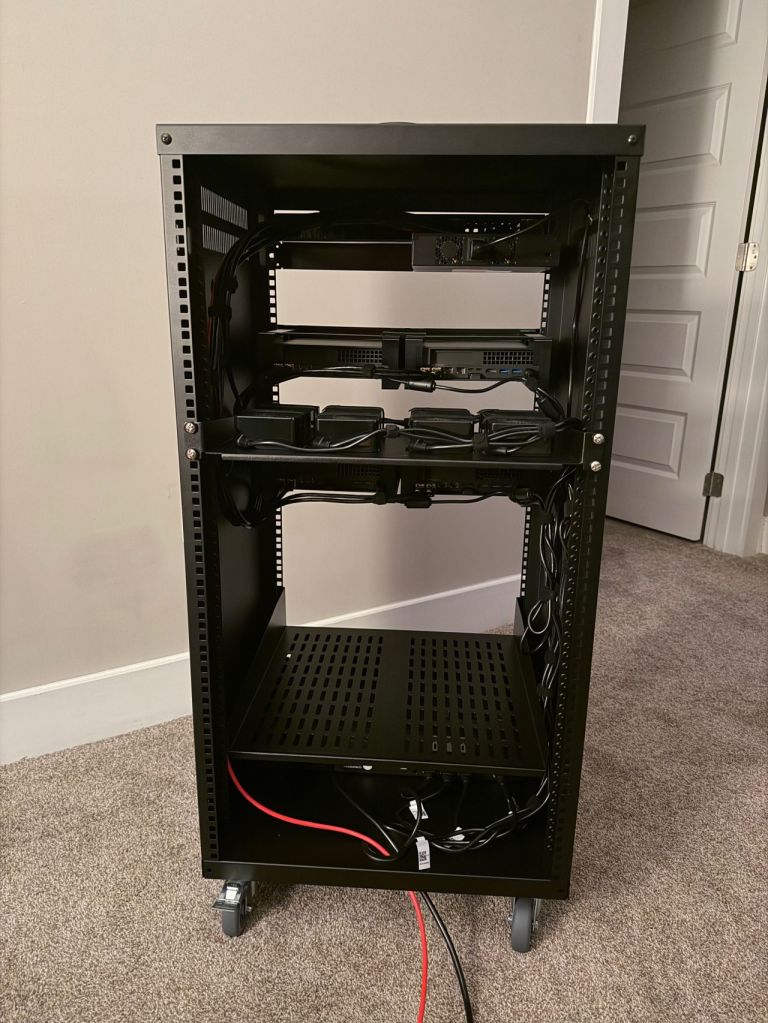
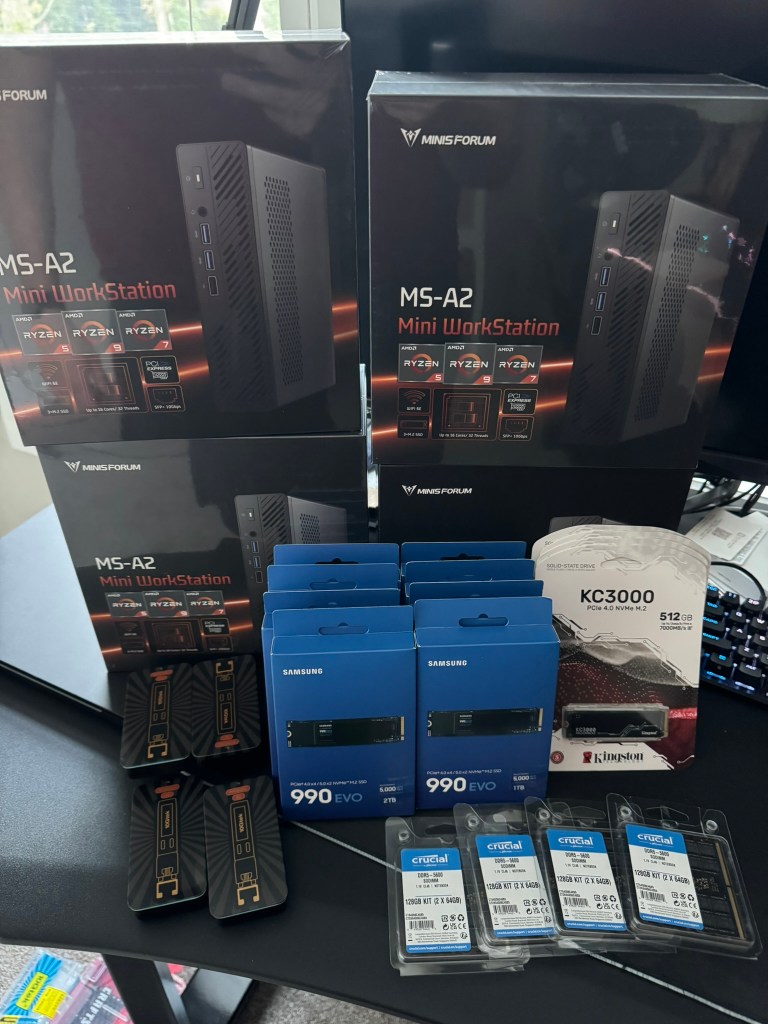
I went over the mini pc components and x4 MINISFORUM MS-A2 9955HX systems. In this blog I’ll cover the rack, rack mounts for the MS-A2s, UPS, and the 10G switch.
I am quite pleased with the wiring now that I have everything tidied up, although I forgot what a PITA cage nuts are. I’ve installed a shelf at the bottom for a future migration of my old lab 2x SuperMicro boxes that will either be used to host VCF Holodeck, or perhaps I’ll use them for a dedicated workload domain backed by NFS storage. The CPUs were depreciated in ESXi 8, but they still have some life left in them. Reaching into the way back time machine, that kit was Current CaptainvOPS Homelab 2020.
For the additional rack, rack mounts for the MS-A2s, UPS, and 10G managed switch:
It’s that time to give the home lab a big refresh, and purchase new hardware for VMware Cloud Foundation sandbox. As a VMware employee, I had access to internal labs that I could quickly spin up if I needed to test something with VCF. With every software company purchase, Broadcom has spun off the majority if not all of their newly acquired Professional Services division, and VMware was no different. Now back in Partner life, I needed to reinvest in my home lab. VMware Cloud Foundation is and expensive investment for customers, and as it turns out, it is not cheap for the home lab either lol.
Your tax and shipping costs may vary. I am still looking for 10G switch, rack, and rack mount hit for these to keep things tidy. I expect my total costs to come in under 8K USD. I’ll update this blog with the additional hardware when it comes in.
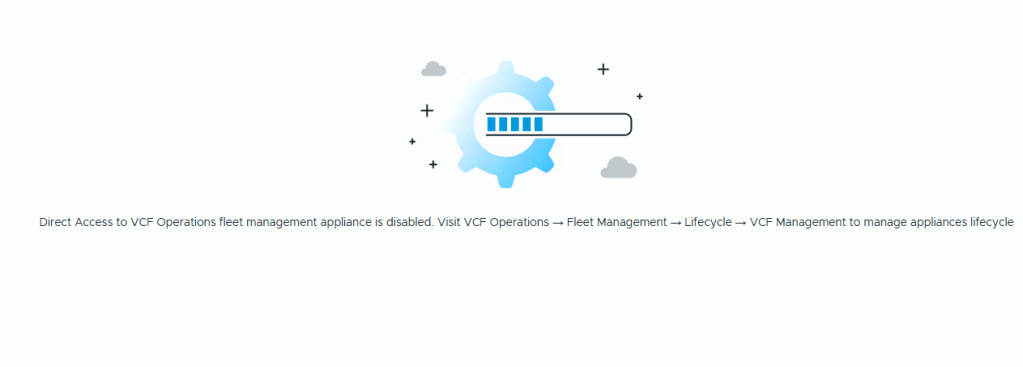
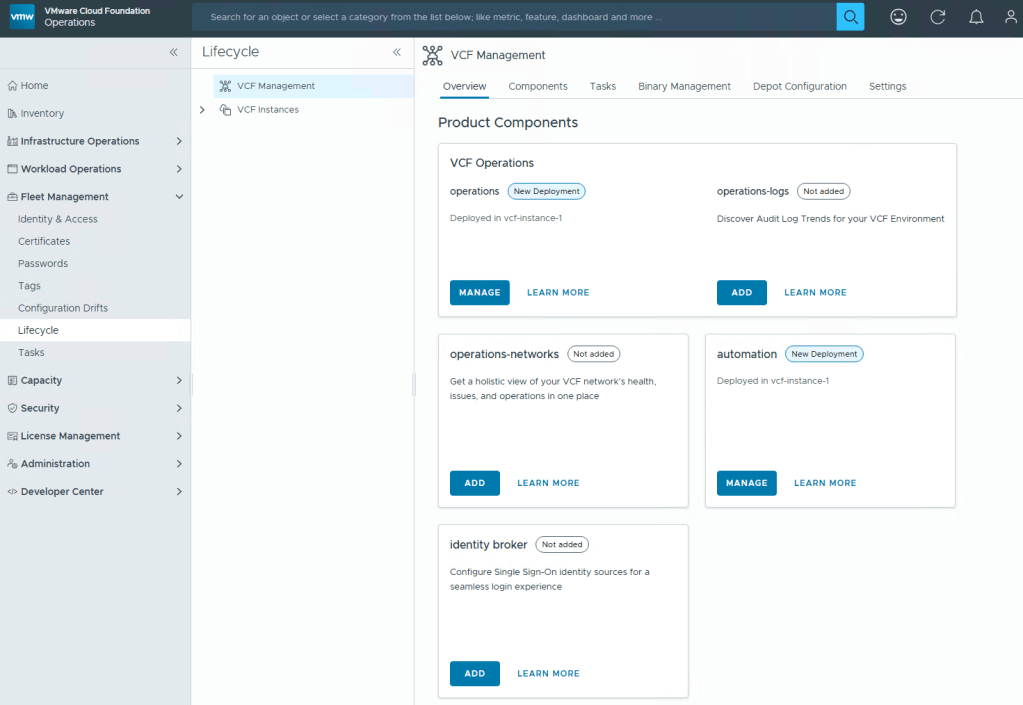
Aria Suite Life Cycle Manager has been renamed to VCF Fleet Management, and no longer has it’s own accessible UI.
VCF Operations, formally Aria Operations, will now be your go to place to manage the lifecycle of Operations, Logs, Automation, and Network Operations. This will all be done through a new section on the left navigation menu, called Fleet Management.
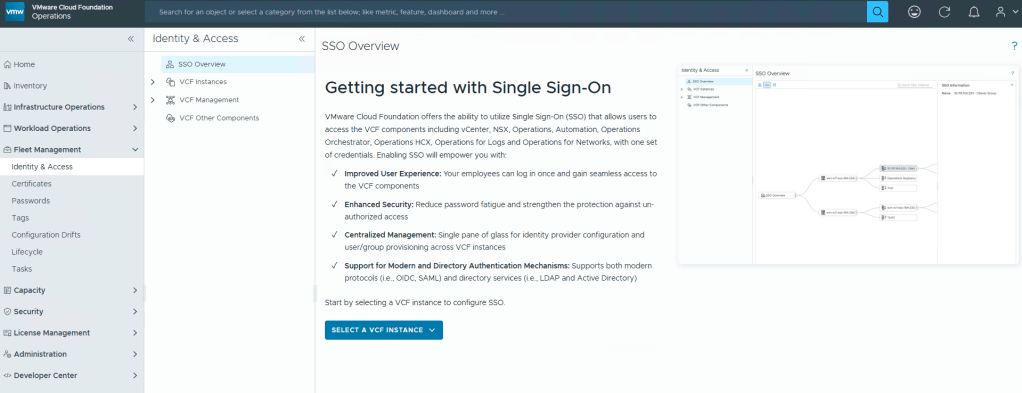
VMware Identity Manager/Workspace One Access finally has a successor, Identity Broker, that will be configurable through VCF Operations Fleet Management.
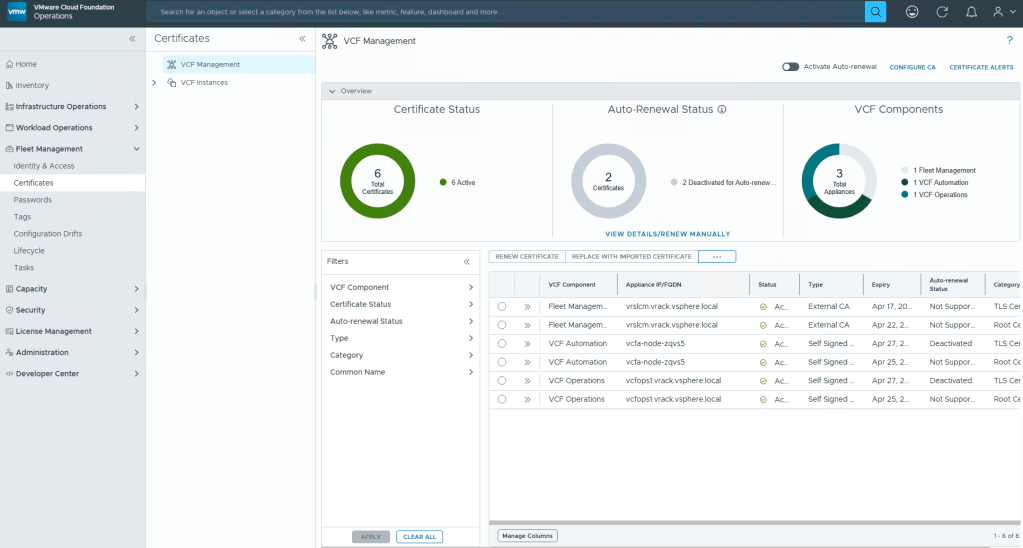
New capabilities are also being baked into Fleet Management that will allow Cloud engineers to manage certificates, and more capabilities will become available in the 9.1 release.
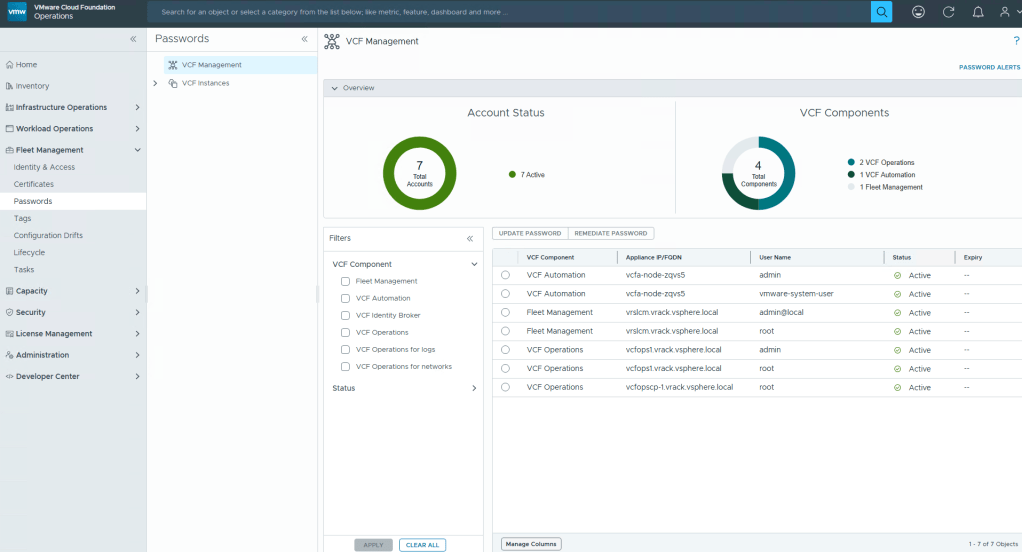
Passwords will also be another administration task that can be done through Fleet Management.
VCF Operations is becoming the center of the Private Cloud Universe to manage VCF. If this is any indication on what’s to come, I can only image that the SDDC manager interface will eventually become less and less relevant.
I for one am happy that the Aria Suite LCM is being sunset, and will eventually be fully integrated into VCF Operations under the Fleet management banner. It is unfortunate however, that remnants of it still remain as a headless server. I would have rather preferred the BU to do the job correctly, instead of this half-baked, “we’ll get it all next time” approach. All to reach those hard deadlines I suppose.
A customer of mine had an issue in their vSphere 8/VMware Cloud Foundation 5.x environment where on some of the 40 Windows OS based VMs, Snapshots created with ‘Quiesce guest file system’ would complete, but Quiesce guest file system would be labeled as ‘No’, or the vSphere snapshot operations task would just outright fail. This issue has been witnessed on Microsoft Server 2012 through Microsoft Server 2022.
There are several things that could affect the successful snapshots of virtual machines: – VM tools installation or a lack there of. – VM disk(s) are locked. – Microsoft VSS errors on the Guest OS during the VM quiescing process. – Guest File System lacks space. – Guest File System lacks the Microsoft Reserved (msr) partition. – Existing snapshots exceeded maximum number, or consolidation needed.
Symptom:
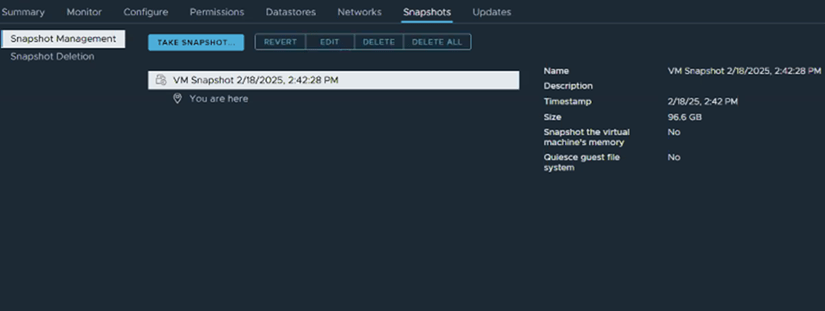
1. vSphere snapshot task with ‘Quiesce guest file system’ selected task completes, however when looking at the details of the snapshot, Quiesce guest file system is marked with ‘No’.
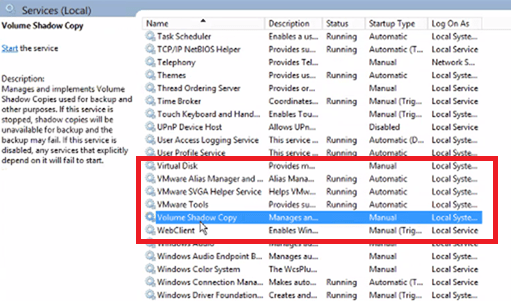
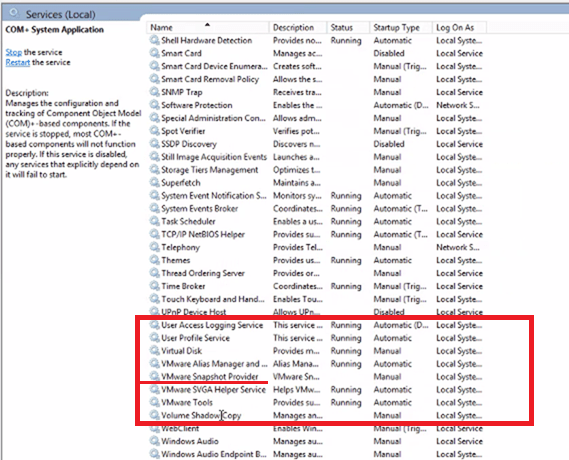
2. You verify that VM Tools is installed, running, and current. 3. Log into the VM to validate that the guest file system has enough free space~20% or so. 4. Check the Windows Services for “VMware Snapshot Provider”. It should be there, but in this case it would be missing.
Resolution:
In this example, the “Volume Shadow Copy Services Support” feature that gets installed with VMware Tools is malfunctioning, because we do not see the ‘VMware Snapshot Provider’ in Windows services. The following procedure should allow us to remove and re-install the service without the need for a reboot.
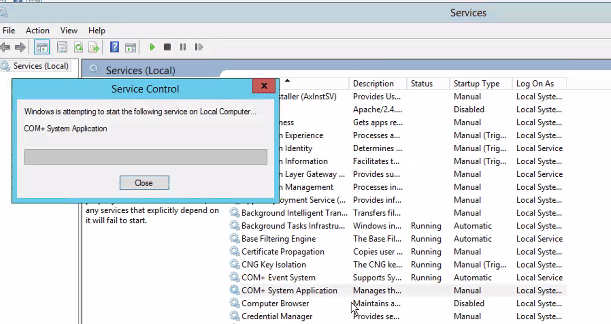
1. Start the COM+ System Application service (Leave startup type ‘manual’).
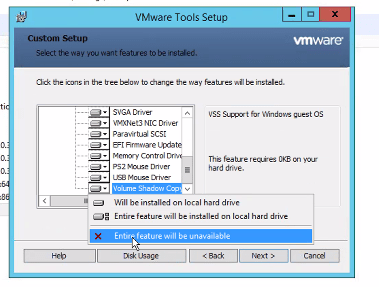
2. In Windows Control Panel, locate select VMware Tools and click “change”. 3. We will modify the VMware Tools installation, specifically we are looking for the “Volume Shadow Copy Services Support” at the bottom of the list. This offers VSS support for the guest operating system and facilitates snapshot operations. The service should be installed by default, but in this case is malfunctioning, and we are going to re-install it. Select it, and choose “Entire feature will be unavailable”.
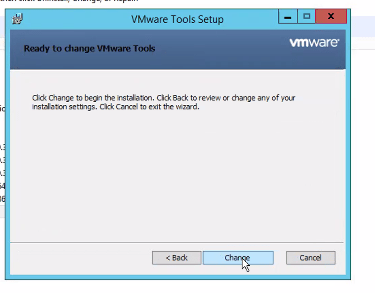
Click ‘Next’ and then click ‘Change’.
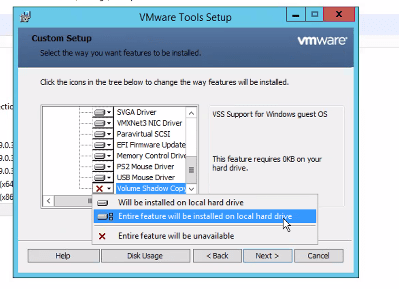
4. We will modify the VMware Tools installation again in Windows Control Panel, change the installation once more, select the “Volume Shadow Copy Services Support” at the bottom of the list, and this time select “Entire feature will be installed on local hard drive”.
Click ‘Next’ and then click ‘Change’. Wait for the installation to complete.
5. Go back to the Windows Services screen, refresh it, and the ‘VMware Snapshot Provider’ service should now be listed.
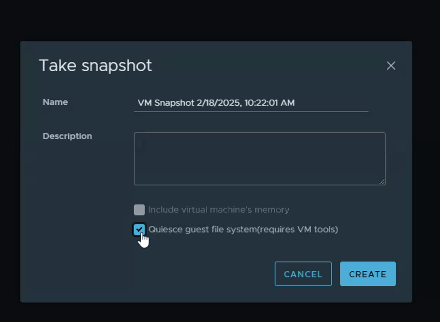
6. Go back to vSphere, and take a new snapshot of the VM with ‘Quiesce guest file system’ selected.
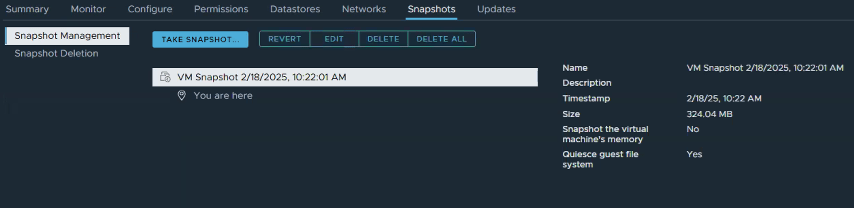
In this example, the snapshot successfully completes, and quiesces the guest file system successfully.
Those of us who have taken the VMware Certified Professional Data Center Virtualization exams, can attest to those exams testing your knowledge and experience with vSphere, ESXi, and vSAN. We now have a new certification that tests our administration skills with VMware Cloud Foundation. Well, sort of…
What this exam got right: I do believe it was a good move to pull out questions regarding advanced deployment considerations around networking and VSAN stretch clusters, because those questions belong in a VCAP level exam that test our abilities around design and deployment. The exam also stayed away from questions that quiz us on deployment sizing, ports, and other factoids that in the real world, we would just consult the documentation for. I was also happy to see that there was significantly less “gotcha questions” than previous versions.
What I believe the exam got wrong: I do not believe this exam should have questions regarding the benefits and usage of add-ons like HCX, the Aria Suite, and Tanzu. To me, those questions should have been moved out to individual specialist exams that target those specific skillsets when used in conjunction with VCF. The exam did not go deep enough into the daily administration tasks like managing certificates and passwords, resolving trust issues between the SDDC manager and the VCF components like ESXi, vSAN, vCenter, and NSX. There should have been more questions on basic troubleshooting and questions regarding how to perform upgrades. These are basic administration skills that engineers should have, and are the area’s where I see engineers get themselves into trouble by coloring outside the VCF lines, especially coming from traditional vSphere environments with SAN storage.
Final thoughts: I do believe that this certification is a lot better than the VMware Cloud Foundation Specialist exams that have been retired, but this exam lacks focus on core skillsets necessary to administer VMware Cloud Foundation. This feels too much like an associate/specialist level exam. I would like to see a larger focus on testing an engineers skills administering VCF like what configurations should be done by the SDDC manager versus doing the configuration manually in the individual components. I would like to see questions that test an engineers basic VCF troubleshooting skills like what log files to look at for failed tasks and upgrades. The SOS command line tool in the SDDC manager is very powerful and VCF engineers should be aware of it’s basic functions. I would also like to see questions around the requirements and sequence of deploying hosts to a workload domain, decommissioning hosts, performing host maintenance, and some of the VSAN considerations engineers need to take into account for each. VMware Cloud Foundation is the modern private cloud, and although it is not feasible to have deep knowledge in each of the individual components that make up VCF like ESXi, vSAN, vCenter, vSphere, and NSX, I do believe we need to level-set on a basic set of skills to be successful.
I would highly recommend taking the VMware Cloud Foundation Administrator: Install, Configure, Manage 5.2 course. Many of the topics in the certification exam are covered in this training course. In its current form, you should also have a basic understanding HCX capabilities, and Aria Ops, Logs, and Automation. The exam also touches on the basic knowledge of the async patch tool and its function.
Hit a frustrating bug that I had been troubleshooting for weeks in a customer’s VMware Cloud Foundation (VCF) 4.x environment, where the SDDC manager was unable to rotate or remediate the svc-{nsxvip-vcenter-fqdn}@vsphere.local service account, that is used to connect the NSX-T to the Compute Manager (vCenter). We could successfully remediate and rotate the service account for the management domain NSX-T, but we could not rotate vi-workload domain NSX-T service account.
In the SDDC UI and operationsmanager.log, we would see an error message similar to:
“Compute manager {wld-vcenter-fqdn} with id {uuid} connection config is invalid. Edit Hostname and provide compute manager credentials.”
Come to find out, this is a known bug for the 4.x versions of VCF workload domains that use a shared NSX-T configuration. It is believed that there is an SSO passwords sync delay between vCenter Servers that causes this.
I don’t believe there’s a resolution for 4.x versions of VCF, and have not tested in 5.x versions of VCF, but here’s the work around. Are you ready?
Log into SDDC Manager
Go to Password management section and select service account in vCenter used by NSX-T to rotate
Initiate the task to rotate the password
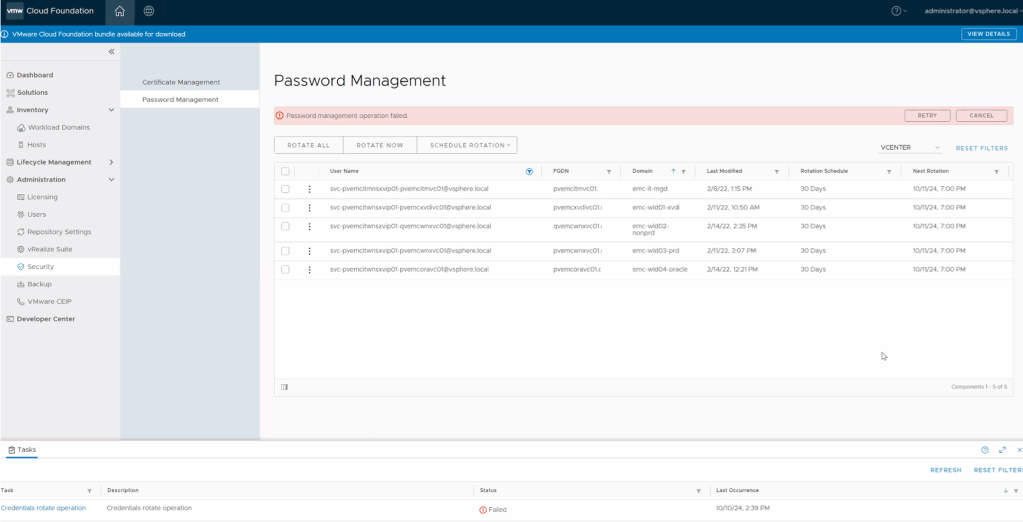
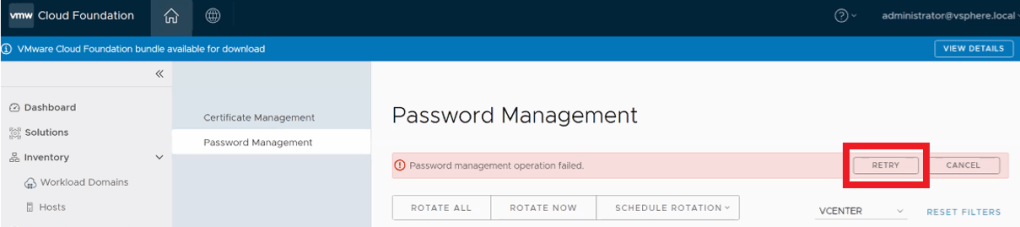
Wait for the task to fail like in the picture below.
5. Wait 5 to 15 minutes for sync operations on vCenter to complete and then click on RETRY button. (your mileage may vary depending on vCenter activity)
6. Verify task is successful in SDDC Manager. That should do the trick. Otherwise, you might have something else going on and will need to open a ticket with support to investigate further.
On a side note, the “Last Modified” date may not change in the UI, this is another known bug. All we are looking for here is the task to complete successfully.
It doesn’t appear that this account password is stored in the SDDC manager. It is not stored in the usual way that would present the account using the lookup_passwords utility on the SDDC manager.
In my searching, I did happen to come across the following KB to Retrieve the service accounts credentials from SDDC Manager. Even though this shows the svc-{nsxvip-vcenter-fqdn}@vsphere.local service account, it does not provide the password. I digress. Hopefully the above workaround walk-through helps you.
While working with a customer recently, they were having a problem testing the SDDC managers connectivity to the online VCF_DEPOT and the VXRAIL_DEPOT. This particular customer was using VCF on VXRAIL.
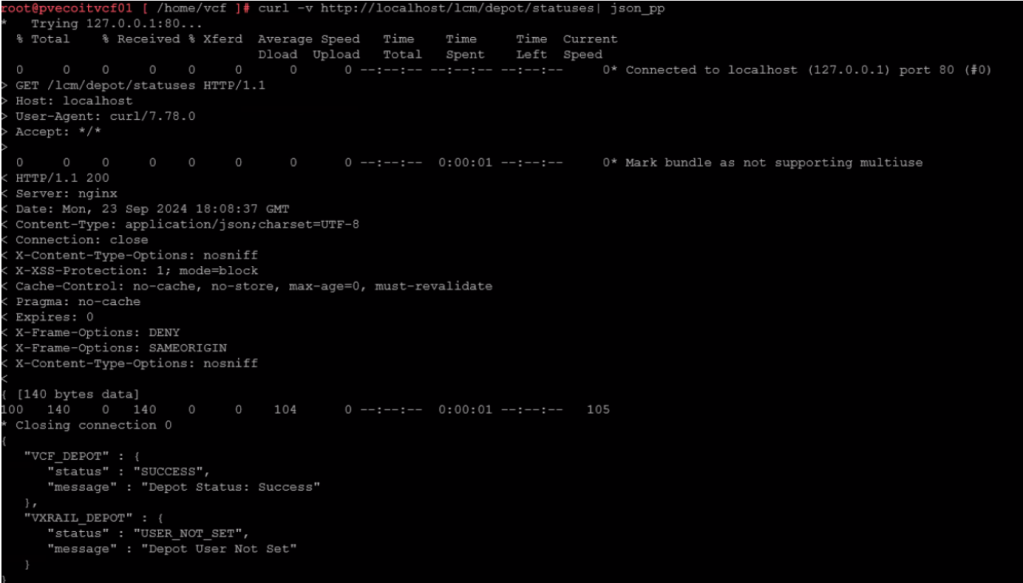
If you have a VCF deployment running on VXRAIL, there’s an additional Dell Depot that will contain the rail update packages. To test connectivity to both VXRAIL and VCF Depots, run the following command:
The Depots can return a couple of status from the curl command:
“Status” : “SUCCESS” (everything is working as expected) “Status” : “NOT_INITIALIZED” (This could indicate a connection problem with the depot) “Status” : “USER_NOT_SET” (the depot user has not been specified)
For my customer, the VCF_DEPOT had a “SUCCESS” status, but the VXRAIL_DEPOT had a status of “USER_NOT_SET”.
Basic pings to test:
ping depot.vmware.com
ping download.emc.com
Basic curl commands to test:
curl -v https://depot.vmware.com
curl -v https://download.emc.com
Broadcom also offers a public list of URLs that the SDDC manager uses. That list can be found here: Public URL list for SDDC Manager
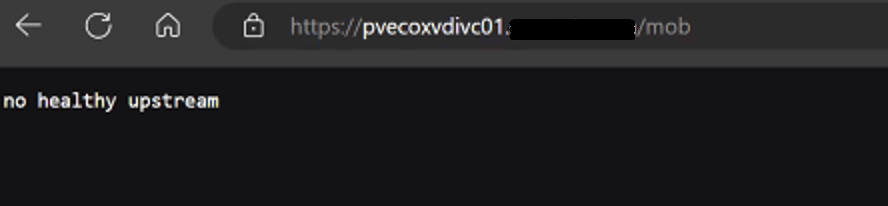
One of my customers had a strange issue where the vCenter MOB wasn’t working on some of their vCenters in their VMware Cloud Foundation 4.X deployment.
The 10 vCenters are running in enhanced linked mode, and out of the 10, we only had one management vCenter where the MOB was working. All other services on the vCenter appear to be working fine.
On the vCenter, we can check and see if the vpxd-mob-pipe is listed in the following directory /var/run/vmware with the following command:
ls -la /var/run/vmware/
If we do not see vpxd-mob-pipe, then we need to look at the vpxd.cfg file. Specifically we are looking for the following parameter: <enableDebugBrowse>. If this is set to false, the MOB will not work.
vi /etc/vmware-vpx/vpxd.cfg
Once the vpxd.cfg opens, we can search the file by pressing the ‘ / ‘ key, and then enter:
/<enableDebugBrowse>
and then press enter.
This should take us to where we need to be. In my case, it was set to false as shown below:
<enableDebugBrowse>false</enableDebugBrowse>
Hit the ‘INSERT’ key, and change >false< to >true<.
<enableDebugBrowse>true</enableDebugBrowse>
Hit the ‘ESC’ key, and then hit the ‘ : ‘ key followed by entering ‘ wq! ‘ to save and exit the vpxd.cfg file.
:wq!
Now we need to stop and start the vmware-vpxd service with the following command:
Continuing from my previous blog post where the VMware Cloud Foundation 4.x SDDC manager was unable to obtain SSH connection to NSX Edges, we determined that at some point, the edges were redeployed via NSX-T instead of through the SDDC manager, and we had to update the edge ID’s in the SDDC manager database. I’d certainly recommend checking that blog out here –> VMware Cloud Foundation SDDC Manager Unable To Remediate Edge Admin and Audit Passwords. Part 1.
In this blog, I will go through the second issue where we identified the HostKey of the edges had been changed by investigating the logs, and the process we used to fix it and restore the SDDC manager’s communication with the edges, so that we can successfully manage them via the SDDC manager in VMware Cloud Foundation.
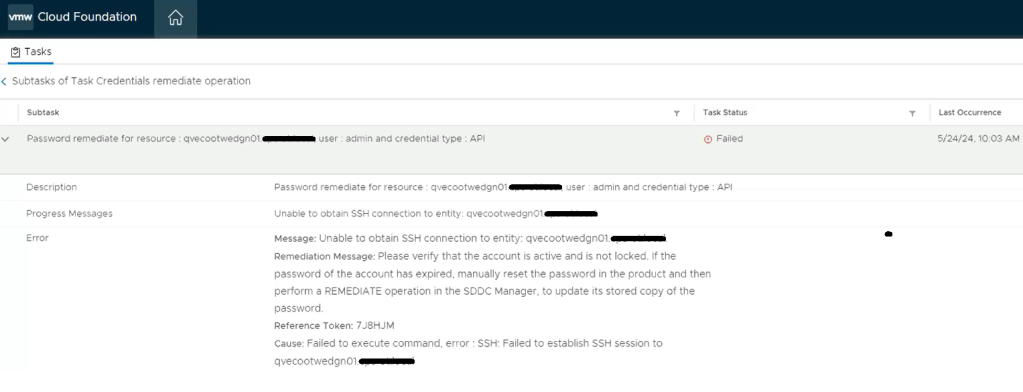
We still see a similar error message in the SDDC manager UI when we attempt to remediate the edges admin and audit passwords. We established an SSH session to the SDDC manager to review the operationsmanager.log located in /var/log/vmware/vcf/. We did a “less operationsmanager.log” and searched for the edge, in this example “qvecootwedgen01”
After searching the log, we can see there’s an error in the operationsmanager.log that the HostKey has been changed. To resolve this issue, we can use a script called fix_known_hosts.sh. The fix_known_hosts.sh script was created by Laraib Kazi to address an issue where SSH attempts from the SDDC Manager fail with an error related to the HostKey. This script removes existing erroneous entries in the known_hosts files and updates them with new ones. It is recommended to take a snapshot of the SDDC Manager before executing the script, which edits 4 known_hosts files. This script is useful when dealing with SSH host key mismatches, which can occur due to various reasons like restoring from a backup, manual rebuild, or manual intervention to change the Host Key. The script can be downloaded from hist github page here.
Upload the script to a safe spot on the SDDC manager. You can put it in the /tmp directory, but remember it will be deleted on next reboot. The script can be run on the SDDC manager as is. HOWEVER, you will want to prep before hand, and get the FQDN of the edge node(s) and IP address(s) in a text file as we will need those when we run the script.
************************************************************************************************************** STOP… Before continuing, take an *offline* (powered off) snapshot of the SDDC manager VM as we will be updating the edgenode HostKey on the SDDC manager. **************************************************************************************************************
Disclaimer: While this process has worked for me in different customer environments, not all environments are the same, and your mileage may vary.
Run the script:
./fixed_known_hosts.sh
You’ll want to enter the FQDN of the nsx-t edge being fixed. The resulting example output should follow:
Re-run this script against additional NSX-T edges as needed.
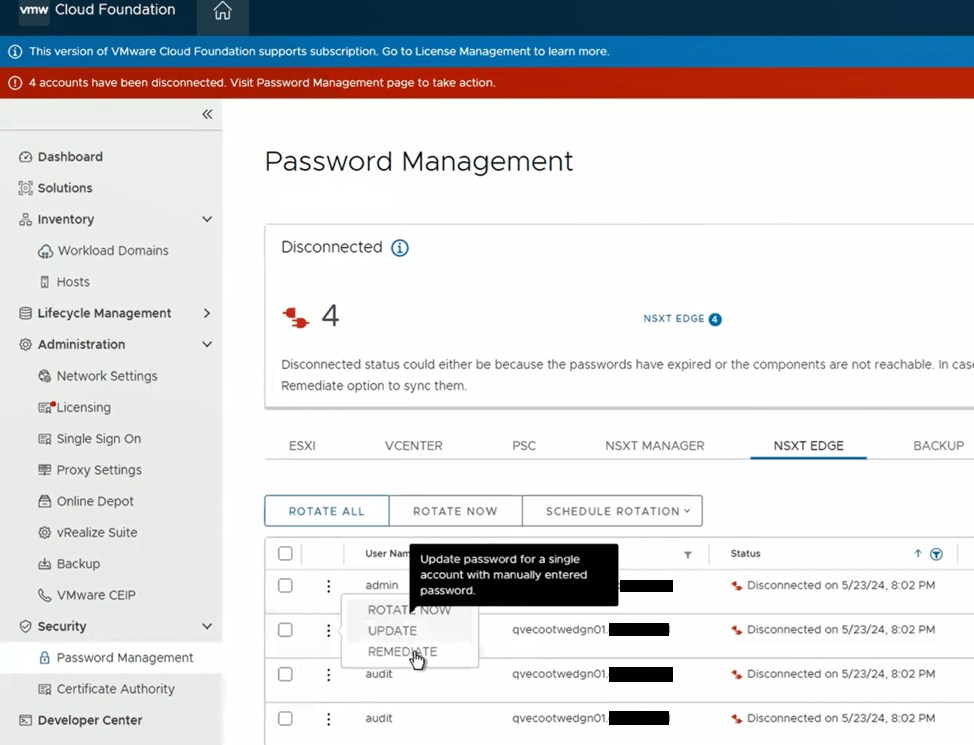
Now you’re ready to try password operations again in the SDDC manager against the edge(s). If you elected to create a new password on the NSX-T edge, you’ll need to choose the password “remediation” option in the SDDC manager to update the database with the new password created. If you set the password on the NSX-T edge back to what the SDDC manager already had, then just use the password “rotate now” function.
SDDC password operations should now be working as expected. If this did not resolve the issue, I would revert back to snapshot, and contact support for further troubleshooting.
If this resolved your issue, don’t forget to clean your room, and delete any snapshots taken.








You must be logged in to post a comment.