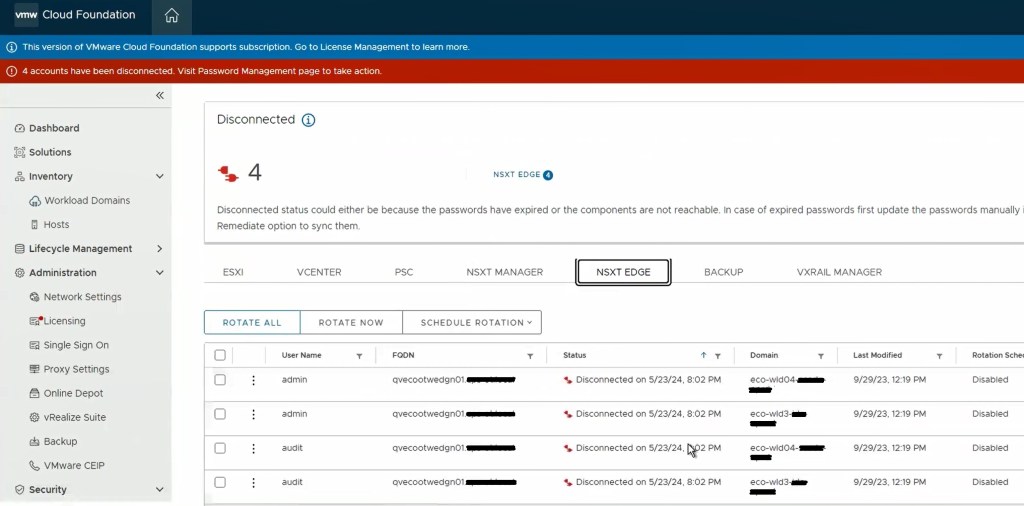
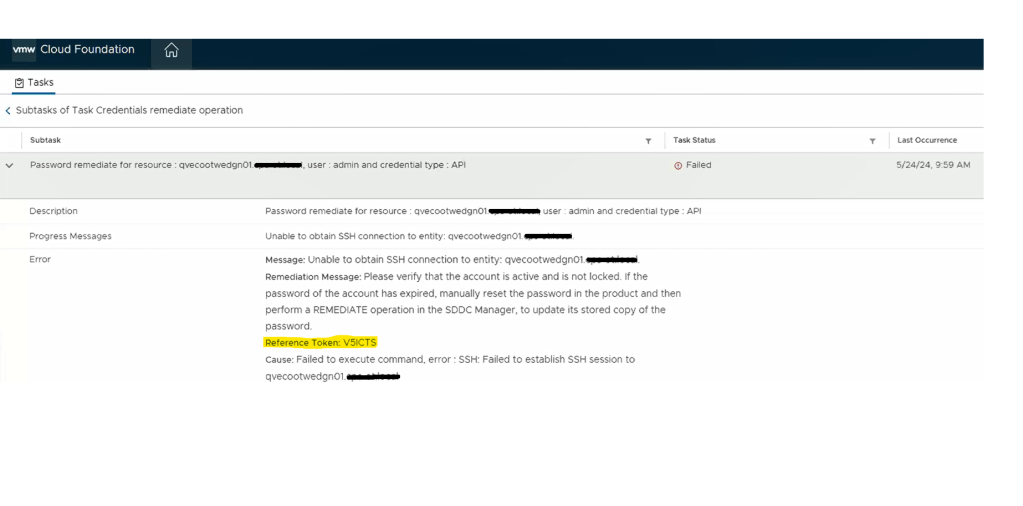
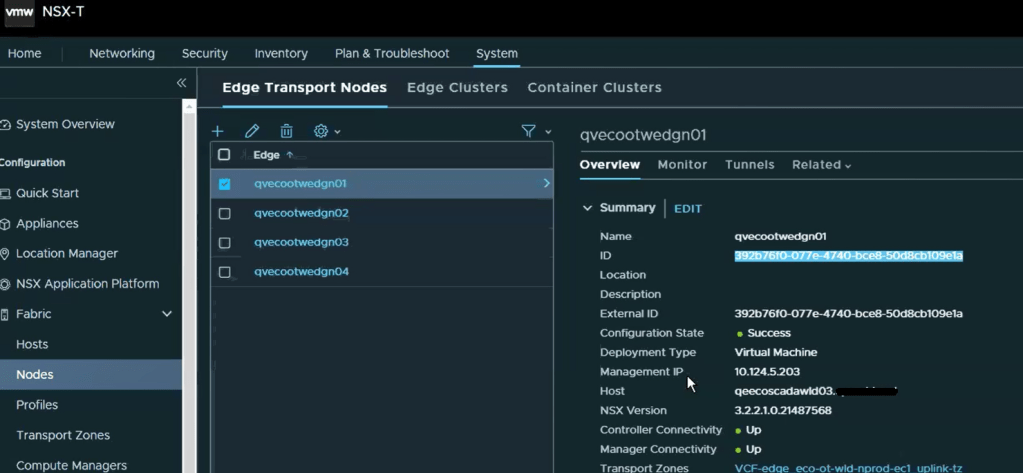
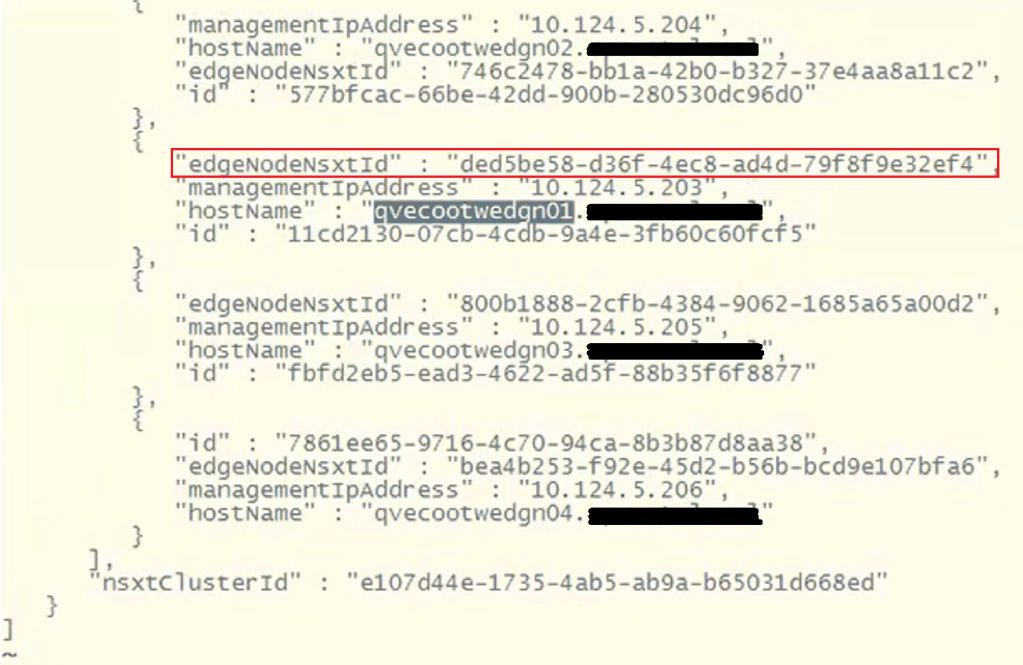
How to Update VMware Cloud Foundation SDDC Manager When NSX-T Certificate Has Been Replaced.

Blog Date: July 11, 2024

In VMware Cloud Foundation 4.5.1, managing certificates of the Aria Suite LCM, NSX, VXRAIL, and vCenter Certificates should be done via the SDDC manager, so that it trusts the components certificate. The official documentation on how to do it can be found here -> Manage Certificates in a VMware Cloud Foundation.

In some cases however, certificates can be replaced/updated outside of the SDDC manager either due to a lack of understanding, or in emergency situations where certificates expired. In either of those situations, the certificate must be imported into the trusted root store on the SDDC manager appliance to re-establish trust to those components. Otherwise, SDDC manager will not function as intended.

Official knowledge base article can be found here -> How to add/delete Custom CA Certificates to SDDC Manager and Common Services trust stores.

The following steps can be used to update the SDDC Manager trust store with the new NSX certificate.

  1. IMPORTANT: Take a snapshot of the SDDC Manager virtual machine. **Don’t Skip This Step**
  2. Use a file transfer utility to copy the new NSX certificate file to the /tmp directory on the SDDC Manager.
  3. Establish an SSH connection to the SDDC Manager as the VCF user, and then issue the su – command to switch to the root user.
  4. Obtain the trusted certificates key by issuing the following command:

    cat /etc/vmware/vcf/commonsvcs/trusted_certificates.key

    Note: You will see output similar to the following:

    p_03ZjNI7S^B7V@8a+
  5. Next, Issue a command similar to the following to import the new NSX-T certificate into the SDDC Manager trust store:

    keytool -importcert -alias <aliasname> -file <certificate file> -keystore /etc/vmware/vcf/commonsvcs/trusted_certificates.store --storepass <trust store key>

    Notes:
    • Type yes when prompted to trust the certificate.
    • Enter something meaningful, like sddc-mgmt-nsx for the <aliasname> value.
    • Replace <certificate file> with the full path to the certificate file that was uploaded in Step 2.
    • Replace <trust store key> with the trusted certificates key value returned in Step 4.

  6. Issue a command similar to the following to import the new NSX-T certificate into the java trust store. Here the storepass is changeit:

    keytool -importcert -alias <aliasname> -file <certificate file> -keystore /etc/alternatives/jre/lib/security/cacerts --storepass changeit

    Notes:
    • Type yes when prompted to trust the certificate.
    • Replace <aliasname> with the meaningful name chosen in Step 5.
    • Replace <certificate file> with the full path to the certificate file that was uploaded in Step 2.
  7. Issue a command similar to the following to verify that the new NSX-T certificate has been added to the SDDC Manager trust store:

    keytool -list -v -keystore /etc/vmware/vcf/commonsvcs/trusted_certificates.store -storepass <trust store key>

    Note: 
    • Replace <trust store key> with the trusted certificates key value returned in Step 4.
  8. Issue the following command to restart the SDDC Manager services:

    /opt/vmware/vcf/operationsmanager/scripts/cli/sddcmanager_restart_services.sh
  9. (Optional): You can utilize the SDDC manager SOS utility to check the health of the newly imported NSX-T certificate with the following command:

    /opt/vmware/sddc-support/sos --certificate-health --domain-name ALL

    Tip:
    For more information on the sos utility, check out the documentation here: -> SoS Utility Options (vmware.com)
  10. If everything checks out, remove the snapshot that was taken prior to starting this procedure.

Migrate VMware Cloud Foundation 4.x/5.x from Legacy VUM Images to vSphere Lifecycle Managed (vLCM) Images. (Can’t do it… yet)

Blog Date: July 10, 2024

To get straight to the punch, this is not supported yet. If you already have an existing VCF deployment, there currently is no supported way to migrate your workload domains to vLCM, per the support article here -> Transition from vSphere Lifecycle Manager Baselines to vSphere Lifecycle Manager Images is not supported with VMware Cloud Foundation. While you can technically use the vCenter UI / APIs to make the switch, it will cause workflows in SDDC manager to break, VMware support/engineering will have to get involved, and most likely the changes will have to be reverted.

If you are in the beginnings of deploying a new workload domain, by default it will use vSphere Lifecycle Manager baselines as the update method, unless you specifically checked “Manage clusters in this workload domain using baselines (deprecated)” during the workload domain deployment. However, this option would require you to have an existing vLCM image prior to the workload domain being deployed. If you don’t have a vLCM image yet, the VMware documentation suggests that you deploy the workload domain using legacy images (VUM), and that documentation can be found here -> Deploy a VI Workload Domain Using the SDDC Manager UI.

Doing a little research on the available options if no vLCM baseline image is available, and if you already have identical ESXi hosts deployed to the VCF environment, in vSphere, you can create a new empty compute cluster, select the option to manage the cluster with vLCM baselines, select a identical host already deployed to the environment to import and create the vLCM baseline from including the NSX driver. Now you have a vLCM baseline you can use for new workload domains and clusters using identical hosts. The new vLCM baseline can be imported into the SDDC manager. One might ask if it is safe to create a new compute cluster using the vSphere UI in a VCF deployment? For this purpose because it is temporary, the answer is yes. Technically, if you add additional compute clusters in vSphere without going through the SDDC manager, the SDDC will have no knowledge of it and won’t interact with it, so for our purposes, it is safe to create the empty compute cluster to create the new baseline, and then just delete the empty cluster when finished. Always remember to clean your room.

Although it will take a little work on the font end if you currently do not have vLCM baseline images to deploy a new workload domain, the above process can be used to create it. Eric Gray put together an excellent blog and YouTube video on this here -> Updating VCF Workload Domains deployed using vLCM Images. This walks us through the process of creating a new vLCM baseline image for a vLCM enabled workload domain to upgrade it, but the same process can be used to create a new vLCM image for a new workload domain with identical hardware.

If you have just deployed a workload domain and selected Manage clusters in this workload domain using baselines (deprecated) (legacy VUM), there is no way to convert it to vLCM baselines (at the time of writing this blog). You have to REDEPLOY the workload domain. You could however, take the opportunity using the above method to create a vLCM baseline image for the workload domain, so that when you redeploy it, you’ll have a vLCM image to use. Silver lining?

Unconfirmed reports indicate that the functionality to migrate existing workload domains from legacy VUM to vSphere Lifecycle Manager baselines is *targeted* for VMware Cloud Foundation 9.

Aria Operations Report Tracking Datastore Over-commitment.

Blog Date: January 16, 2024

One of my customers was interested in tracking datastore over-provisioning in Aria Operations, since they started deploying all of their virtual machines with thin-provisioned disks. After doing some digging, I found there is a Overcommit ratio metric for datastores, so in this blog I will review the creation of a custom view that we will then use in a report.

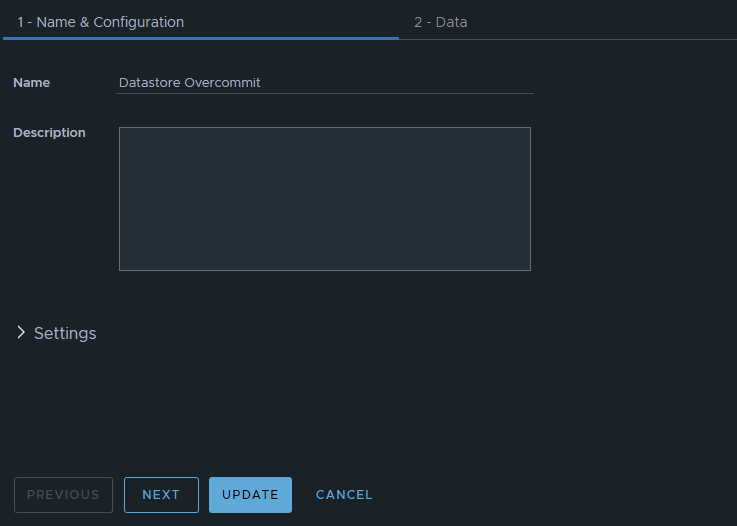
In Aria Operations under Visualize -> Views, create a new view. In this example, we’ll just call it Datastore Overcommit. Click NEXT

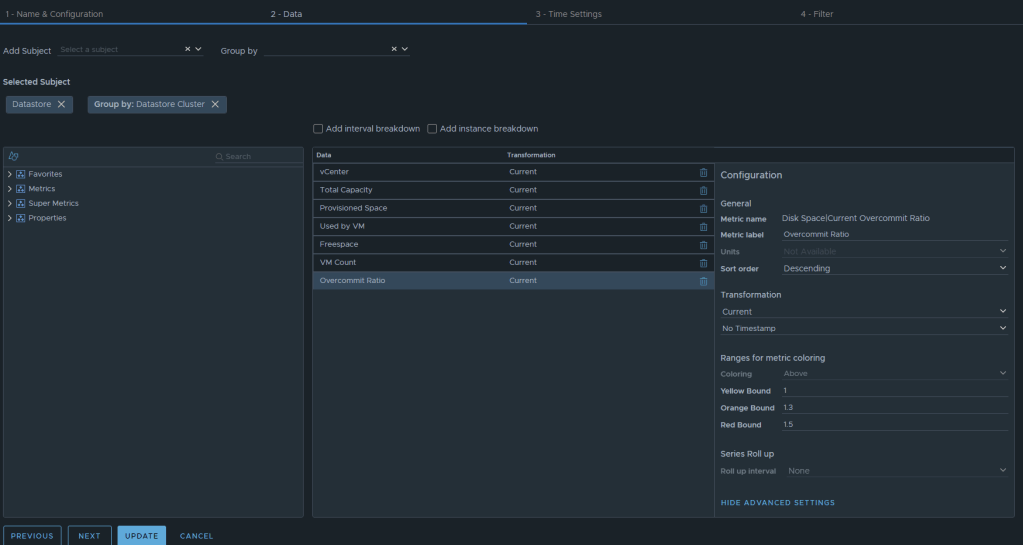
Now we can select the metrics desired. We will want to add the subject of “vCenter | datastore”, and then you could also group by “vCenter|Datastore Cluster” if you desire. For this example, I have selected the following datastore metrics:
Metric: “Summary|Parent vCenter”. Label: “vCenter”
Metric: “Disk Space|Total Capacity (GB)”. Label: “Total Capacity”. Unit: “GB”
Metric: “Disk Space|Total Provisioned Disk Space With Overhead (GB)”. Label: “Provisioned Space”. Unit: “GB”
Metric: “Disk Space|Virtual Machine used (GB)”. Label: “Used by VM”. Unit: “GB”
Metric: “Disk Space|Freespace (GB)”. Label: “Freespace”. Unit: “GB”
Metric: “Summary|Total Number of VMs”. Label: “VM Count”. Unit: “GB”
Metric: “Disk Space|Current Overcommit Ratio”. Label: “Overcommit Ratio”. Sort Order: “Descending” Coloring Above: Yellow Bound: “1”. Orange Bound: “1.3”. Red Bound: “1.5”

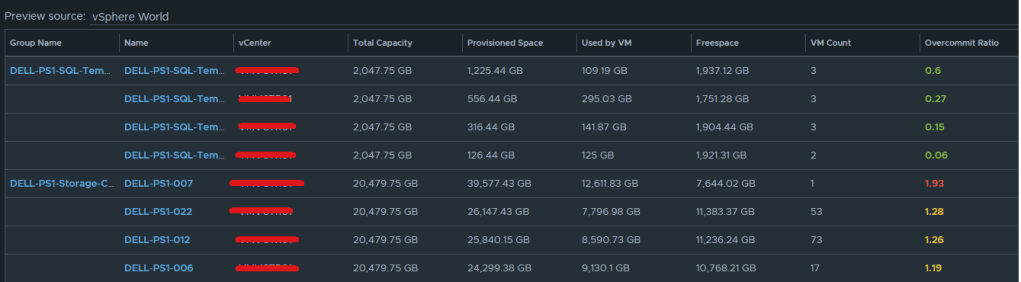
The end result should look something like this:

I typically will set the Preview Source as “vSphere World” to see the output data I am getting.

If you don’t like the datastores being grouped by the datastore cluster, then just undo the grouping option, and all of the datastores that are the worst overcommit offenders will rise to the top. The view can now be saved. 

Creating an Aria Operations Report.

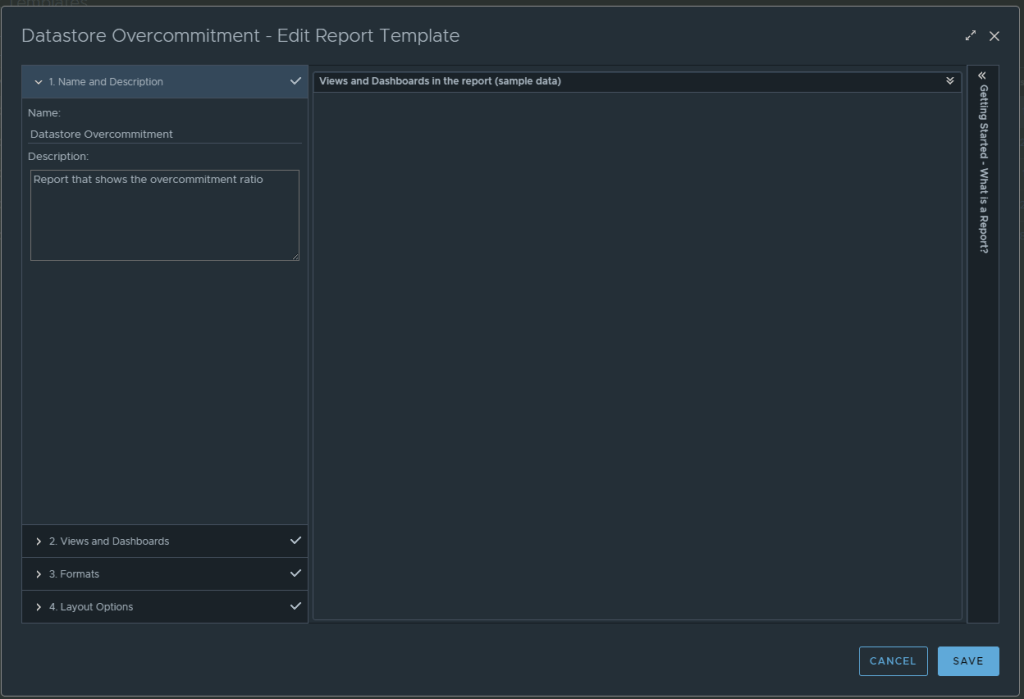
In Aria Operations, Under Visualize -> Reports, create a new report. In this example we call it Datastore Overcommitment.

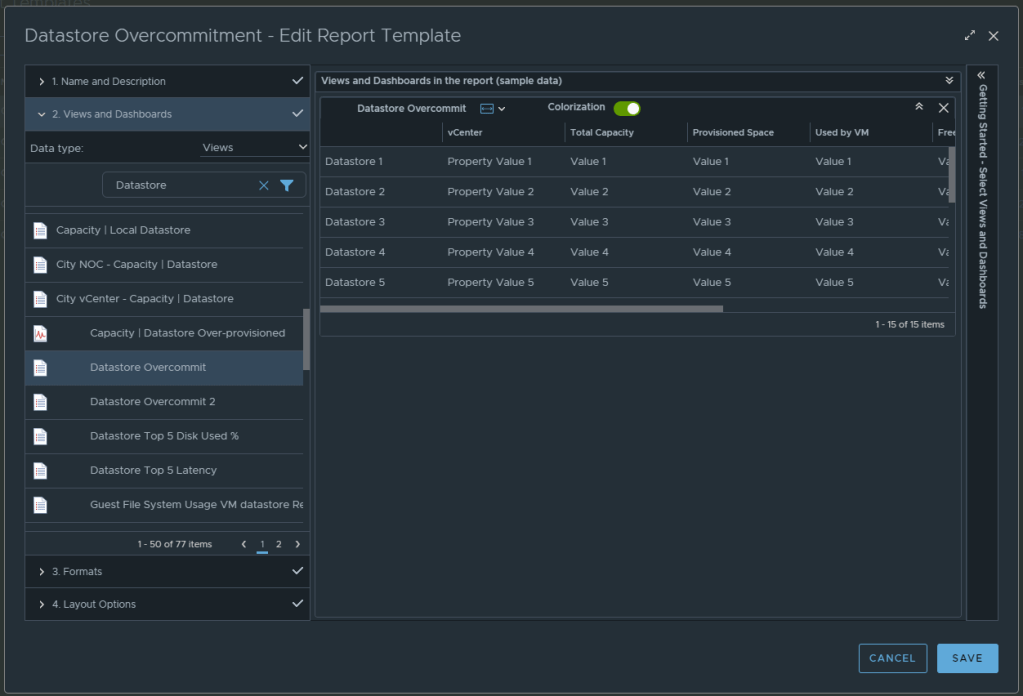
In section 2 for views and dashboards, I searched for datastore and found the newly created “Datastore Overcommit” view created earlier. I dragged it to the right. I changed the Orientation to landscape, and turned on Colorization.

From here, under section 3 you can select the format of the report PDF and/or CSV, and then under section 4 you can elect to add a cover page and what not. I personally like getting a PDF and CSV. Now can click SAVE to save the report. 

From here, you can run the report or schedule it. It’s that simple.

Aria Operations Dashboard: VM Guest File System Usage

December 2023
Aria Operations 8.12.1

For the past couple of months, I have been working with a customer developing Aria Operations (formally vROps) dashboards for various interests. The dashboard I’ll cover here was one I created to help them track and identify the guest file system usage of the virtual machine. This works for both Microsoft and Linux based systems.

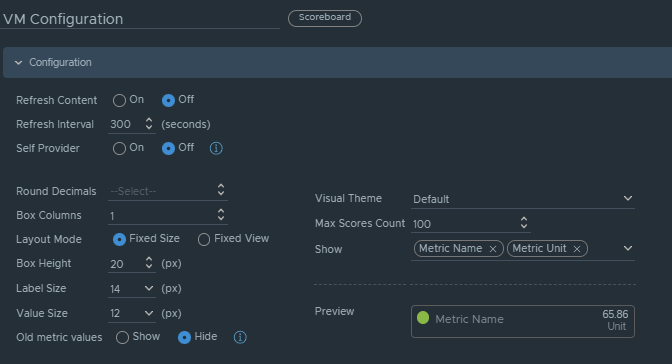
Box 1a is a heatmap widget configured as a self provider configured to refresh every 300 seconds. Additional configuration as follows:

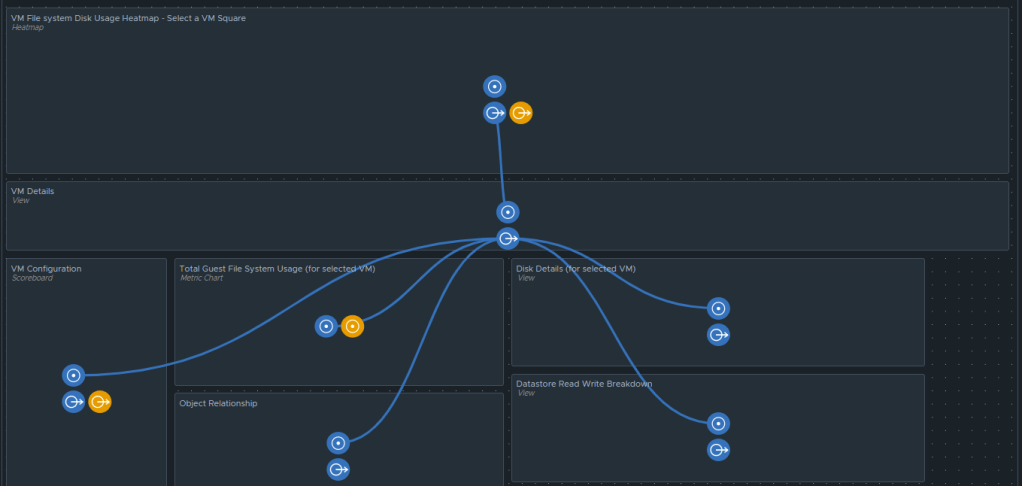
The heatmap is a nice visual that will turn red as the guest file system consumes disks on the VM to spot problems. You then select a box in the heatmap to populate the 2a. Box 2a then feeds data into 2b, 2c, 2d, and 2e.

Box 2a is a custom list view widget i created that lists several metrics of the virtual machine with custom metric labels. It is configured to auto select the first row.

Those metrics are:
Badge|Health%“,
Configuration|Hardware|Disk Space“,
Guest File System|Utilization (%)“, (Coloring above: Yellow 75, Orange 80, Red 90);
Virtual Disk:Aggregate of all instances|Read IOPS“, (Coloring above: Yellow 100, Orange 200, Red 300);
Virtual Disk:Aggregate of all instances|Write IOPS“, (Coloring above: Yellow 100, Orange 200, Red 300);
Virtual Disk:Aggregate of all instances|Read Latency (ms)“, (Coloring above: Yellow 10, Orange 20, Red 30);
Virtual Disk:Aggregate of all instances|Write Latency (ms)“, (Coloring above: Yellow 10, Orange 20, Red 30);
Datastore:Aggregate of all instances|Total Latency (ms)“,
Datastore:Aggregate of all instances|Total Throughput“,
Disk Space|Snapshot|Age (Days)“, (Coloring above: Yellow 7, Orange 14, Red 21);
Disk Space|Snapshot Space“.

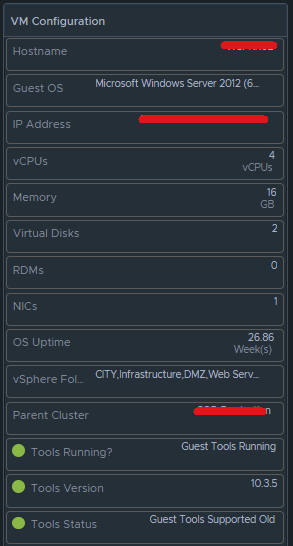
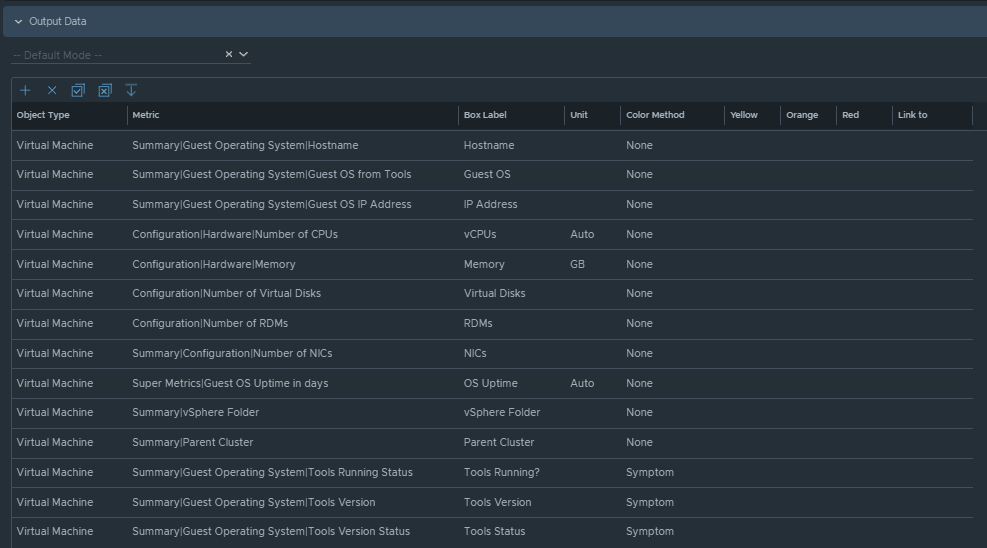
Box 2b is a Scoreboard widget configured to list the selected VM details regarding information on how the VM is configured.

Configuration is set like so:

Under Input Transformation, set to self.

Output Data will be configured as follows:

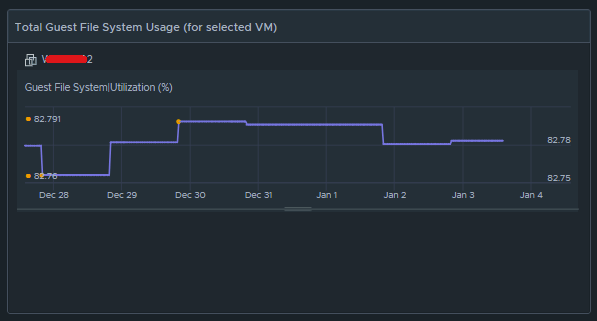
Box 2c is a metric chart widget with the Input Transformation configured as self, and the Output data configured to use the virtual machine metric “Guest File System|Utilization”.

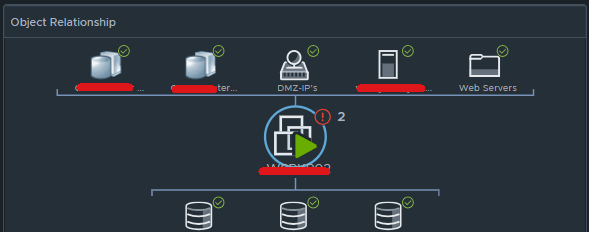
Box 2d is simply the Object Relationship widget.

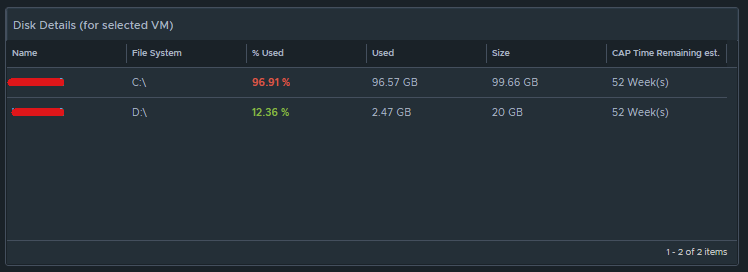
Box 2e is another custom list view and is configured to refresh every 300 seconds. 

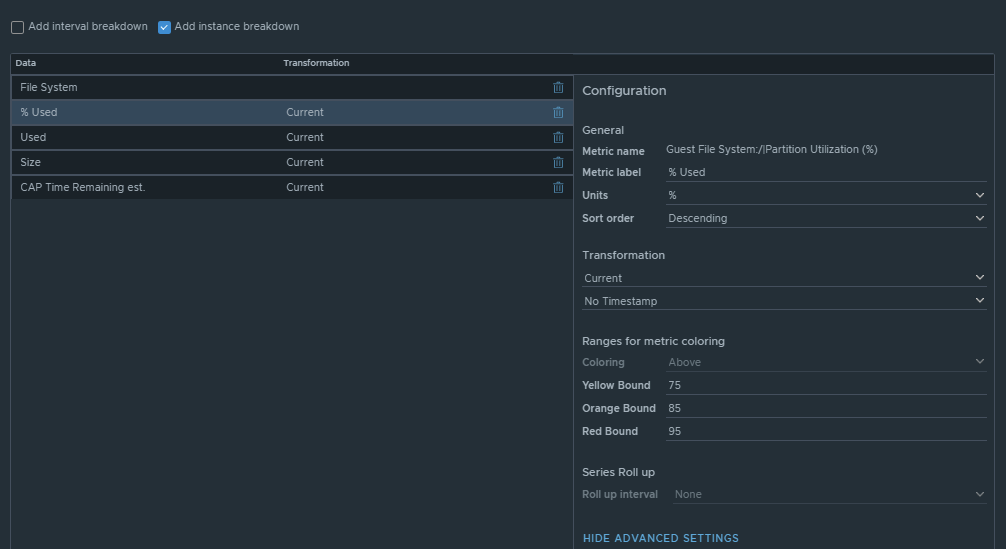
This list view is configured to do an instance breakdown of the following metrics:

Guest File System:/|Partition Utilization (%)“, (Coloring above: Yellow 75, Orange 85, Red 95);
Guest File System:/|Partition Utilization“;
Guest File System:/|Partition Capacity (GB)“;
Capacity Analytics Generated|Time Remaining“.

Box 3a is fed data from 2e so that we can see how the virtual machine disks are behaving on the datastore(s).

This is another custom list view configured as follows:

Configuration is set to refresh content at 300 seconds. Output data is configured with a custom list view with the following metrics:
Devices:Aggregate of all instances|Read Latency (ms)“, (Coloring above: Yellow 10, Orange 20, Red 30);
Devices:Aggregate of all instances|Write Latency (ms)“, (Coloring above: Yellow 10, Orange 20, Red 30);
Devices:Aggregate of all instances|Read IOPS“, (Coloring above: Yellow 100, Orange 200, Red 300);
Devices:Aggregate of all instances|Write IOPS“, (Coloring above: Yellow 100, Orange 200, Red 300);
Devices:Aggregate of all instances|Read Throughput“;
Devices:Aggregate of all instances|Write Throughput“.

Those are all of the configured widgets on this dashboard. The integration schema will look like this:

I do hope to share this dashboard with the VMware Code sample exchange, and I will update this blog once that has been completed. I hope my breadcrumbs above will enable you to create a similar dashboard in the meantime.

vSphere with Tanzu: Project Contour TLS Delegation Invalid – Secret Not Found

Blog Date: June 25, 2021
Tested on vSphere 7.0.1 Build 17327586
vSphere with Tanzu Standard

On a recent customer engagement, we ran into an issue where after we deployed project Contour, and created a TLS delegation “contour-tls”, but we ran into an issue where Contour did not like the public wildcard certificate we provided. We were getting an error message “TLS Secret “projectcontour/contour-tls” is invalid: Secret not found.”

After an intensive investigation to make sure everything in the environment was sound, we came to the conclusion that the “is invalid” part of the error message suggested that there was something wrong with the certificate. After working with the customer we discovered that they included the Root, the certificate, and the intermediate authorities in the PEM file. The root doesn’t need to be in the pem.  Just the certificate, and the intermediate authorities in descending order. Apparently that root being in the pem file made Contour barf. Who knew?

You could possibly see that the certificate is the issue by checking the pem data for both the <PrivateKeyName>.key and the <CertificateName>.crt by running the following commands, and comparing the pem output. IF it doesn’t match this could be your issue as well. The “<>” should be updated with your values, and don’t include these “<” “>”.

openssl pkey -in <PrivateKeyName>.key -pubout -outform pem | sha256sum
openssl x509 -in <CertificateName>.crt -pubkey -noout -outform pem | sha256sum

Below are the troubleshooting steps we took, and what we did to resolve the issue. We were using Linux, and had been logged into vSphere with Tanzu already. Did I mention that I hate certificates? But I digress….

The Issue:

You had just deployed a TKG cluster, and then deployed Project Contour as the ingress controller that uses a load balancer to be the single point of entry for all external users. This connection terminates SSL connections, and you have applied a public wildcard certificate to it. You created the TLS secret, and have created the TLS delegation, so that new apps deployed to this TKG cluster can delegate TLS connection terminations to contour. However, after you deployed your test app to verify the TLS delegation is working, you see a status of “Invalid. At least one error present, see errors for details.”, after running the following command:


kubectl get httpproxies

Troubleshooting:

  1. You run the following command to gather more information, and see in the error message: “Secret not found” Reason: “SecretNotValid
kubectl describe httpproxies.projectcontour.io

2. You check to make sure the TLS Secret was created in the right namespace with the following command, and you see that it is apart of the desired namespace. In this example, our namespace was called projectcontour, and the TLS secret was called contour-tls.


kubectl get secrets -A

3. You check the TLS delegation to make sure it was created with the following command. In this example ours was called contour-delegation, and our namespace is projectcontour.

kubectl get tlscertificatedelegations -A

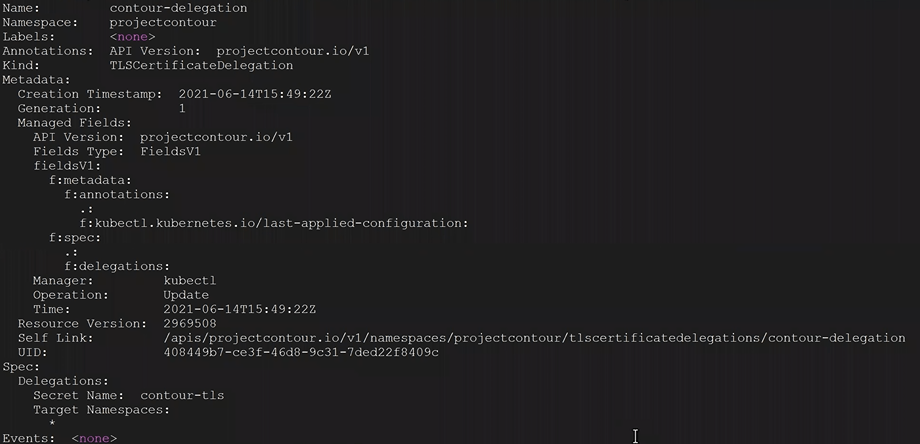
4. You look at the contents of the tlscertificatedelegations with the following command, and nothing looks out of the ordinary.

kubectl describe tlscertificatedelegations -A

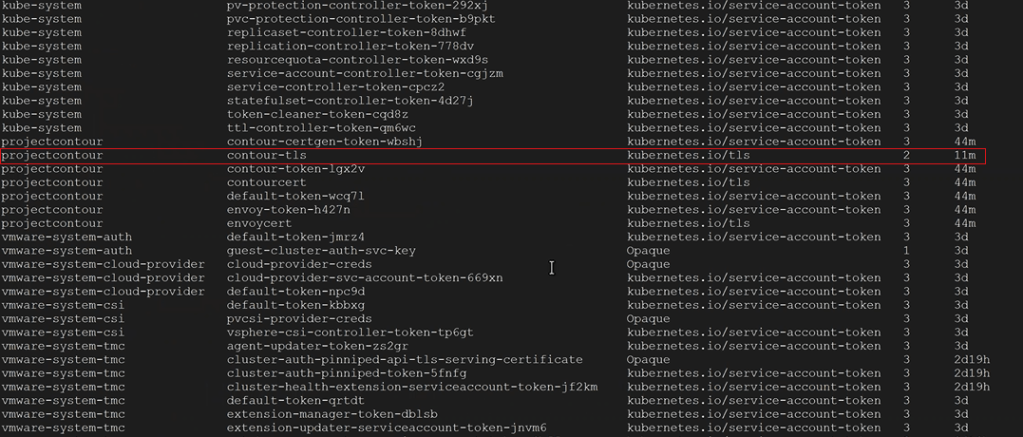
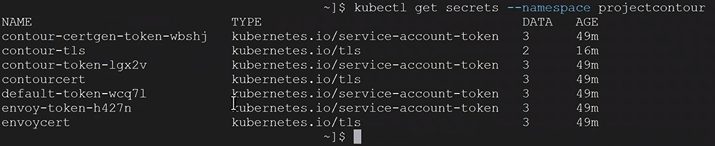
5. You check to see the secrets of the namespace with the following command. In this example our namespace is called projectcontour and we can see our TLS delegation contour-tls.


kubectl get secrets --namespace projectcontour

6. You validate contour-tls has data in it with the following command. In this example, our namespace is projectcontour and our TLS is contour-tls.

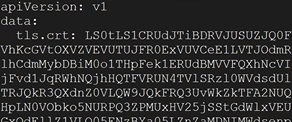
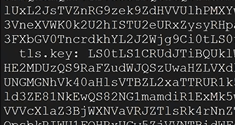
kubectl get secrets --namespace projectcontour contour-tls -o yaml

In the yaml output, up at the top you should see tls.crt: with data after

Down towards the bottom of the yaml output, you should see tls.key with data after

Conclusion: Everything looks proper on the Tanzu side. Based on the error message we saw “TLS Secret “projectcontour/contour-tls” is invalid: Secret not found.” The “is invalid” part could suggest that there is something wrong with the contents of the TLS secret.  At this point, the only other possibility would be that the public certificate has something wrong and needs to be re-generated.   The root doesn’t need to be in the pem.  Just the certificate for the site, and intermediate authorities in descending order.

The Resolution:

  1. Create and upload the new public certificate for contour to vSphere with Tanzu.
  2. We’ll need to delete the secret and re-create it.  Our secret was called “contour-tls”, and the namespace was called “projectcontour”.
kubectl delete secrets contour-tls -n projectcontour

3. We needed to clean our room, and delete the httpproxies we created in our test called test-tls.yml, and an app that was using the TLS delegation. In this example it was called tls-delegation.yml

kubectl delete -f test-tls.yml
kubectl delete -f tls-delegation.yml

4. Now we created a new secret called contour-tls with the new cert. The <> indicates you need to replace that value with your specific information. The “<>” does not belong in the command.

kubectl create secret tls contour-tls -n projectcontour --cert=<wildcard.tanzu>.pem --key=<wildcard.tanzu>.key

5. Validate the pem values for .key and .crt match. The <> indicates you need to replace that value with your specific information. The “<>” does not belong in the command.


openssl pkey -in <PrivateKeyName>.key -pubout -outform pem | sha256sum

openssl x509 -in <CertificateName>.crt -pubkey -noout -outform pem | sha256sum

6. If the pem numbers match, the certificate is valid. Lets go ahead an re-create the tls-delegation.  Example command:

kubectl apply -f tls-delegation.yml

7. Now you should be good to go. After you deploy your app, you should be able to check the httpproxies again for Project Contour, and see that it has a valid status

kubectl get httpproxies.projectcontour.io

If all else fails, you can open a ticket with VMware GSS to troubleshoot further.

vSphere with Tanzu Validation and Testing of Network MTU

Blog Date: June 18, 2021
Tested on vSphere 7.0.1 Build 17327586
vSphere with Tanzu Standard


On a recent customer engagement, we ran into an issue where vSphere with Tanzu wasn’t successfully deploying. We had intermittent connectivity to the internal Tanzu landing page IP. What we were fighting ended up being inconsistent MTU values configured both on the VMware infrastructure side, and also in the customers network. One of the many prerequisites to a successful installation of vSphere with Tanzu, is having a consistent MTU value of 1600.


The Issue:


Tanzu was just deployed to an NSX-T backed cluster, however you are unable to connect to the vSphere with Tanzu landing page address to download Kubernetes CLI Package via wget.  Troubleshooting in NSX-T interface shows that the load balancer is up that has the control plane VMs connected to it.


Symptoms:

  • You can ping the site address IP of the vSphere with Tanzu landing page
  • You can also telnet to it over 443
  • Intermittent connectivity to the vSphere with Tanzu landing page
  • Intermittent TLS handshake errors
  • vmkping tests between host vteps is successful.
  • vmkping tests from hosts with large 1600+ packet to nsx edge node TEPs is unsuccessful.


The Cause:


Improper/inconsistent MTU settings in the network data path.  vSphere with Tanzu requires minimum MTU of 1600.   The MTU size must be 1600 or greater on any network that carries overlay traffic.  See VMware documentation here:   System Requirements for Setting Up vSphere with Tanzu with vSphere Networking and NSX Advanced Load Balancer (vmware.com)


vSphere with Tanzu Network MTU Validations:


These validations should have been completed prior to the deployment. However, in this case we were finding inconsistent MTU settings. So to simplify, these are what you need to look for.

  • In NSX-T, validate that the MTU on the tier-0 gateway is set to a minimum of 1600.
  • In NSX-T, validate that the MTU on the edge transport node profile is set to a minimum of 1600.
  • In NSX-T, validate that the MTU on the host uplink profile is set to a minimum of 1600.
  • In vSphere, validate that the MTU on the vSphere Distributed Switch (vDS) is set to a minimum of 1600.
  • In vSphere, validate that the MTU on the ESXi management interface (vmk0) is set to a minimum of 1600.
  • In vSphere, validate that the MTU on the vxlan interfaces on the hosts is set to a minimum of 1600.


Troubleshooting:

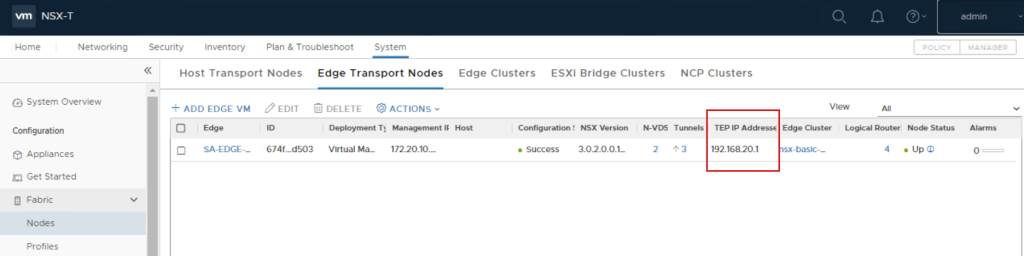
In the Tanzu enabled vSphere compute cluster, SSH into an ESXi host, and ping from the host’s vxlan interface to the edge TEP interface.  This can be found in NSX-T via: System, Fabric and select Nodes, edge transport nodes, and find the edges for Tanzu. The TEP interface IPs will be to the right.  In this lab, I only have the one edge. Production environments will have more.

  • In this example, vxlan was configured on vmk10 and vmk11 on the hosts. Your mileage may vary.
  • We are disabling fragmentation with (-d) so the packet will stay whole. We are using a packet size of 1600
# vmkping -I vmk10 -S vxlan -s 1600 -d <edge_TEP_IP>
# vmkping -I vmk11 -S vxlan -s 1600 -d <edge_TEP_IP>
  • If the ping is unsuccessful, we need to identify the size of the packet that can get through.  Try a packet size of 1572. If unsuccessful try 1500.  If unsuccessful try 1476. If unsuccessful try 1472, etc.

To test farther up the network stack, we can perform a ping something that has a different VLAN, subnet, and is on a routable network.  In this example, the vMotion network is on a different network that is routable. It has a different VLAN, subnet, and gateway.  We can use two ESXi hosts from the Tanzu enabled cluster.

  1. Open SSH sessions to ESXi-01 and ESXi-02.
  2. On ESXi-02, get the PortNum for the vMotion vmk. On the far left you will see the PortNum for the vMotion enabled vmk. Run the following command:
# net-stats -l

3. Run a packet capture on ESXi-02 like so:

# pktcap-uw --switchport <vMotion_vmk_PortNum> --proto 0x01 --dir 2 -o - | tcpdump-uw -enr -

4. On the ESXi-01 session, use the vmkping command to ping the vMotion interface of ESXi-02.  In this example we use a packet size of 1472 because that was the packet size the could get through, and option -d to prevent fragmentation.

# vmkping -I vmk0 -s 1472 -d <ESXi-02_vMotion_IP>

5. On the ESXi-02 session, we should now see six or more entries. Do a CTRL+C to cancel the packet capture.

6. Looking at the packet capture output on ESXi-02, We can see on the request line that ESXi-01 MAC address made a request to ESXi-02 MAC address.

  • On the next line for reply, we might see a new MAC address that is not ESXi-01 or ESXi-02.  If that’s the case, then give this MAC address to the Network team to troubleshoot further.


Testing:

Using the ESXi hosts in the Tanzu enabled vSphere compute cluster, we can ping from the host’s vxlan interface to the edge TEP interface.

  • The edge TEP interface can be found in NSX-T via: System, Fabric and select Nodes, edge transport nodes, and find the edges for Tanzu. The TEP interface IPs will be to the far right.
  • You will need to know what host vmks the vxlan is enabled. In this example we are using vmk10 and vmk11 again.

In this example we are using vmk10 and vmk11 again. We are disabling fragmentation with (-d) so the packet will stay whole. We are using a packet size of 1600. These should now be successful.

The commands will look something like:

# vmkping -I vmk10 -S vxlan -s 1600 -d <edge_TEP_IP>
# vmkping -I vmk11 -S vxlan -s 1600 -d <edge_TEP_IP>

On the ESXi-01 session, use the vmkping command to ping something on a different routable network, so that we can force traffic out of the vSphere environment and be routed. In this example just like before, we will be using the vMotion interface of ESXi-02. Packet size of 1600 should now work. We still use option -d to prevent fragmentation.

# vmkping -I vmk0 -s 1600 -d <ESXi-02_vMotion_IP>

On the developer VM, you should now be able to download the vsphere-plugin.zip from the vSphere with Tanzu landing page with the wget command.

# wget https://<cluster_ip>/wcp/plugin/linux-amd64/vsphere-plugin.zip

With those validations out of the way, you should now be able to carry on with the vSphere with Tanzu deployment.

Configuring vCloud Director 10 Part 2. Adding Provider Virtual Data Center.
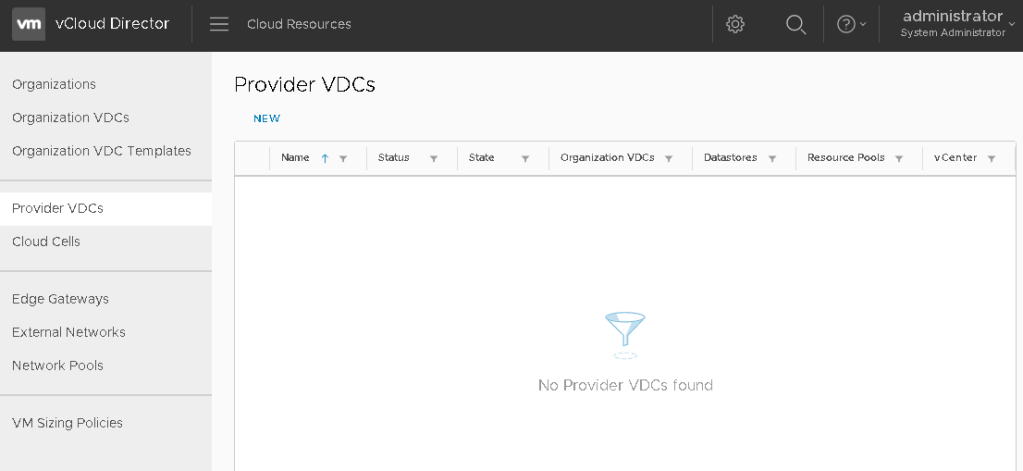
This is a continuation of deploying VMware Cloud Director 10. In my last post, I walked through configuring the vSphere lookup service, and adding the vCenter (here). In this post I’ll go over adding a Provider Virtual Data Center (PVDC).

Adding a PVDC

Log into the vCD provider interface, and switch to the Cloud Resources view by clicking the menu to the right of vCloud Director logo. Select the Provider VDCs option in the menu on the left, and then “NEW” link to begin.

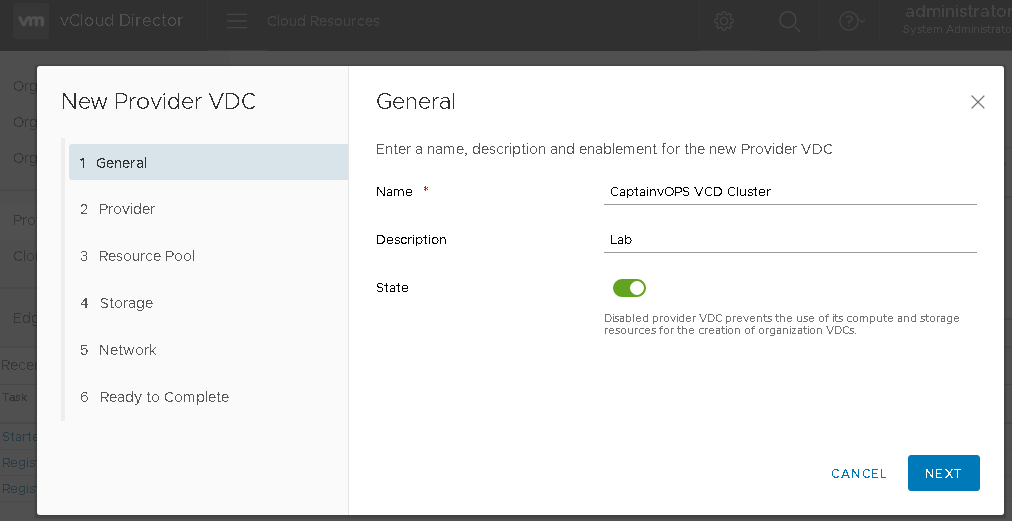
On page 1, you’ll have to fill in some general information about the PVDC. Give it a name and description meaningful to the resources the PVDC will be connected to. In this example, I am connecting to my home lab. Click NEXT.

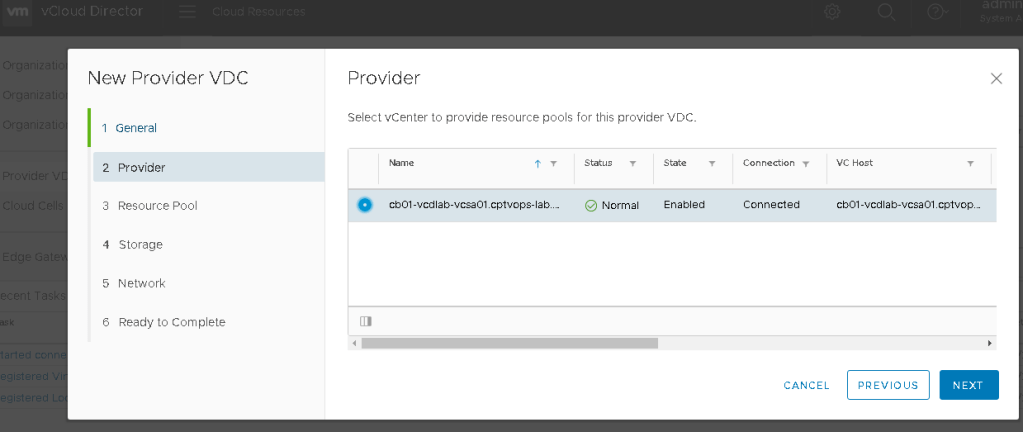
On page 2, select the vCenter and click NEXT.

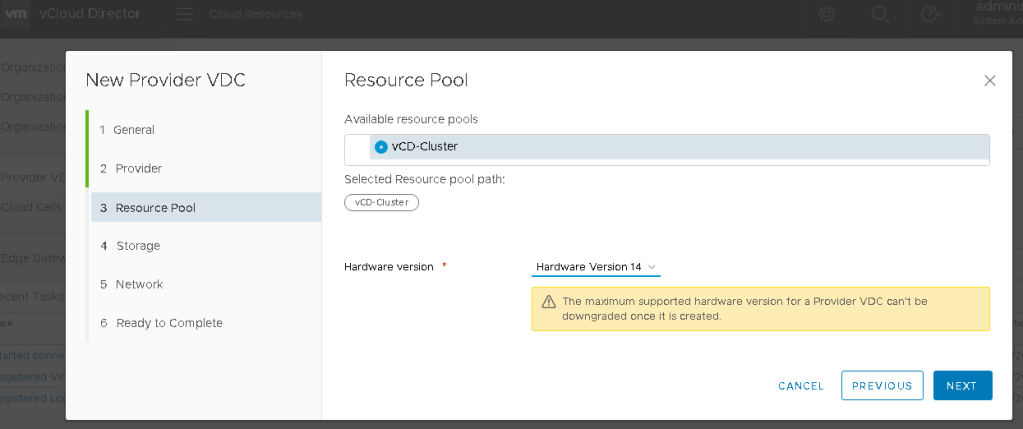
On page 3, you’ll see the available resources. This would be for both compute and storage. In this example I am using a lab, so I only have one available. Hardware compatibility is also configured here for the future tenants deployed to this PVDC. Click NEXT

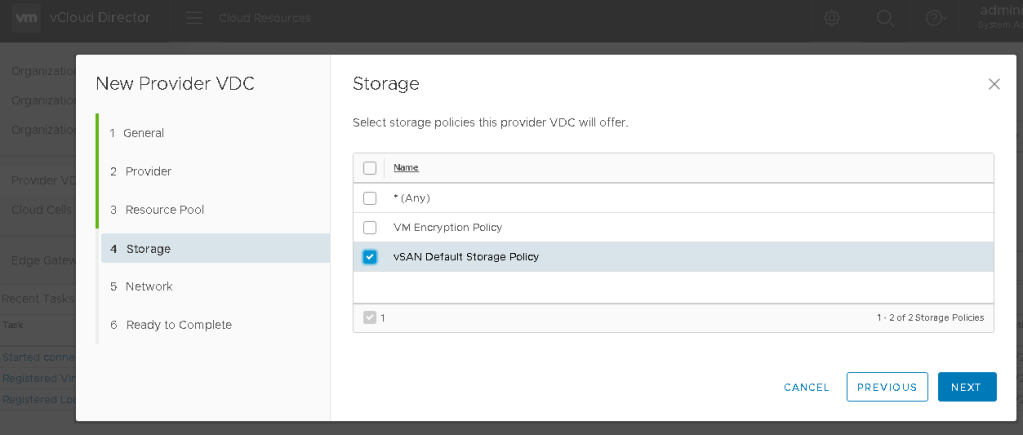
On Page 4, the available storage policies configured in the vCenter that the tenants would use in this PVDC, will be available for selection here. Click NEXT.

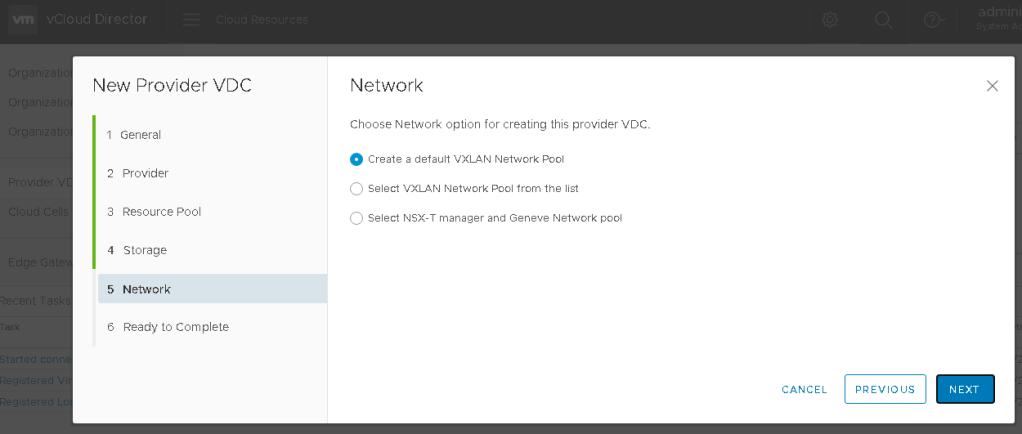
On Page 5, your mileage may vary depending how your environment is configured. In my lab example, I have chosen the default selection. Click NEXT.

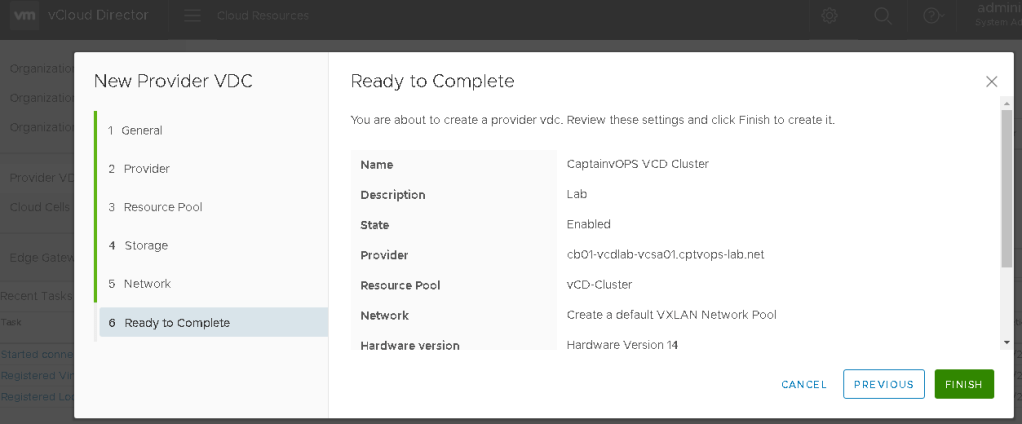
On page 6, you are presented with a confirmation of the selected config. Make any adjustments, and click FINISH.

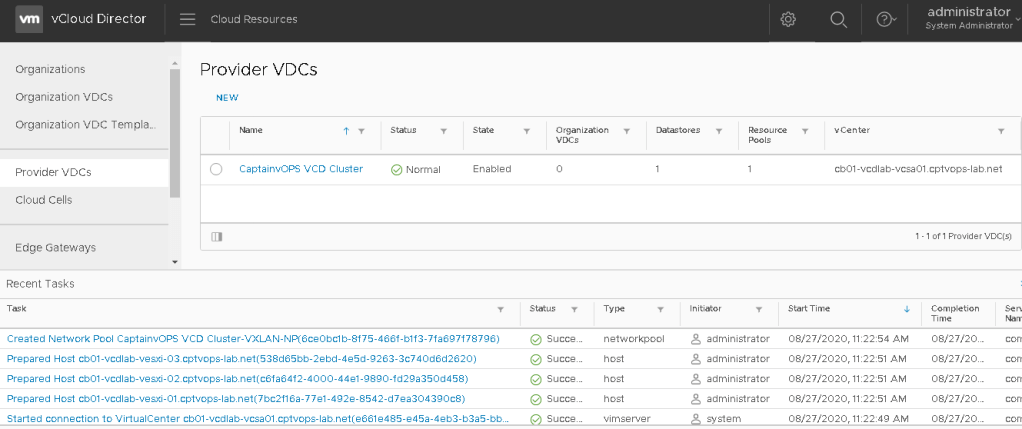
Be patient as it can take some time to build the PVDC. Just monitor the recent tasks for task progress and completion. The end result should show a “Normal” for a status under the configured Provider VDCs.

At this point, the provider side configuration is almost complete. We still need to configure the public facing address. If this were a production deployment, we also find it necessary to configure a VIP/load balancer to place in front of the VCD appliances to handle traffic load. For production deployments there would also be the need to setup signed certificates for the appliances.

In my next blog I’ll go over configuring the public address.

VMworld General Session, Day 2, Tuesday August 27th, 2019: VMware Tanzu demos, and new CTO announcement!

Day 3 of VMworld 2019 in San Francisco is underway, and it is the second day of General sessions. Clearly today’s theme is Kubernetes, and VMware’s Ray O’Farrell kicked off the keynote by talking about VMware Tanzu and Tanzu’s mission control.

The Keynote then included the integration of NSX-T with Tanzu. The ability to test changes, to see the impact on the environment before going live, was truly amazing

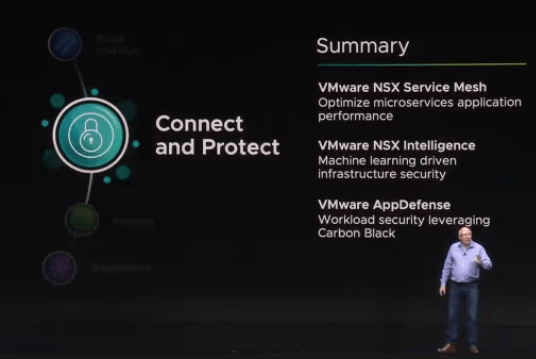
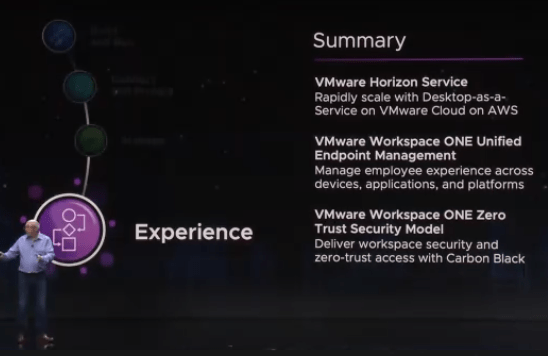
There was also an interesting demo with VMware Horizon and Workspace ONE, showcasing the usage deploying work spaces rapidly from the cloud, and creating zero-trust security policy withing workspace ONE with Carbon Black

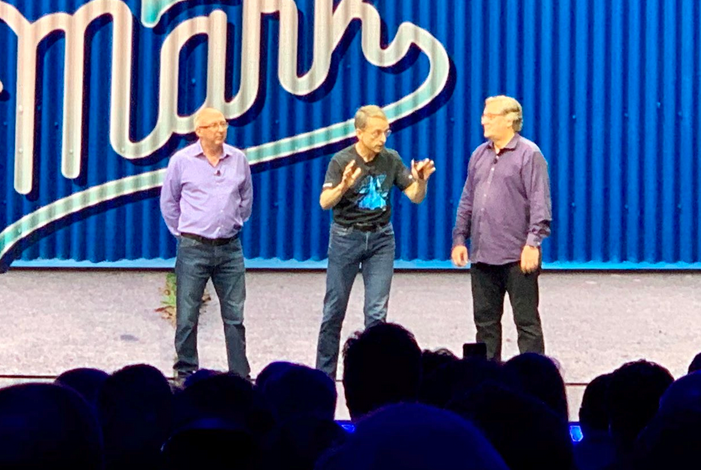
Pat jumped up on stage to announce that Ray O’Ferrell (@ray_ofarrell) would be leading VMware’s cloud native apps division, and Greg Lavender (@GregL_VMware) was named the New CTO of VMware.

VMware also announced a limited edition t-shirt that would be given away later that day. VMware had roughly 1000 of these shirts made up, and luckily I was able to get a shirt before they ran out.

Plenty of people were upset about not getting a shirt due to the limited run. Gives a whole new meaning to nerd rage…. (sorry I couldn’t help myself).

VMworld General Session, Day 1, Monday August 26th, 2019: VMware Tanzu, and Project Pacific.

The start of VMworld 2019 in San Francisco is underway, and Pat kicked off the general session talking about his excitement for being back in San Francisco, while poking fun at us “Vegas lovers”. Pat also talked about technology, our digital lives, and technologies role being a force for good. He talked about charities, and cancer research foundations.

Pat Then talked about The Law of Unintended Consequences, and how technology has advanced, we as a society have given up certain aspects of Privacy, the need to combat disinformation at scale available widely on the social media platforms.

Surprisingly, according to Pat, Bitcoin is Bad and contributes to the climate crisis.

First Major Announcement with Kubernetes, as VMware has been focussing on containers

Pat then announced the creation of VMware Tanzu, which is the initiative to have a common platform that allows developers to build modern apps, run enterprise Kubernetes, and platform to manage Kubernetes for developers and IT..

Second Major Announcement, Project Pacific. An ambitious project to unite vSphere and Kubernetes for the future of modern IT

Interestingly, Project Pacific was announced to be 30% faster than a traditional Linux VM, and 8% faster than solutions running on bare metal.

Project Pacific brings Kubernetes to the VMware Community, and will be offered by 20K+ Partner resellers, 4K+ Service providers and 1,100+ technology partners.

Tanzu also comes with mission control, a centralized tool allowing IT Operations to manage Kubernetes for developers and IT.

First Time Speaking At The St. Louis VMUG UserCon

Blog Date: July 21, 2012

The VMUG leadership invited me to speak at the St. Louis VMUG Usercon on April 18, 2019, and share my presentation on How VMware Home Labs Can Improve Your Professional Growth and Career.

This would be my second time giving a public presentation, but I left The Denver VMUG UserCon with a certain charge, or a spring in my step as it were. I didn’t have a lot of time to prepare or to change up my presentation, remembering that I have a PSO customer that I need to take care of. I arrived a day early for the speaker dinner that was being put on by the St. Louis VMUG leadership.

Prior to the dinner, I was able to explore the historical, and picturesque city of St. Charles.

The next day, we all converged on the convention center for the St. Louis UserCon. This way to success!

Seeing your name as a speaker amongst a list of people you’ve looked forward to meeting, have met, or follow on social media, certainly is humbling.

This time, my session was in the afternoon, so in true fashion of many public speakers in the #vCommunity, I had all day to make tweaks. I was also able to join a few sessions. Finally found my room in the maze of this convention center and got setup.

The ninja, and co-leader of the St. Louis UserCon, Jonathan Stewart (@virtuallyanadmi), managed to take a picture of me giving my presentation.

A special thank you to the St. Louis VMUG leadership team, who invited me out to meet and share with their community: Marc Crawford (@uber_tech_geek), Jonathan Stewart (@virtuallyanadmi) and Mike Masters (@vMikeMast)